


Add validation on your first form
Validation identifies incomplete or invalid data before submission. For an individual field, add rules on the Rules tab.
Before you begin
- Add fields to your form with at least one field selected.
Select the field
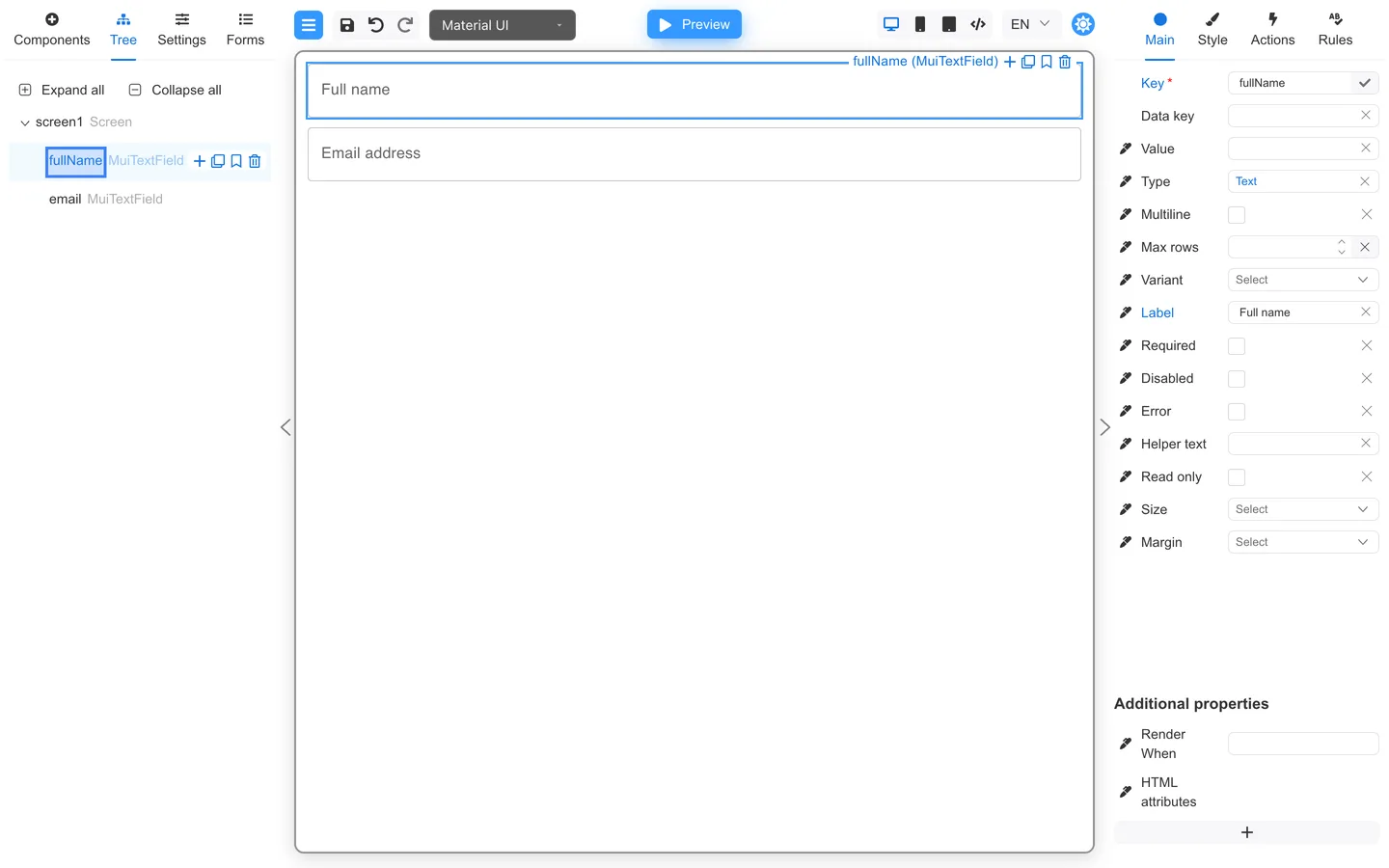
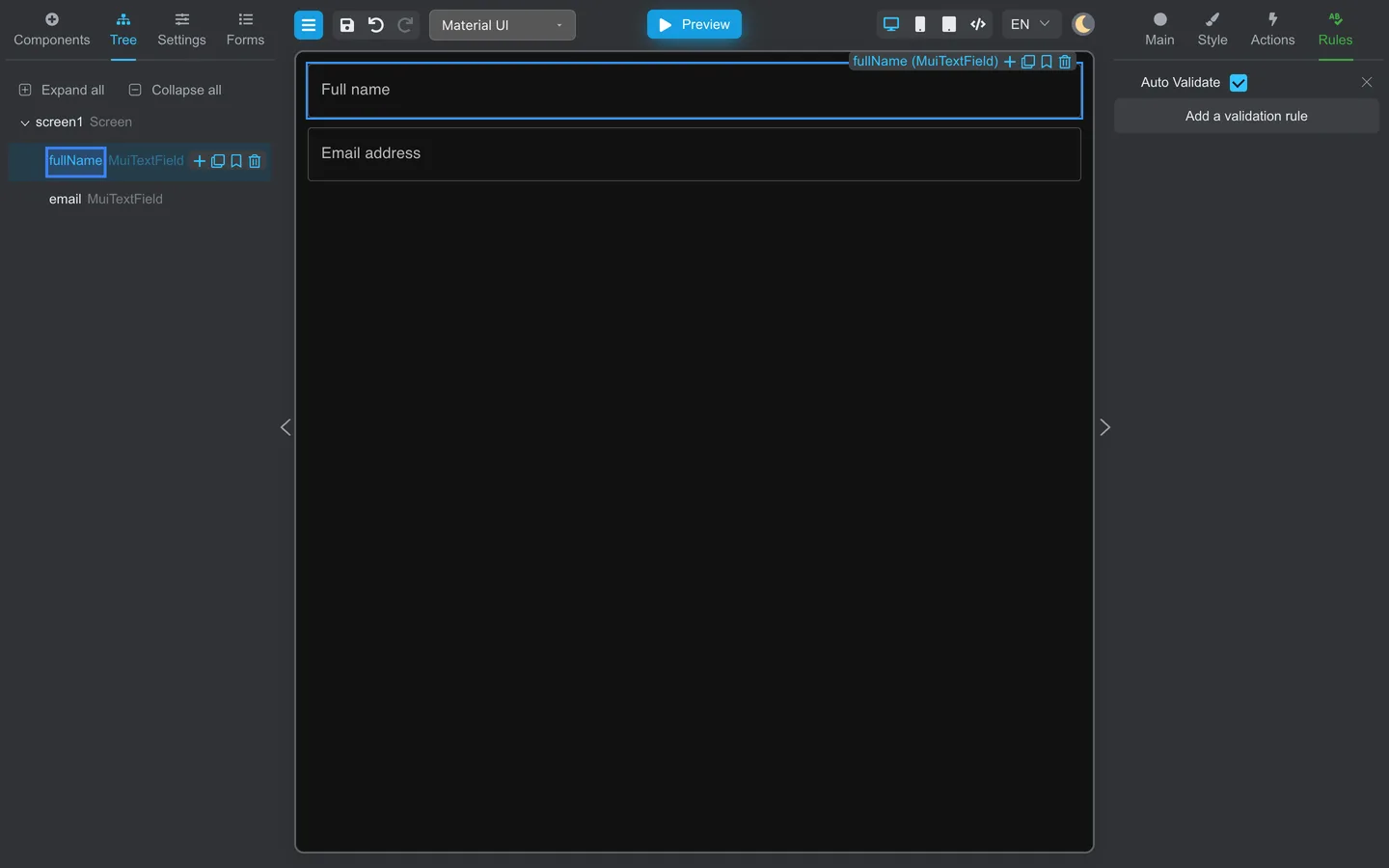
- Open the Tree tab.
- Click Expand all if needed.
- Click the Text field you want to validate (for example
fullName, labeled Full name on the canvas).
Open Rules
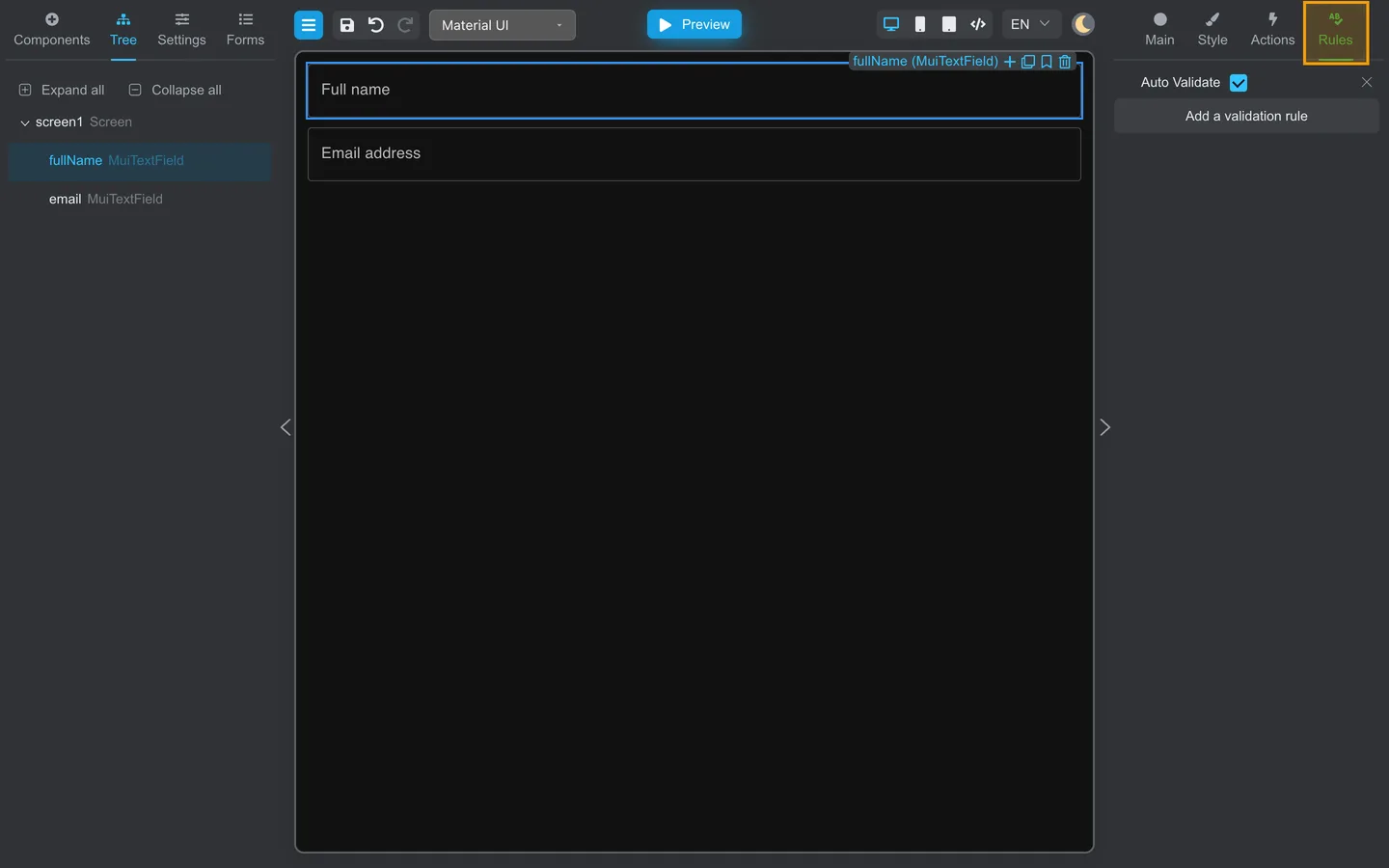
- On the right, click Rules.
- Review Auto Validate (validates as the user types).
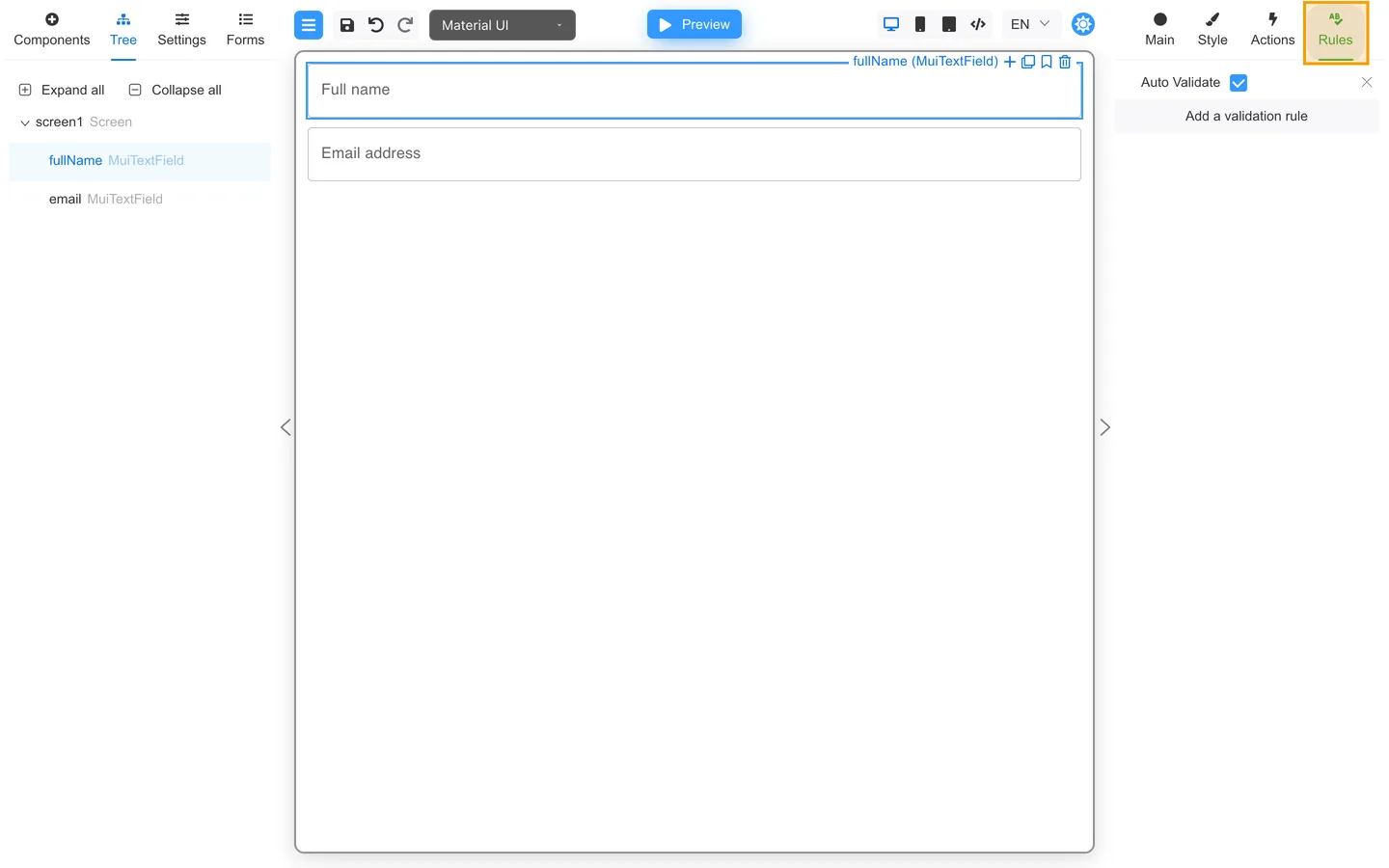
Add a validation rule
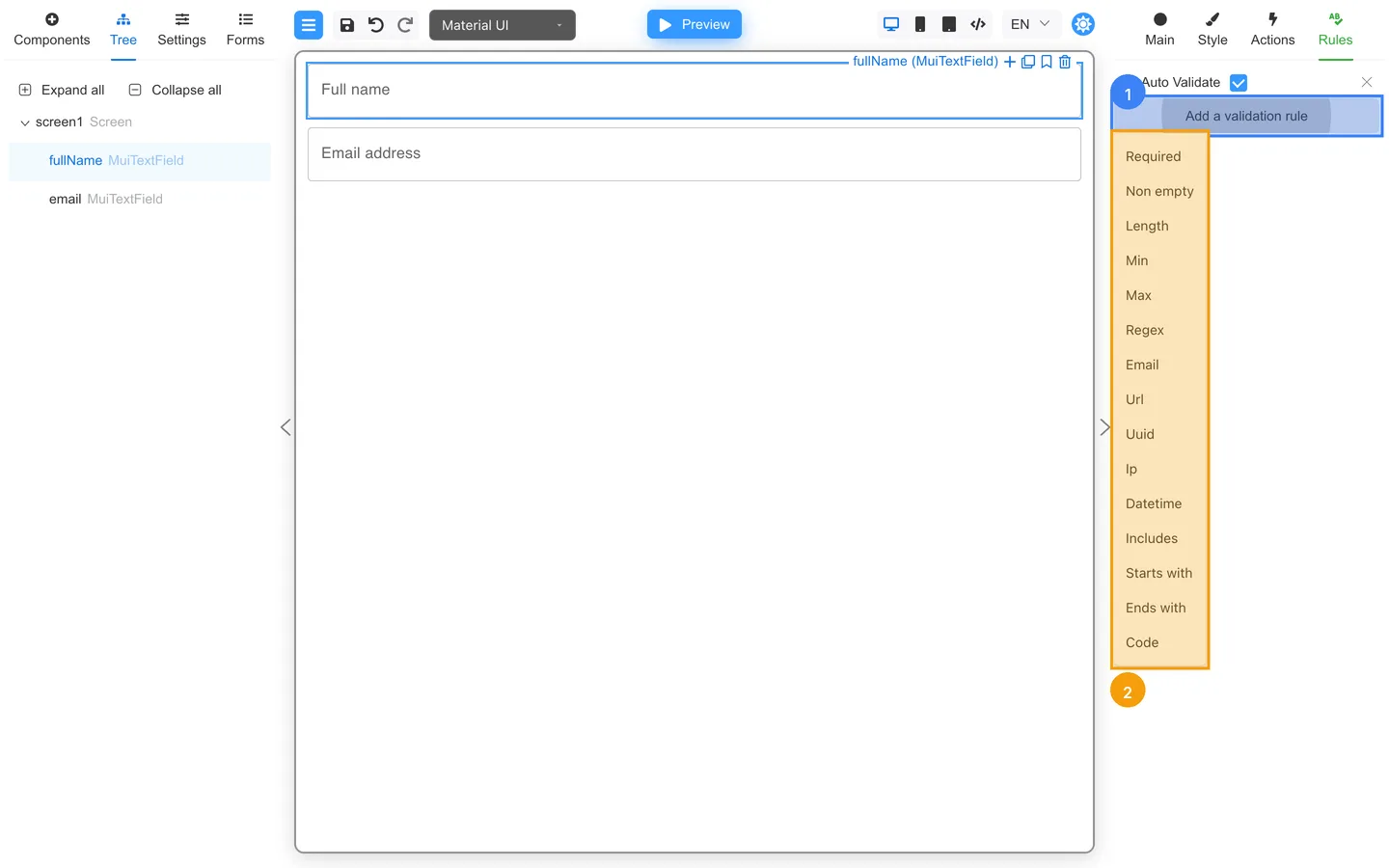
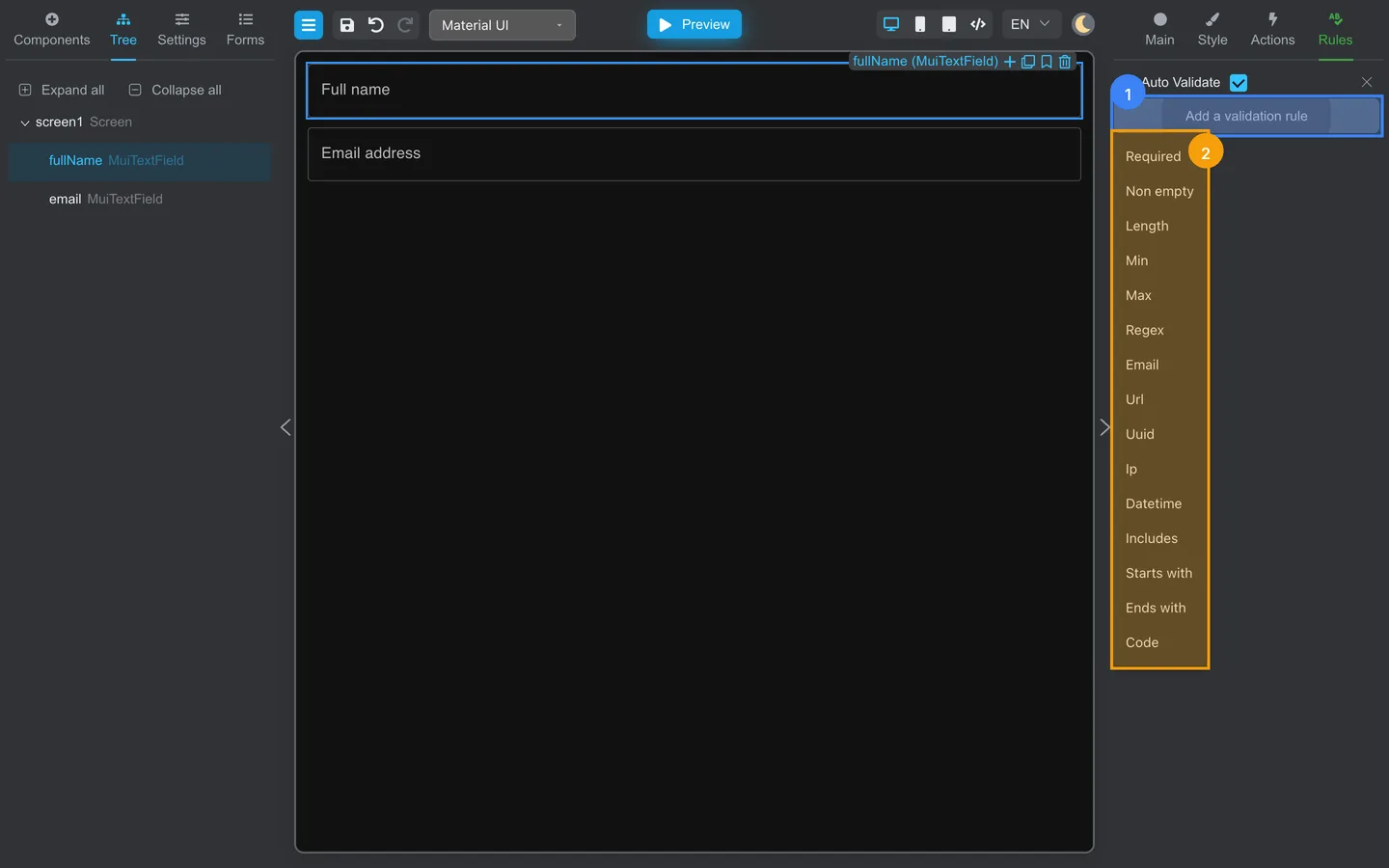
- Click Add a validation rule.
- Choose Non empty or Required from the list.
- Adjust the rule message if the editor offers a Message field.
The exact rule names appear in a dropdown. Non empty means the field cannot be blank.
Test in Preview
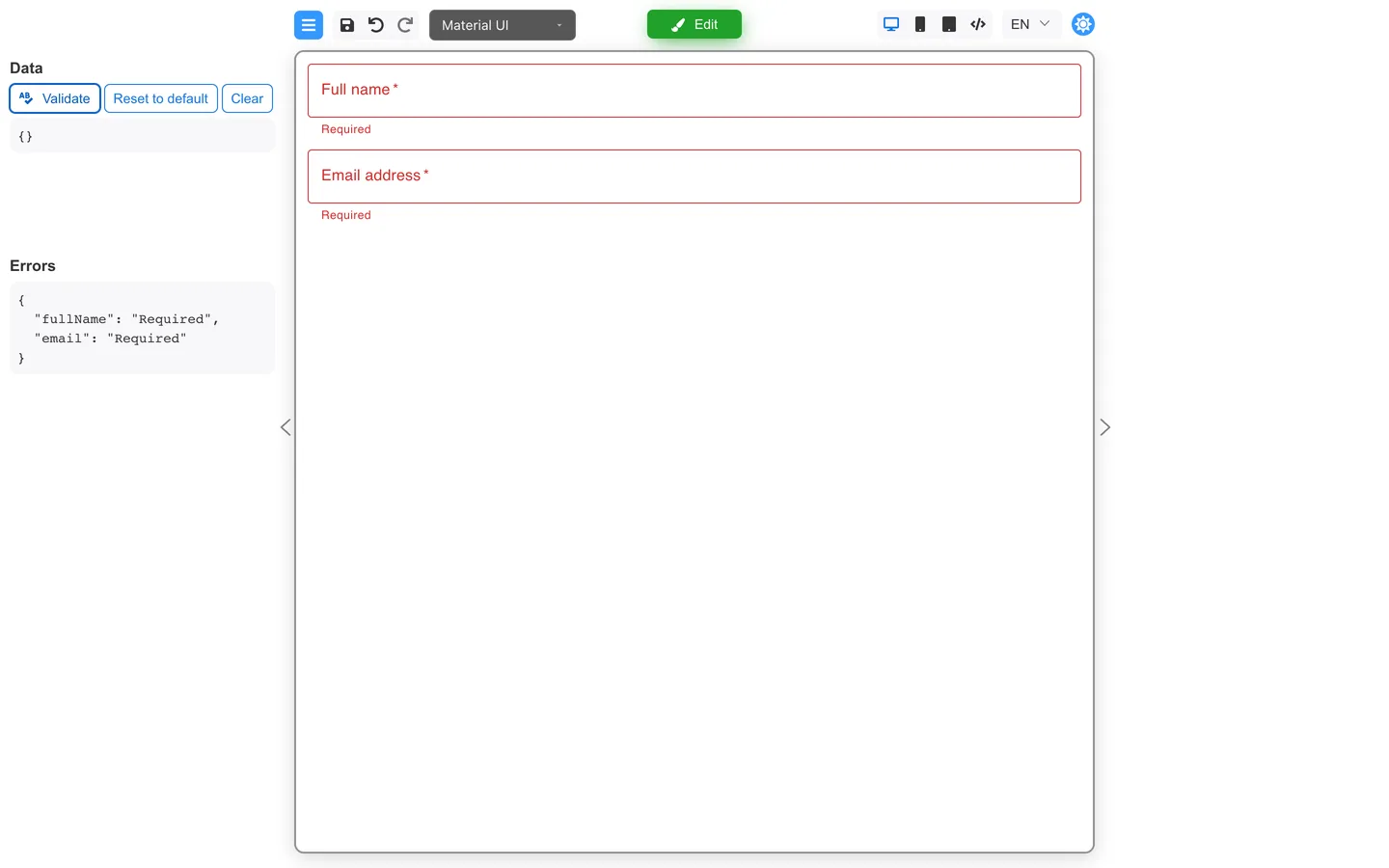
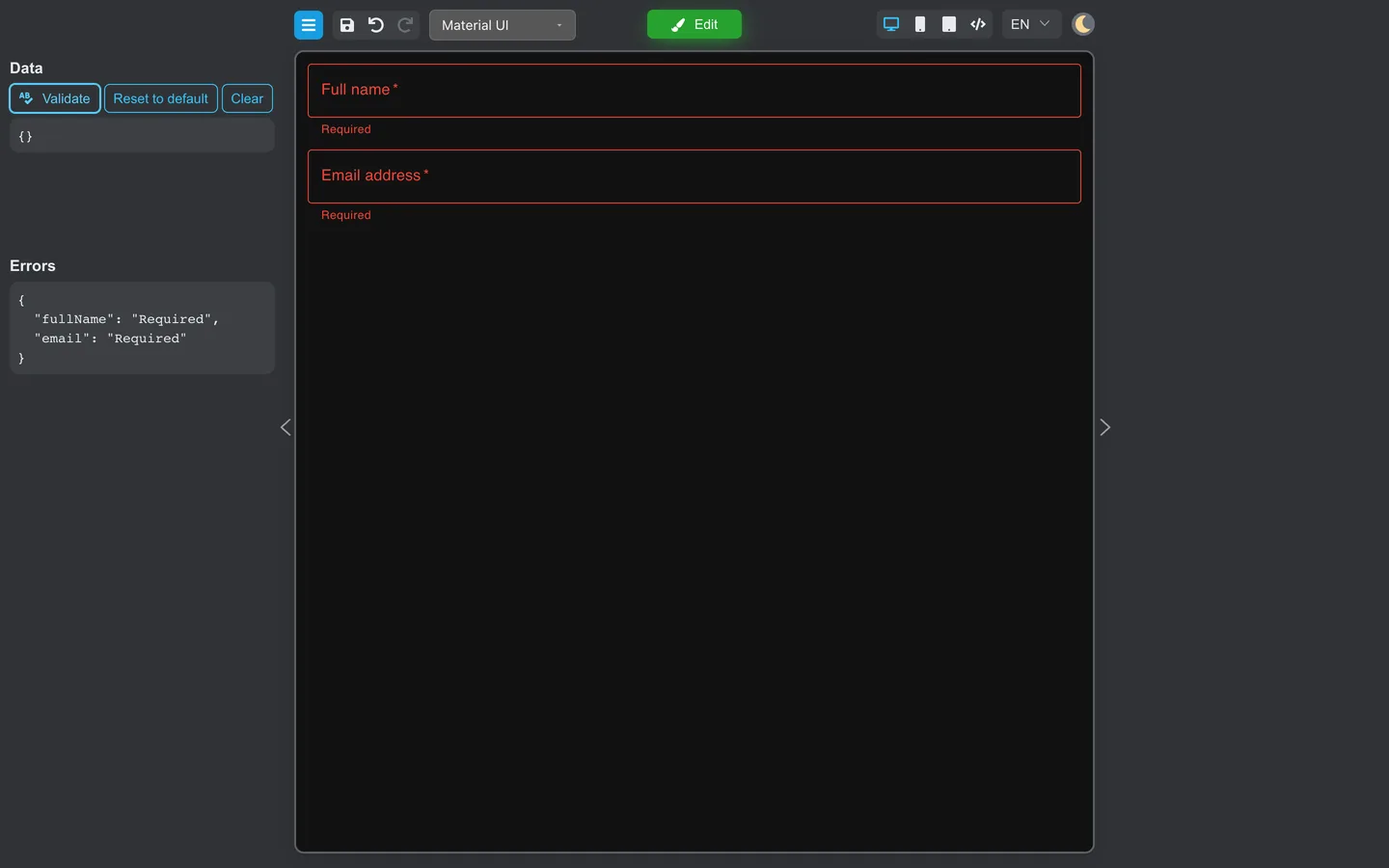
- Click Preview in the header.
- Leave the field empty and trigger validation (tab out or use Validate in the left panel).
- Confirm an error message appears.
- Click Edit to continue designing.
Check the result
- The field shows as required on the canvas (often an asterisk).
- Preview displays an error when the rule fails.
Summary
Select a field → Rules → Add a validation rule. Non empty and required rules mark blank values as invalid. Preview shows the message users will see.