


Duplicate and rename forms
Copying a form saves time when you need a variant, such as registration v2 or a localized copy. Use Save as… when storage is enabled, or create a new stored form and load a downloaded JSON copy into it.
Save as
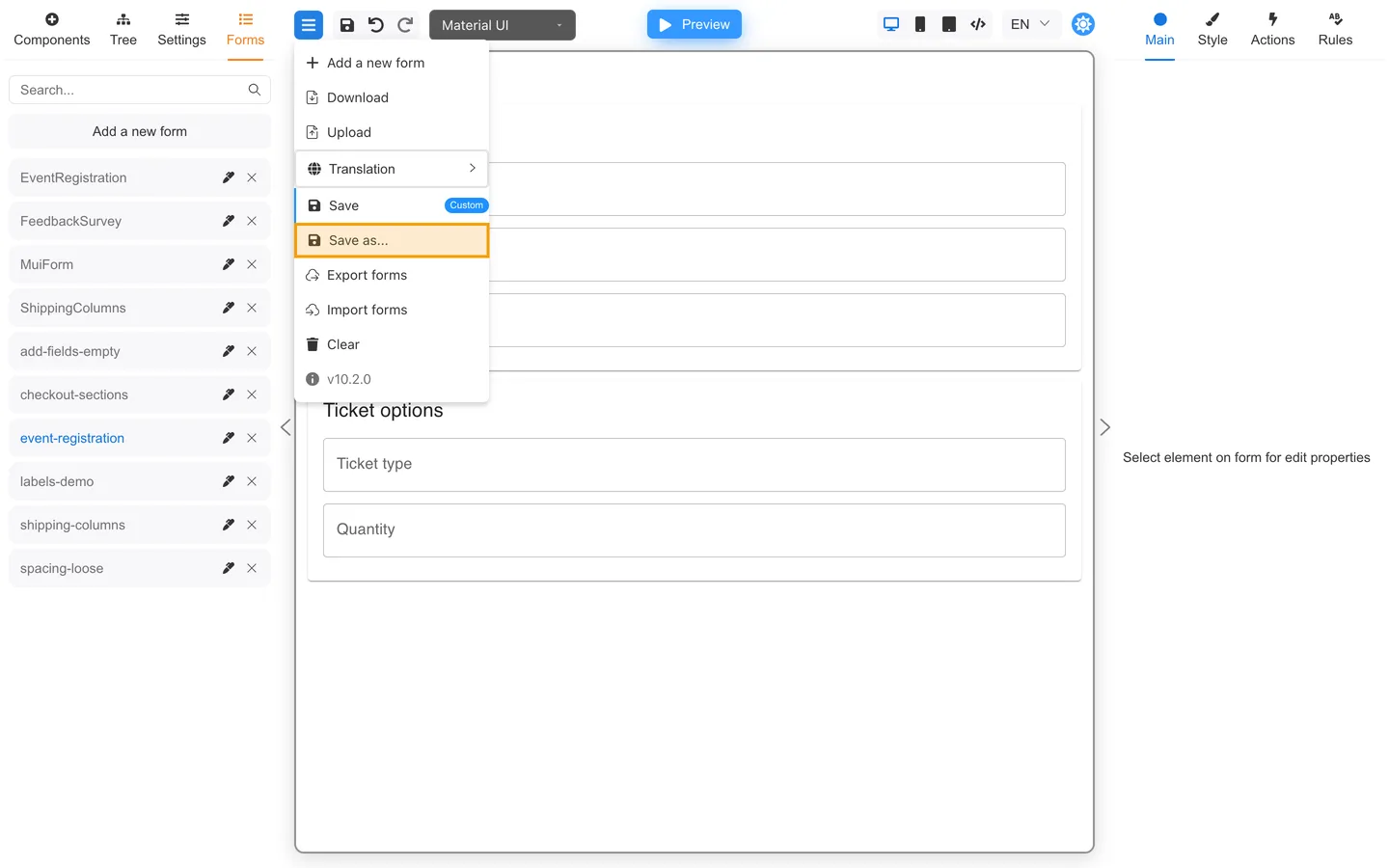
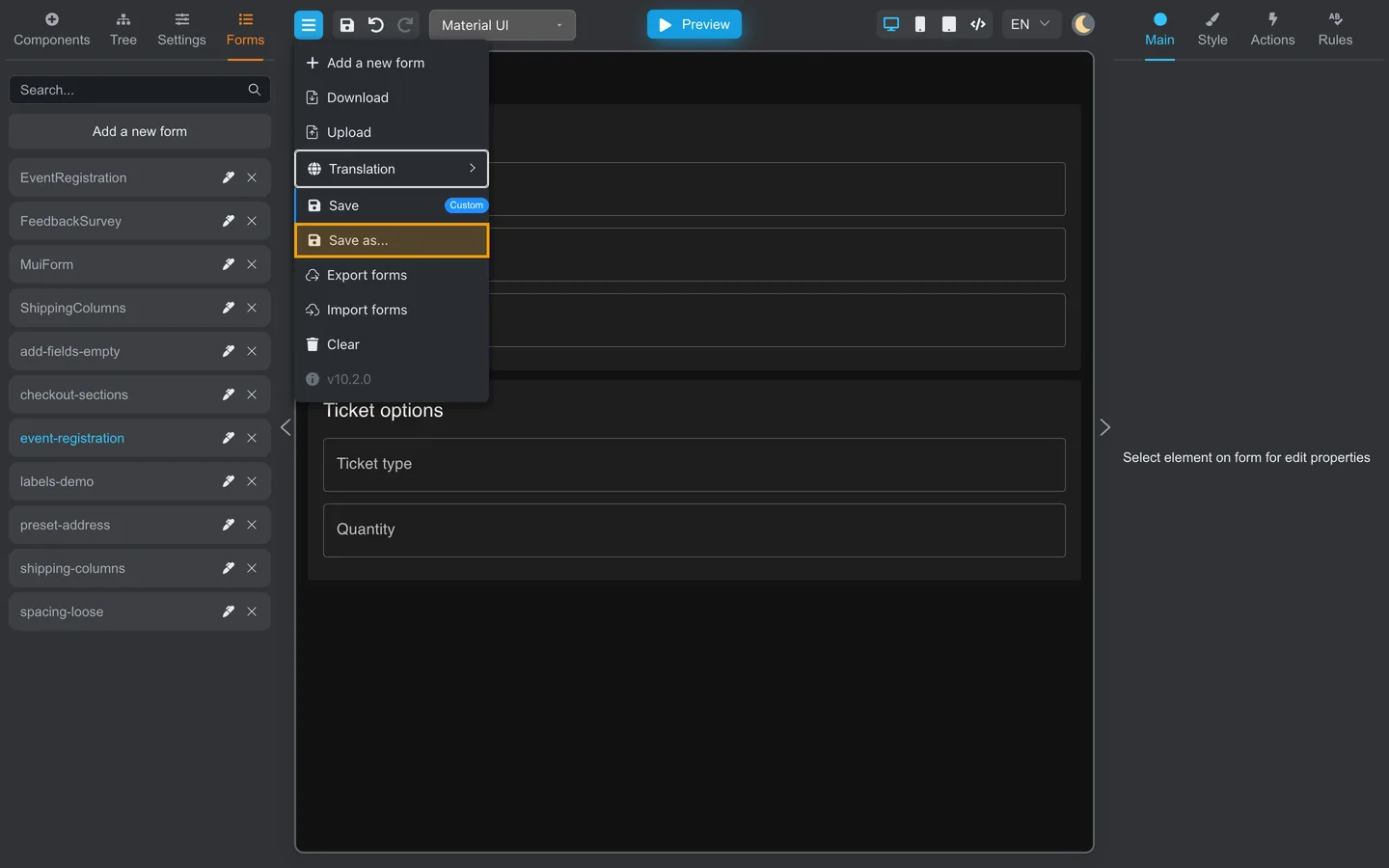
- Open Menu.
- Choose Save as….
- Enter a new name.
- Confirm the new form appears on the Forms tab.
Copy via file
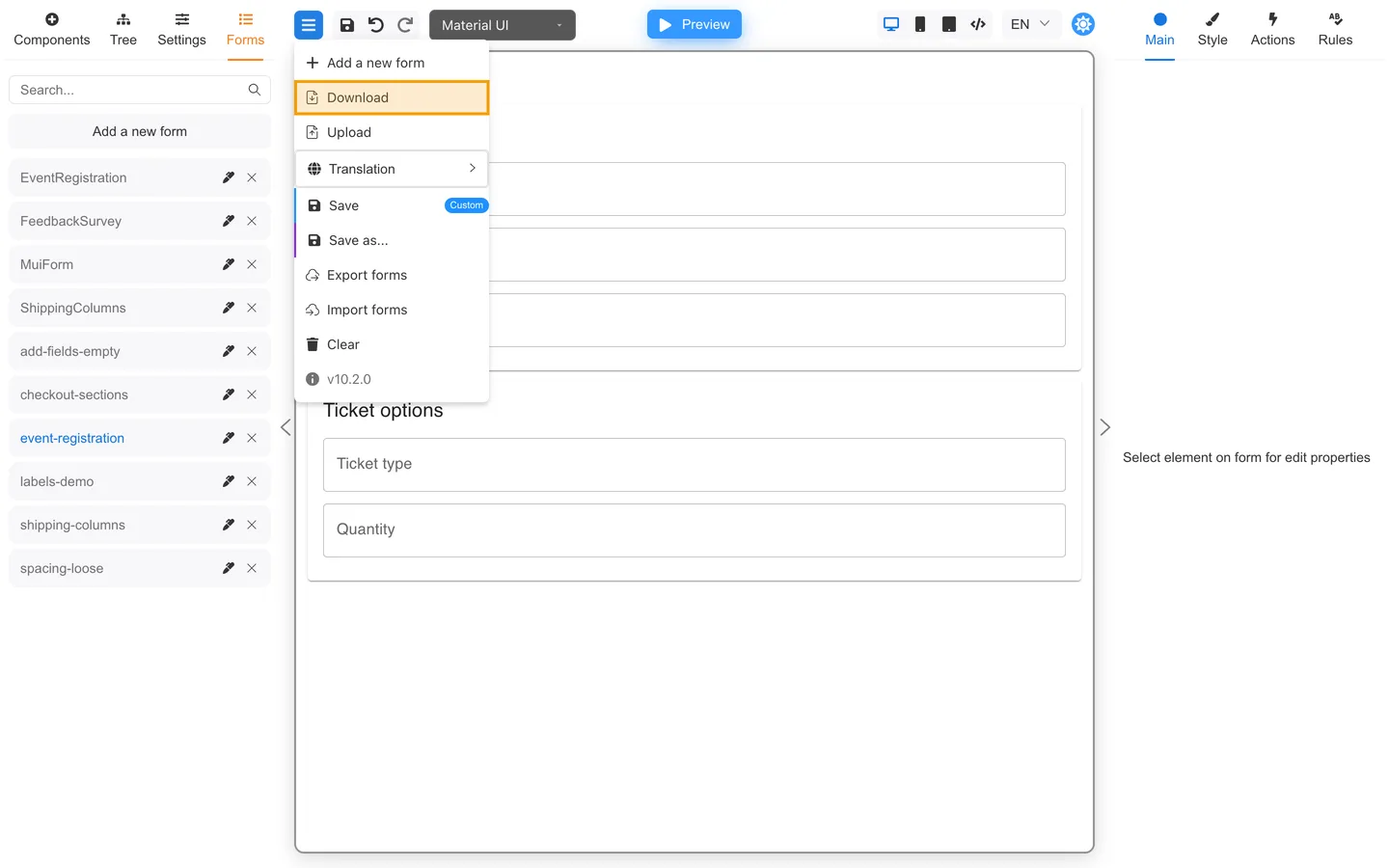
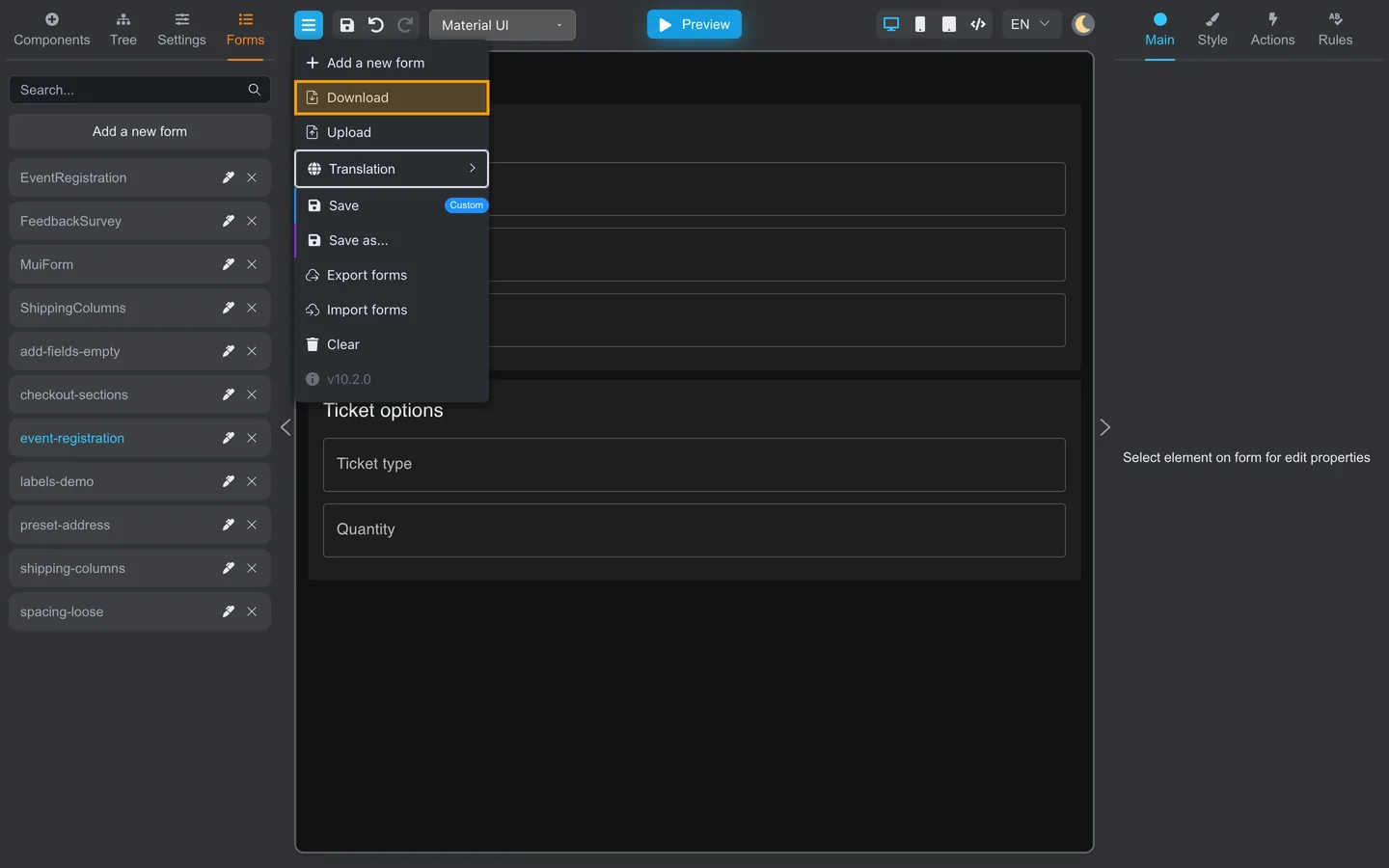
- Menu → Download (current form JSON).
- Menu → Add a new form.
- Enter the name for the copy and wait for the empty form to open.
- Menu → Upload, then select the downloaded JSON file.
- Review the uploaded copy on the canvas.
- Menu → Save.
- Confirm the copy appears under the new name in Forms.
Changing a visible heading on Main changes only the content on the canvas. It does not rename the stored item in Forms. Use Add a new form or Save as… to set the storage name.
Naming tips
- Include version or locale (
contact-form-en,contact-form-de) - Avoid special characters your storage rejects
Summary
Save as… duplicates directly in storage. For a file copy, use Download → Add a new form → Upload → Save. Use clear names on the Forms tab.