


Work with multiple forms
The Forms tab lists forms available through the configured storage. You can search, open, create, and remove forms without exporting files.
Open the Forms tab
- Click Forms on the left (fourth tab after Components, Tree, Settings).
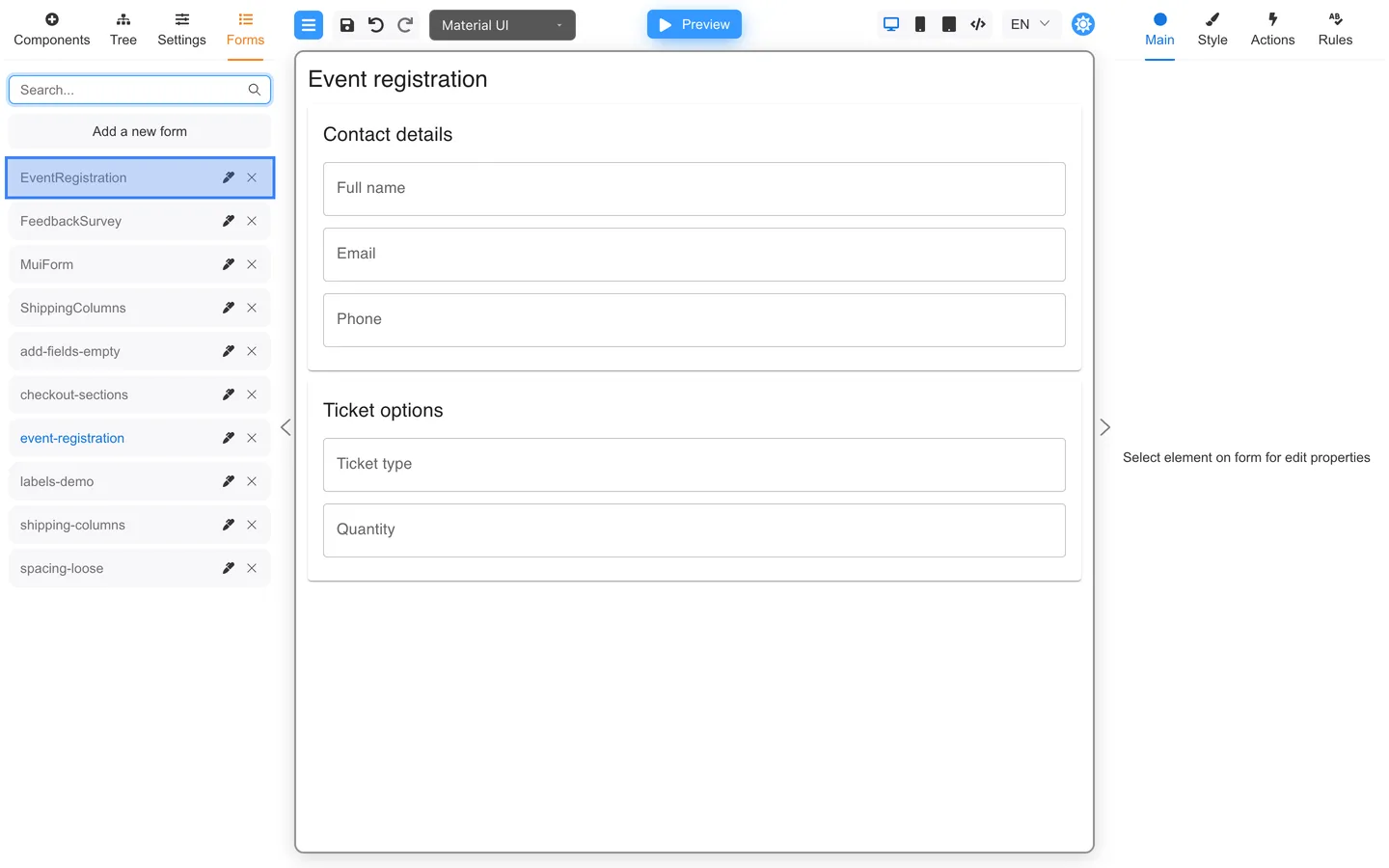
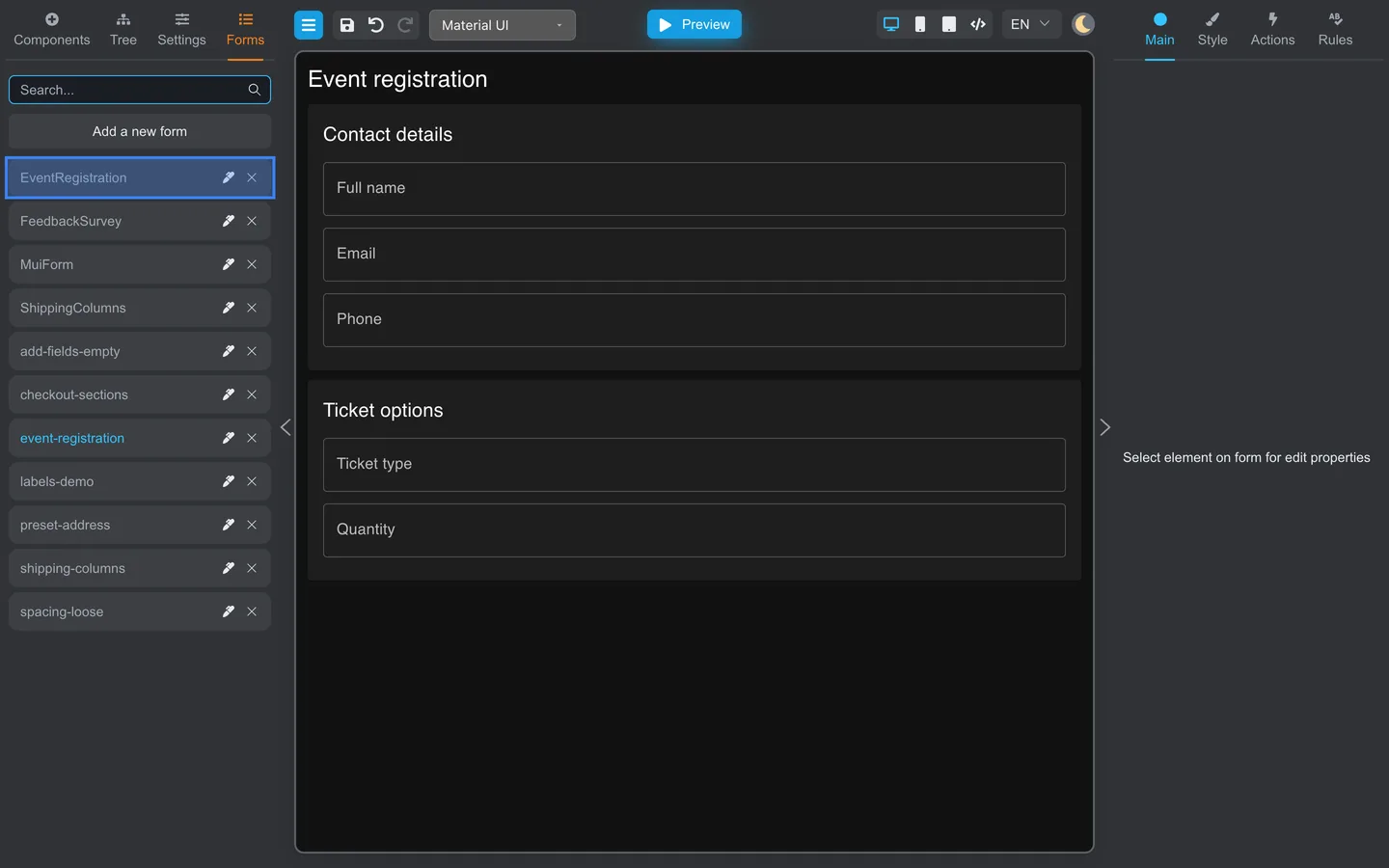
- If the list is empty, save the current form first. The message reads: Save the form so that it appears in the list of forms.
Search
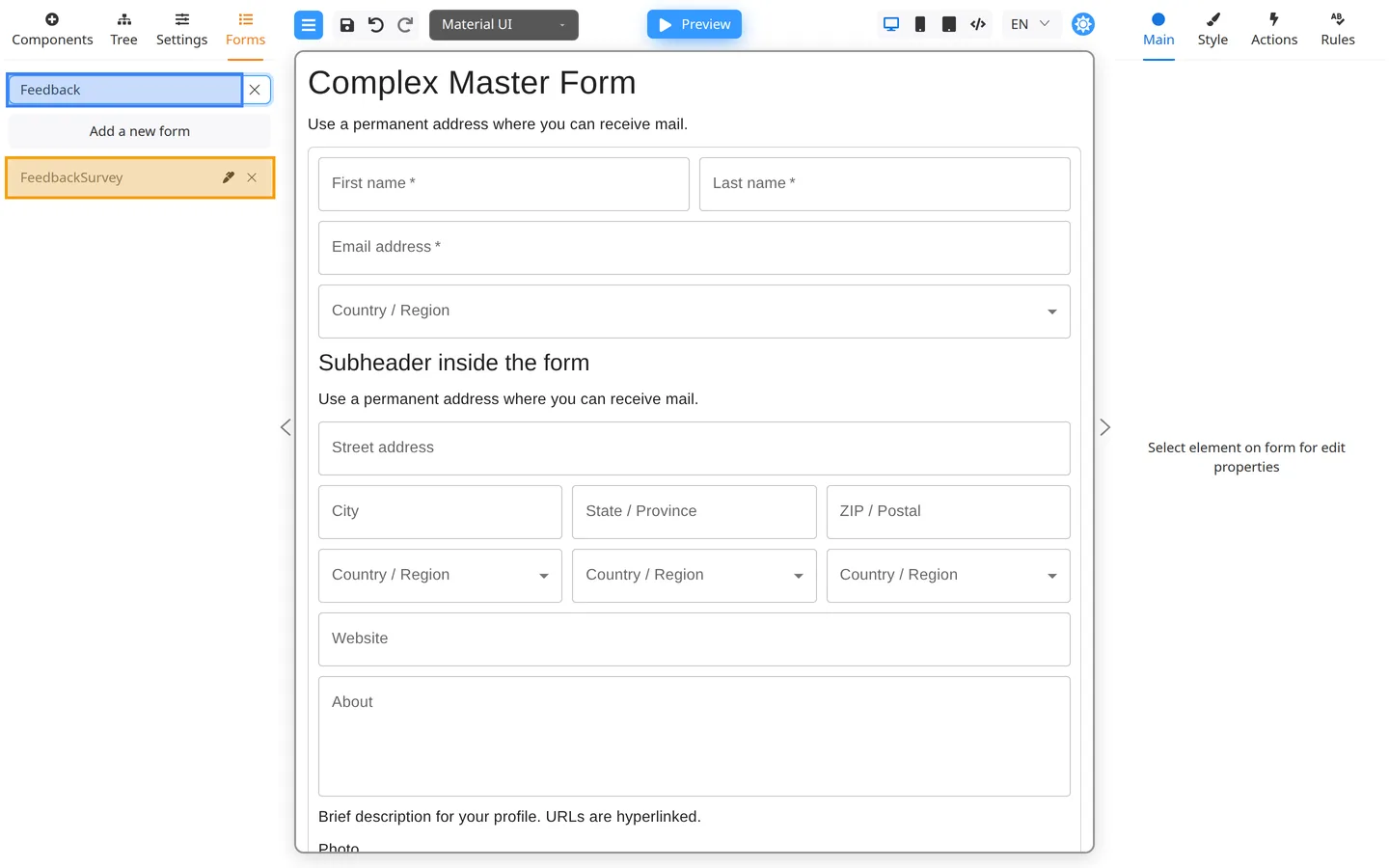
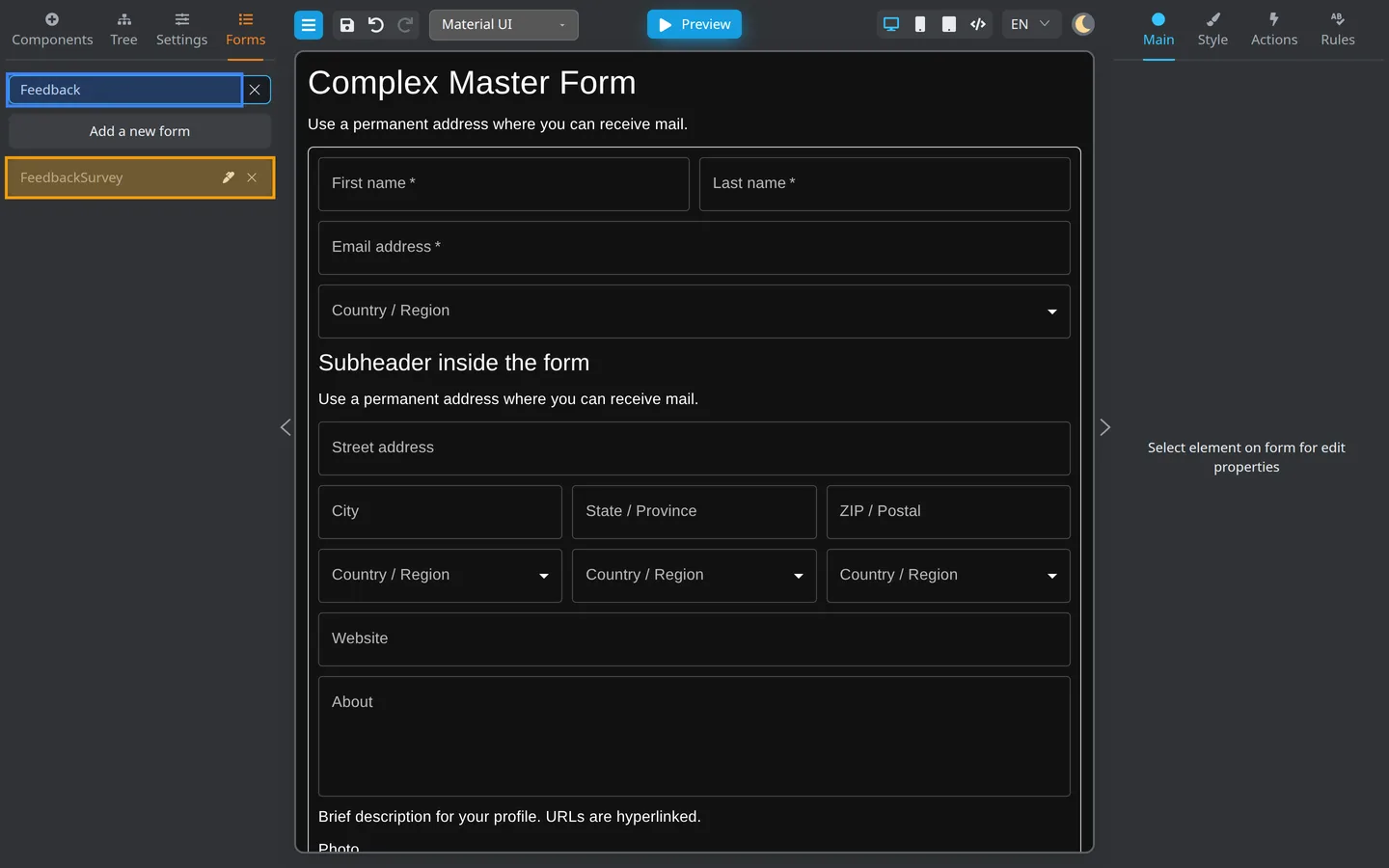
- Type in Search… at the top of the tab.
- The list filters by form name.
Open another form
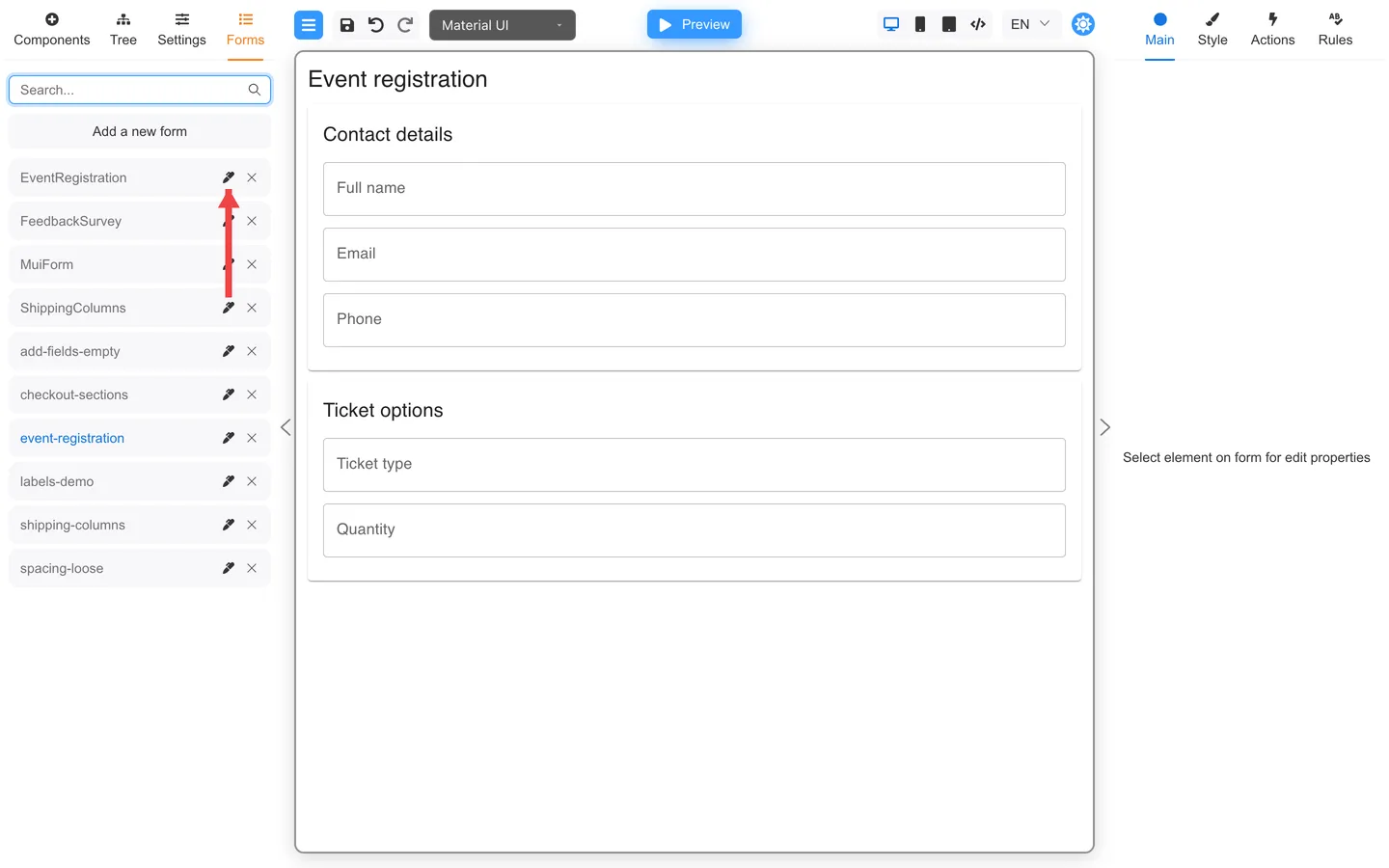
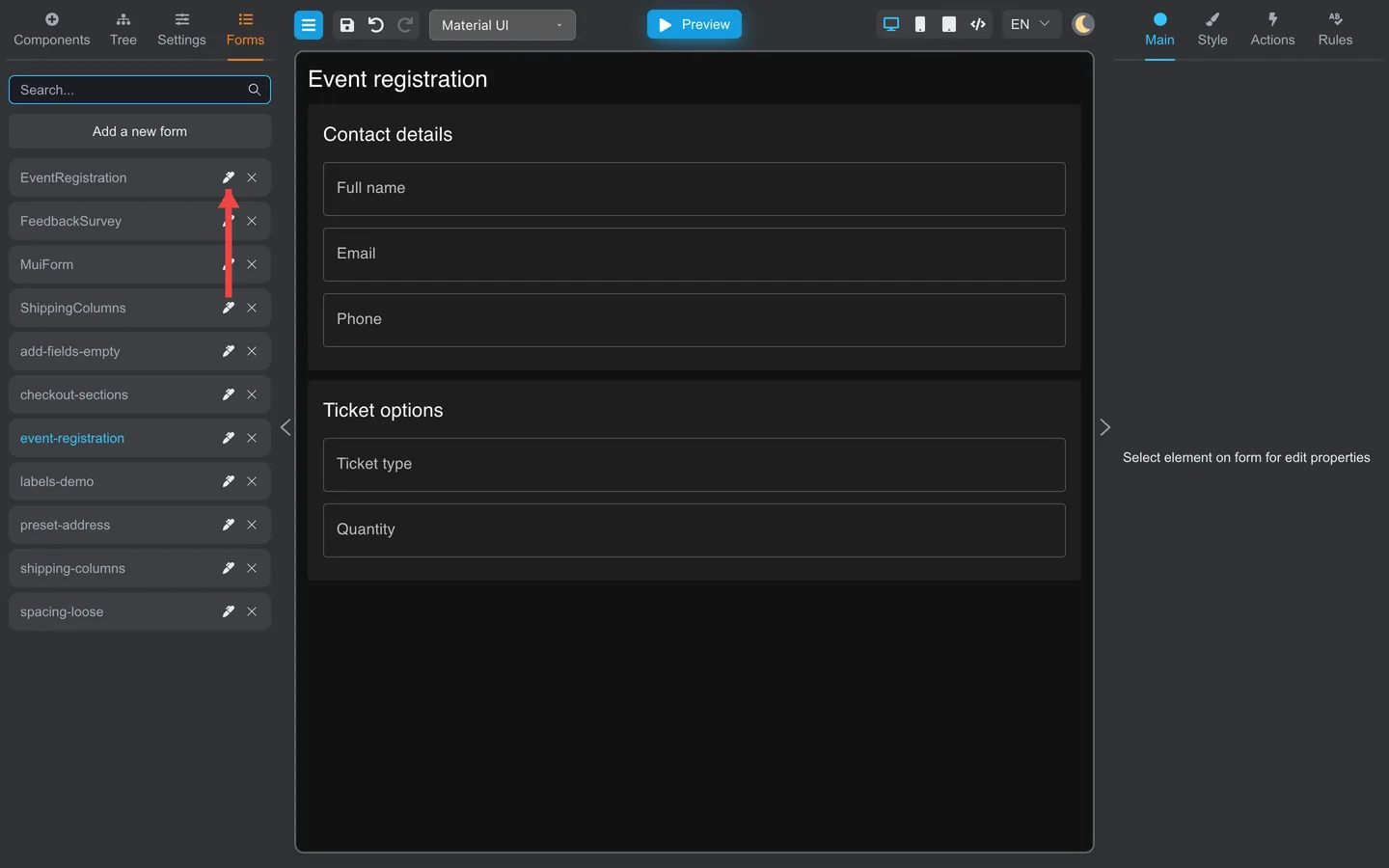
- Find the form name in the list.
- Click the Edit (pencil) control on that row.
- The canvas loads that form. The active name is highlighted.
Add a new form
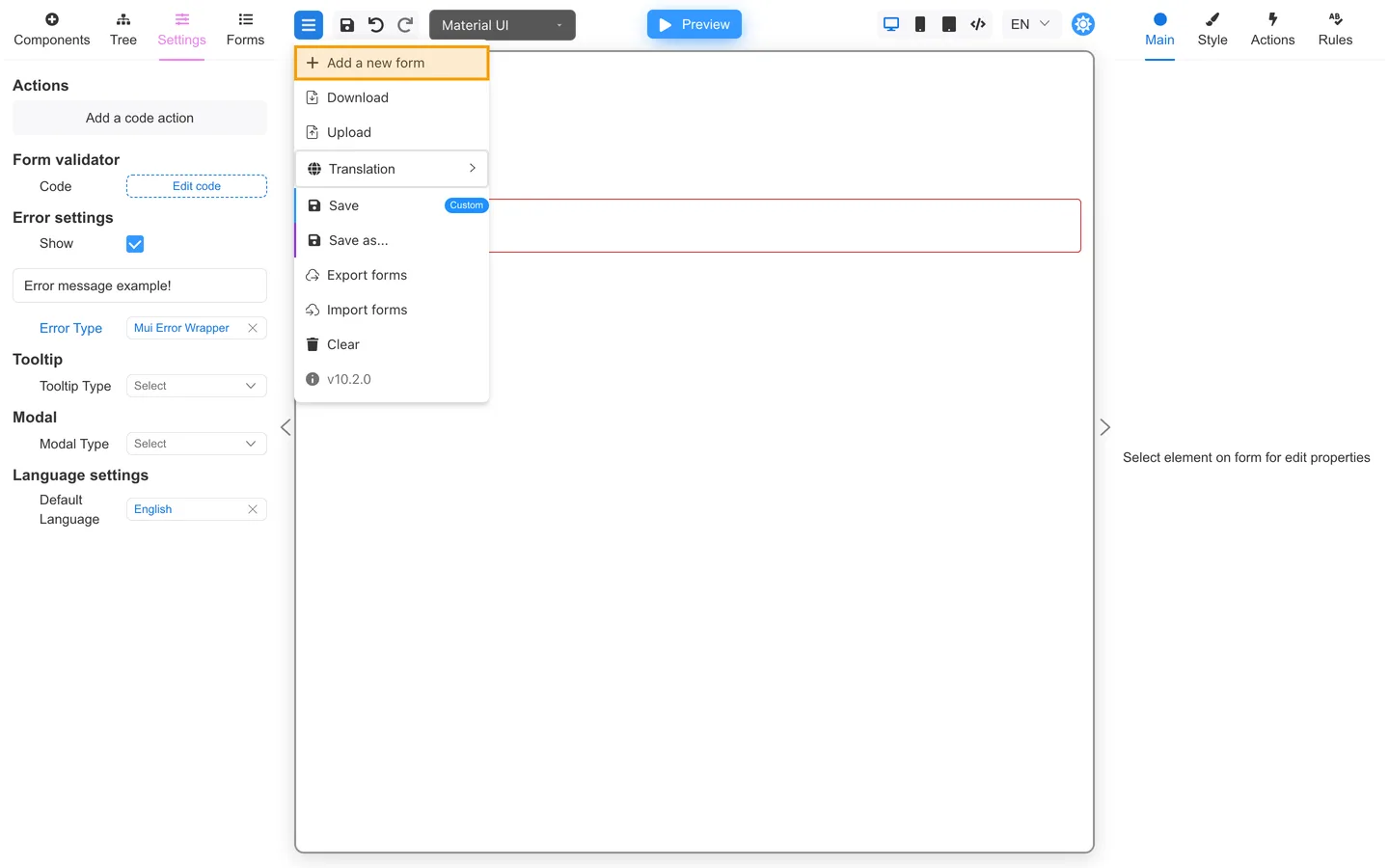
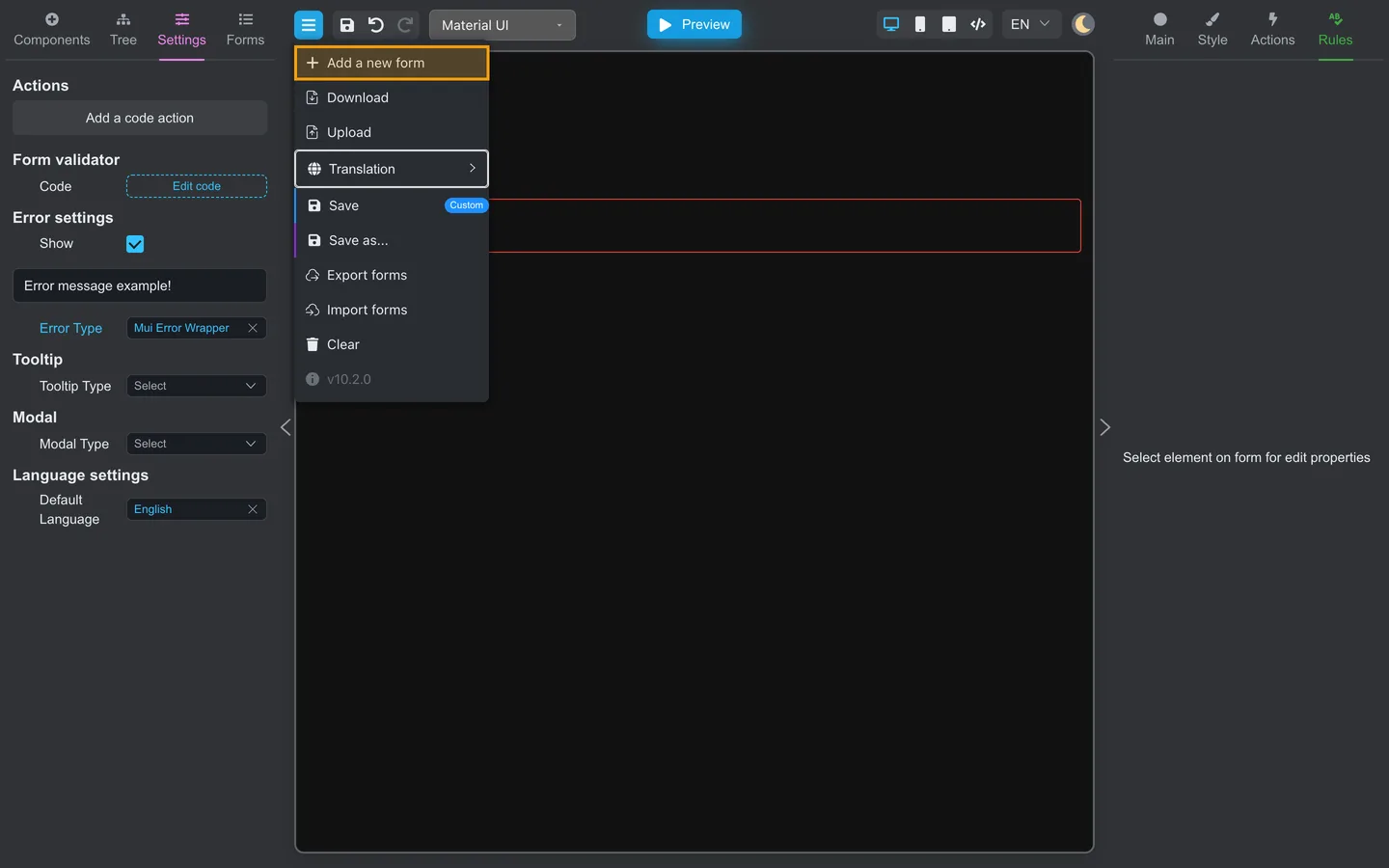
- Click Add a new form on the Forms tab or in the header Menu.
- Enter a name when prompted.
- Build on the empty canvas.
Remove a form
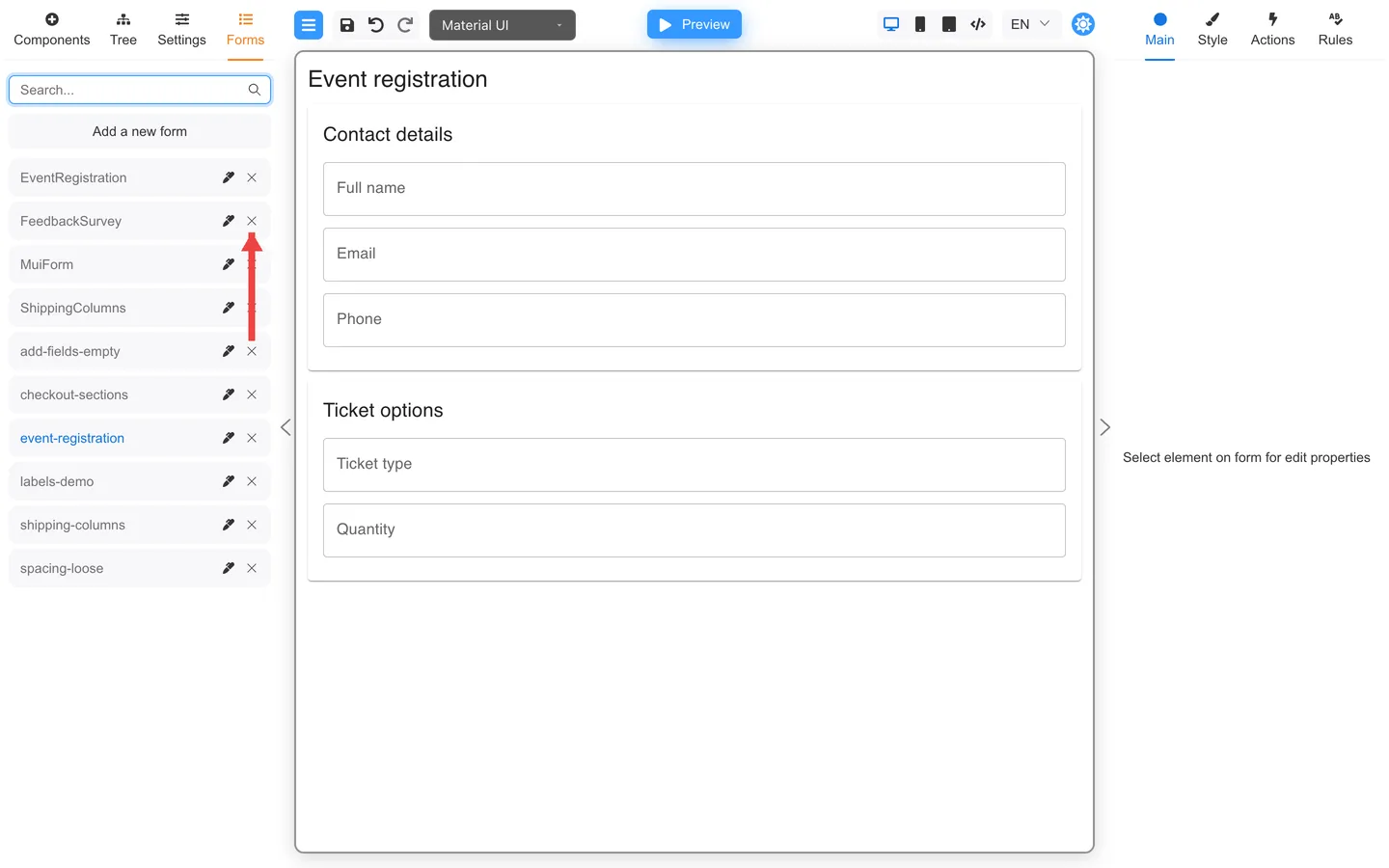
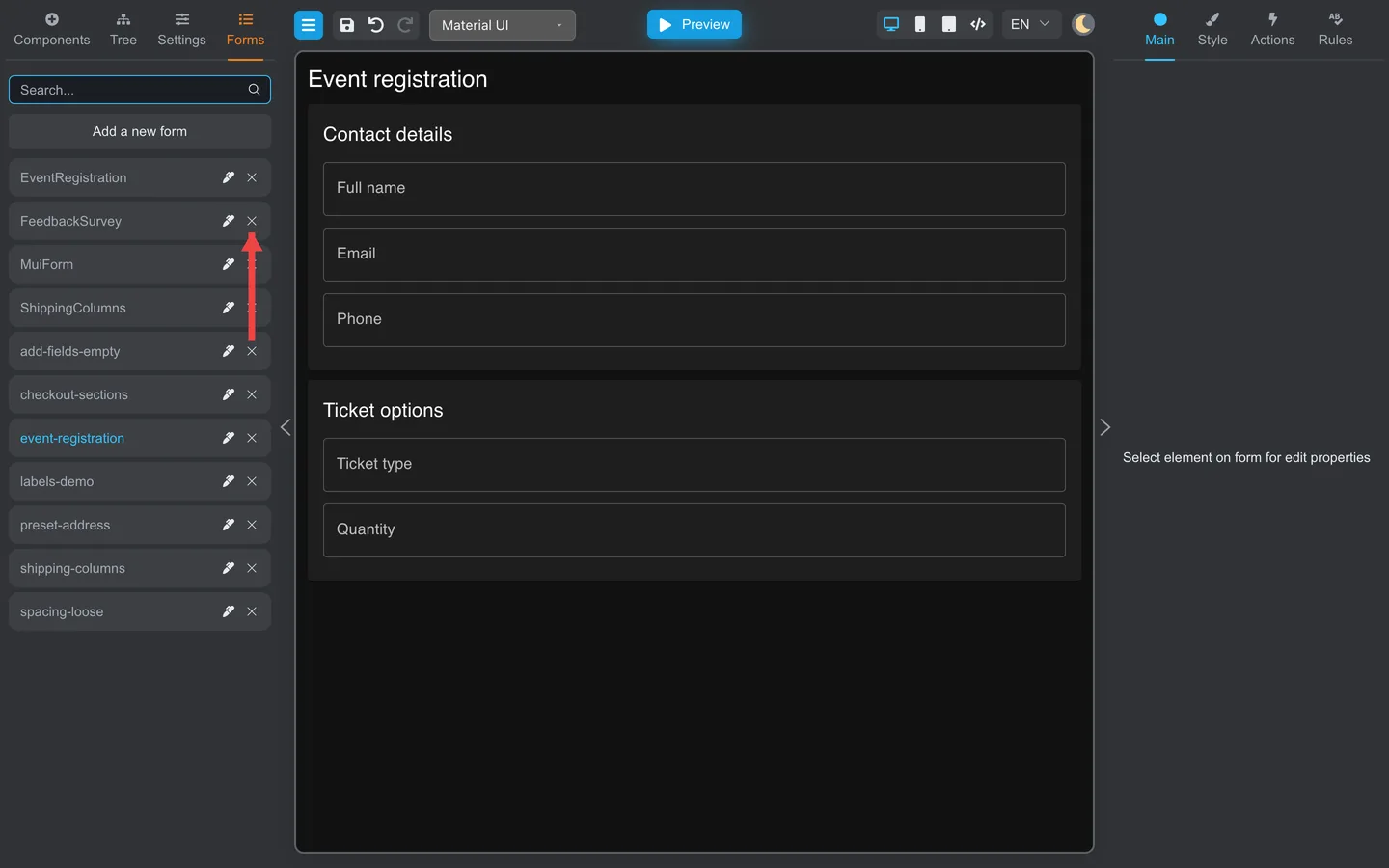
- Click Remove on the row you no longer need.
- Confirm if the app asks. Removed forms cannot be recovered unless you have a backup export.
Summary
The Forms tab is your multi-form library when storage is enabled. Search…, Edit, Add a new form, and Remove control the list. Export backups before bulk cleanup.