


Spacing and alignment basics
Good spacing helps users move down the form without visual clutter. You adjust most spacing on layout containers and the Main tab, not by typing CSS.
Example: team profile form
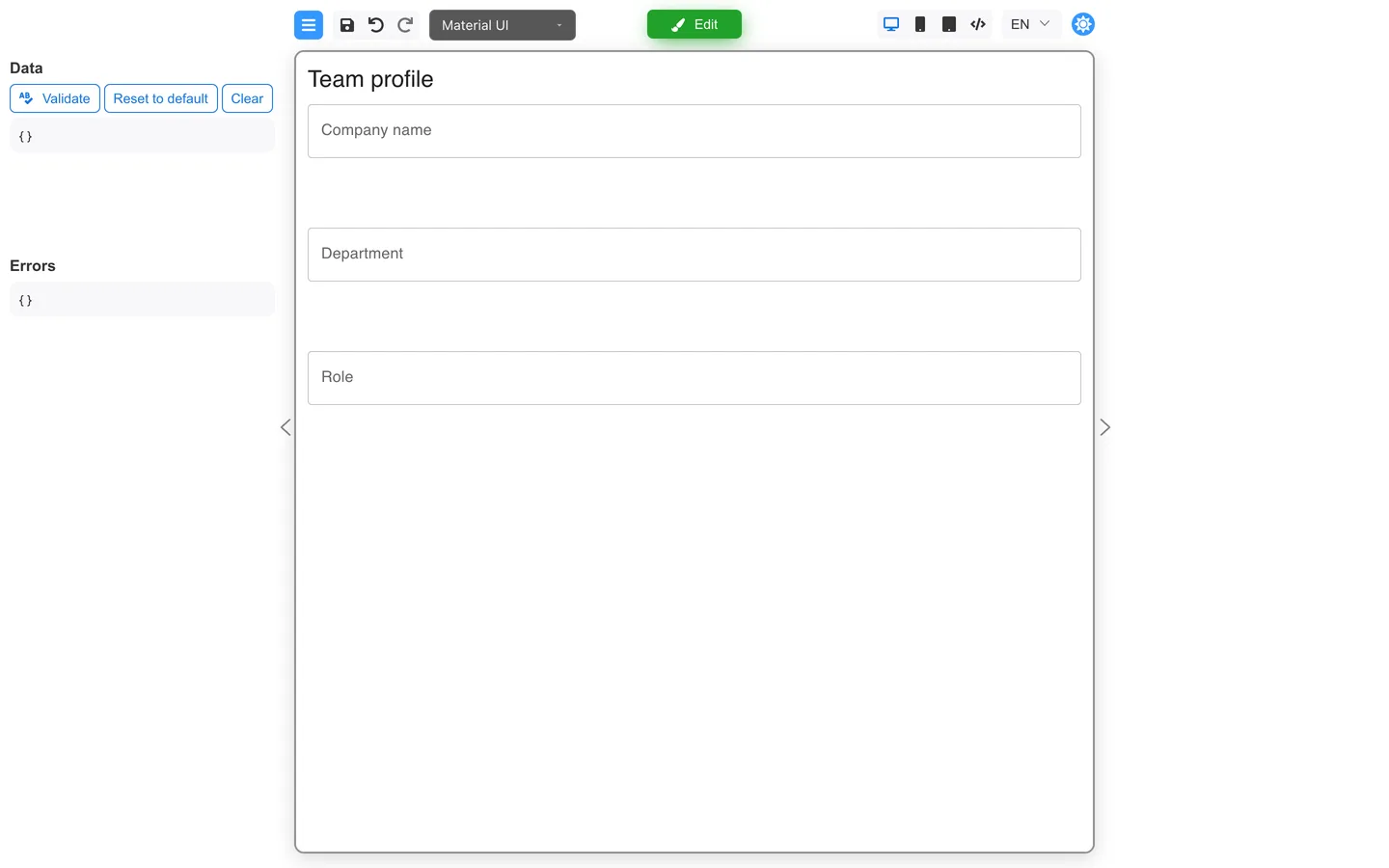
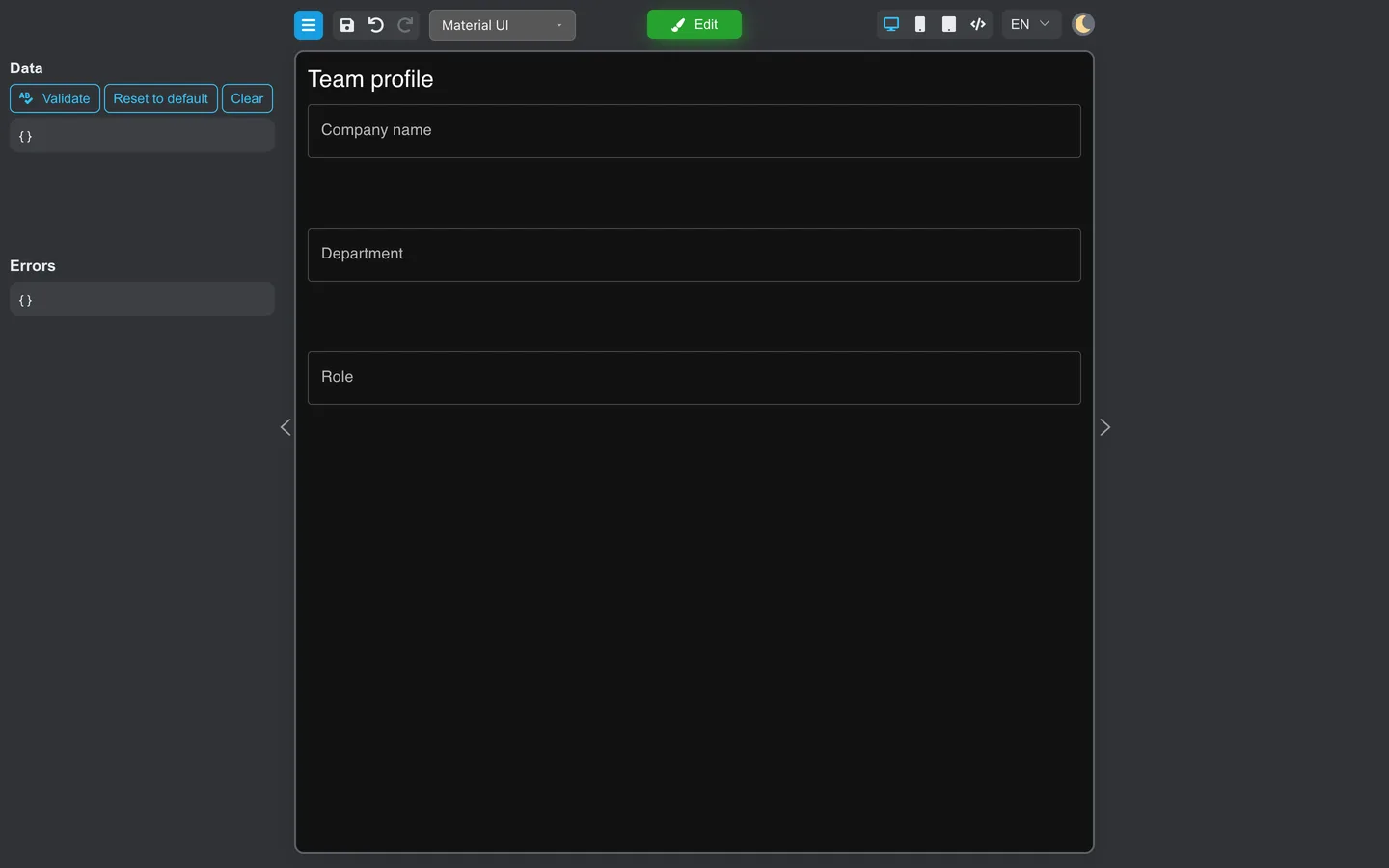
This walkthrough uses one Team profile form throughout: a vertical Stack with a large Spacing value between Company name, Department, and Role.
Step 1: Select the parent Stack
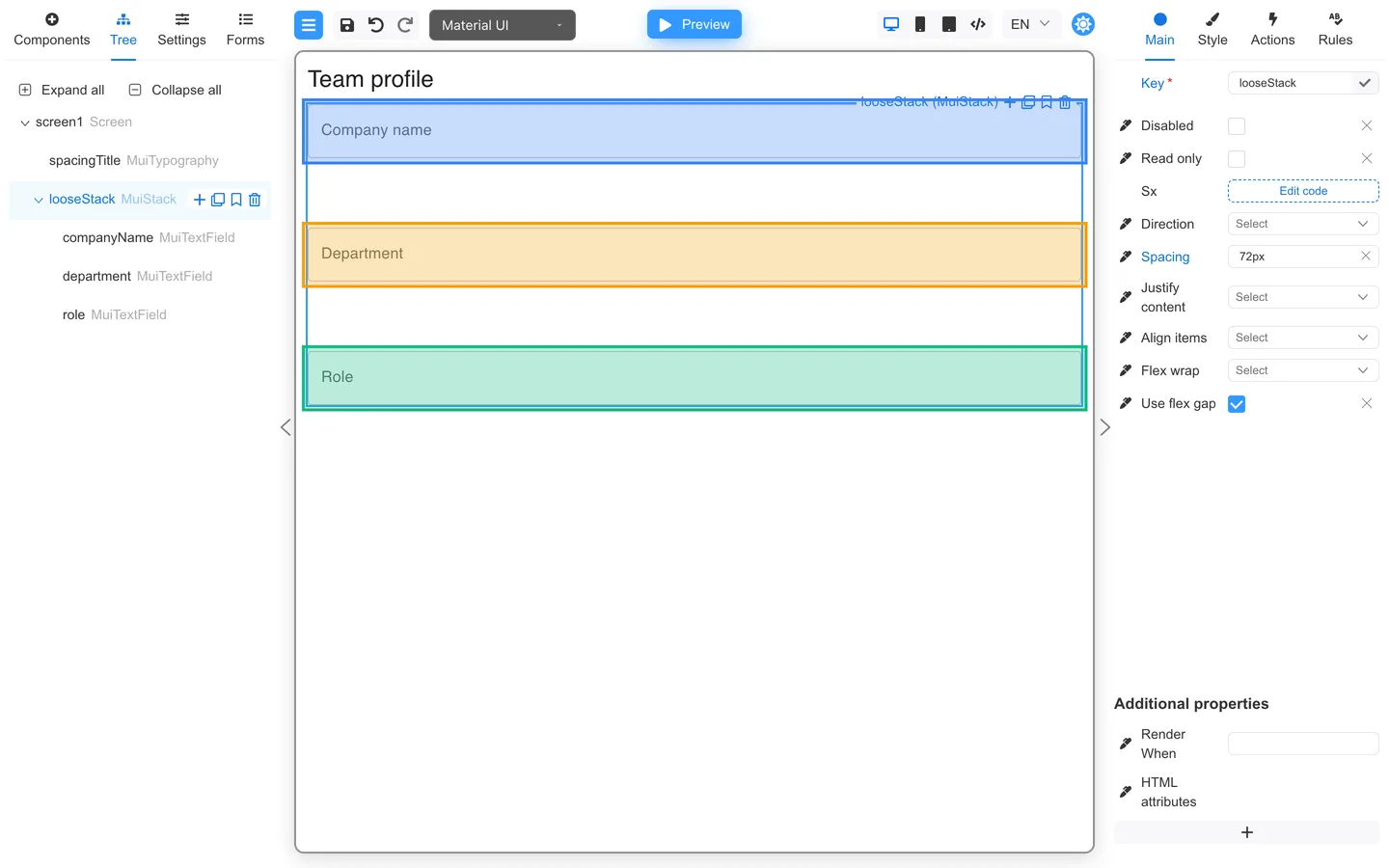
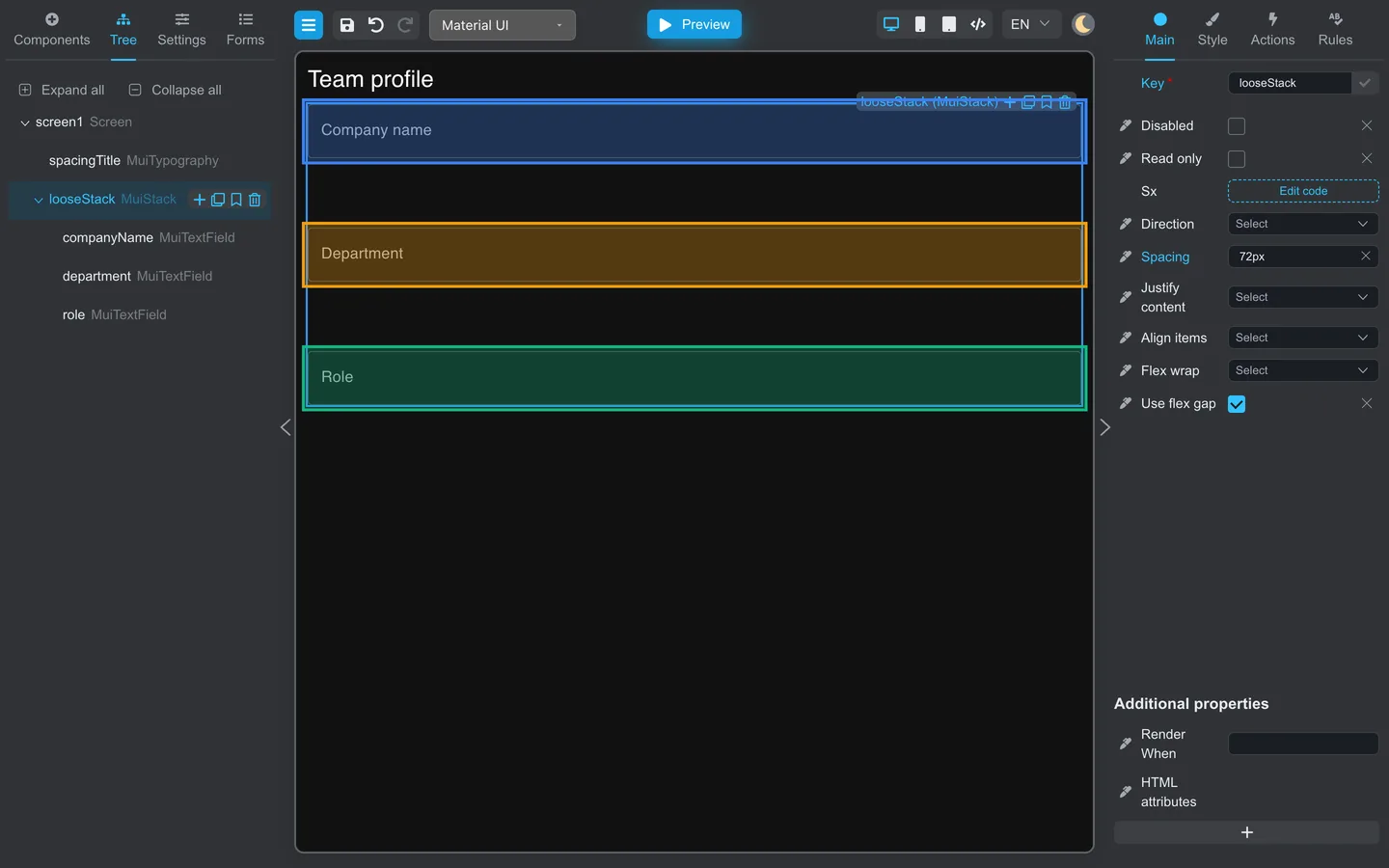
- Open Tree → Expand all.
- Select the parent Stack that wraps your fields (
looseStackin this example). - Confirm the canvas shows clear space between each field.
Step 2: Set spacing on Main
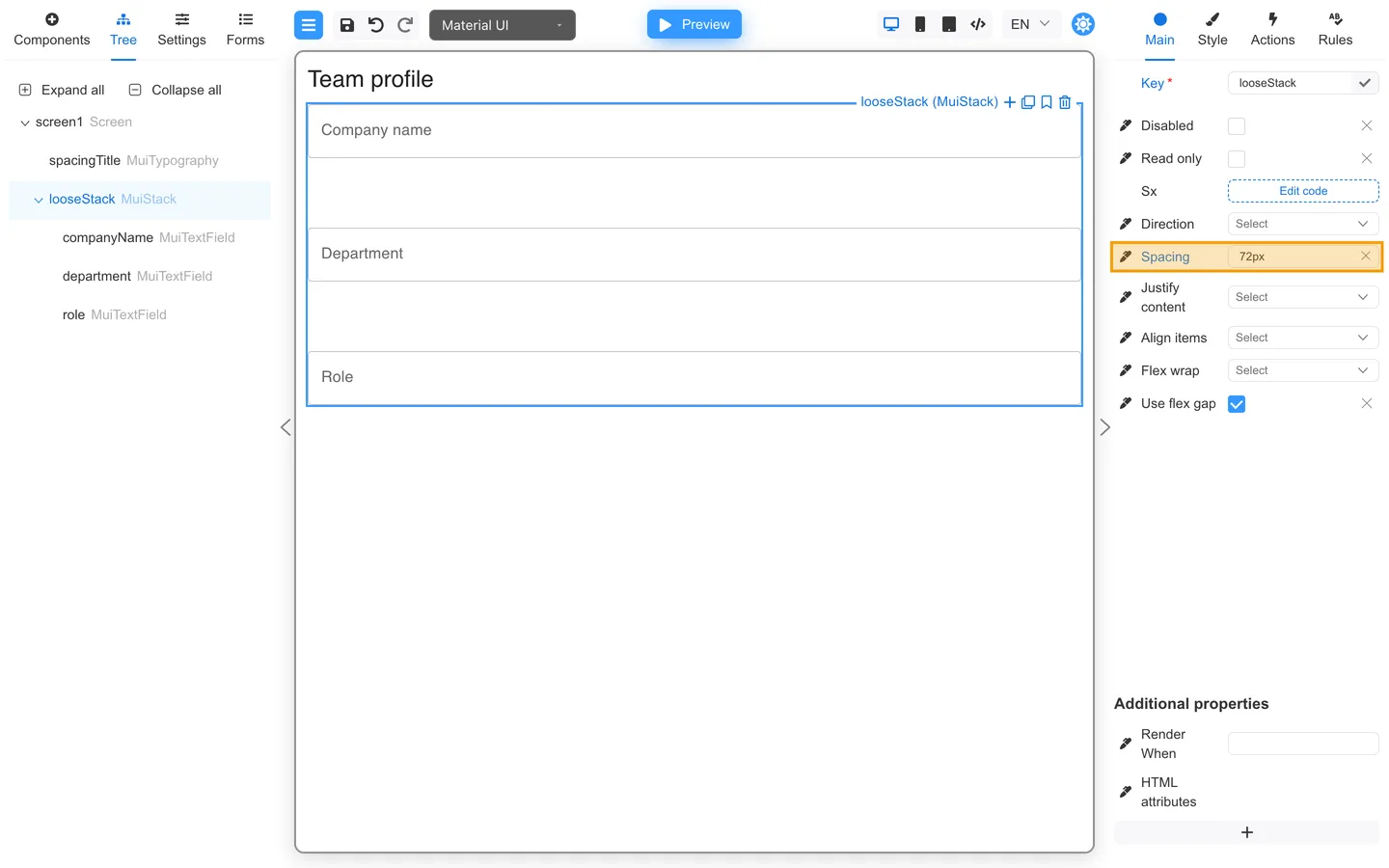
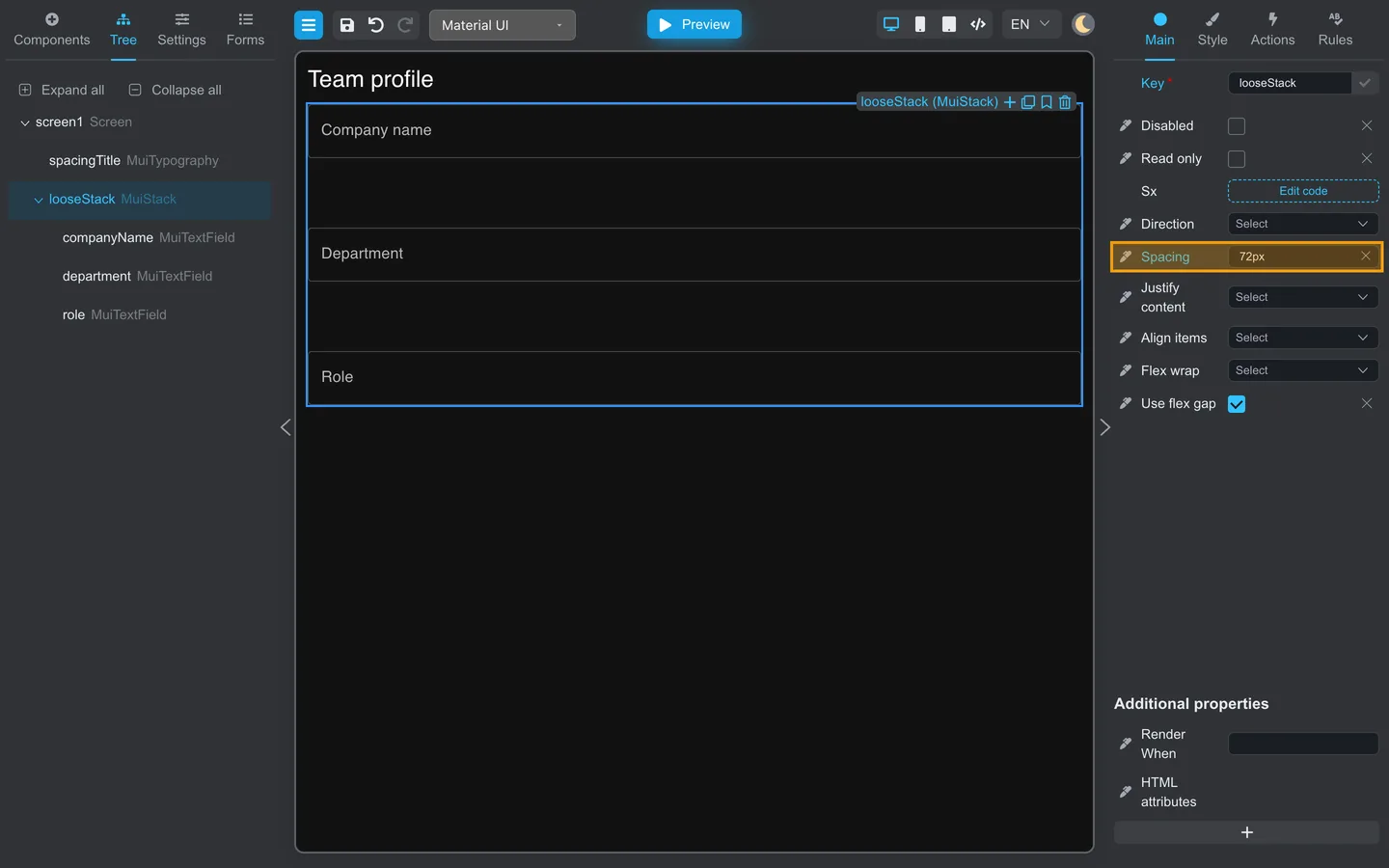
- Open Main on the right.
- Find Spacing (or Gap on some components).
- Change the value and watch how the gap changes on the canvas. The
72pxvalue in this example is intentionally exaggerated to make the effect easy to see. For most forms, start with16pxor24px.
Field width
- Select a Text field.
- On Main or Style, set Full width or width options.
- In a two-column row, keep both columns a similar width.
Preview check
Use the same Team profile form in Preview to confirm spacing looks right for end users.
- Click Preview.
- Check Desktop and Mobile device modes in the header.
- Confirm labels align and gaps still read clearly on narrow widths.
Summary
Set spacing on parent layout components first. Use Main for gap values on Stack, then verify the same form in Preview.