


Form-level actions in Settings
The Settings tab stores reusable Code action definitions and the Form validator. Saving a Code action does not run it; a button or another component event must reference that action.
Settings vs button Actions
| Where | What it does |
|---|---|
| Settings → Actions | Stores reusable Code action definitions |
| Selected component → Actions | Attaches actions to a component event |
| Settings → Form validator | Runs validation across the entire form |
Field-level validation still lives on each field’s Rules tab.
Open Settings
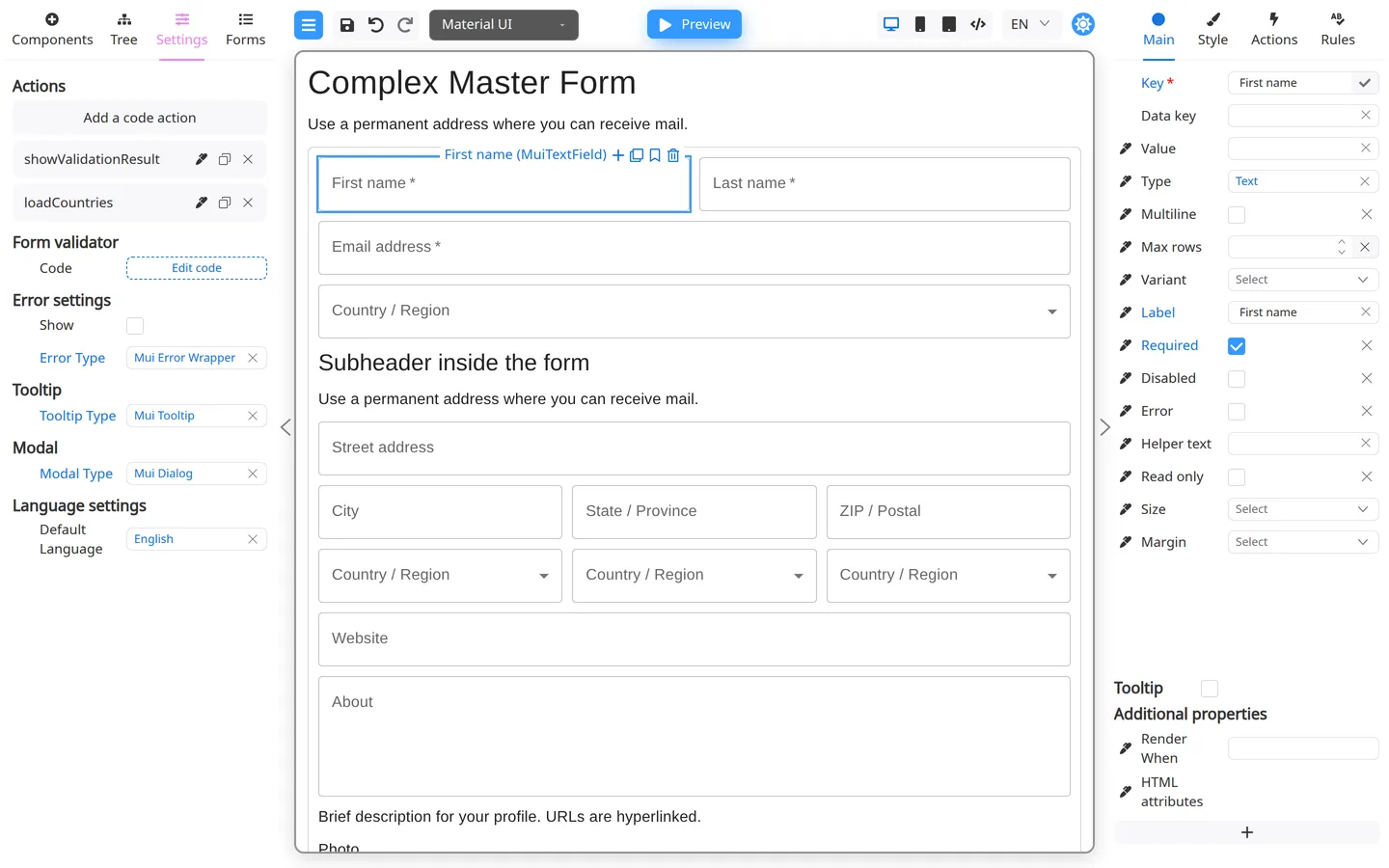
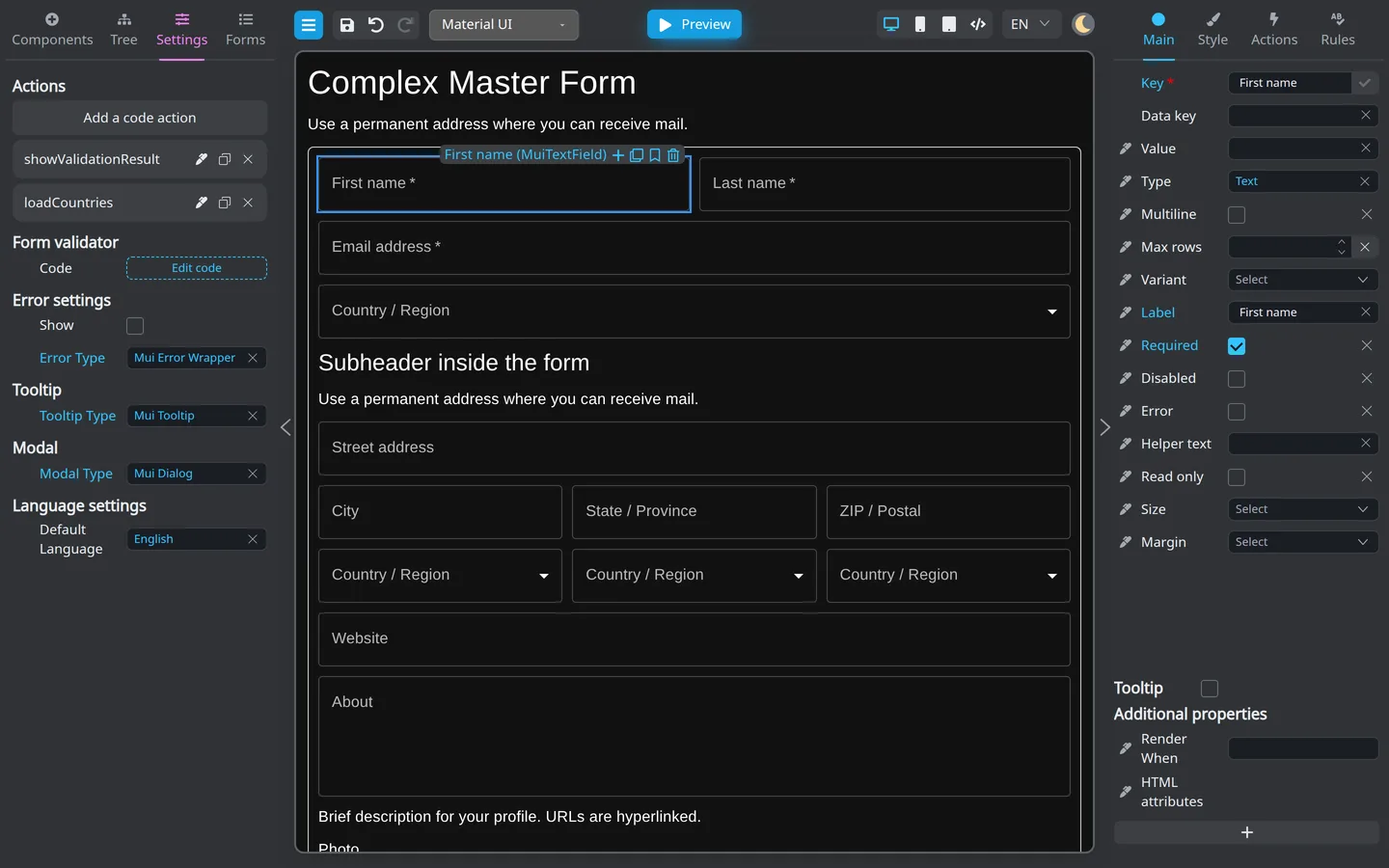
- Click Settings on the left panel.
- Scroll to the Actions block.
Add a form action
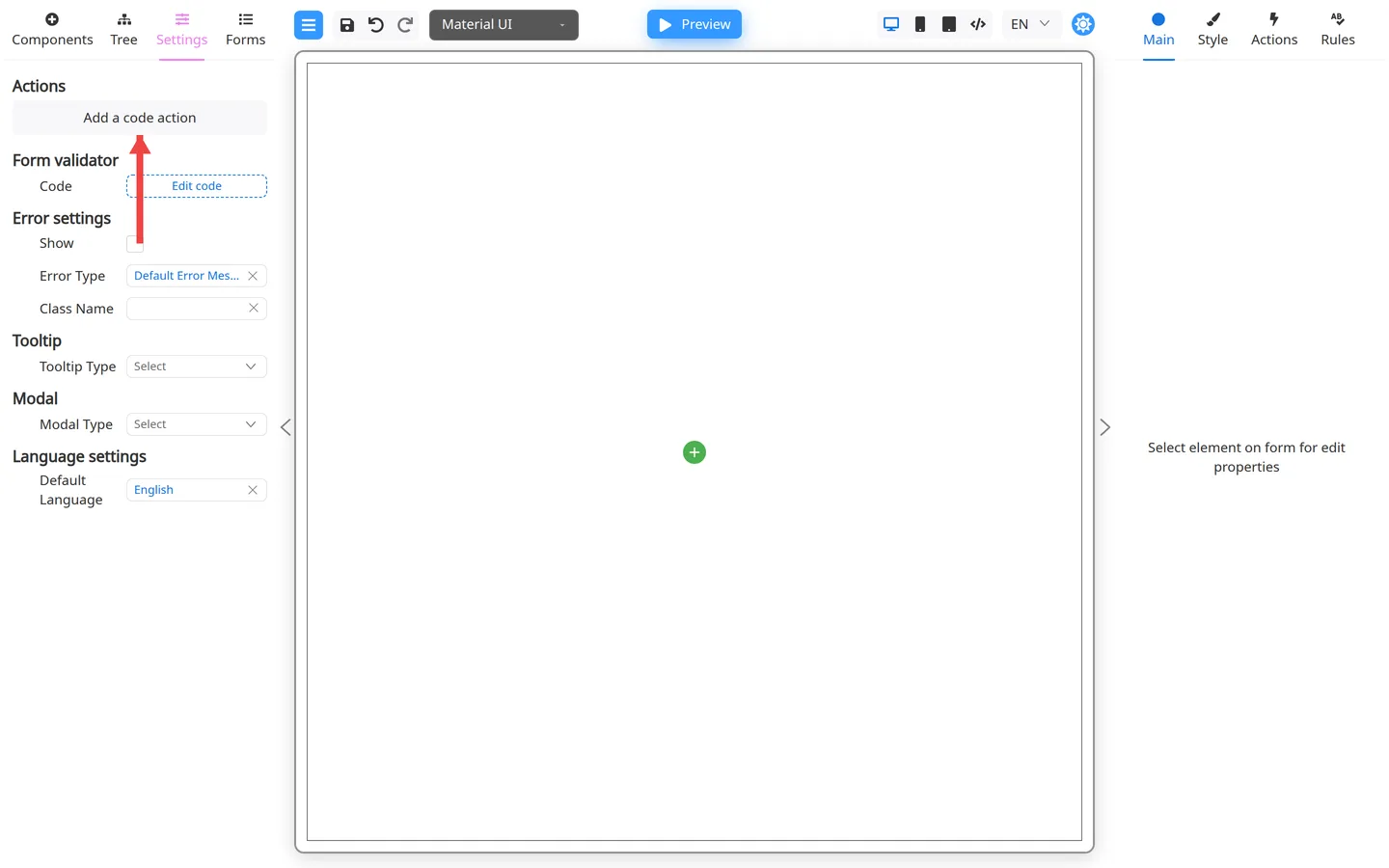
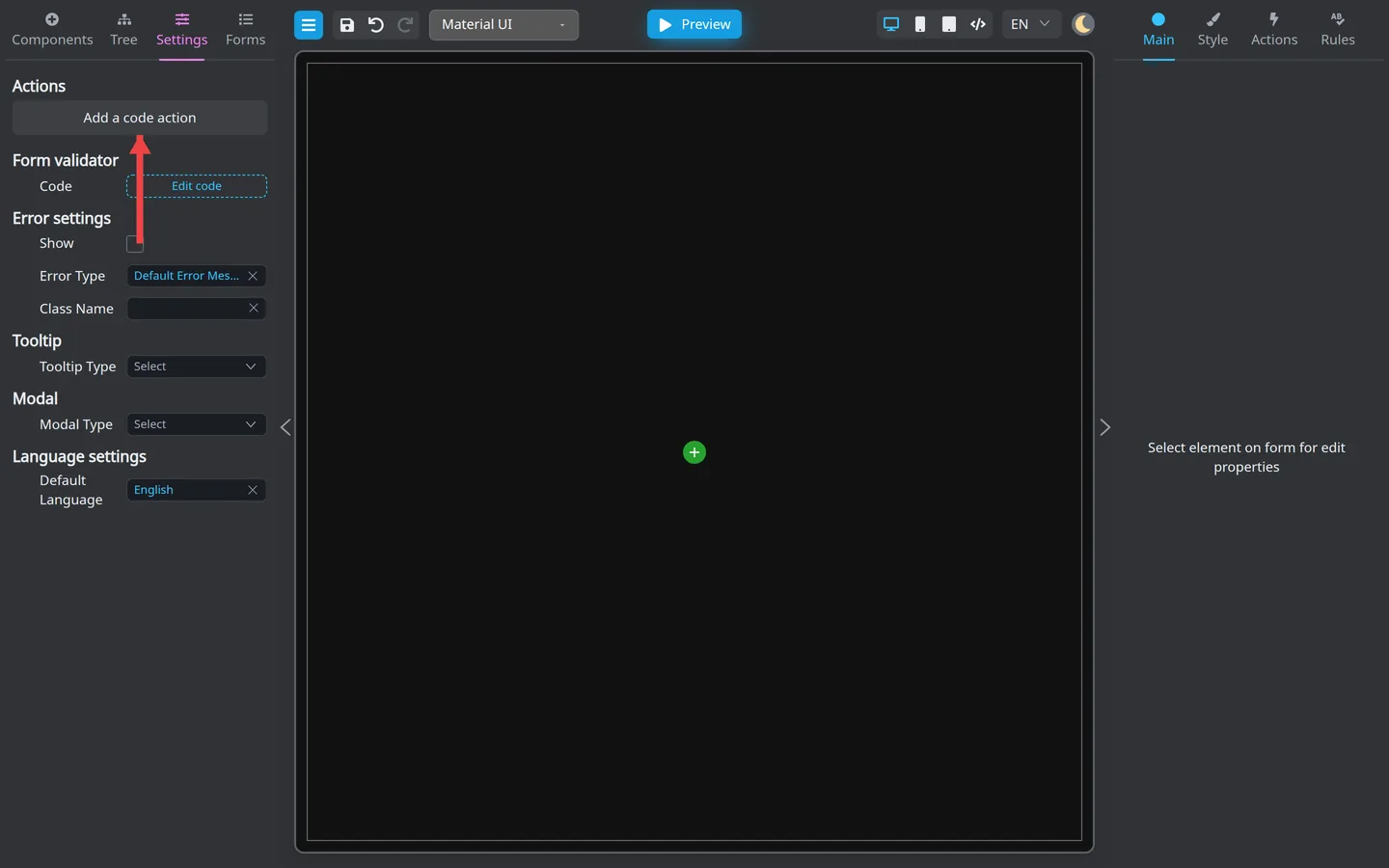
- Click Add a code action.
- The bottom panel opens the code editor for the new form action.
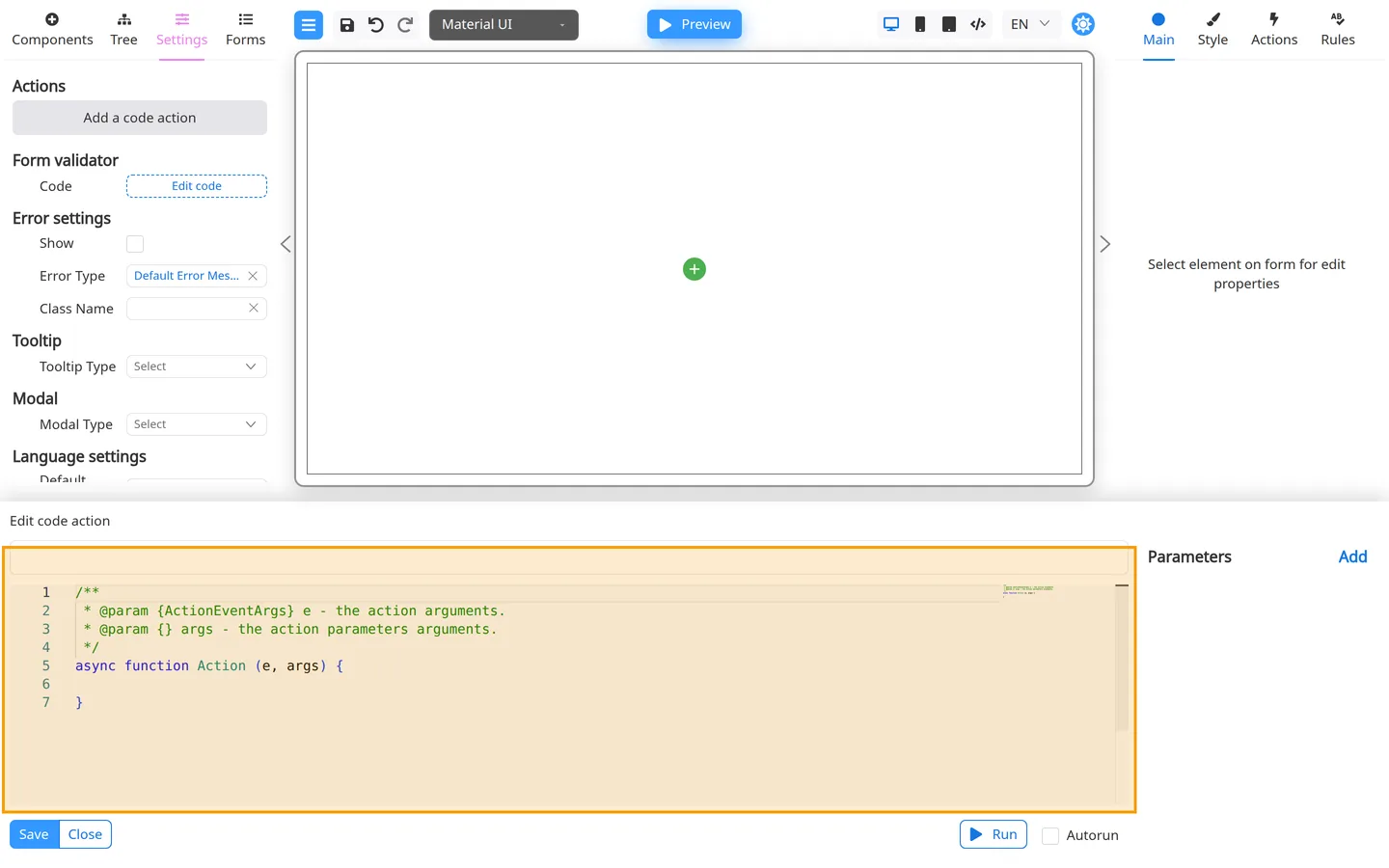
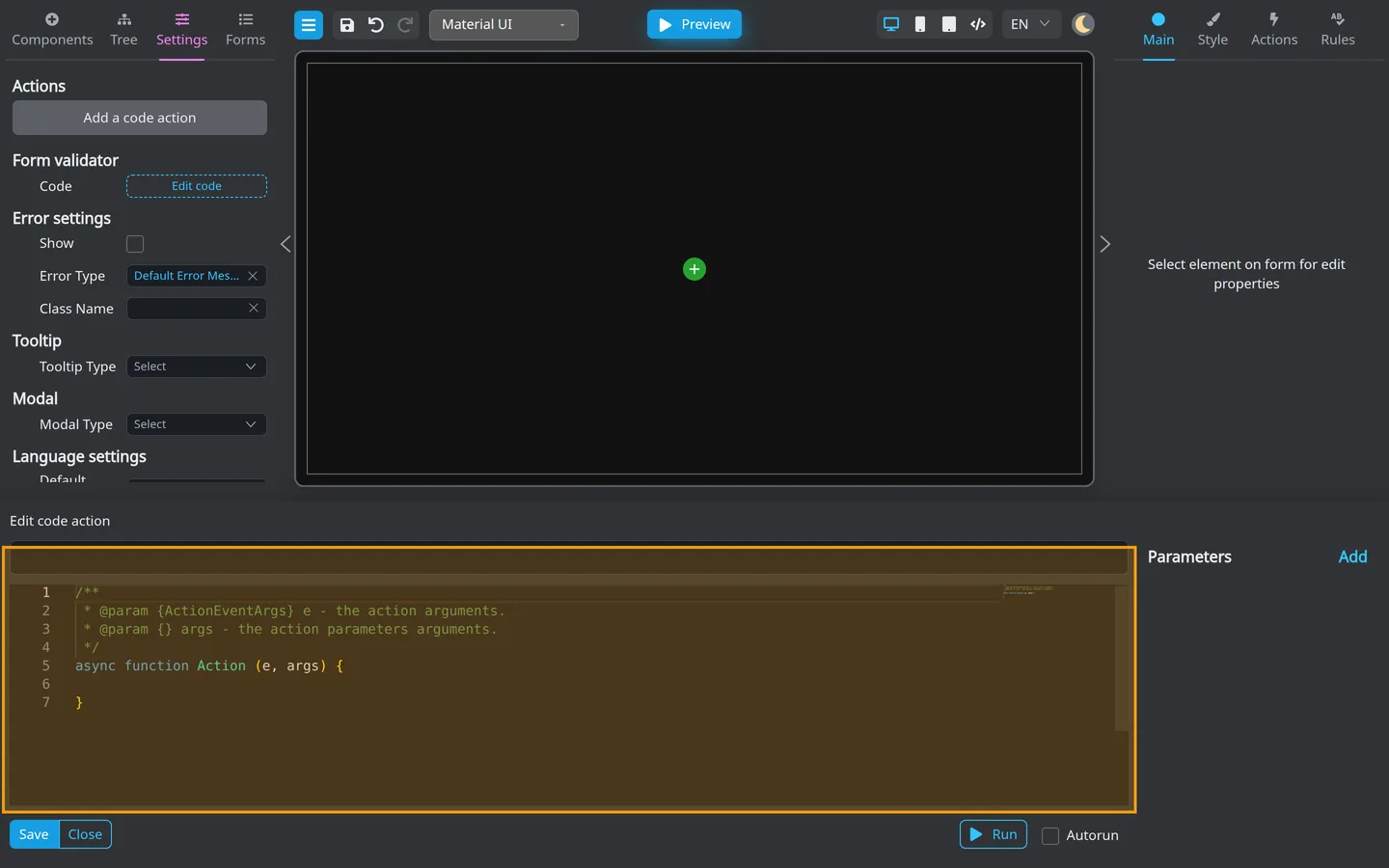
- Enter a Name, write or paste the script, and click Save.
- Select the button or other component that should run the action.
- Open its Actions tab and click Add an action under the event you want to use, such as onClick.
- Open Code and select the saved action by name.
- Coordinate with developers for production logic.
Form validator (optional)
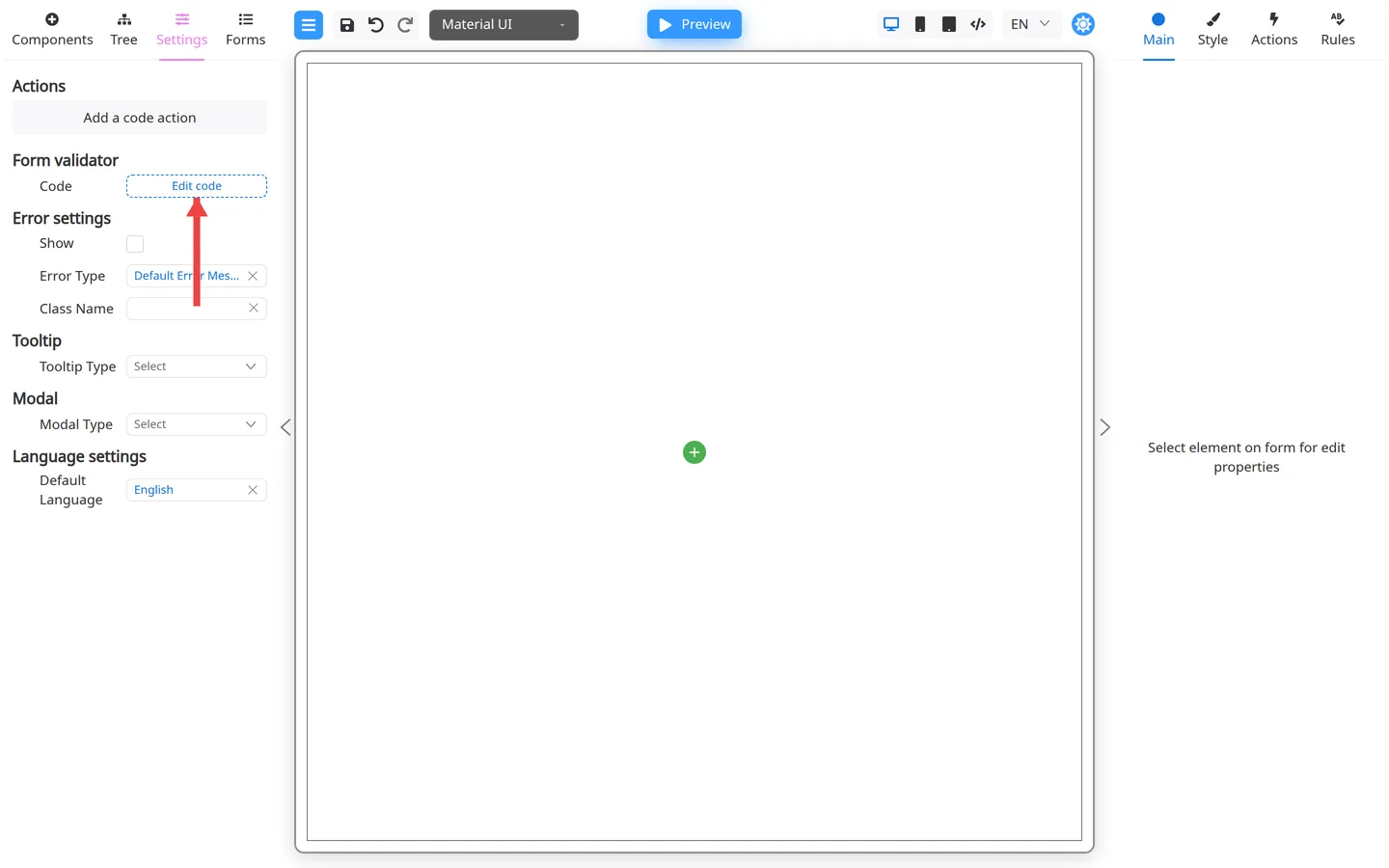
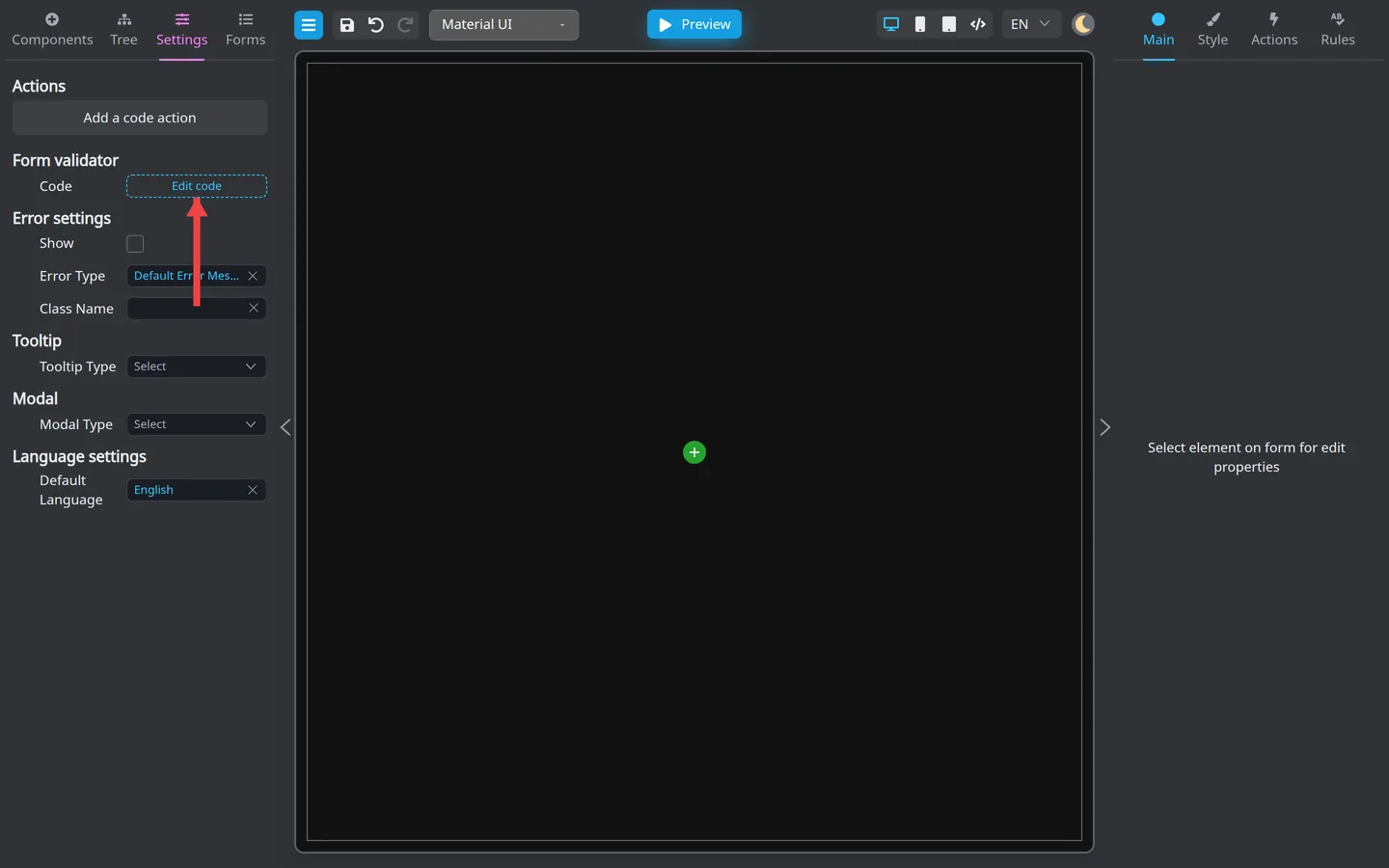
- In Settings, find Form validator.
- Click Edit code.
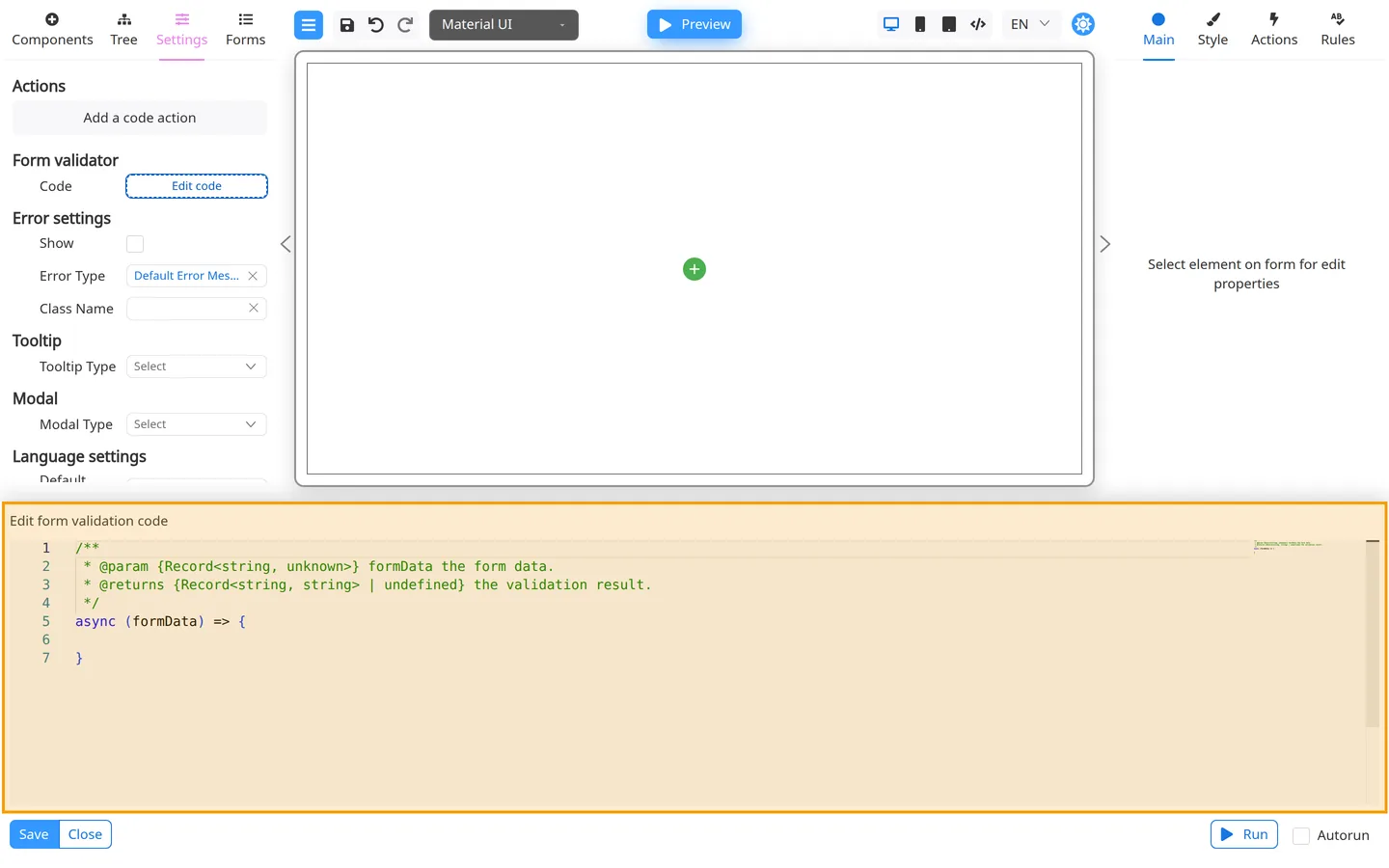
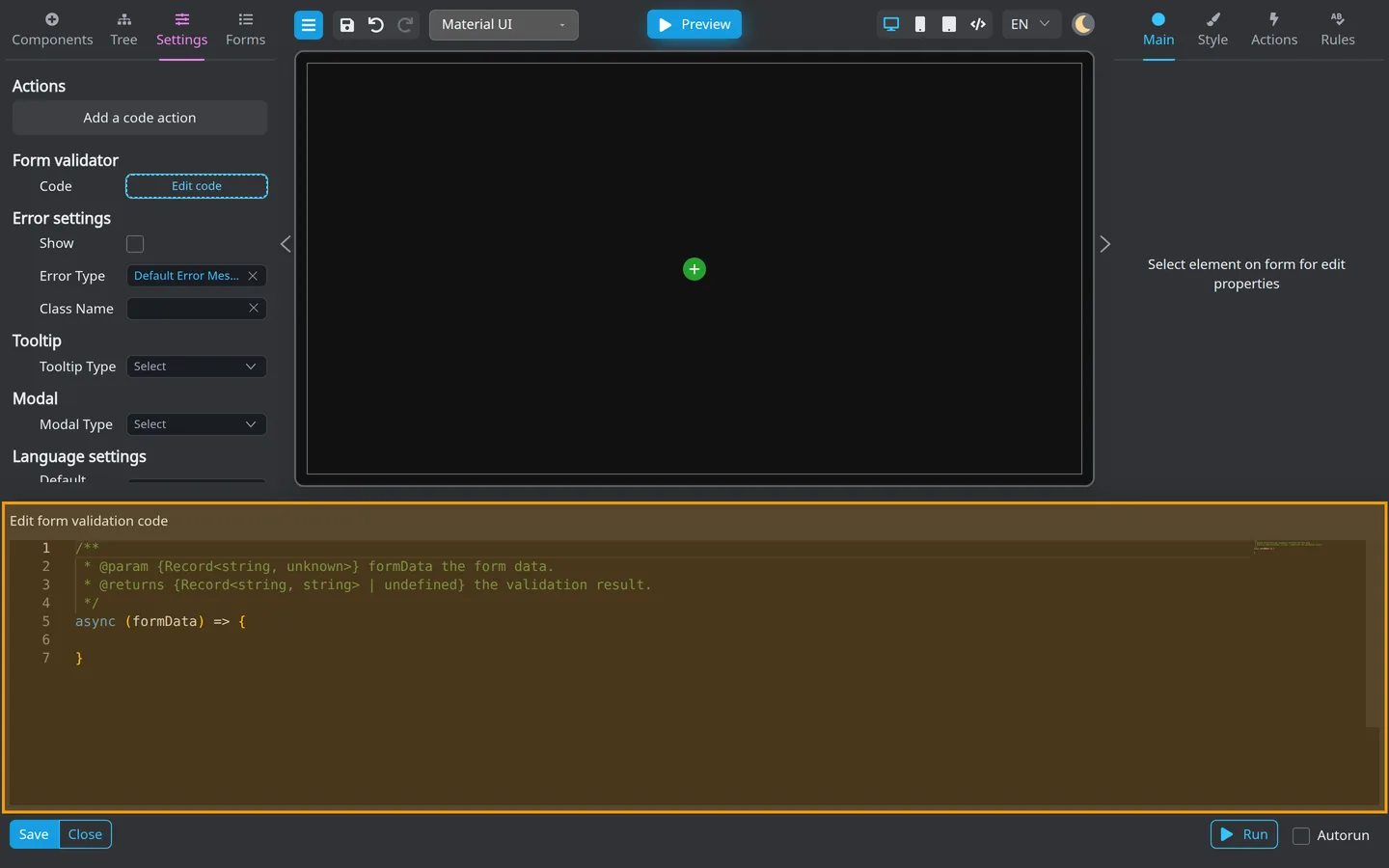
- Edit validator code only when your team assigns you that task. Many teams restrict this to developers.
- Click Save when finished.
Test
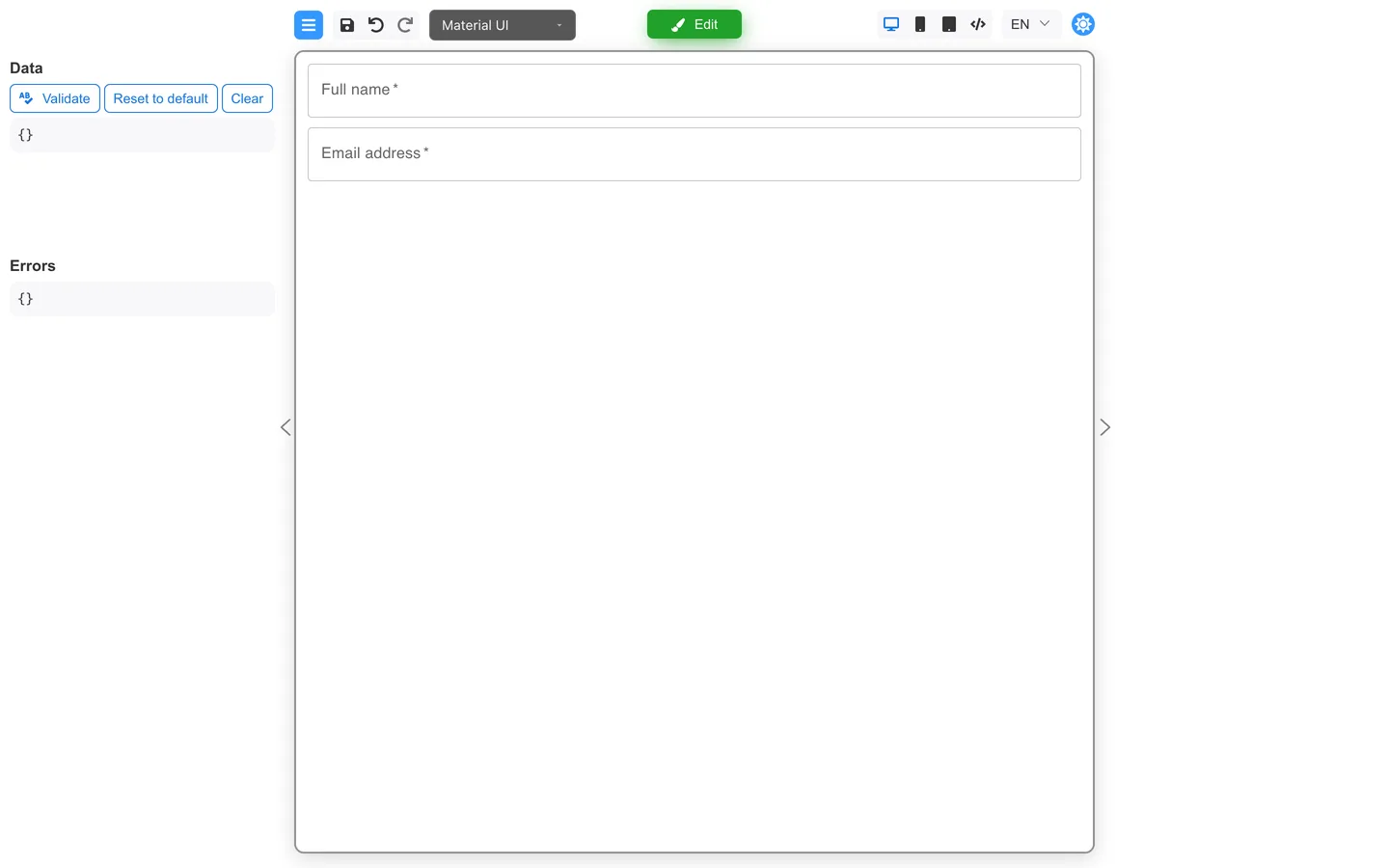
- Click Preview.
- Trigger the component event to which you attached the action.
- Use Preview mode tools to inspect Errors.
Summary
Settings stores reusable Code actions and the Form validator. Attach a saved action to a component event on the right, then trigger that event in Preview.