


Select and edit components
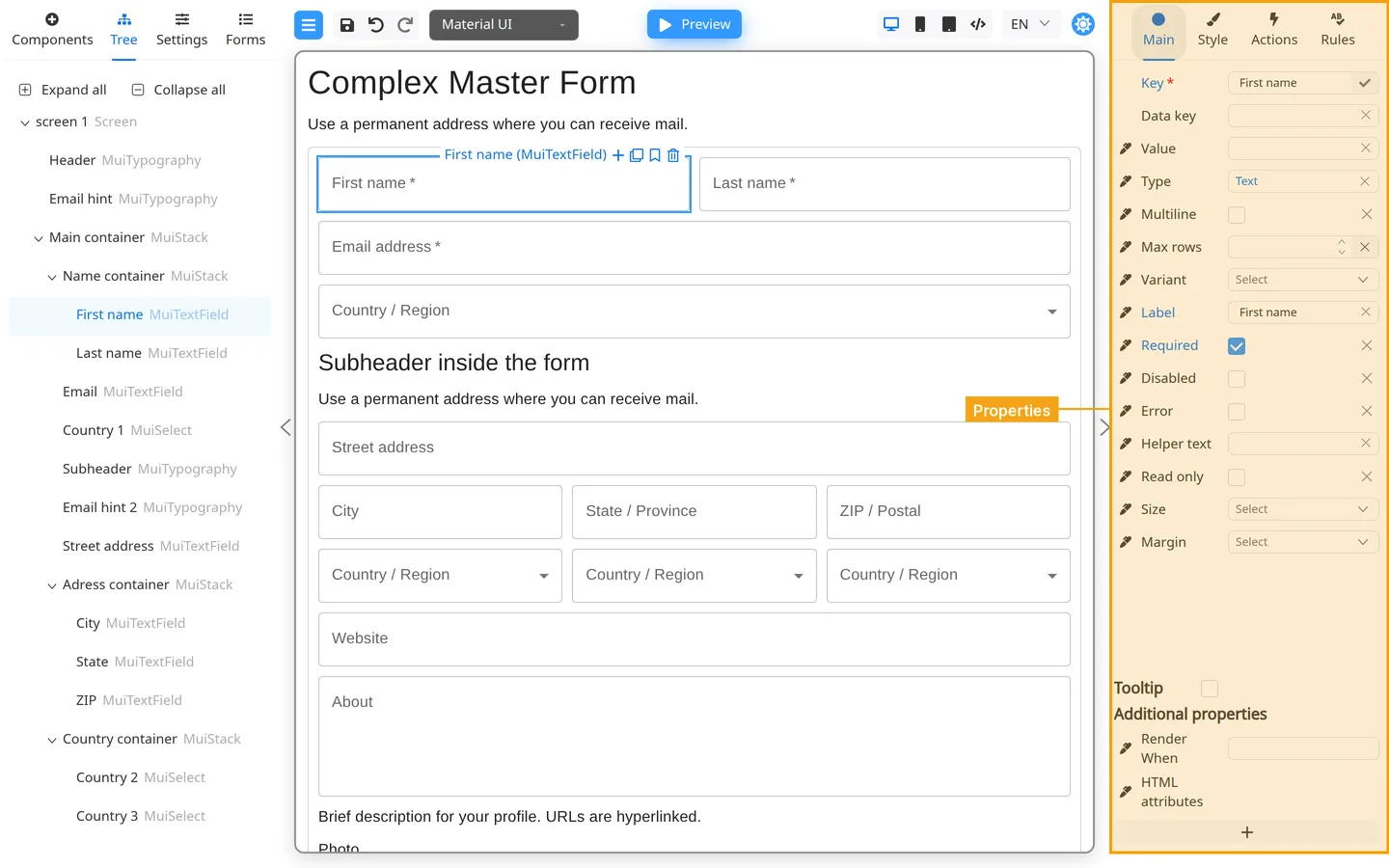
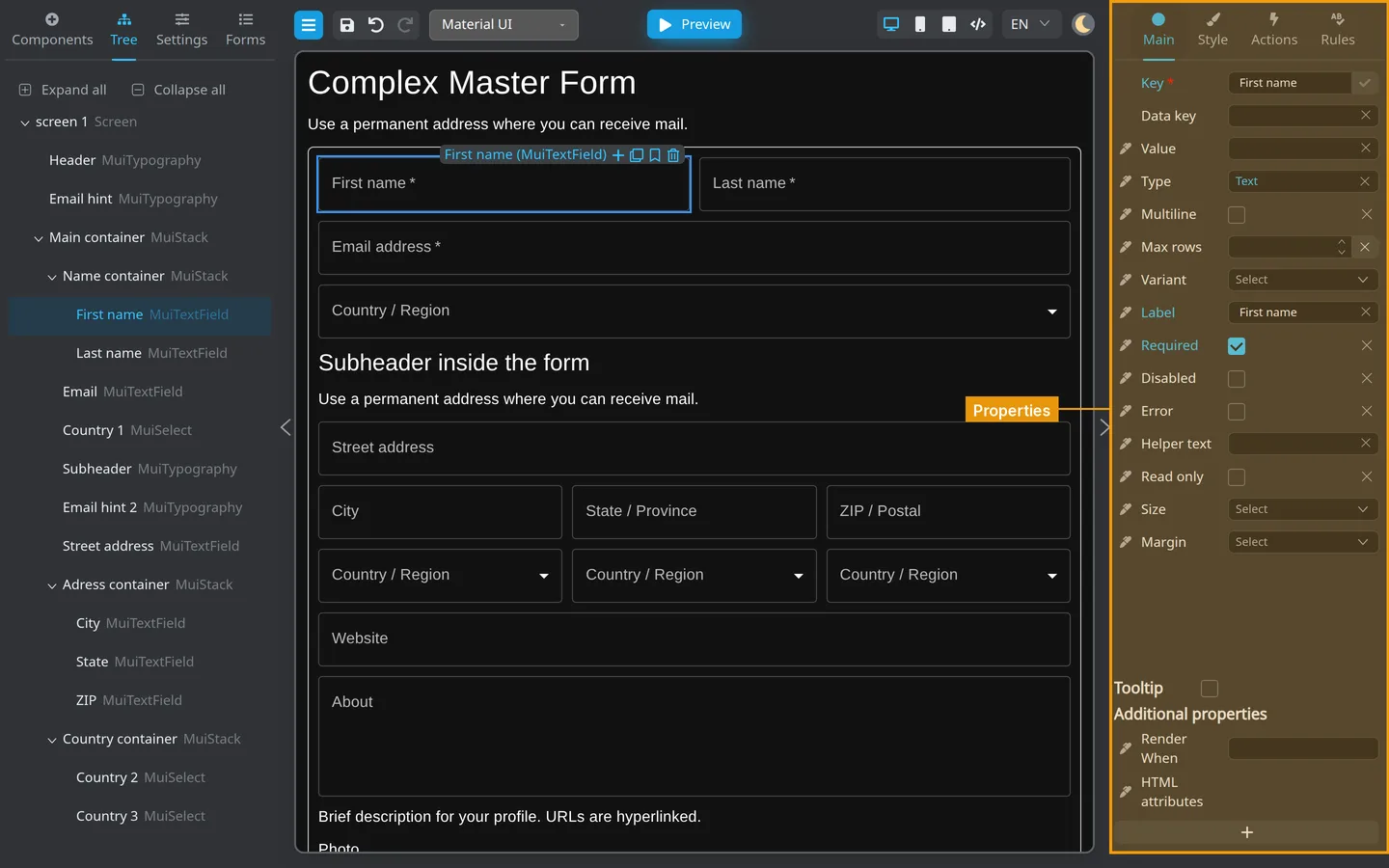
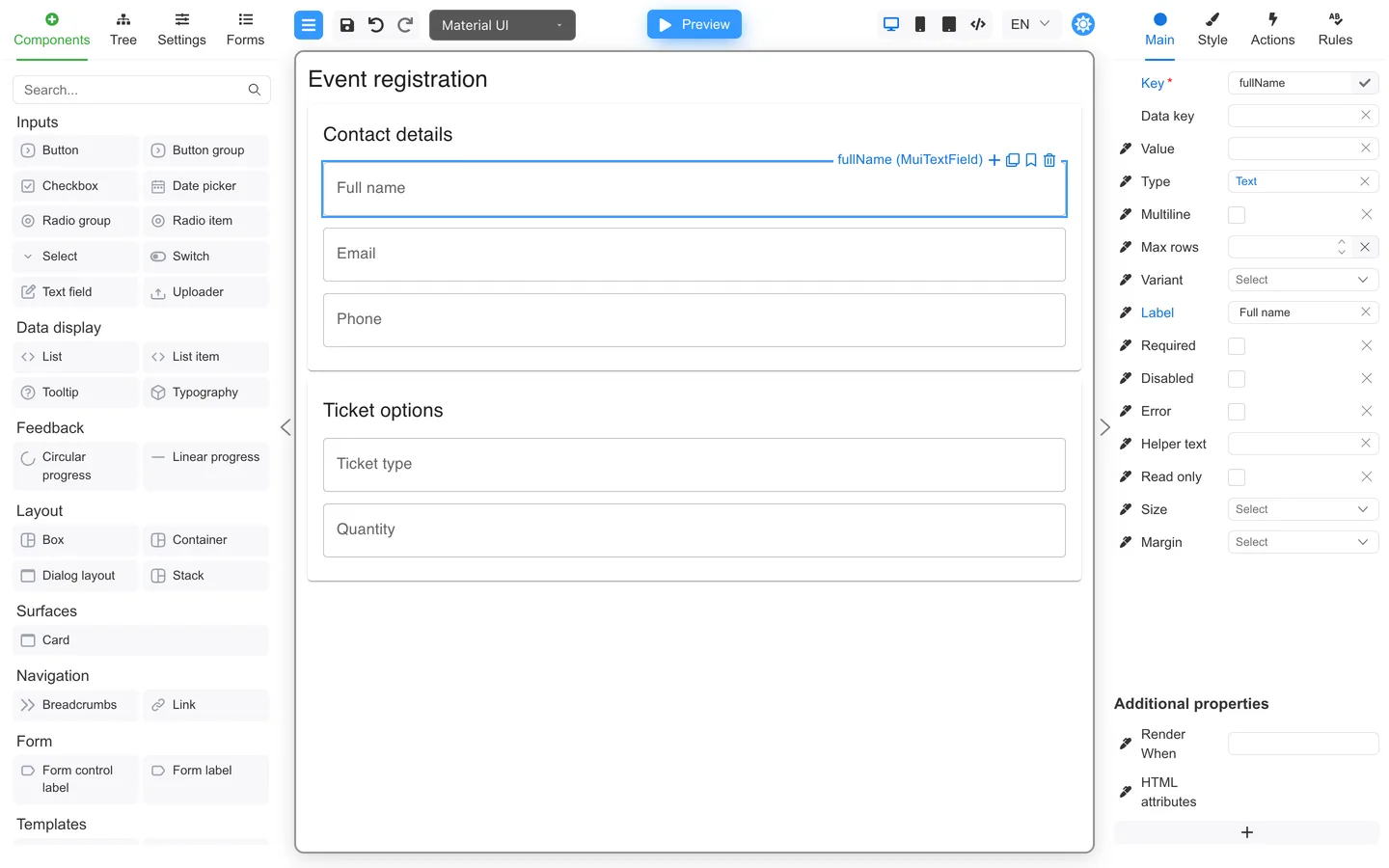
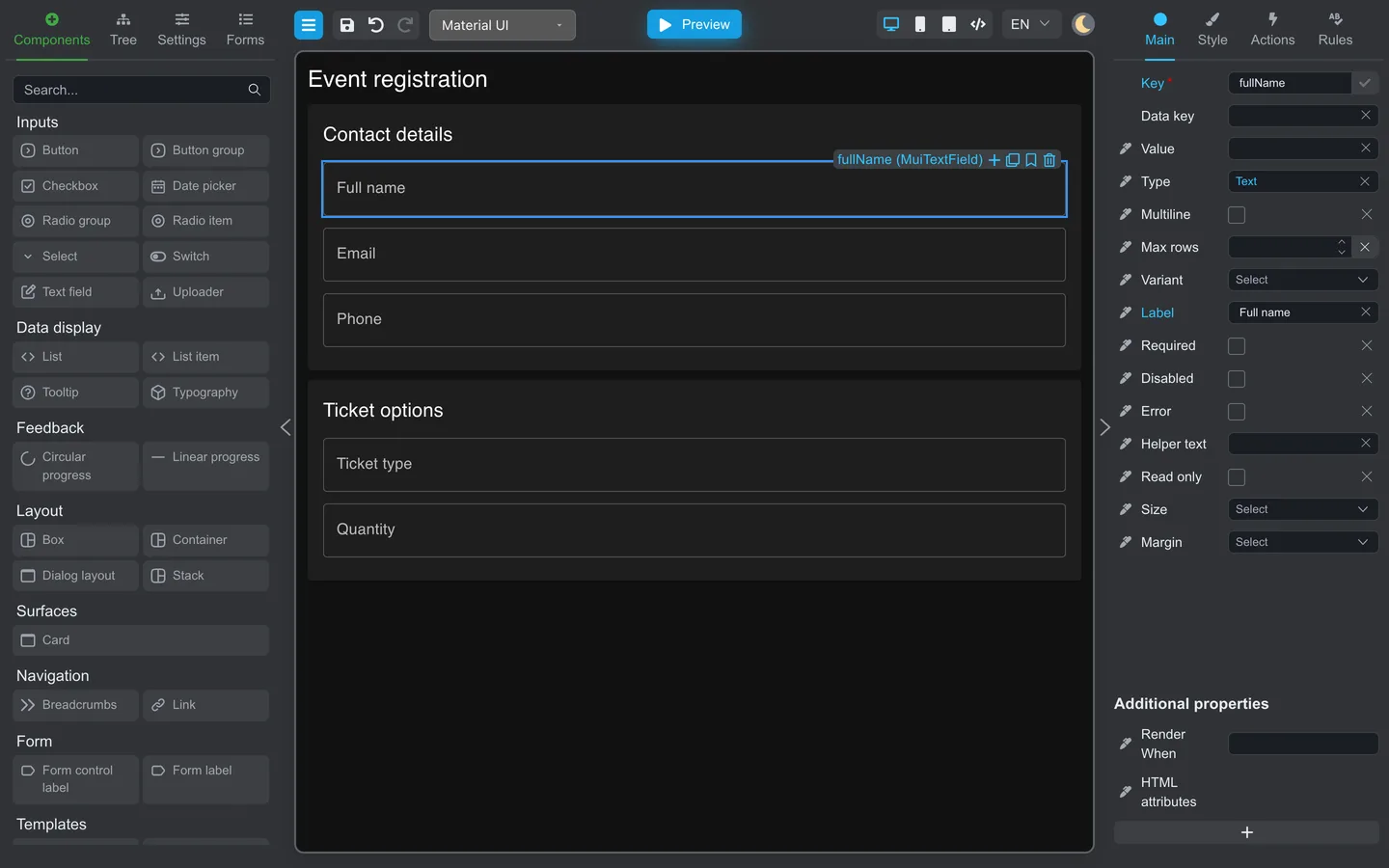
Selecting a component connects the canvas, Tree, and the right-hand Main / Style / Actions / Rules tabs.
Select on the canvas
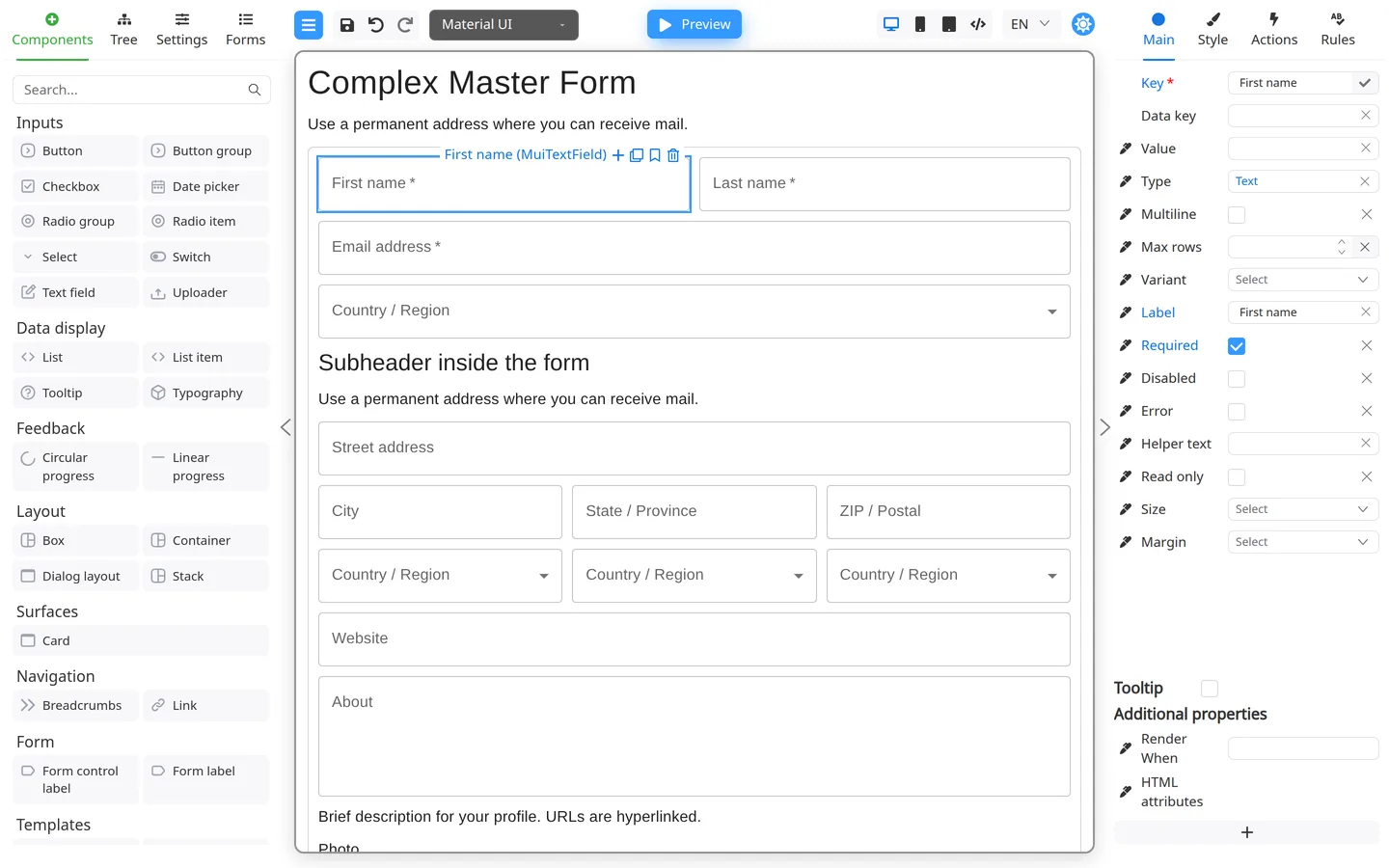
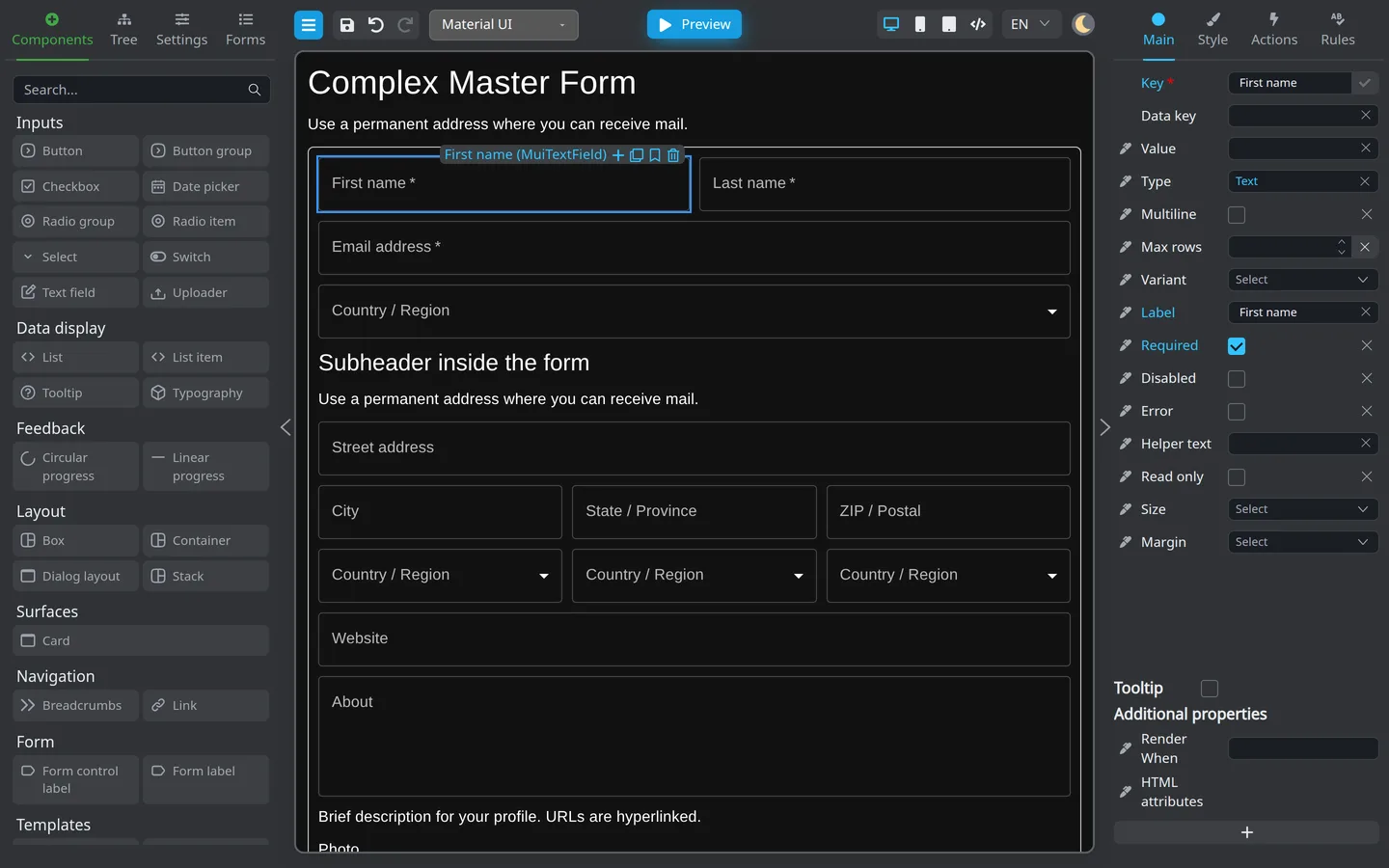
- Click a field, button, or container outline.
- A selection frame appears. The right panel loads that component’s properties.
Select in Tree
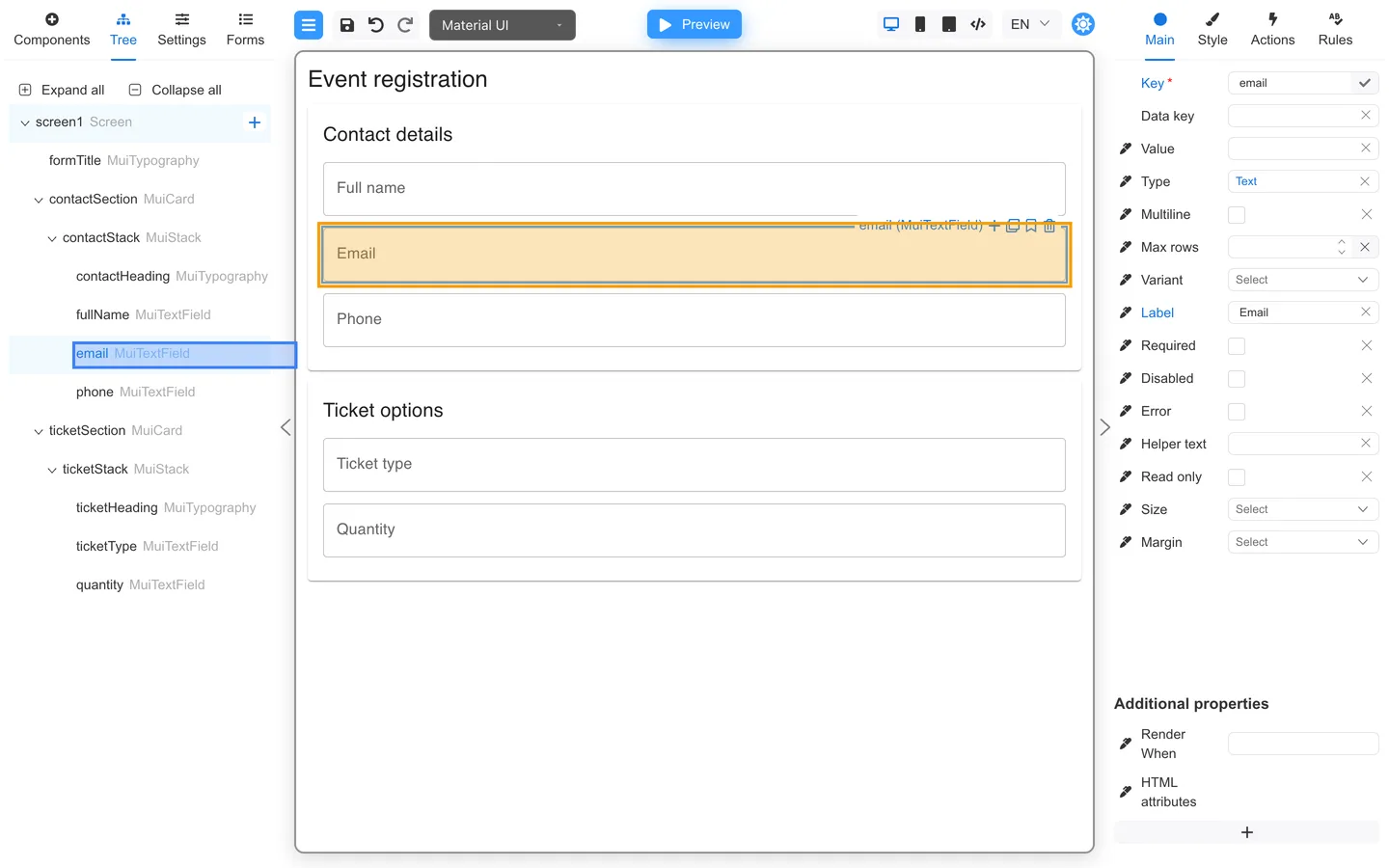
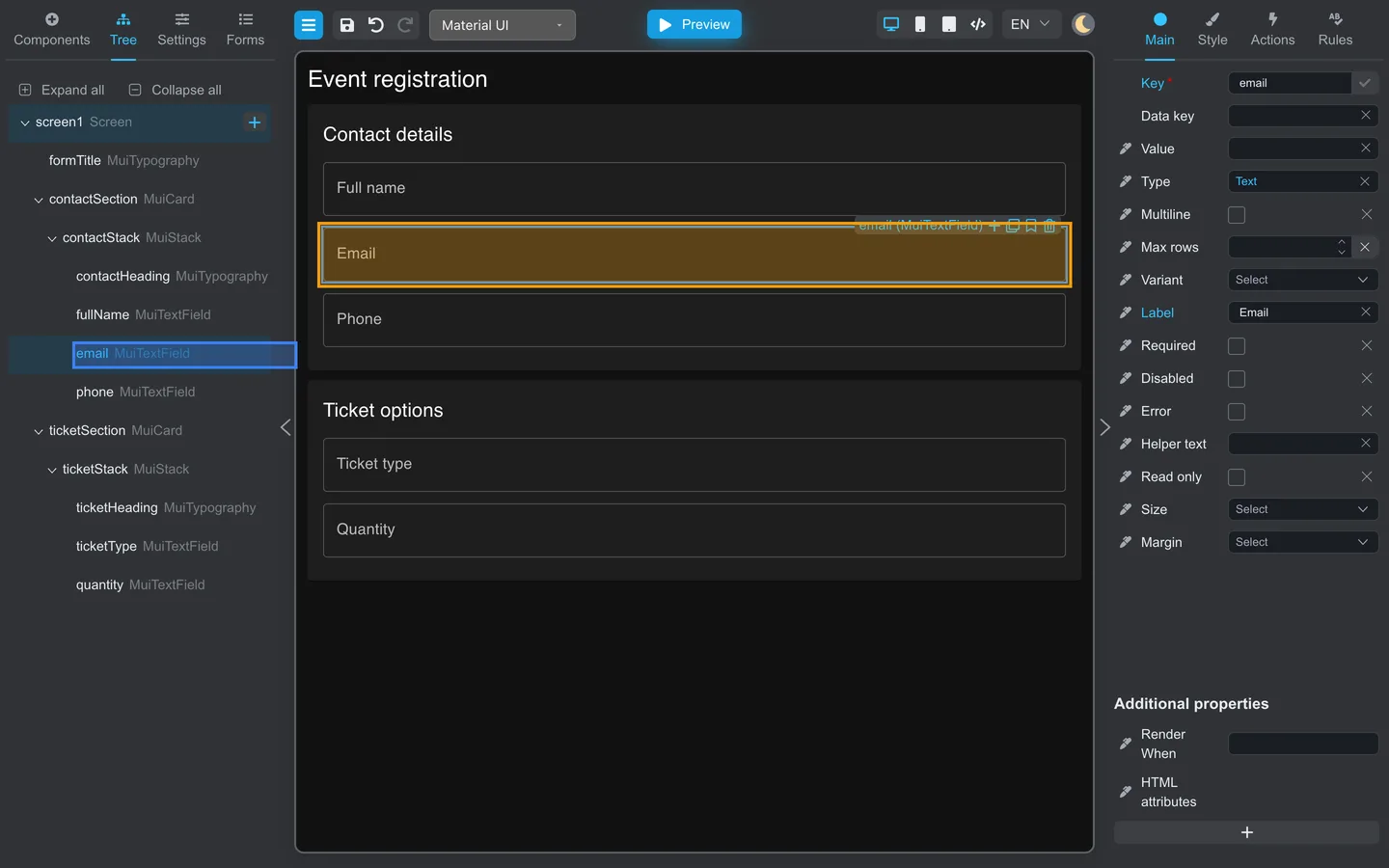
- Open Tree → Expand all if needed.
- Click the component row.
- The canvas scrolls to the same selection.
Edit properties
- With a component selected, use Main for labels, keys, and defaults.
- Use Style for layout and CSS-related options exposed to authors.
- Use Actions and Rules on buttons and inputs as needed.
Multi-select
- Hold Ctrl (Windows/Linux) or ⌘ (macOS), then click several components on the canvas or in Tree.
- Hold Shift, then click in Tree to select a range.
- Press Delete to remove all selected items. Cloning applies to a single selection with Ctrl+D or ⌘+D.
See Canvas drag and drop for reordering.
Duplicate a component
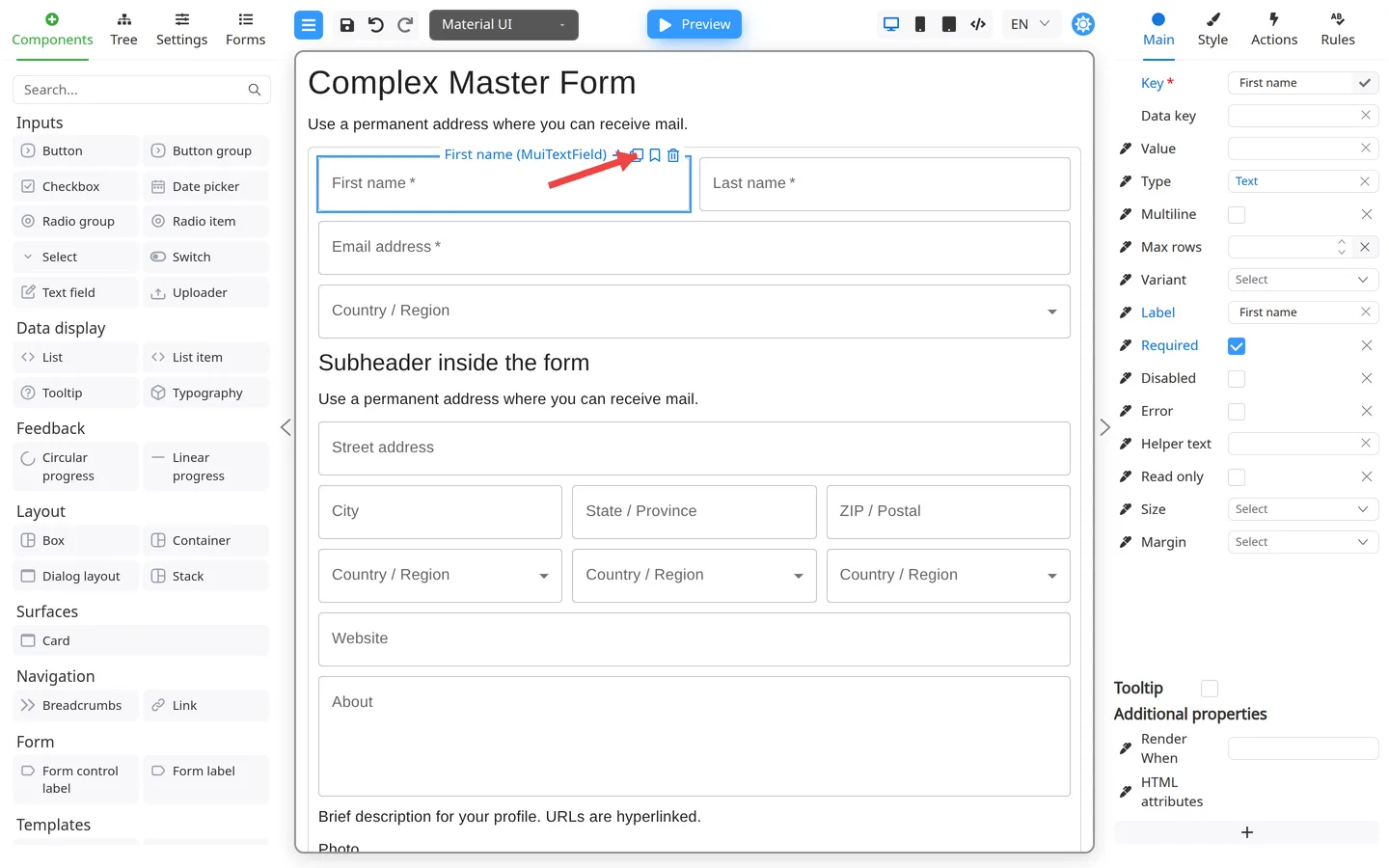
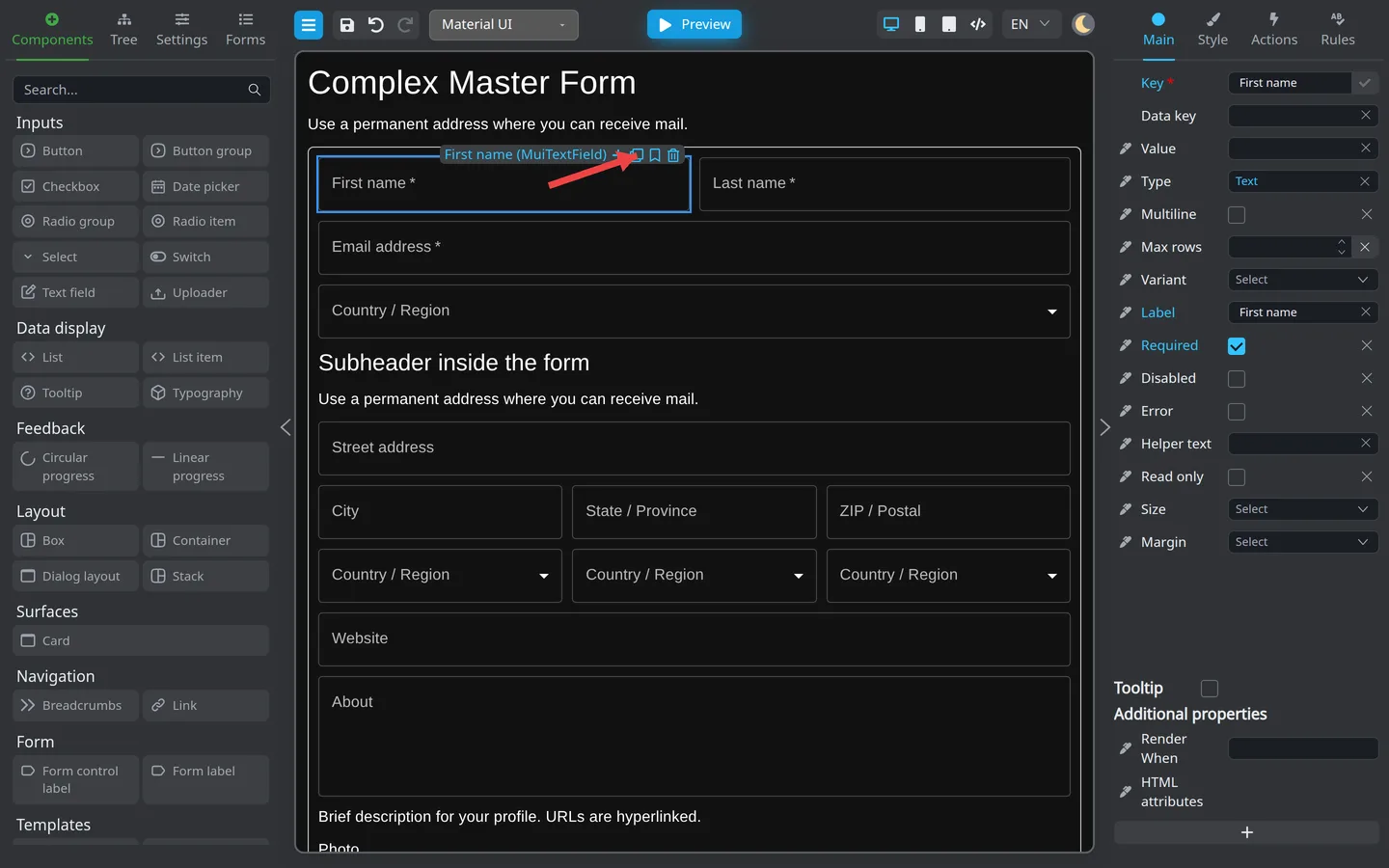
- Select exactly one component.
- If the toolbar only shows Open actions, hover it to expand the strip.
- Click clone, or press Ctrl+D (Windows/Linux) or ⌘+D (macOS).
- A copy appears. Change Key on Main so each field keeps a unique data key.
If the shortcut does nothing, click the page background first. Shortcuts often fail while focus is inside a text field.
Delete a component
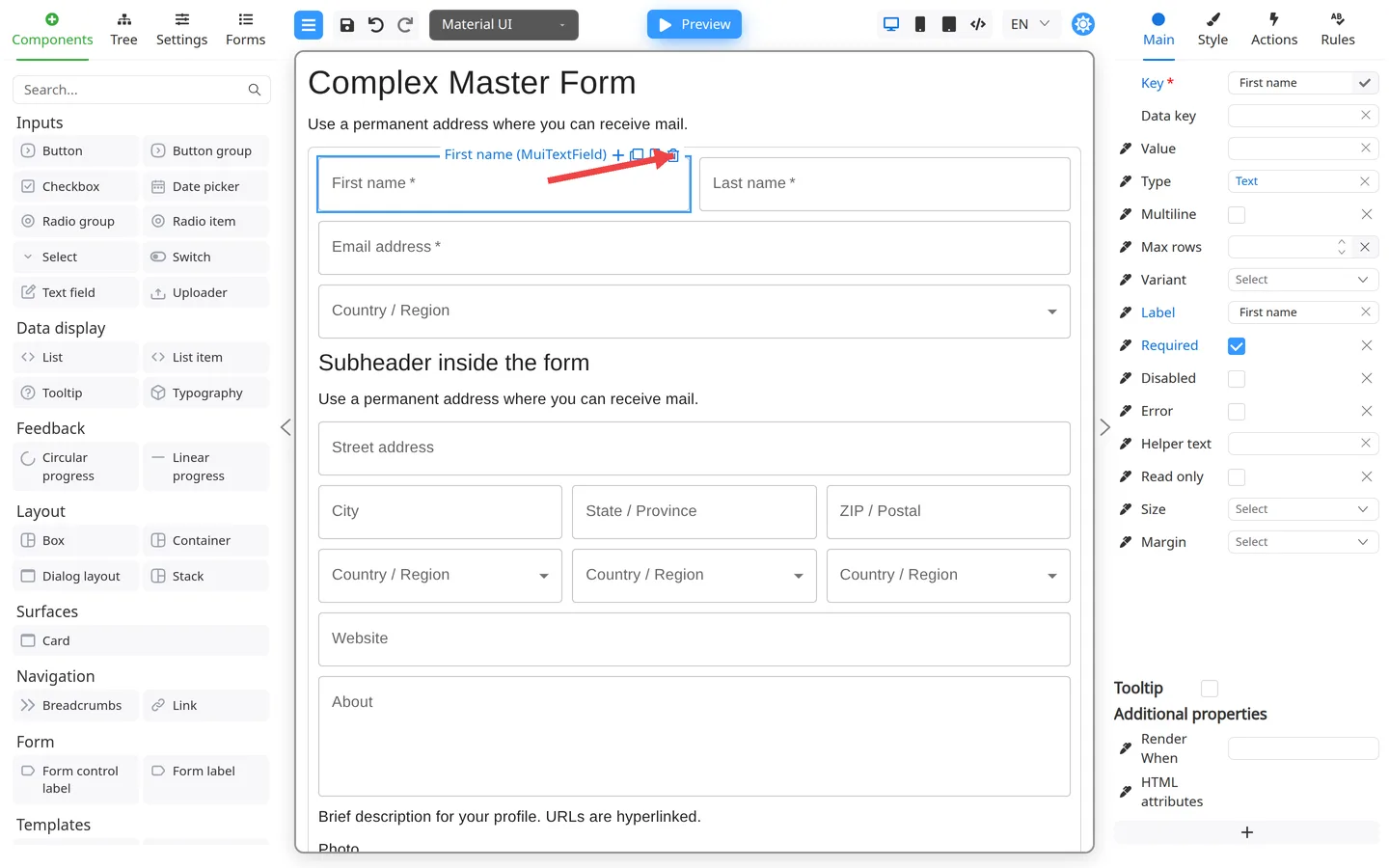
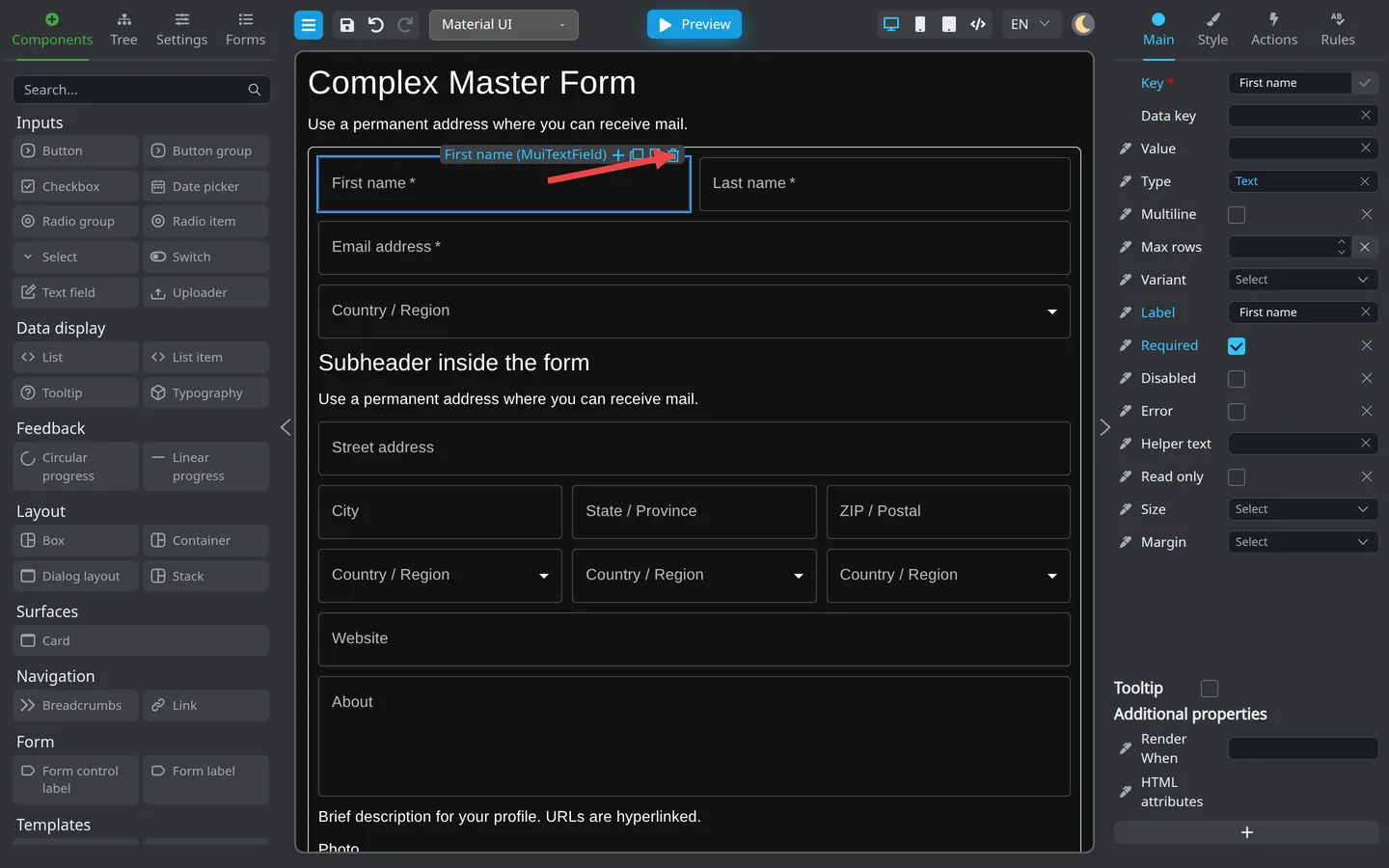
- Select one or more components.
- If the toolbar only shows Open actions, hover it to expand the strip.
- Click delete, or press Delete.
- Check Tree to confirm the field is gone.
Summary
Canvas or Tree selection drives the right panel. Ctrl+D or ⌘+D duplicates. Delete removes. See Keyboard shortcuts for the full list.