


Events and actions concept
An event can be a user interaction, such as clicking Save or changing a dropdown. An action is a behavior the form runs in response, such as validation, submission, or clearing fields.
In Designer
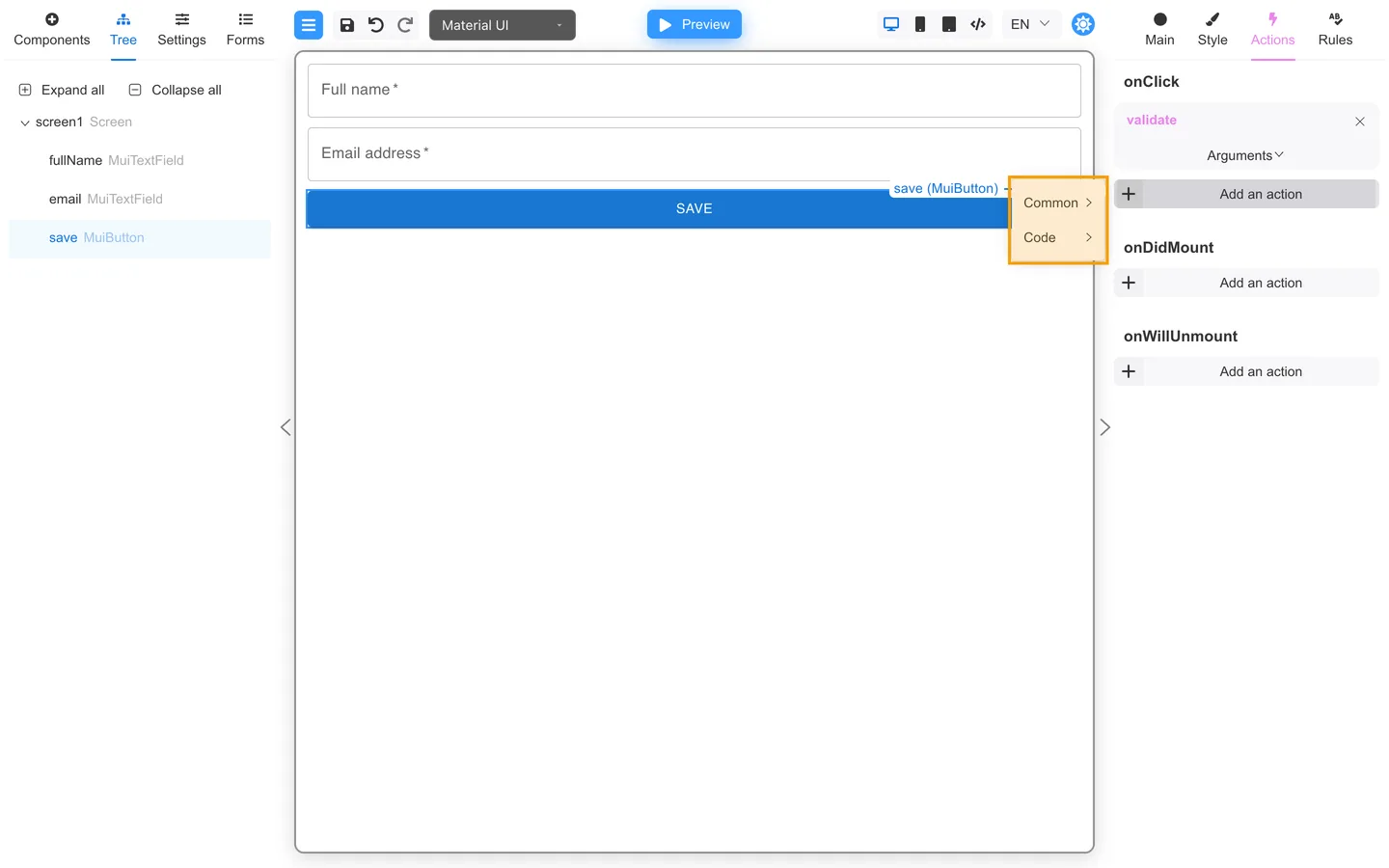
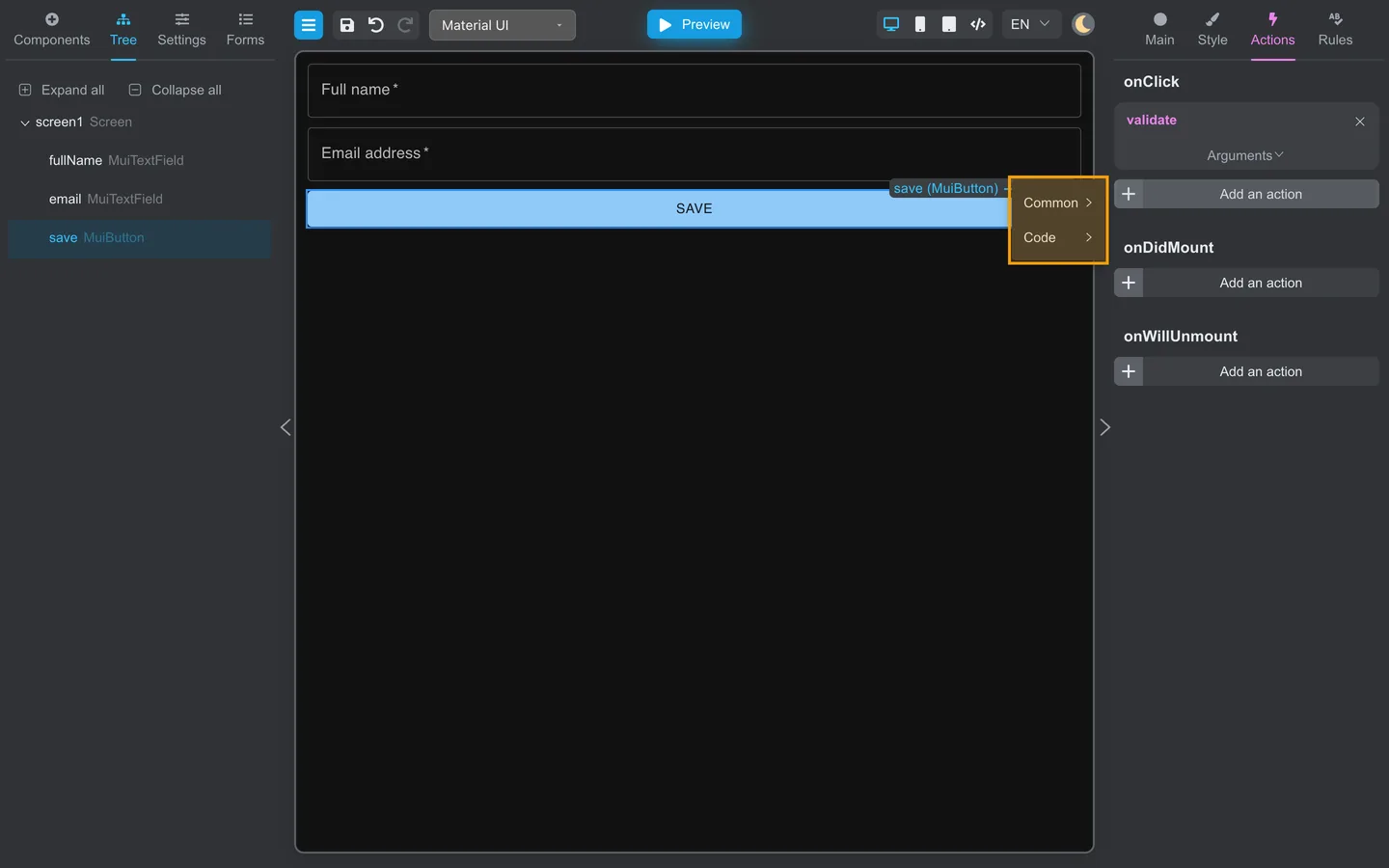
| Concept | Where you configure |
|---|---|
| Button click actions | Actions tab on the selected button |
| Form-wide scripts | Settings → Actions |
| Field validation | Rules tab |
On a button, open Actions, then Add an action under onClick to choose what runs when the button is clicked.
Common actions
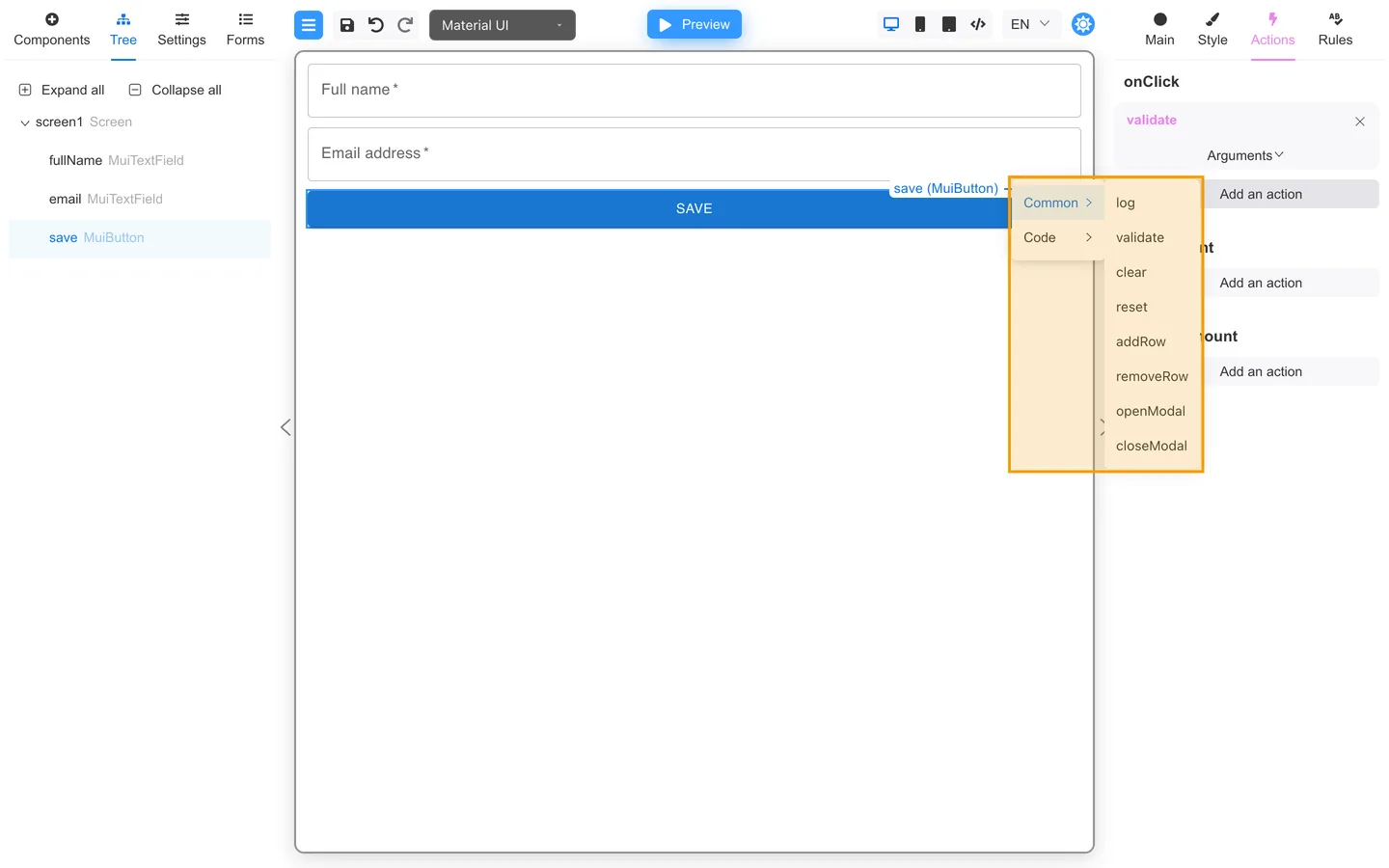
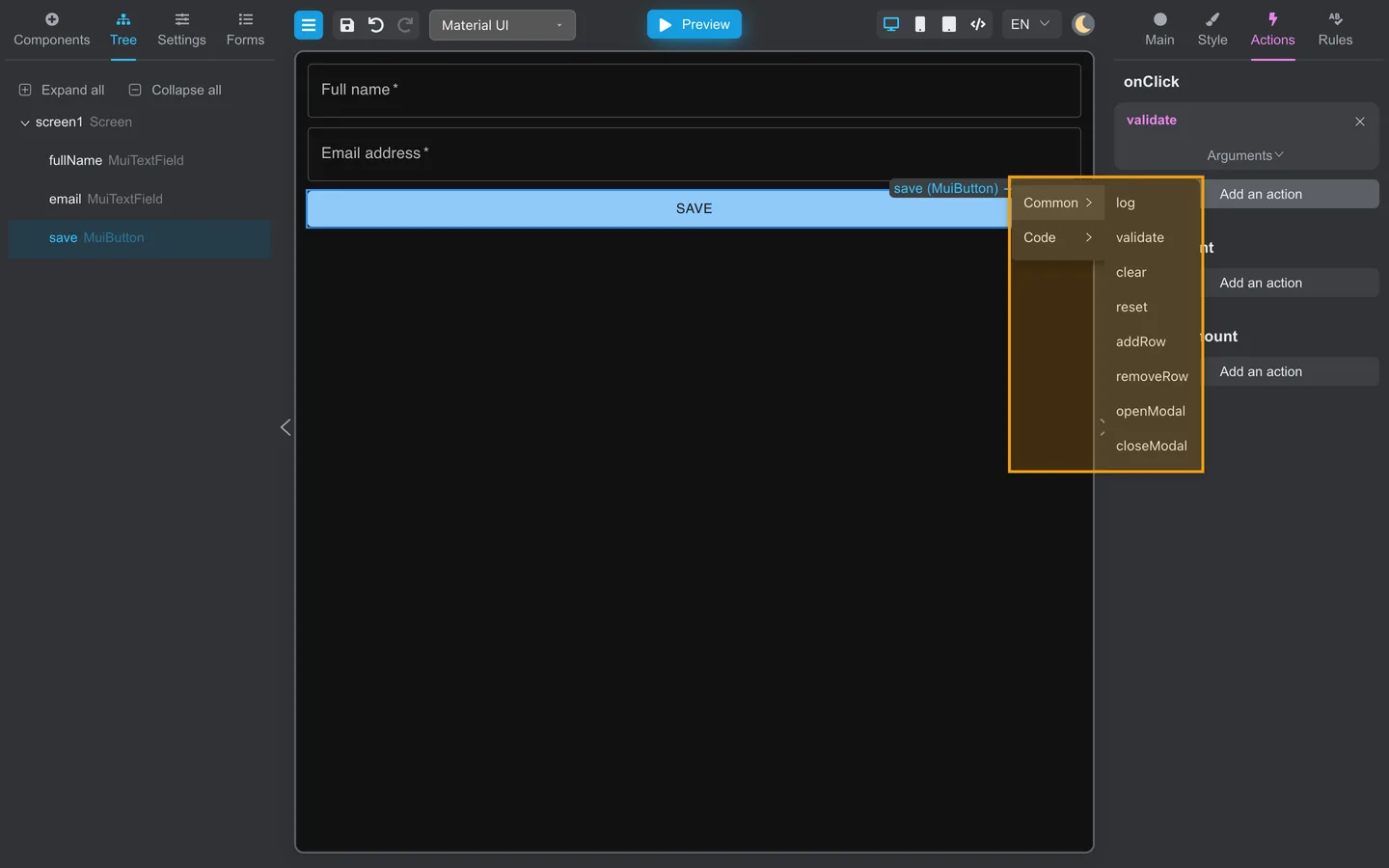
Many deployments include actions such as:
- Validate the form
- Reset or clear values
- Submit or save (via your application)
Open Common in the add-action menu to pick a built-in action. Names appear in the Actions list when you add them to a button.
Code actions
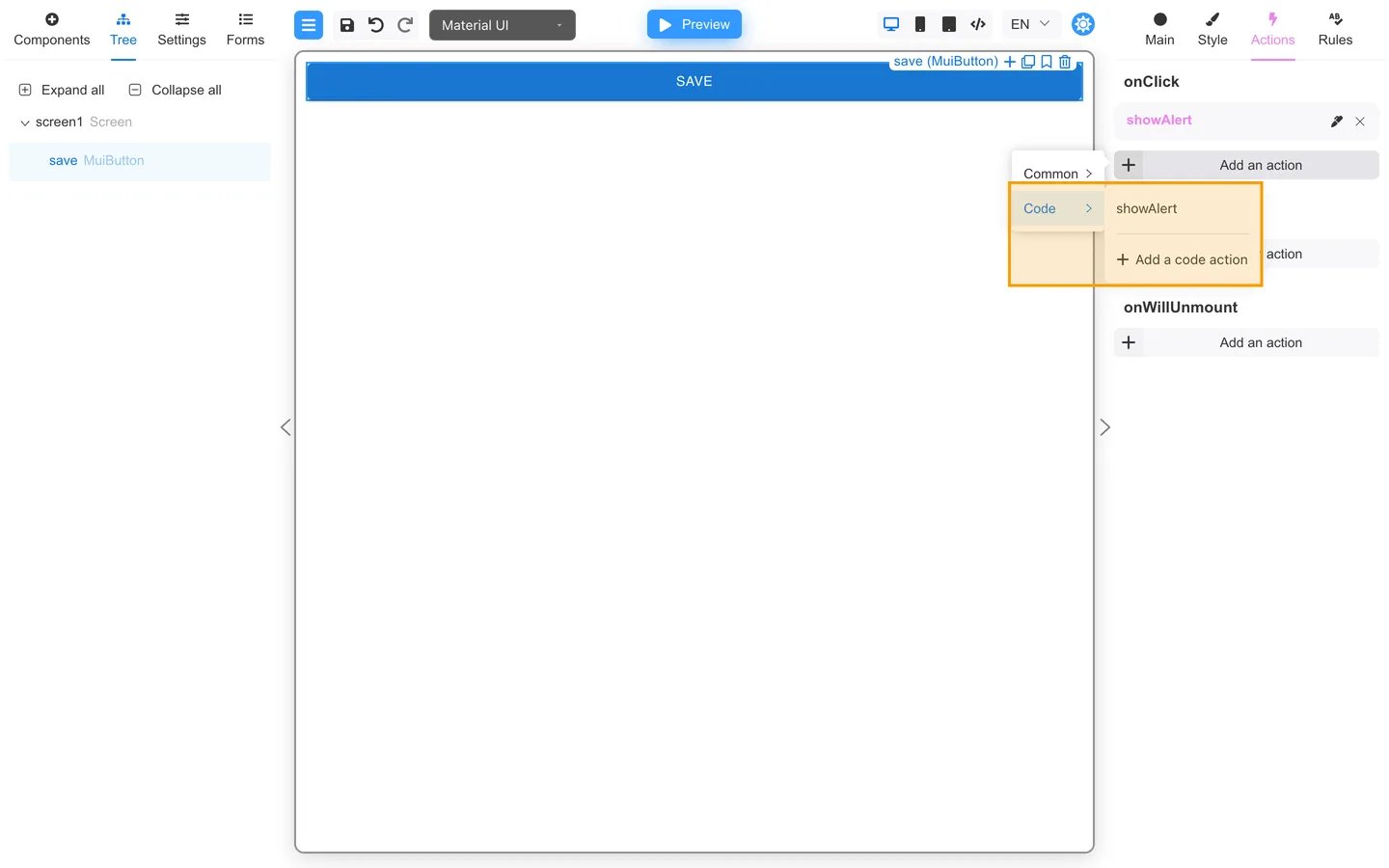
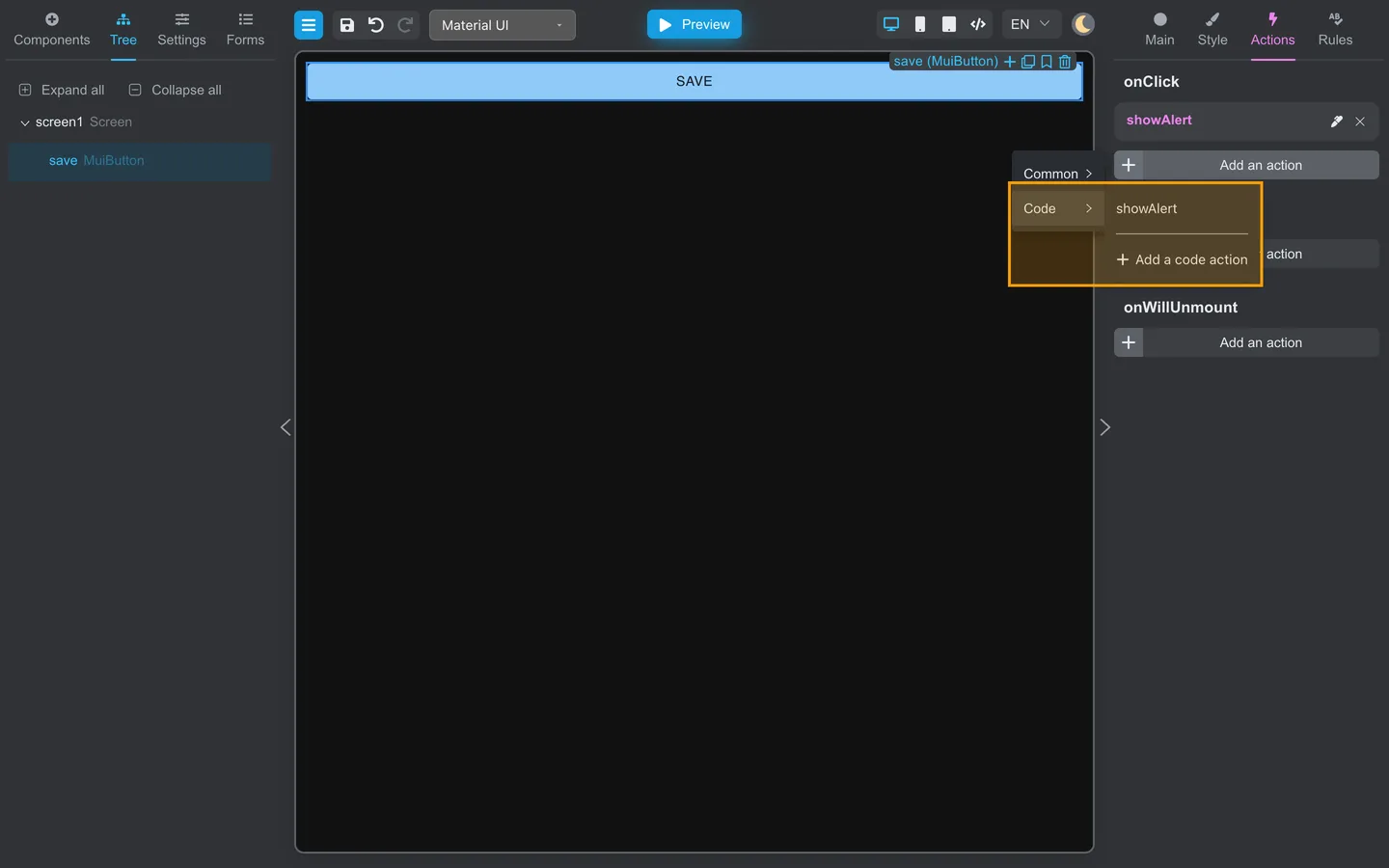
Authors create and name Code actions in Designer. Open Code to select an action already stored with the form or choose Add a code action to write one. Its JavaScript body is saved in the form, so the action does not need application registration.
Custom actions
Developers register Custom actions in the host application. When the application provides any, Custom appears as a separate submenu under Add an action. Authors can attach those actions to events, but they cannot create or edit the application implementation in Designer.
Summary
Users trigger events, and the form runs actions. Common actions are built in, Code actions are stored with the form, and Custom actions are supplied by the host application. Buttons use the right Actions tab; whole-form Code actions use Settings.