


Sortable list
Use Sortable list when people must reorder repeating rows (priority tasks, ranked choices, step order). It works like a Repeater: you design one row template, and users add or remove rows. In Preview, each row also shows a drag handle so they can change order.
Sortable list and Repeater work with any component library (Material UI, RSuite, Mantine, and others). Build the row with that library’s fields and buttons. Use a plain Repeater when order never changes at runtime.
When to use Sortable list
| Need | Component |
|---|---|
| Users add or remove rows, but order stays fixed | Repeater |
| Users must drag (or keyboard-move) rows into a new order | Sortable list |
| Column grid with headers | Table (RSuite) |
Do not nest a Sortable list inside another Sortable list in this version.
Example: priority tasks
This walkthrough builds a Priority tasks form. Each row has a Task field and a Remove button. Users reorder rows with the handle, and Add task appends a new row.
Step 1: Add Sortable list
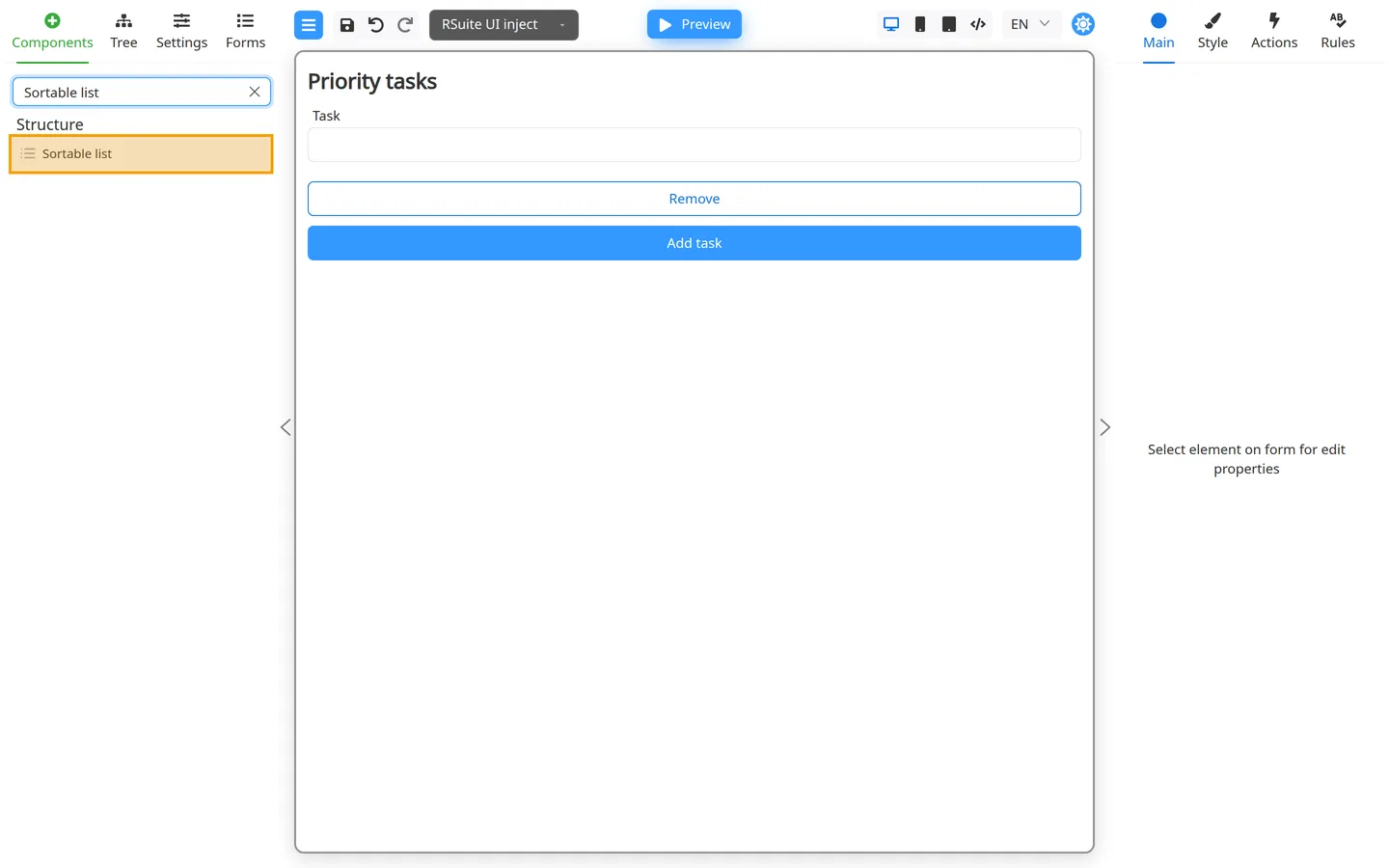
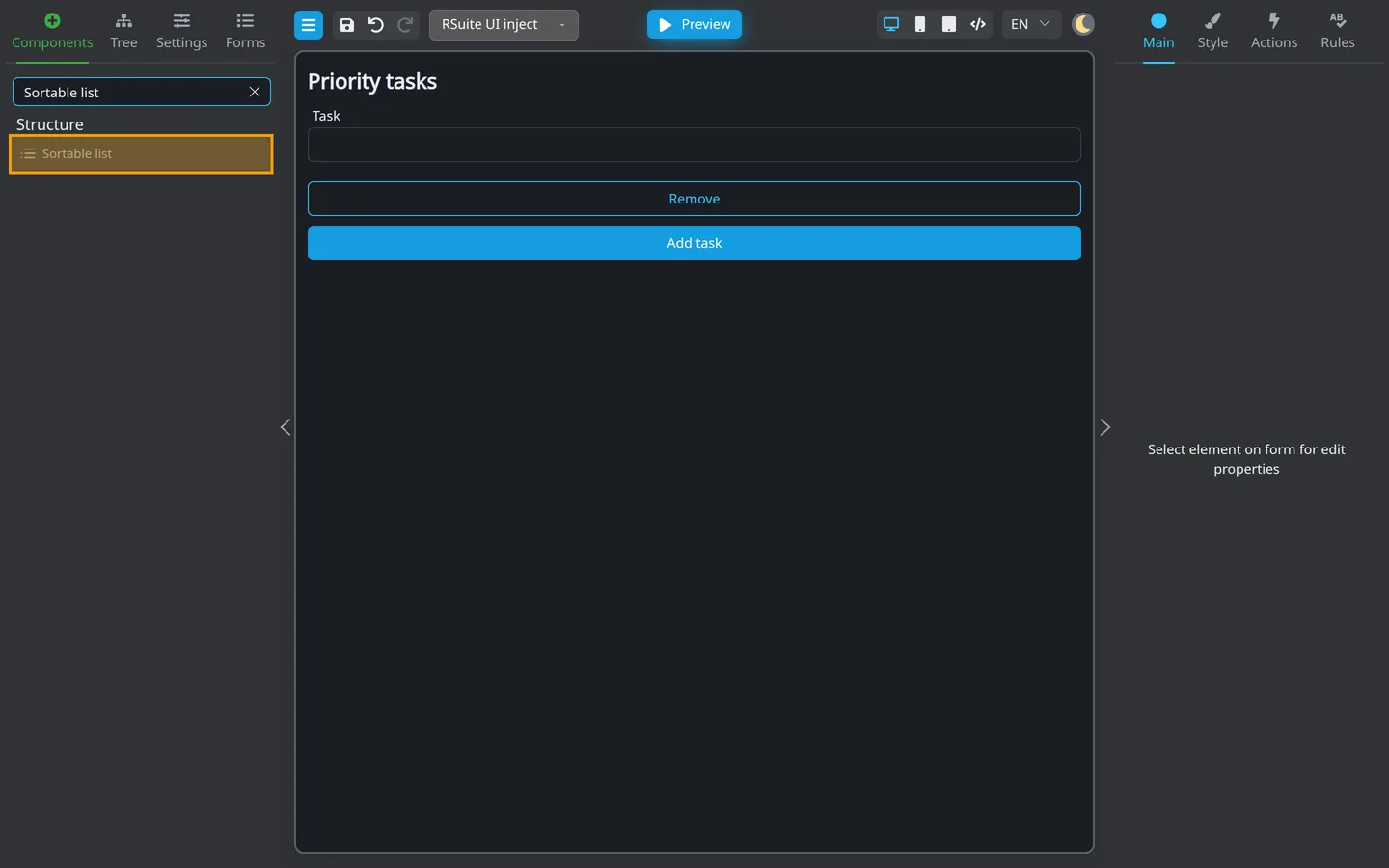
- Open Components.
- Search for Sortable list.
- Drag Sortable list onto the canvas below the form title.
- On Main, set Key to
taskList.
Step 2: Build the row template
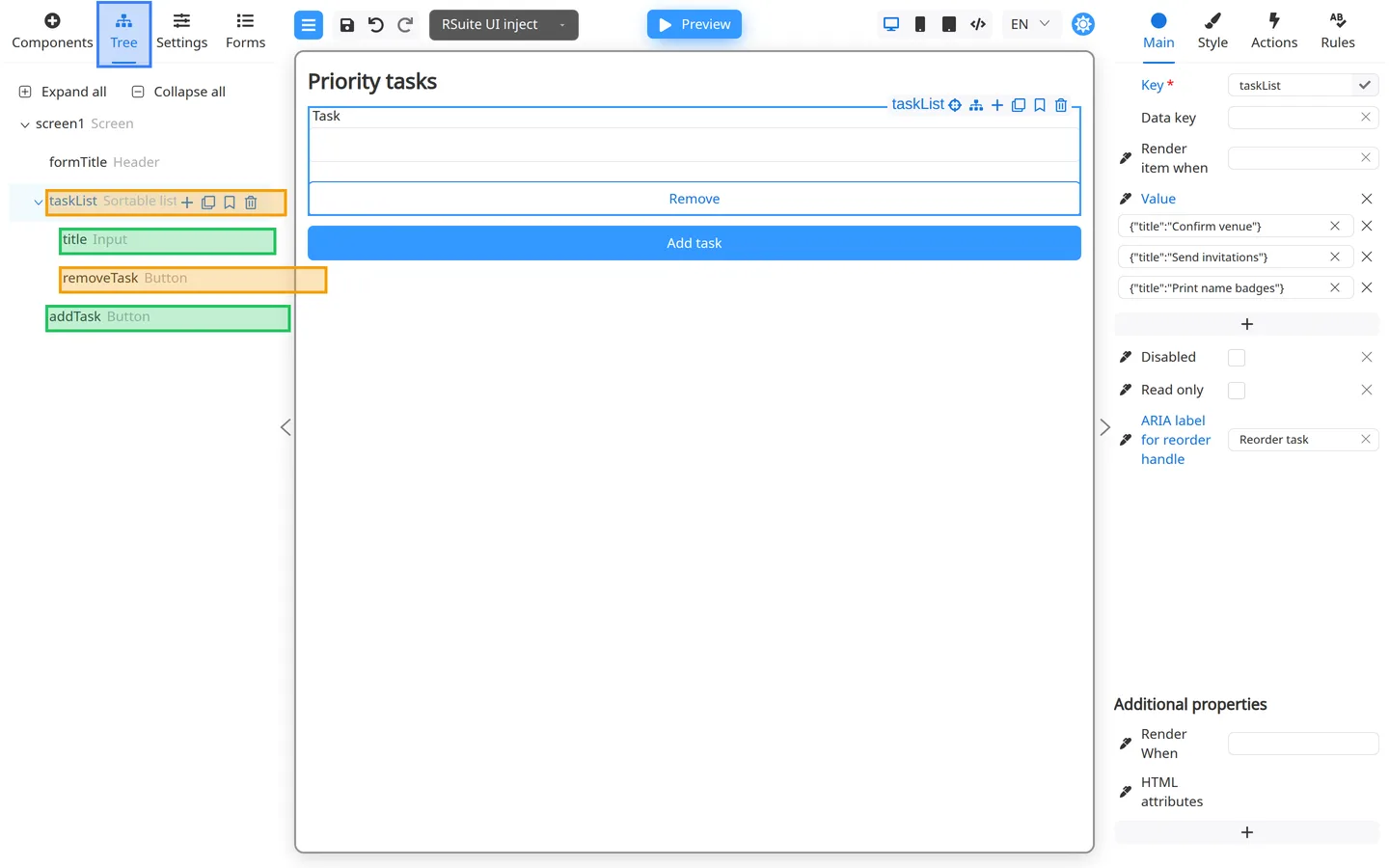
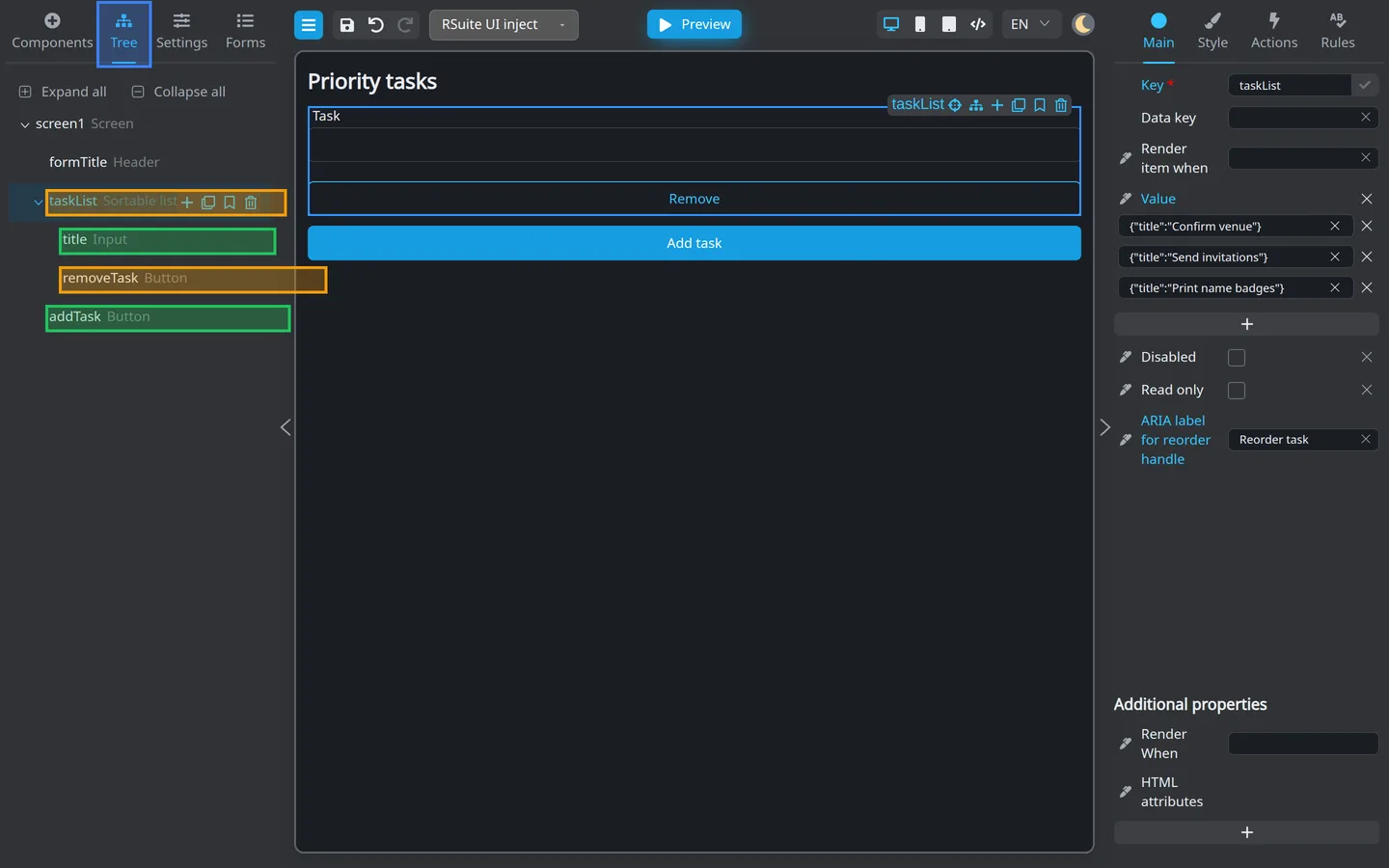
- Drag a text input from your library into the Sortable list, label it Task, and set its Key to
title. - Drag a Button into the same Sortable list, labeled Remove.
- On Actions → onClick for Remove, add the removeRow action. Leave dataKey and index empty so the button removes its own row.
- Open Tree → Expand all and confirm nesting:
taskList→titleandremoveTask.
Step 3: Add an Add task button
- Drag Button below the Sortable list.
- Set the label to Add task.
- On Actions → onClick, add the addRow action with dataKey set to
taskList.
Step 4: Review Main properties
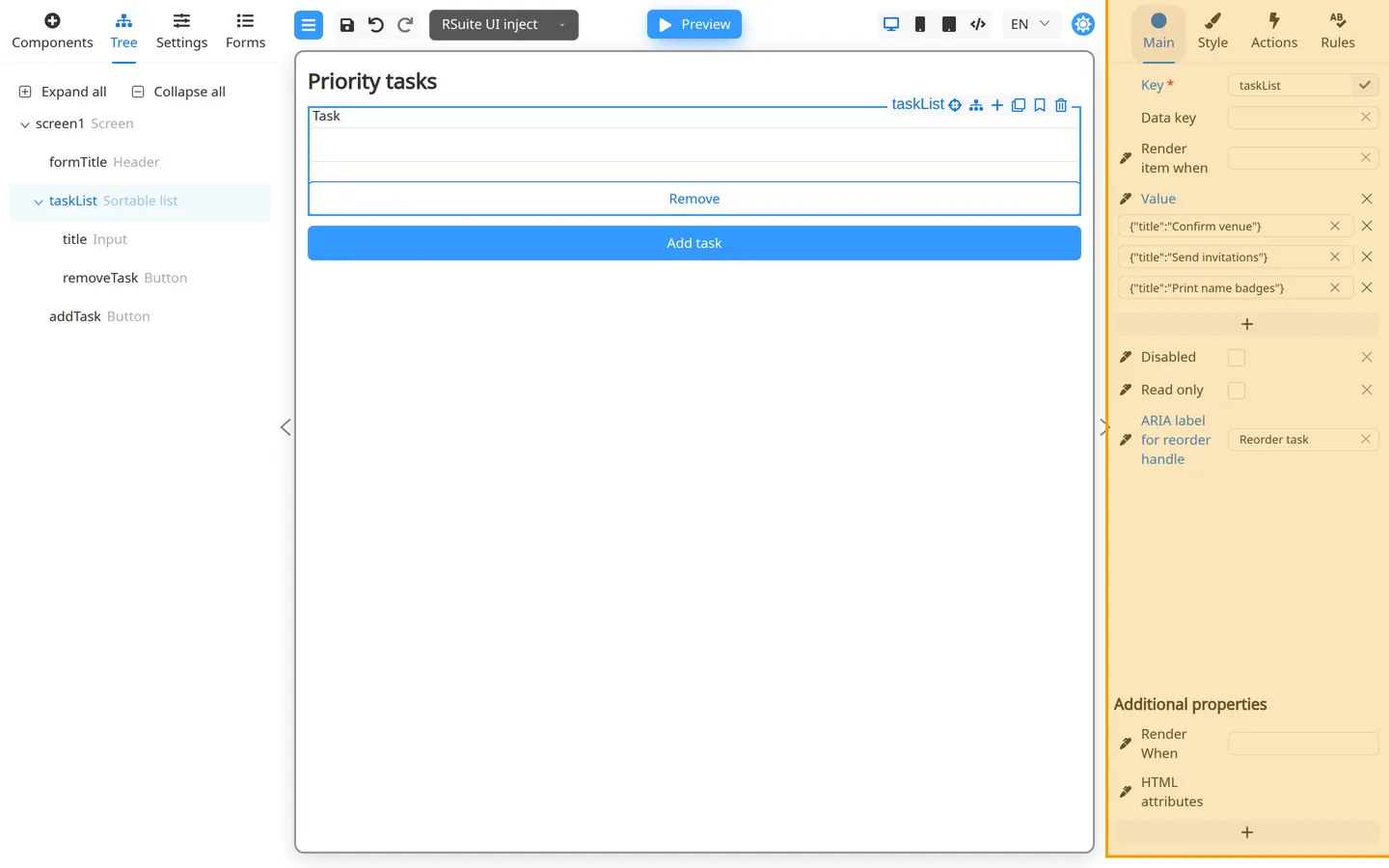
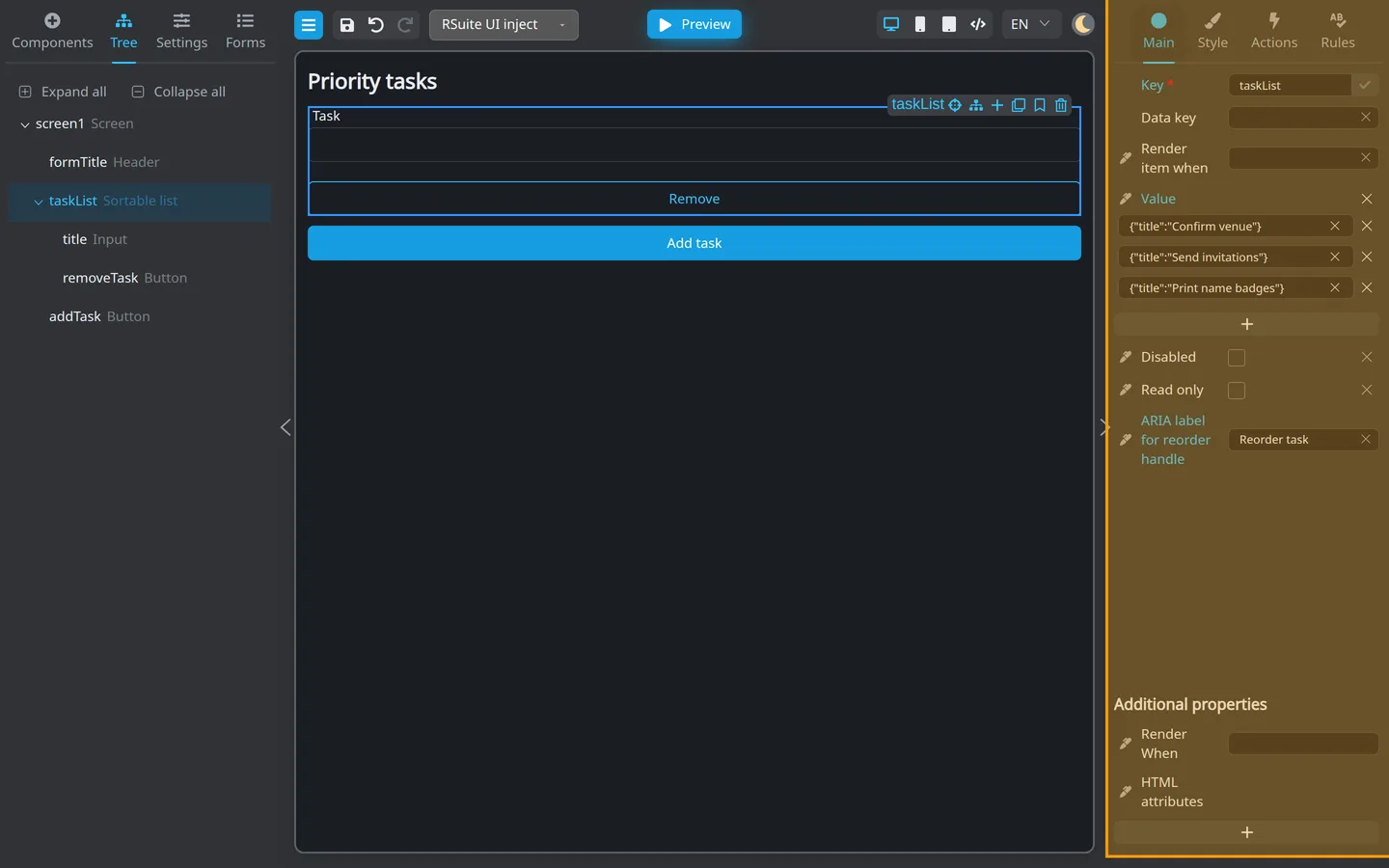
Select the Sortable list, then open Main:
| Property | What it does |
|---|---|
| Disabled | Turns off reordering (and blocks interaction on the list). |
| Read only | Turns off reordering while the row fields may still be editable. |
| ARIA label for reorder handle | Accessible name for the drag handle (default Reorder row). |
| Render item when | Same idea as Repeater: controls when row content shows. |
| Value | The array of row objects (seed sample rows here if you want a filled Preview). |
Set ARIA label for reorder handle to something specific when helpful (for example Reorder task).
Step 5: Test reorder in Preview
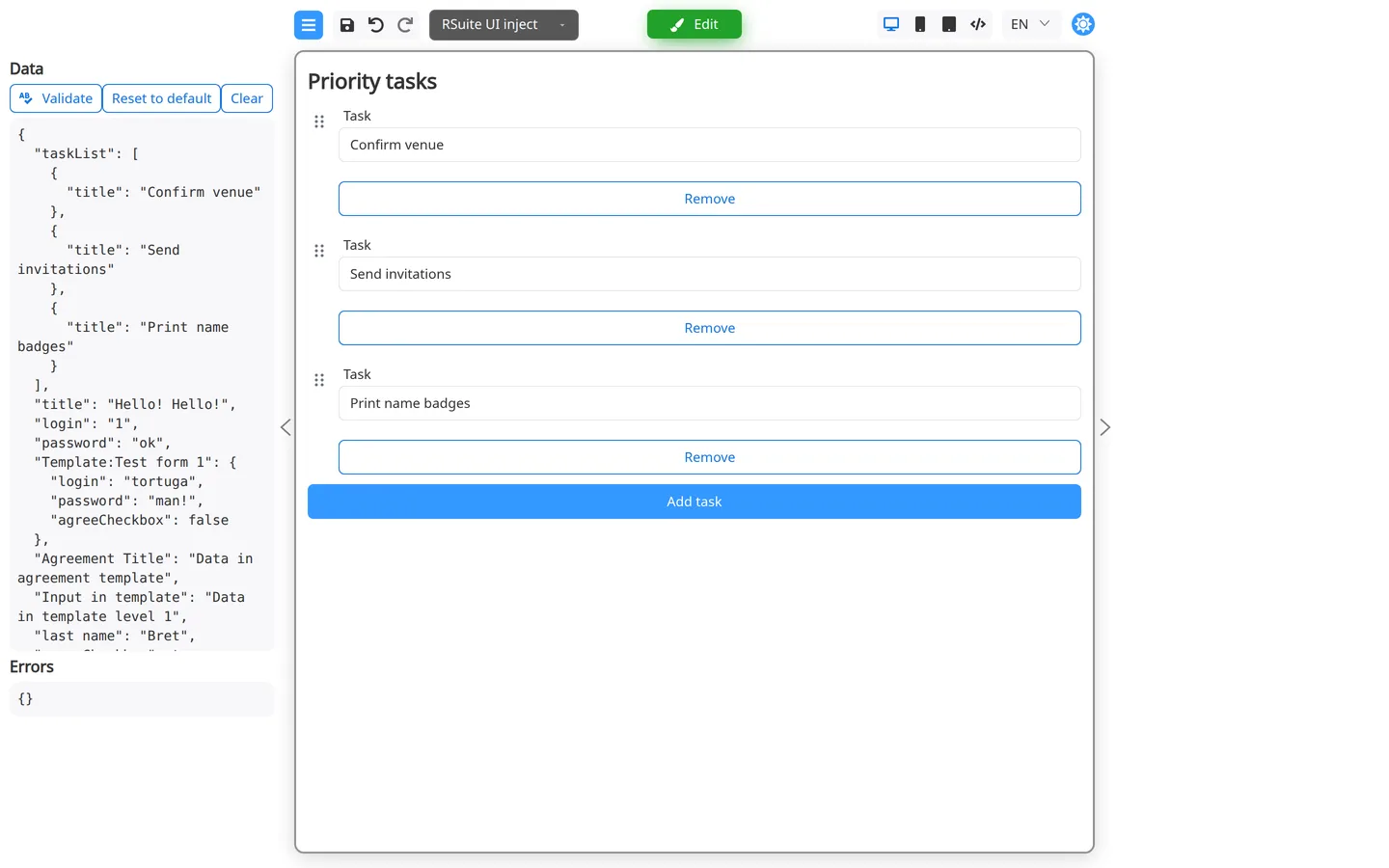
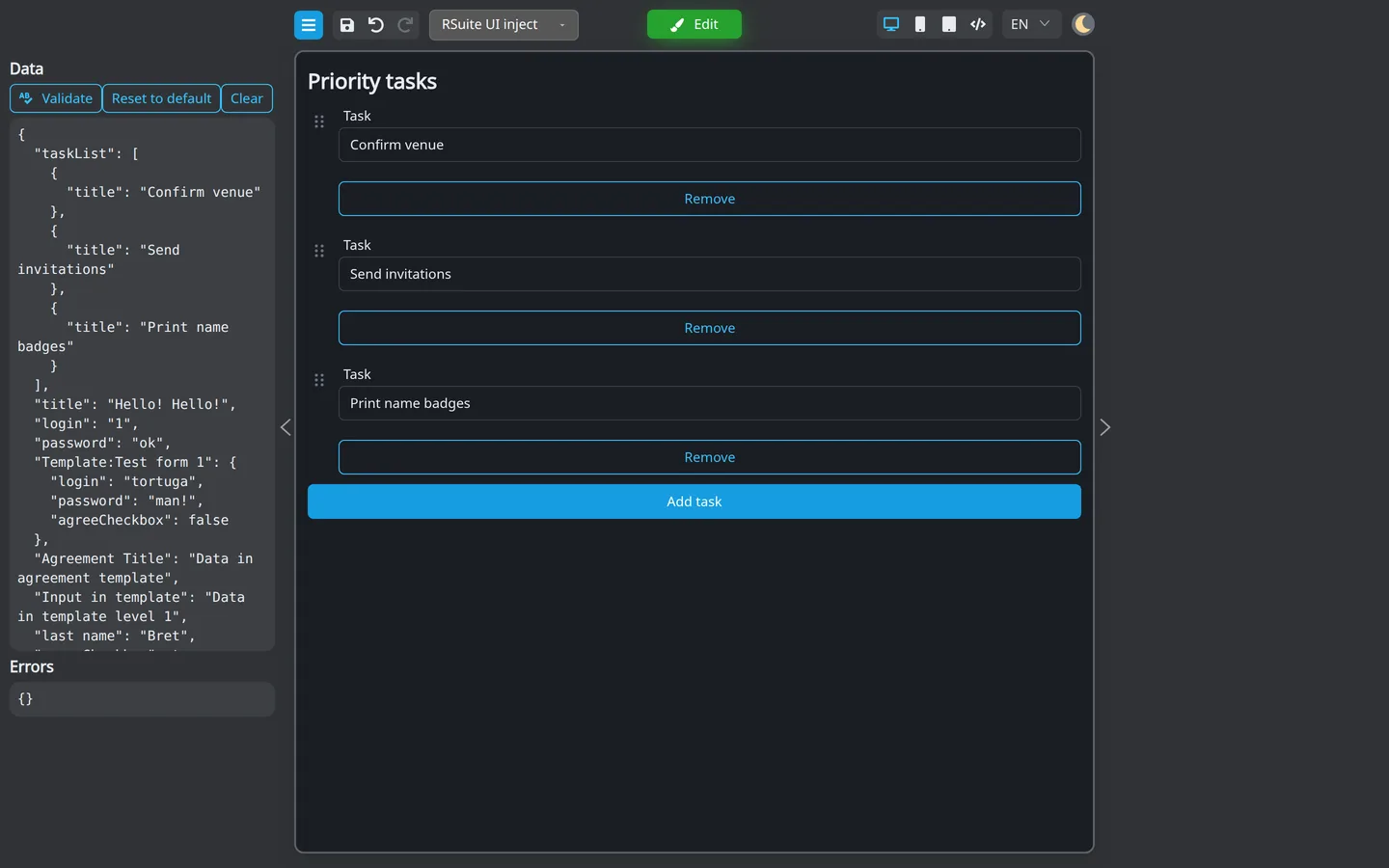
- Click Preview.
- Confirm each row shows a handle on the left.
- Drag a handle to move a row (for example move Print name badges above Send invitations).
- Click Add task, fill a new Task value, then reorder again.
- Click Remove on one row and confirm only that row disappears.
Reorder with the keyboard
- Tab until focus is on a row’s reorder handle (not inside the Task field).
- Press Space or Enter to start moving that row.
- Press ArrowUp or ArrowDown until the row sits where you want it (Shift + arrow moves farther each press).
- Press Space, Enter, or Tab to drop it in place.
- Press Escape instead to cancel and keep the previous order.
Summary
Sortable list is a repeating row template plus drag (and keyboard) reorder in Preview. It works with any component library. Build the
row like a Repeater, wire addRow / removeRow, then confirm handles and order changes in Preview. Prefer a plain Repeater when users
never need to change row order.