


Use the component tree
The Tree tab lists every component in the same nested order as the canvas. Use it when the form is crowded. Click a row to select that
component. The root key is usually screen1.
Open Tree
- Click Tree on the left panel.
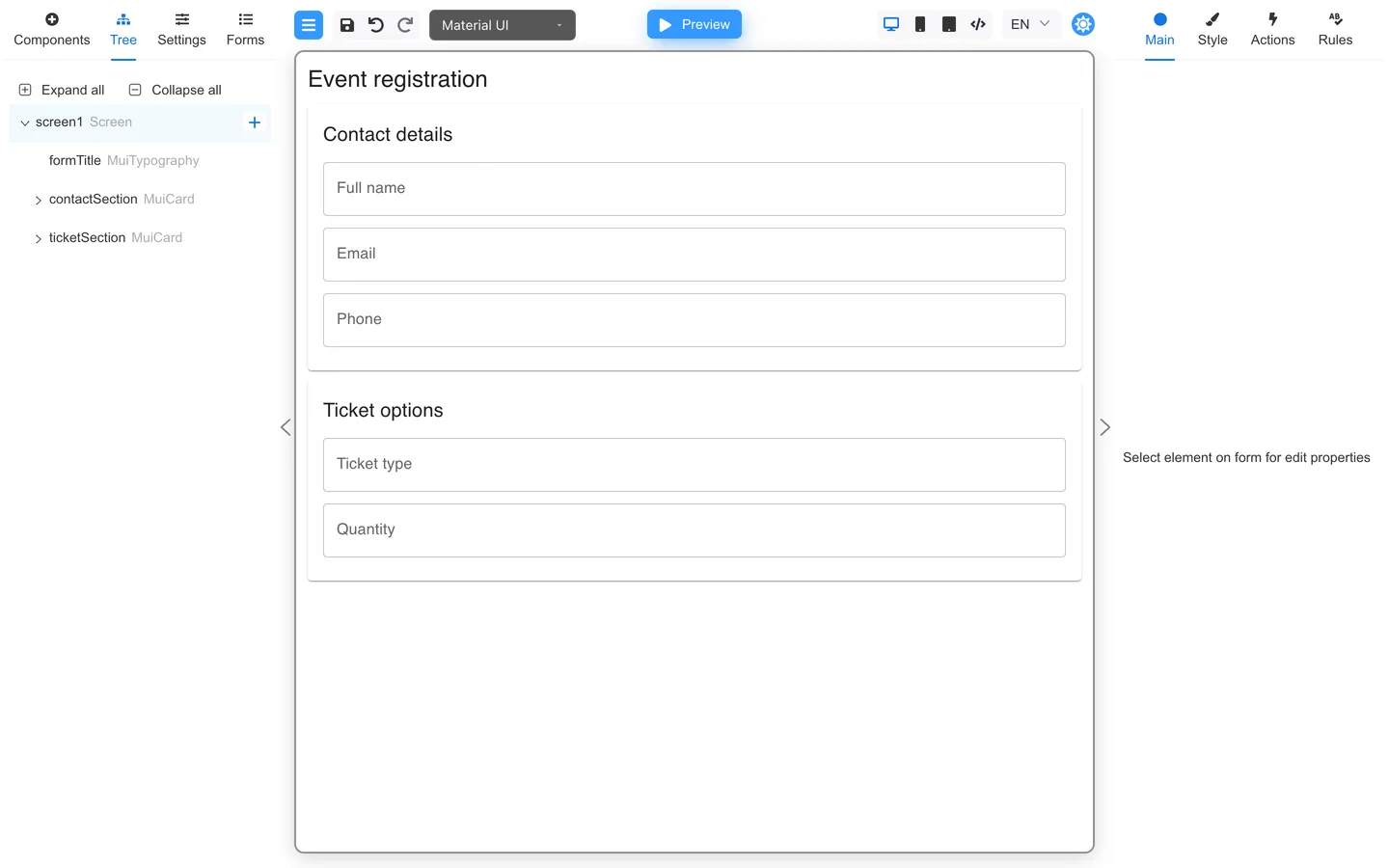
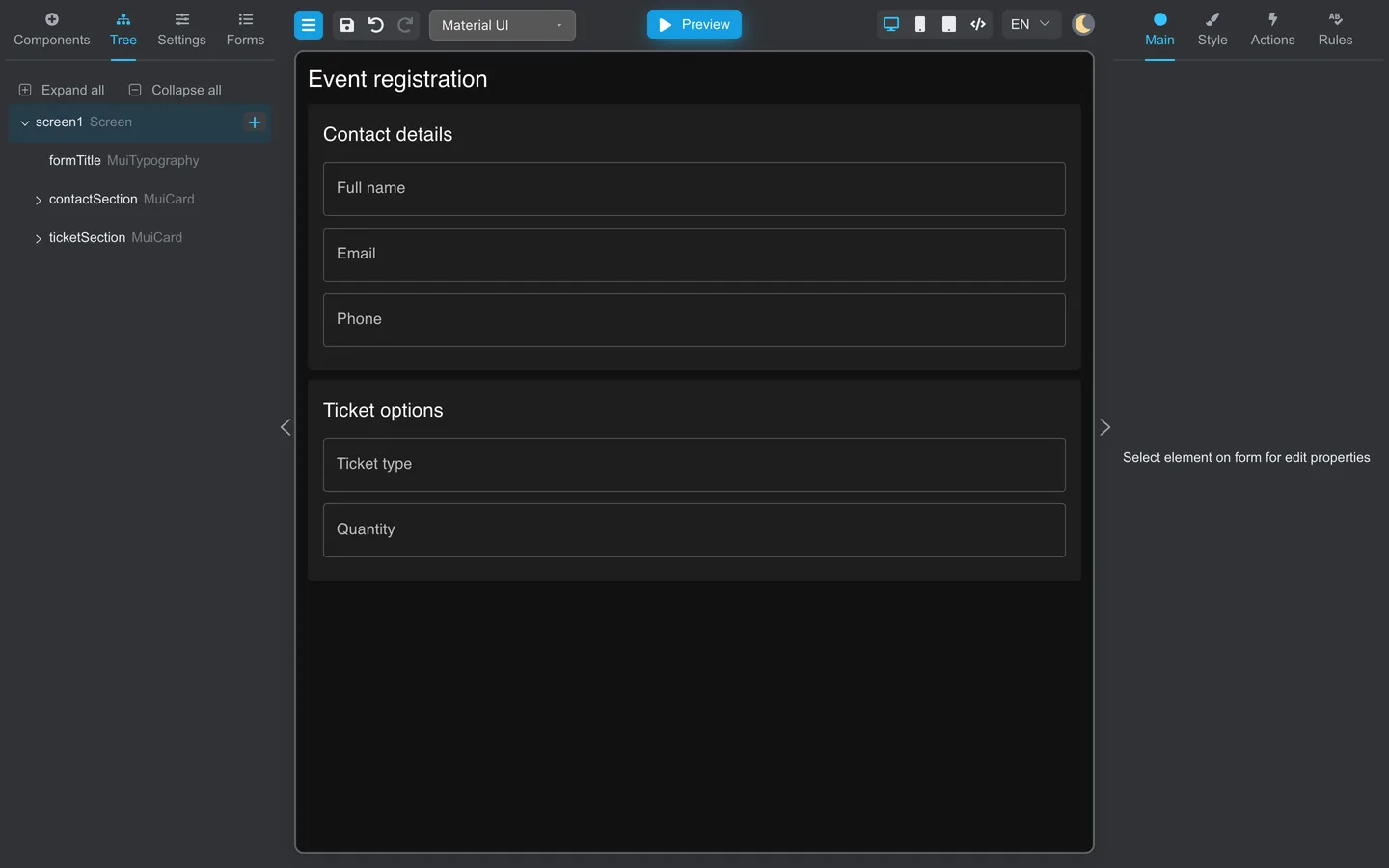
- Click Expand all to see nested containers and fields.
- Click Collapse all to hide children.
Select a component
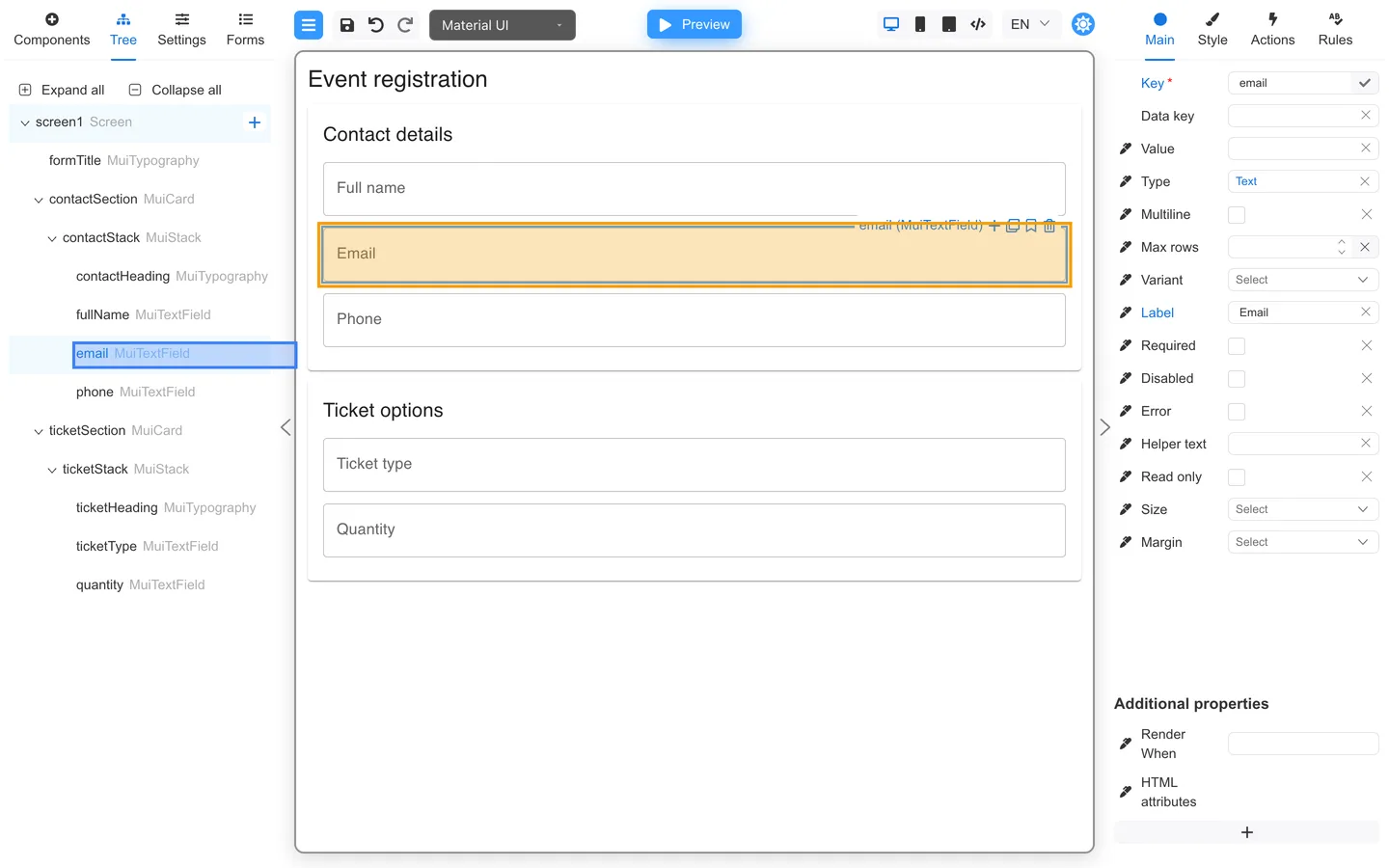
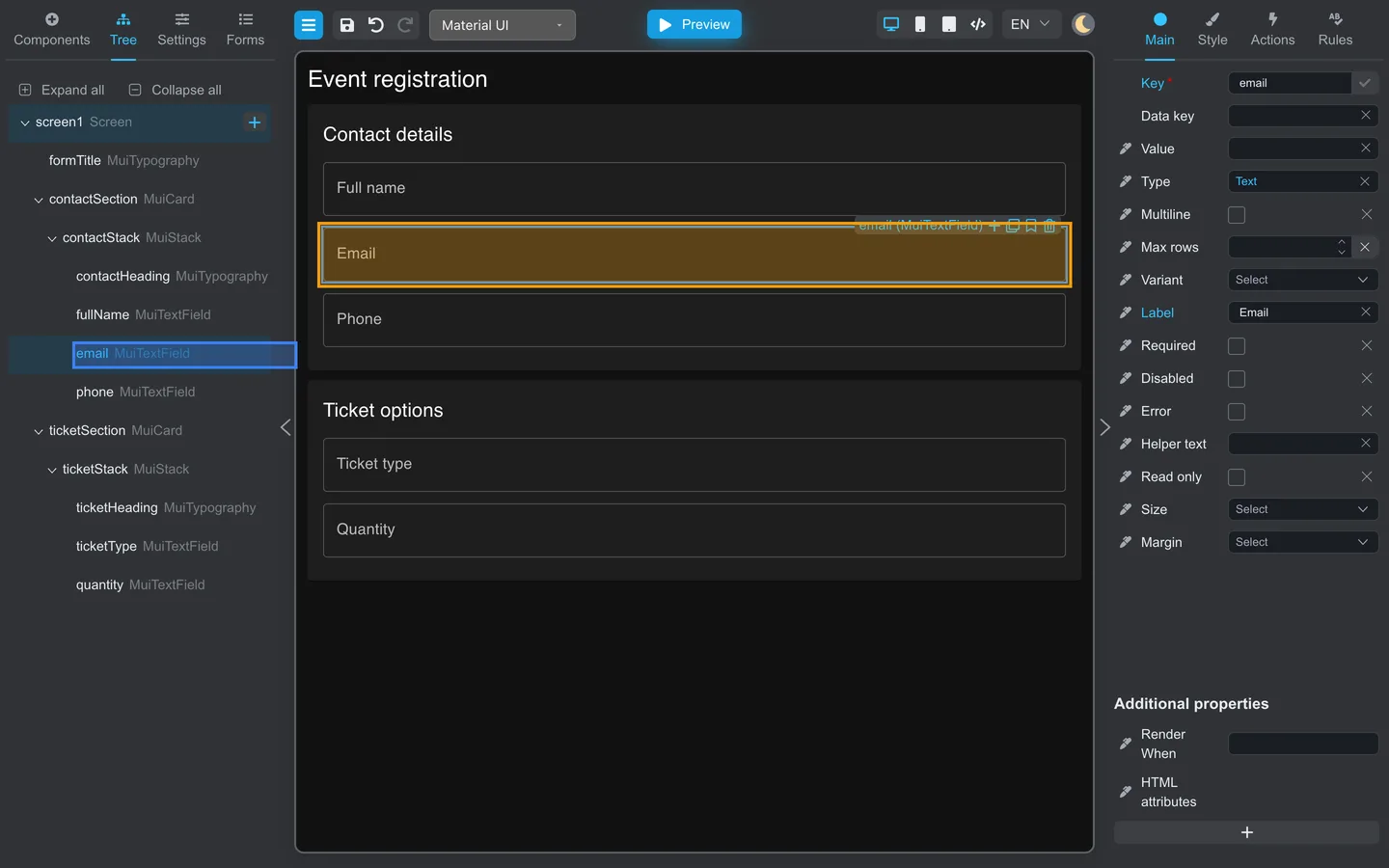
- Click a row (for example
email). - The canvas highlights that component.
- The right panel shows Main, Style, Actions, and Rules for that selection.
Row toolbar
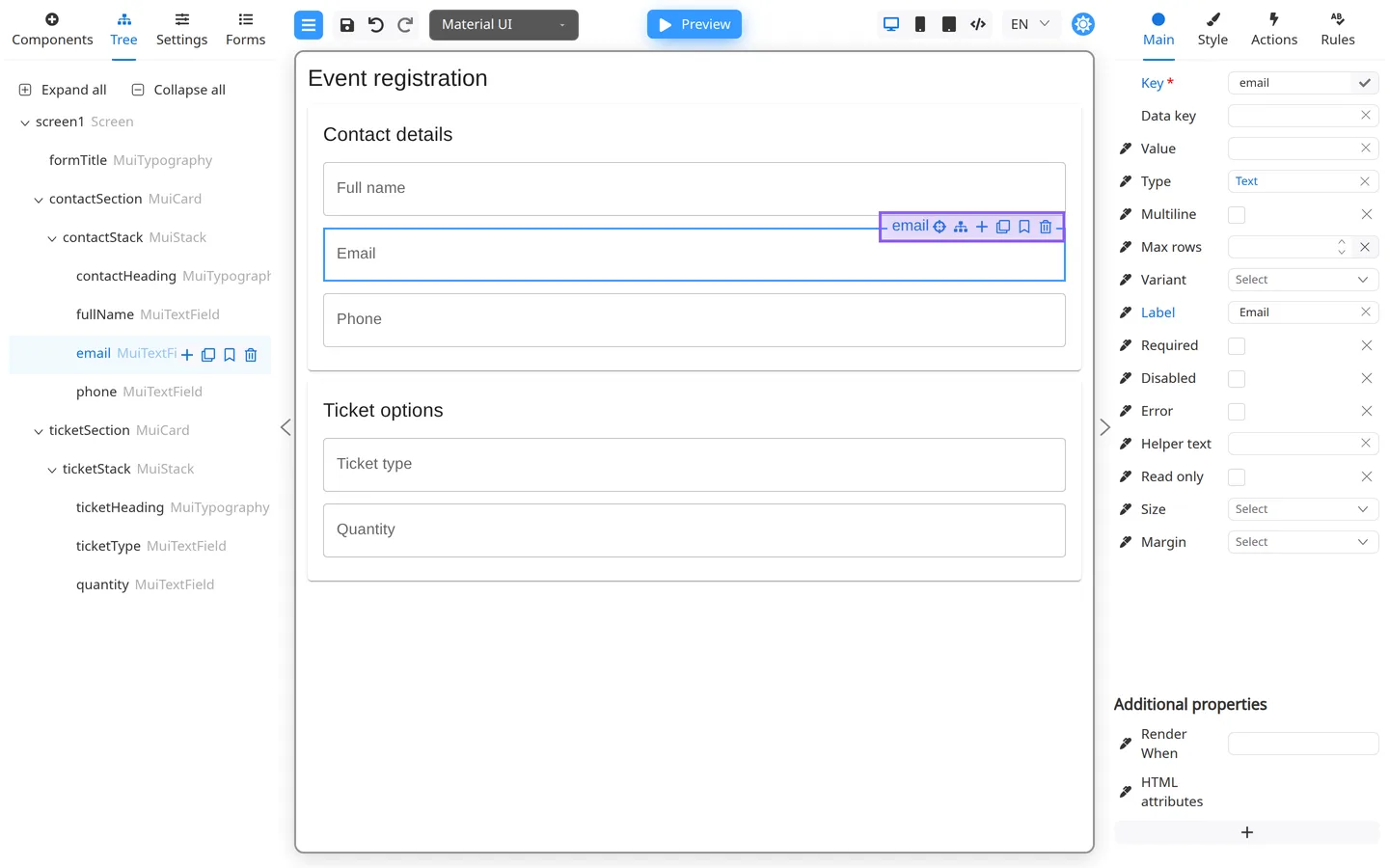
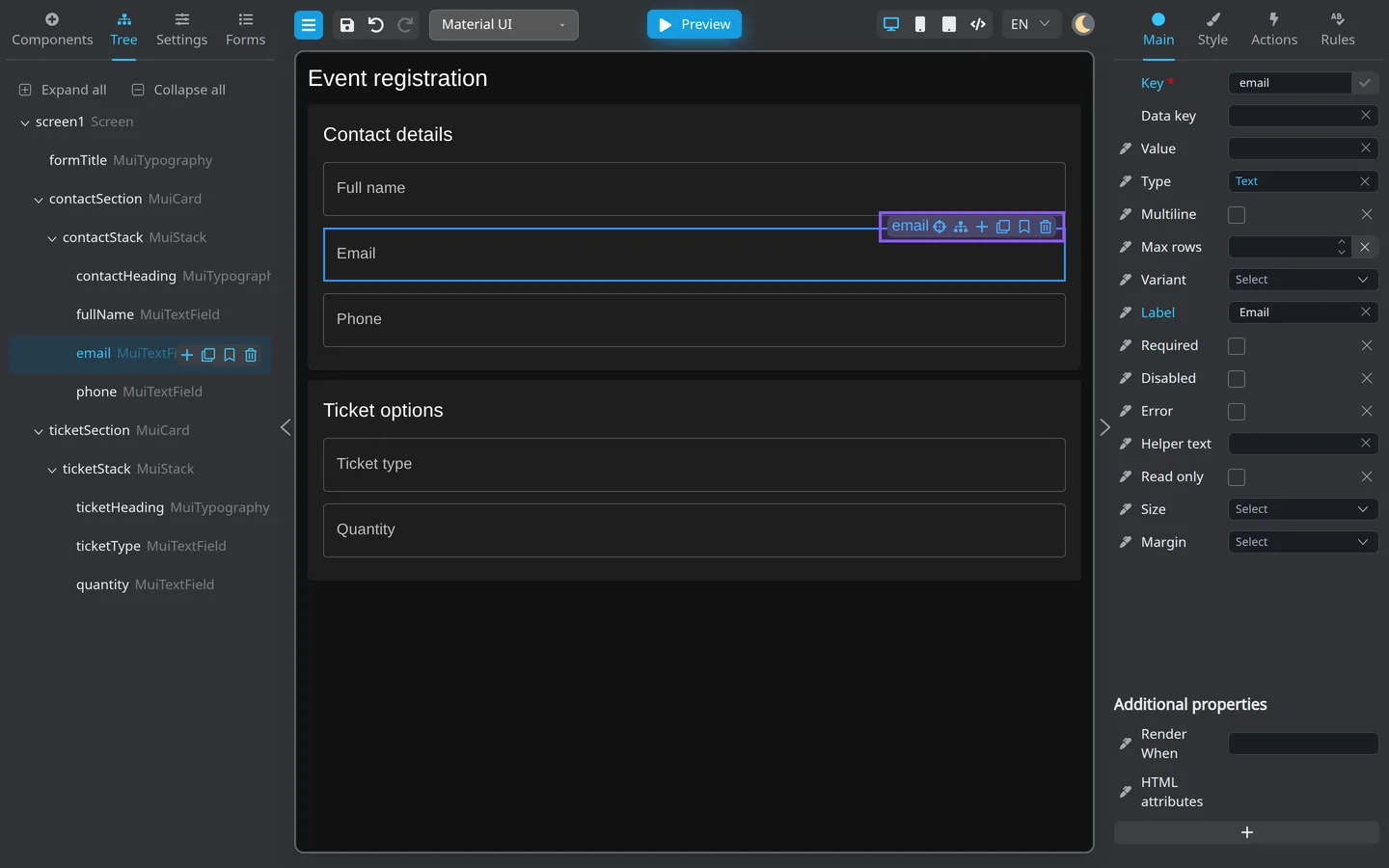
- Hover a Tree row.
- A compact toolbar appears: +, Clone, Preset, and Remove.
- Those icons match the canvas toolbar. Reveal in tree and Show nearby stay on the canvas toolbar only.
Selecting on the canvas does not scroll Tree. Click Reveal in tree on the canvas toolbar when you need that row in view.
Reorder
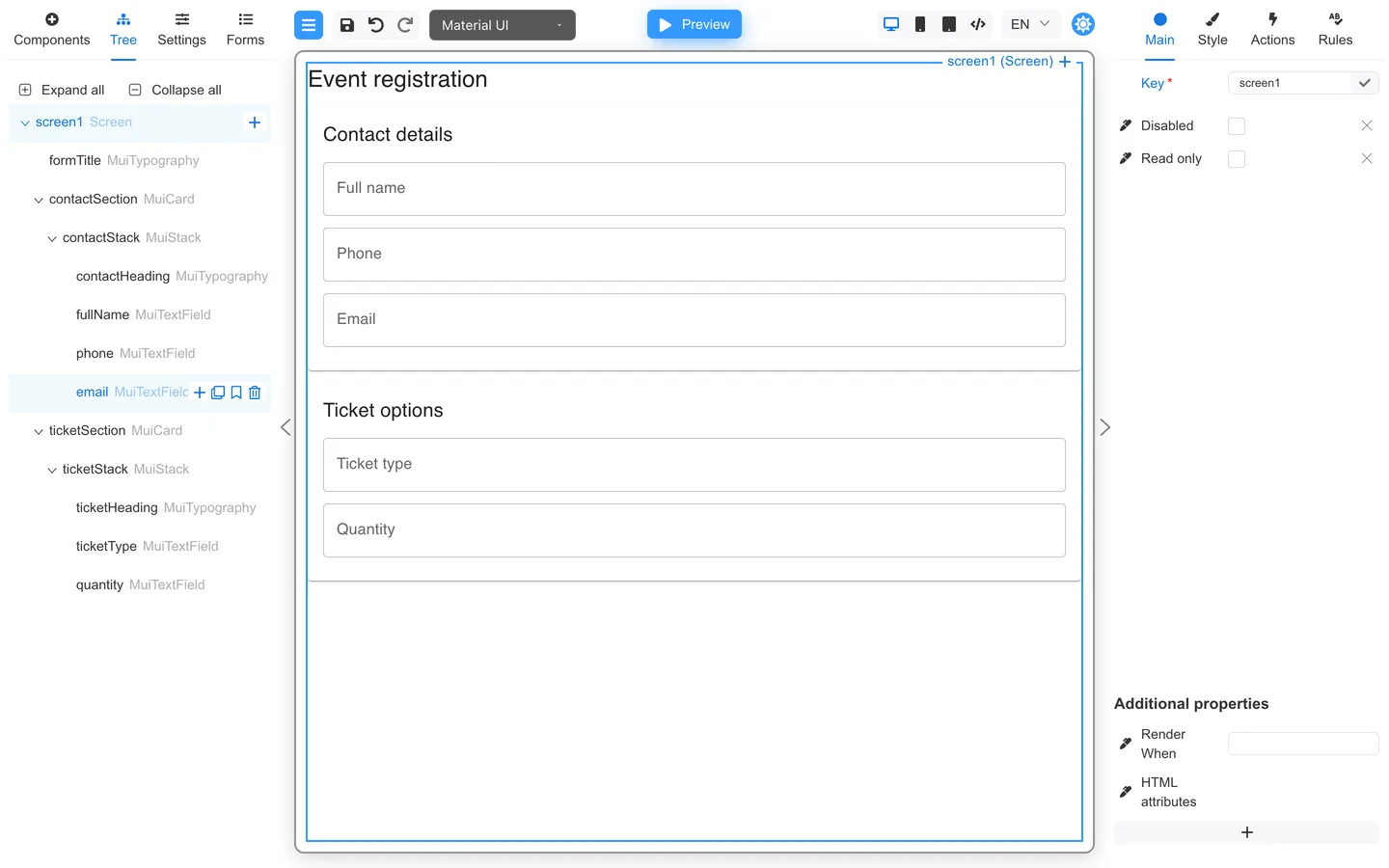
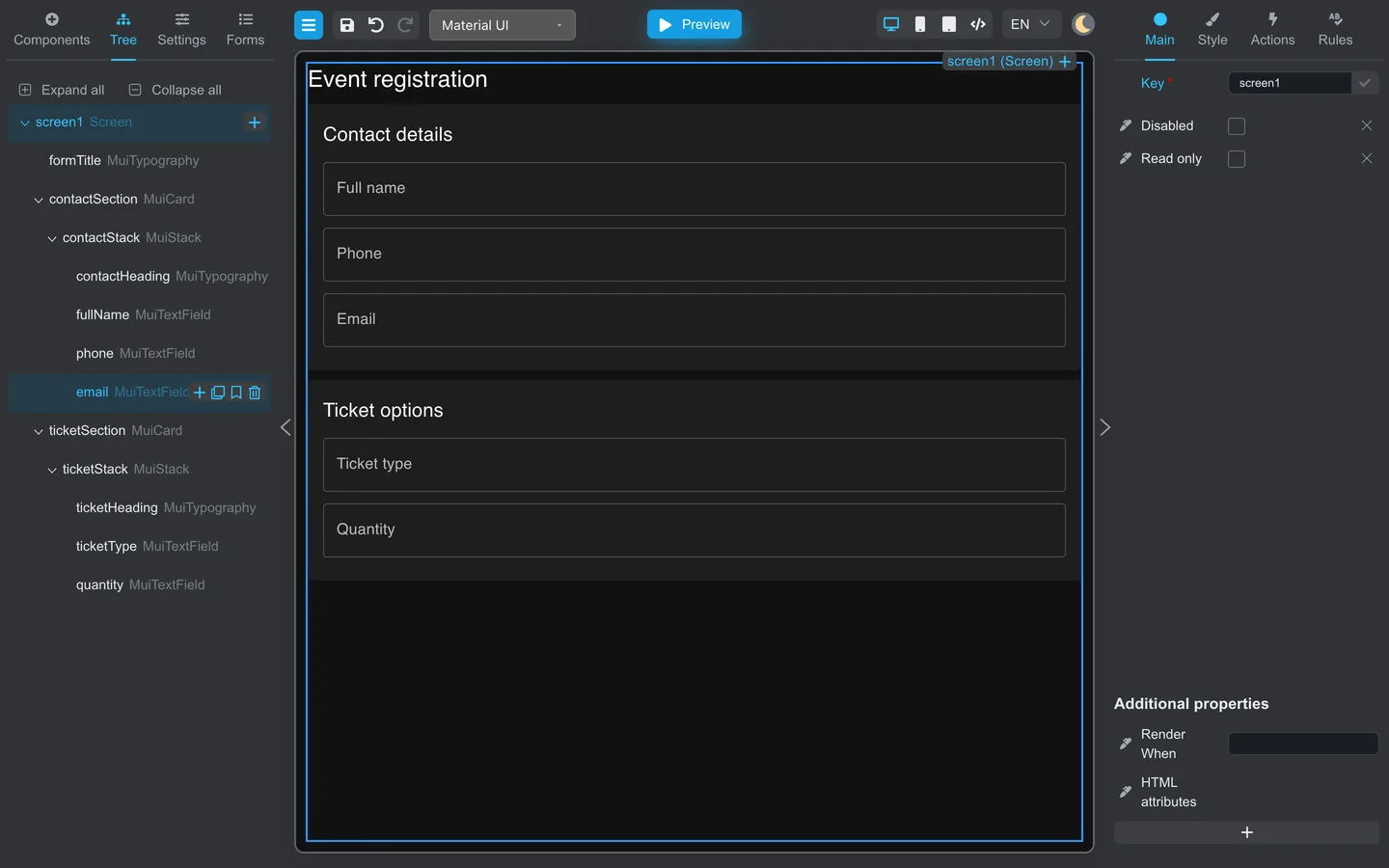
- Drag
phoneaboveemailin the tree. - Release to drop among siblings in the same stack.
- Confirm the canvas: Phone is above Email.
If drag is blocked, the target may not accept that component type. Try a different container.
When you need the tree
- Finding a field hidden inside a container
- Checking parent–child order (for example a button inside a stack)
- Reordering nested sections when the canvas is too dense to click
Find deeply nested fields
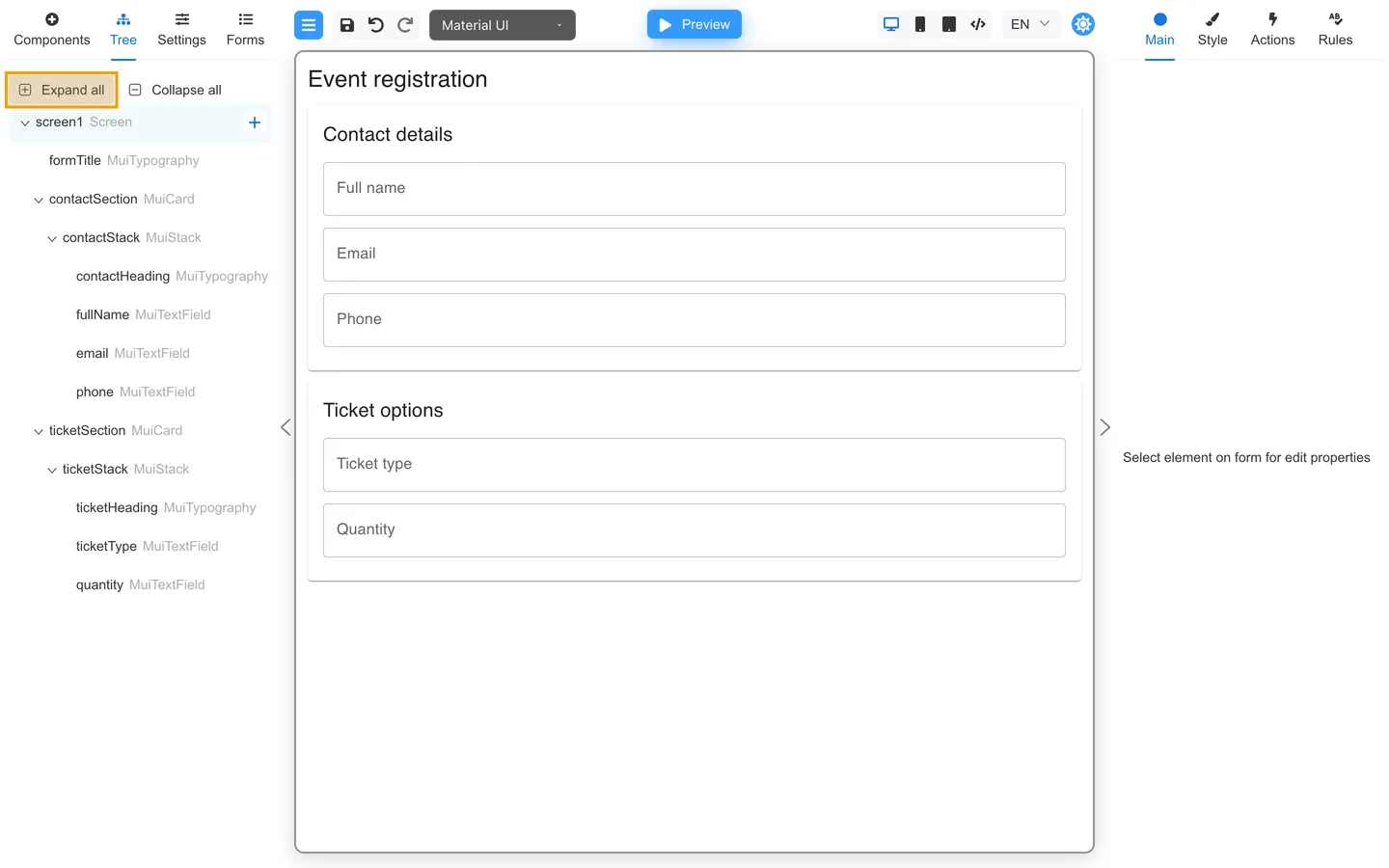
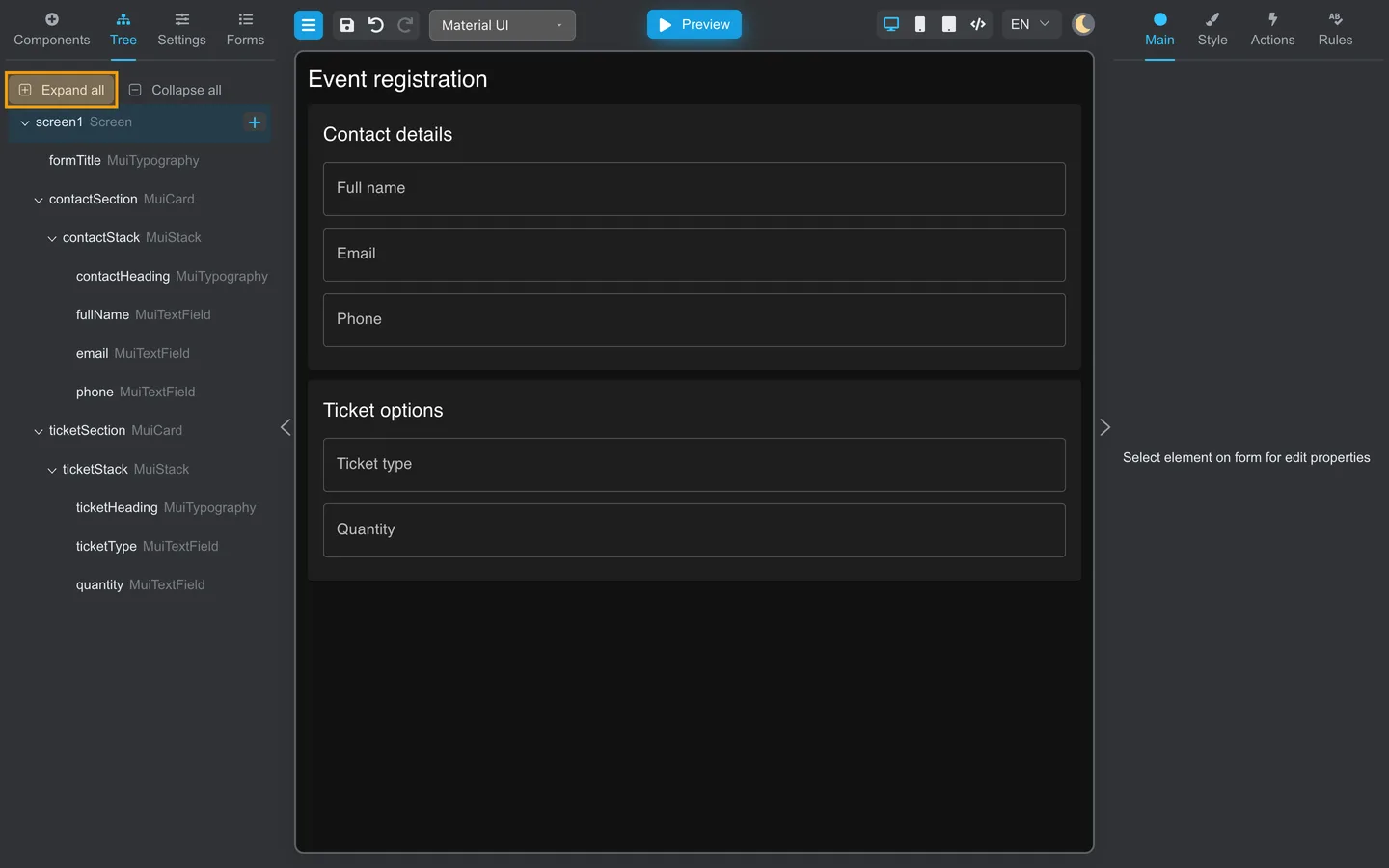
- Use Expand all.
- Follow container keys (for example
contactSectionorcontactStack). - Select the inner field to edit keys or validation.
Summary
Tree mirrors the canvas hierarchy. Use Expand all and Collapse all to move around. Click a row to edit it on the right. Hover a row for the compact toolbar. Drag rows to reorder when the layout allows it.