


Special components
Most palette items drop onto the canvas like fields. A few do not. They may allow only one copy on the form, or they never sit on the canvas at all and show up in a bottom bar instead.
Singleton components
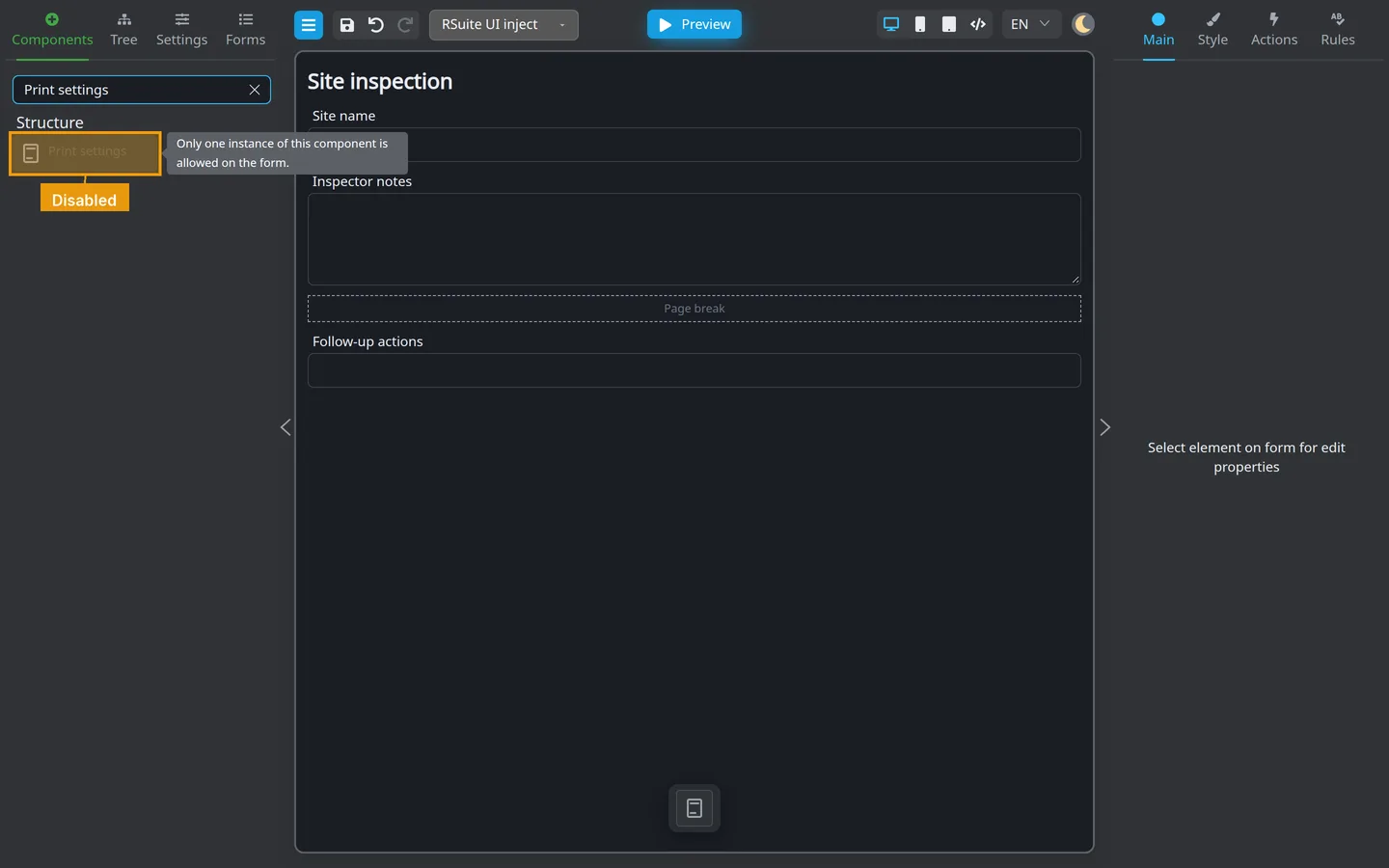
A singleton can appear only once. After you add it, the palette item greys out. Hover it to read the reason.
Print settings is a singleton.
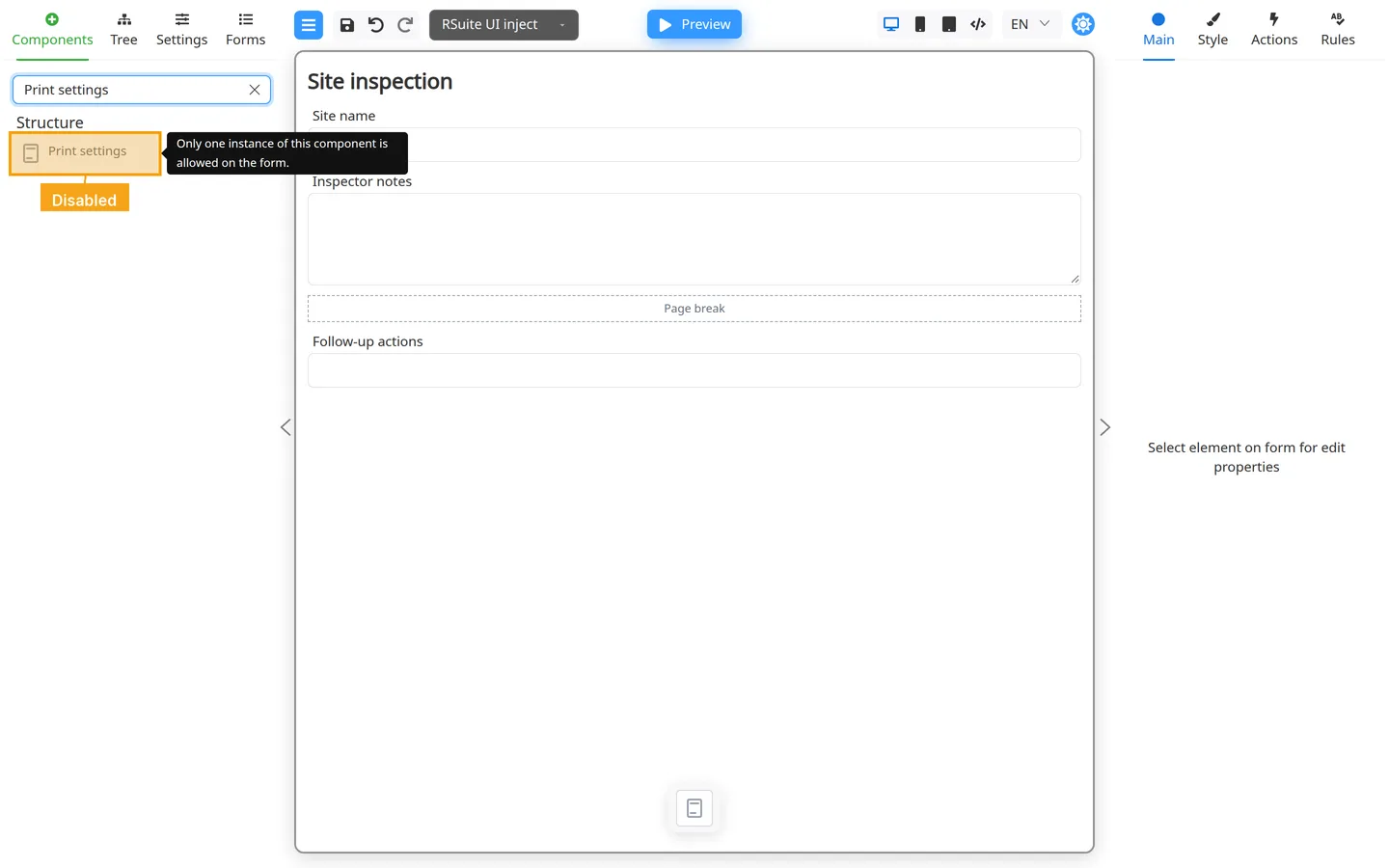
- Open Components.
- Add Print settings once (search Structure or type the name).
- Try to add it again. The row stays disabled and shows a hint on hover.
Non-visual components
A non-visual component is part of the form, but it never sits on the canvas next to your fields. In Designer you reach it from:
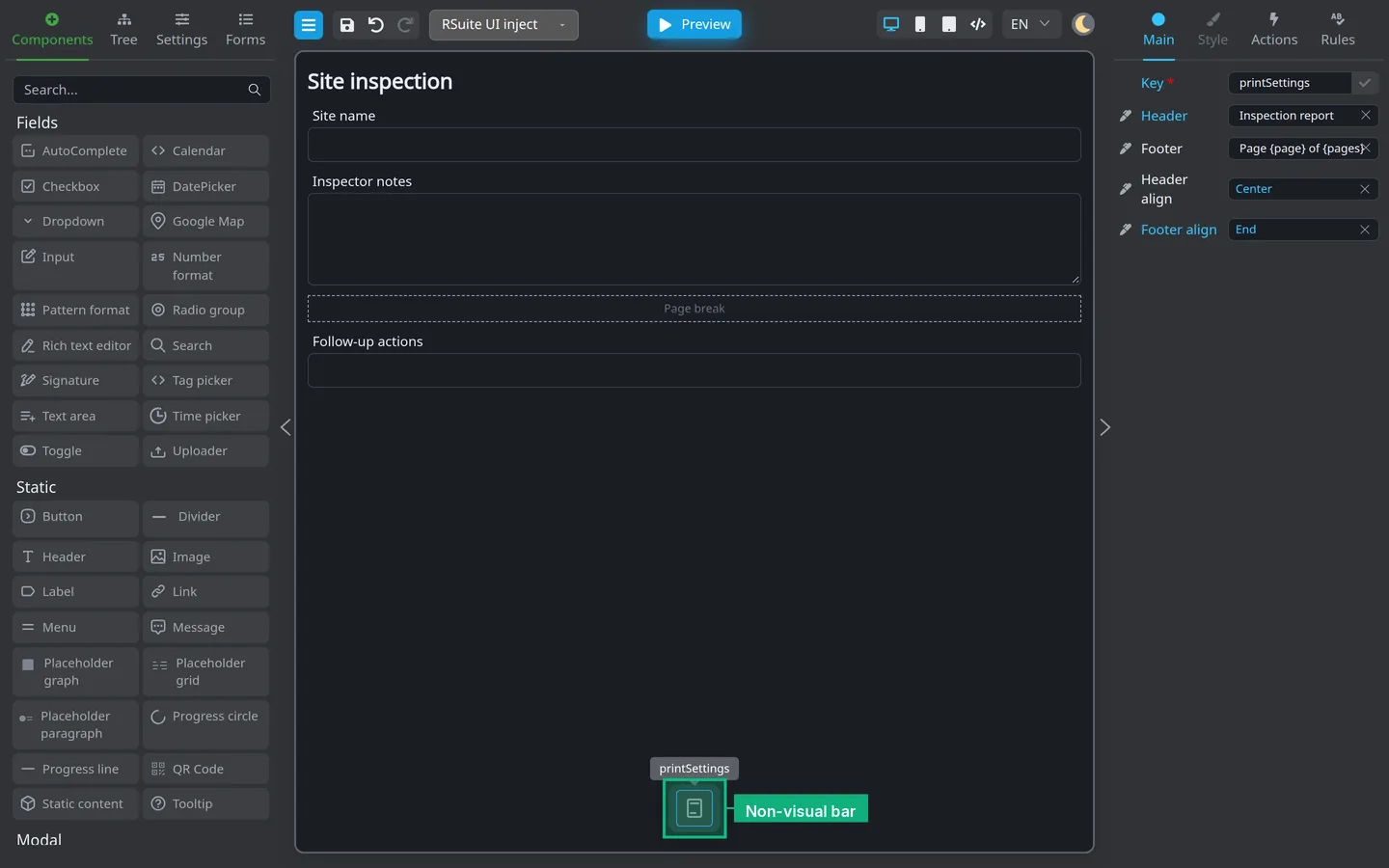
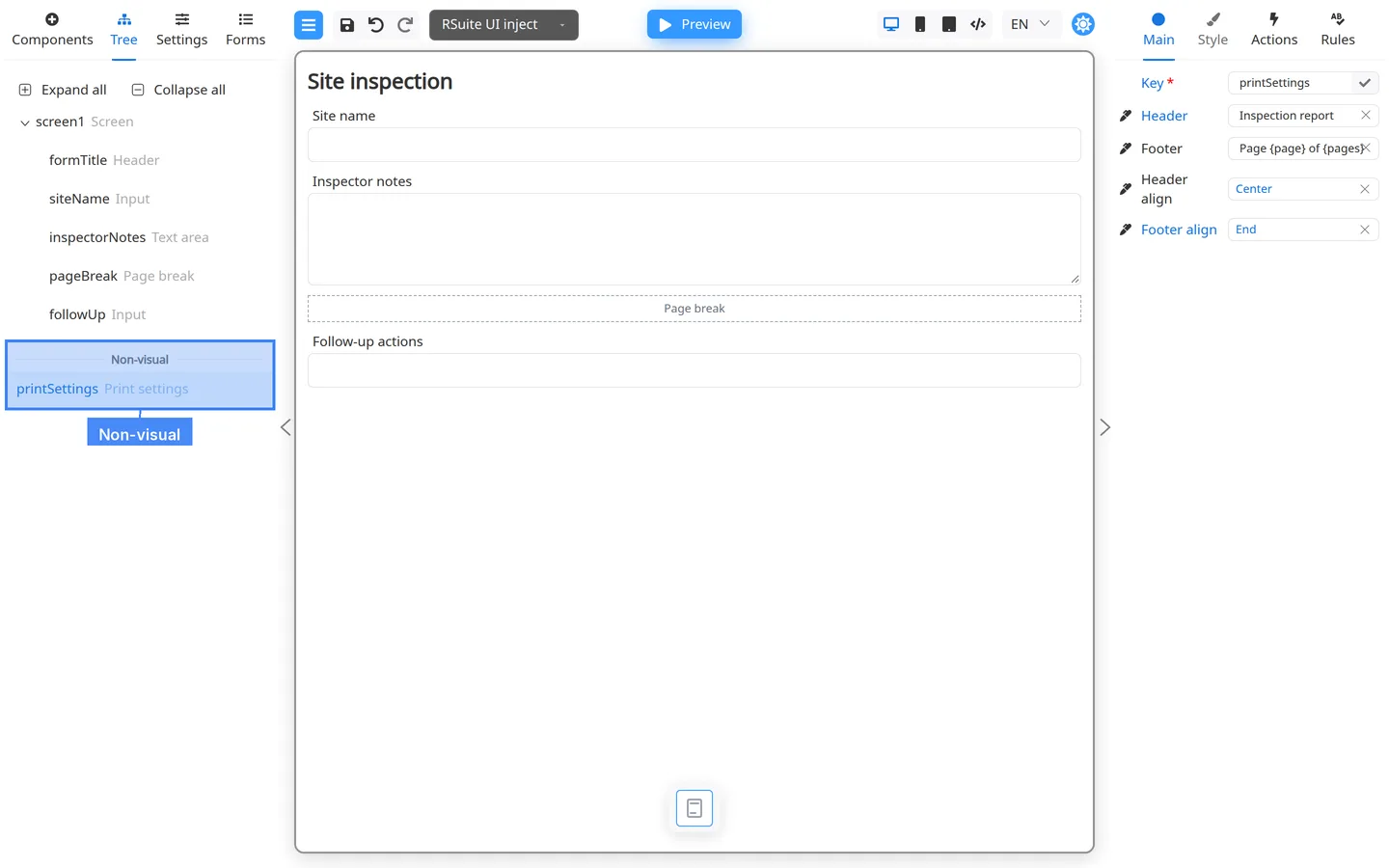
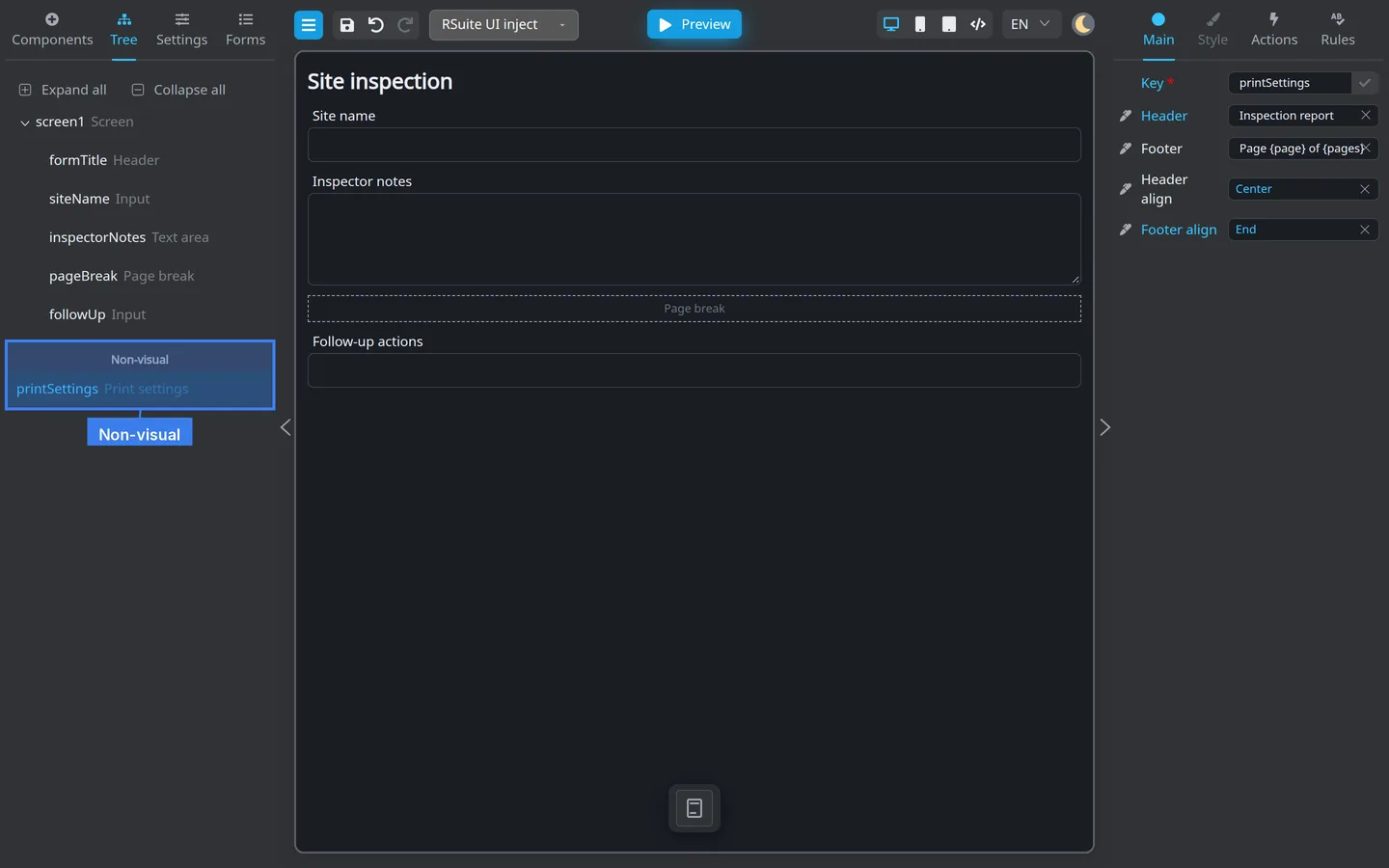
- The Non-visual bar under the canvas (icon chips)
- The Non-visual section below Screen in the Tree
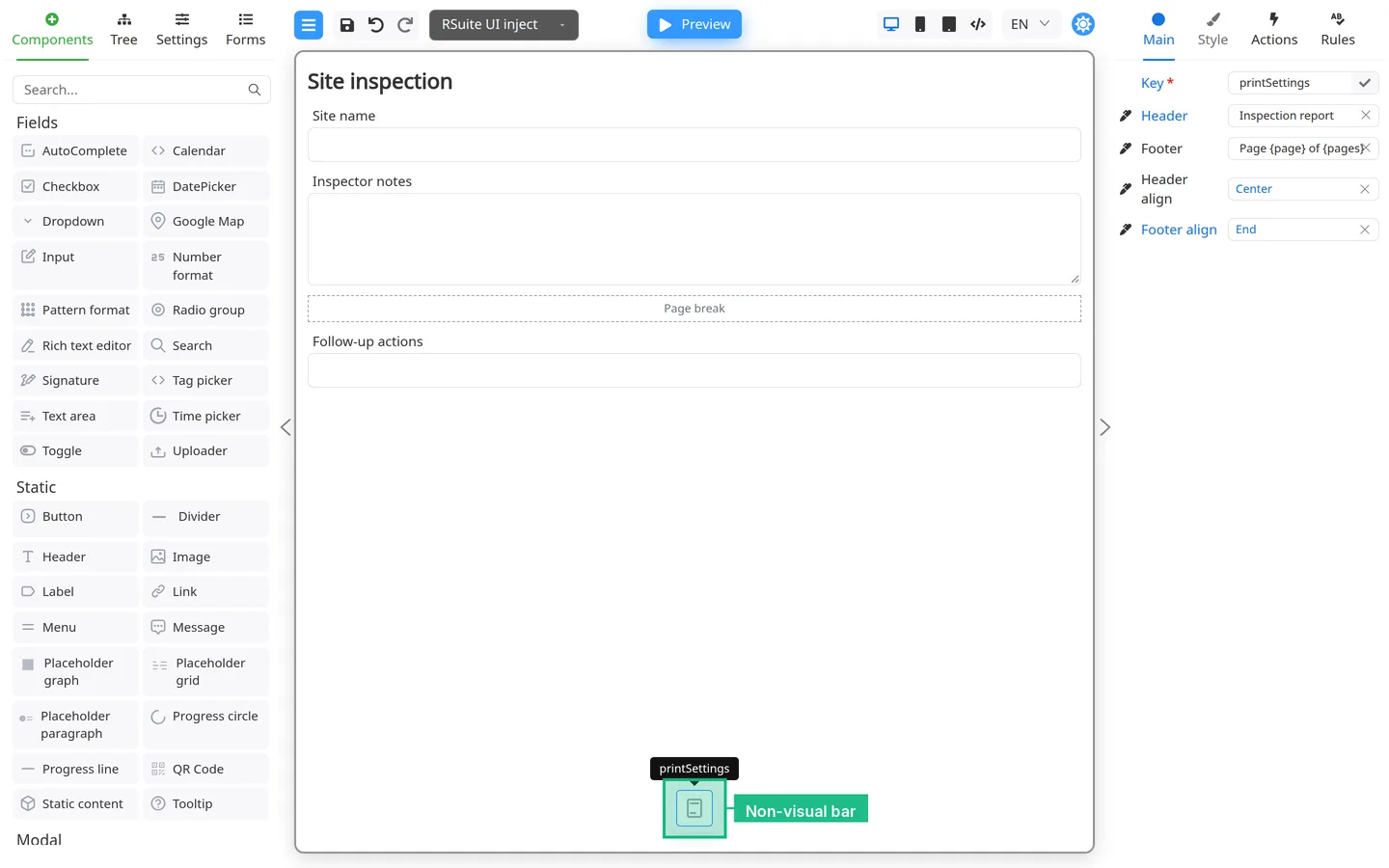
- Add a non-visual component (for example Print settings).
- Click its chip in the bottom bar.
- Edit properties in the right panel as usual.
- Open Tree.
- Find the Non-visual section below Screen.
- Click the row to select the same component.
In Preview and for end users, these components stay off screen. They still drive print layout and similar background behavior.
Summary
Singletons stop a second copy in the palette. Non-visual components live in the bottom bar and Tree group instead of on the canvas.