


Parent and child in the Tree
In the Tree, a parent container holds child components. The canvas shows the same hierarchy with indentation and drop zones.
This page uses the Event registration example: cards keyed contactSection and ticketSection, each with a Stack and fields
inside.
Read the hierarchy
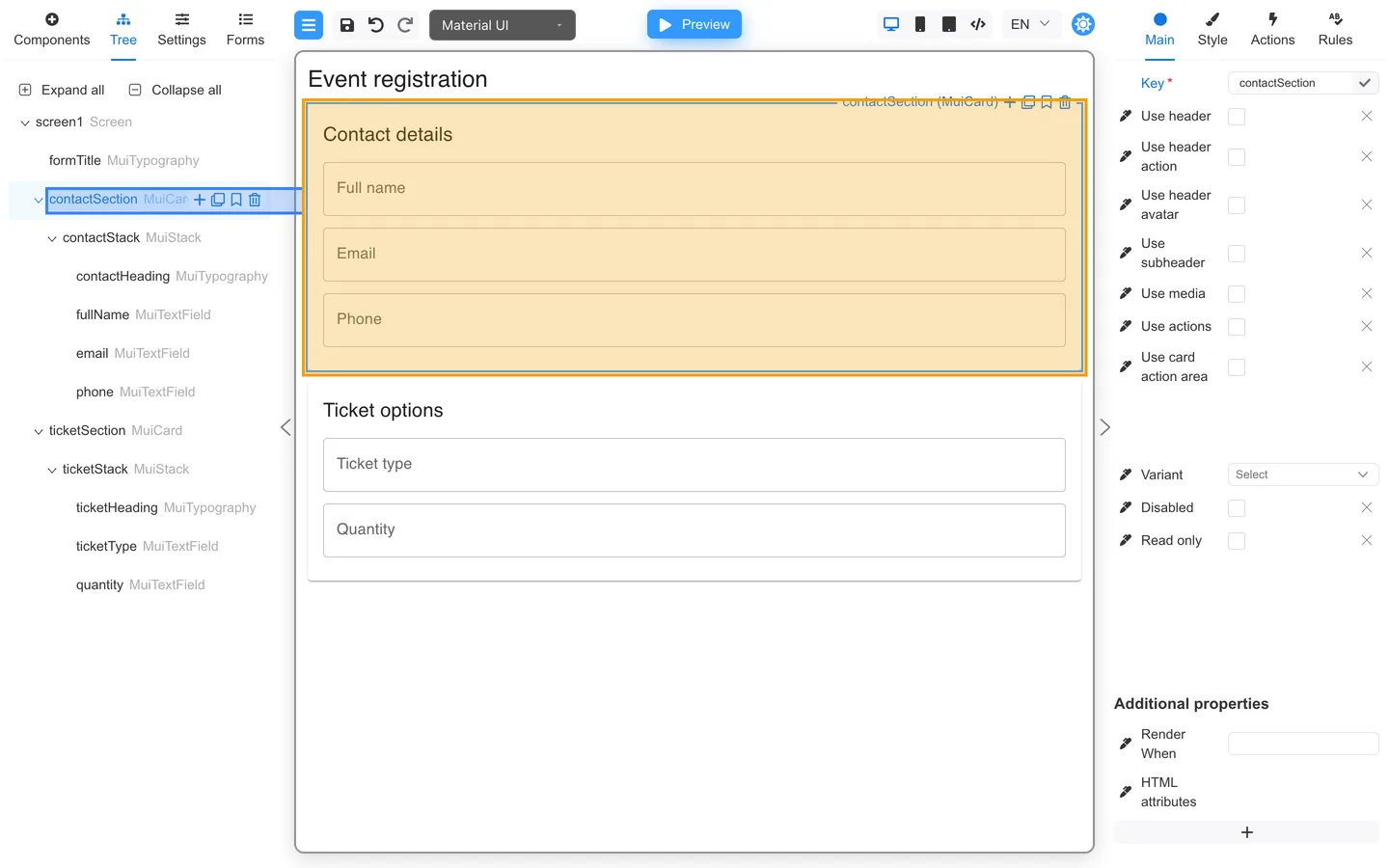
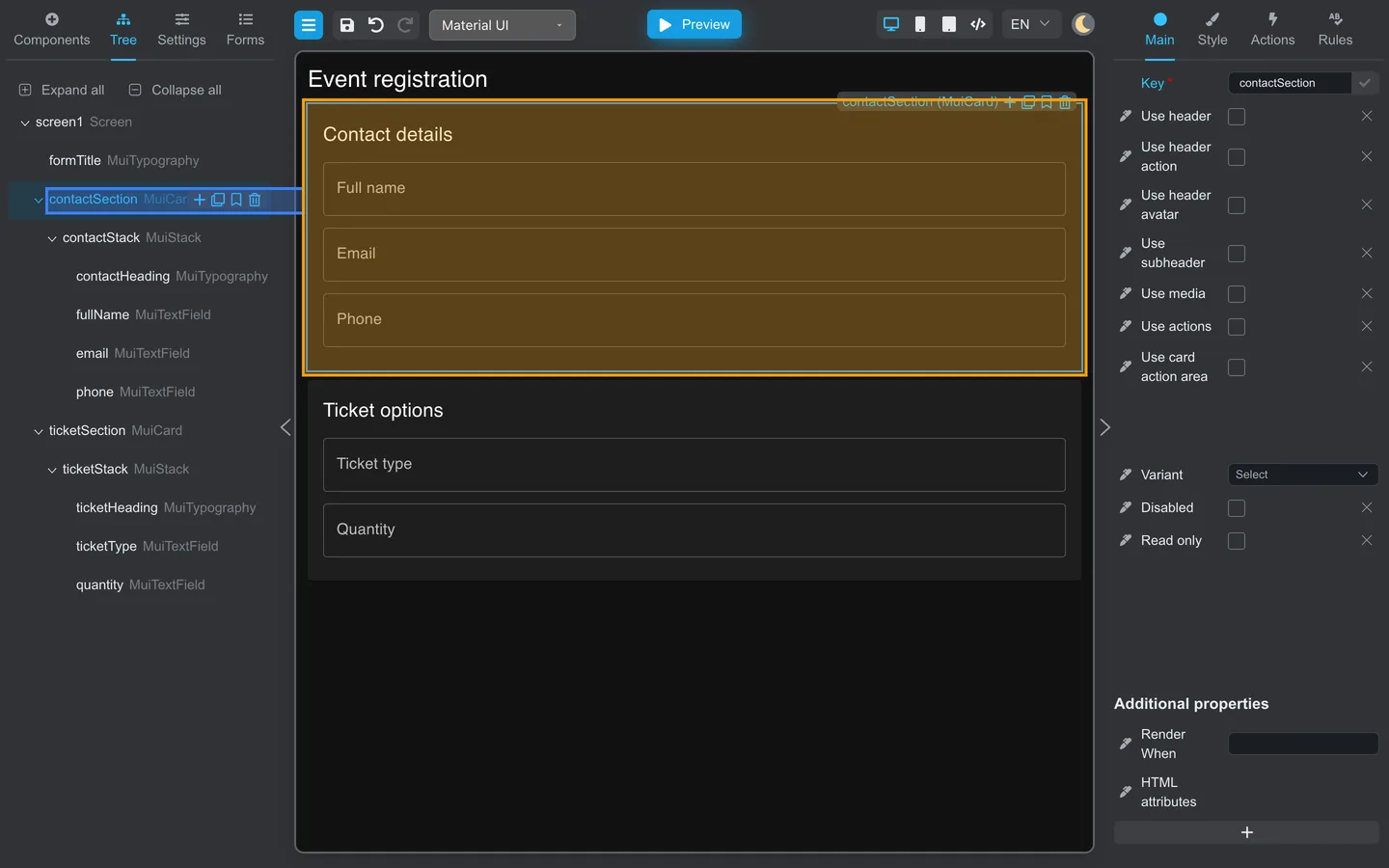
- Open Tree → Expand all.
contactSection(MuiCard) is a parent container;contactStackand its fields are indented underneath it.- Click
contactSectionto select the whole card frame on the canvas.
Select a child and see it on the canvas
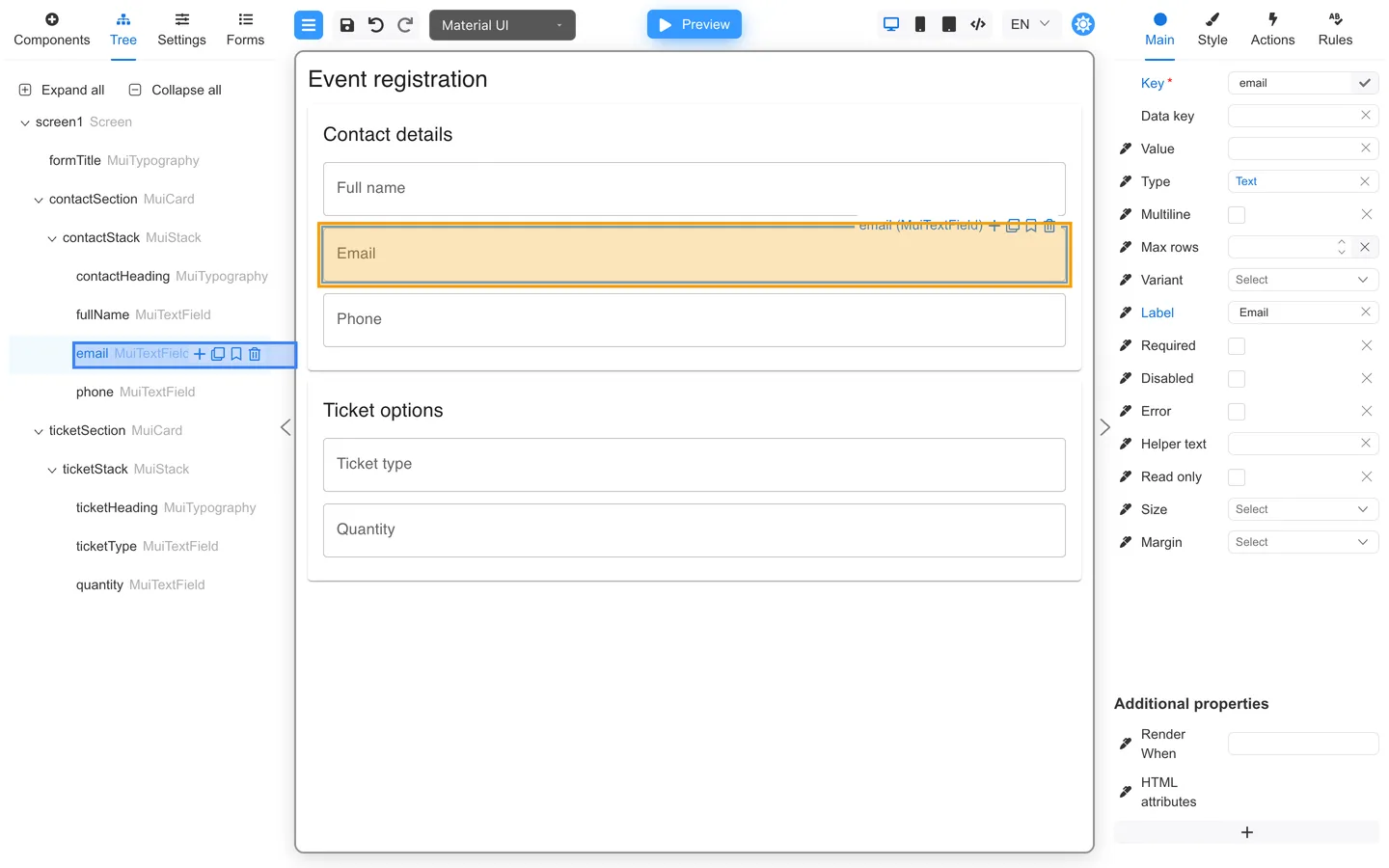
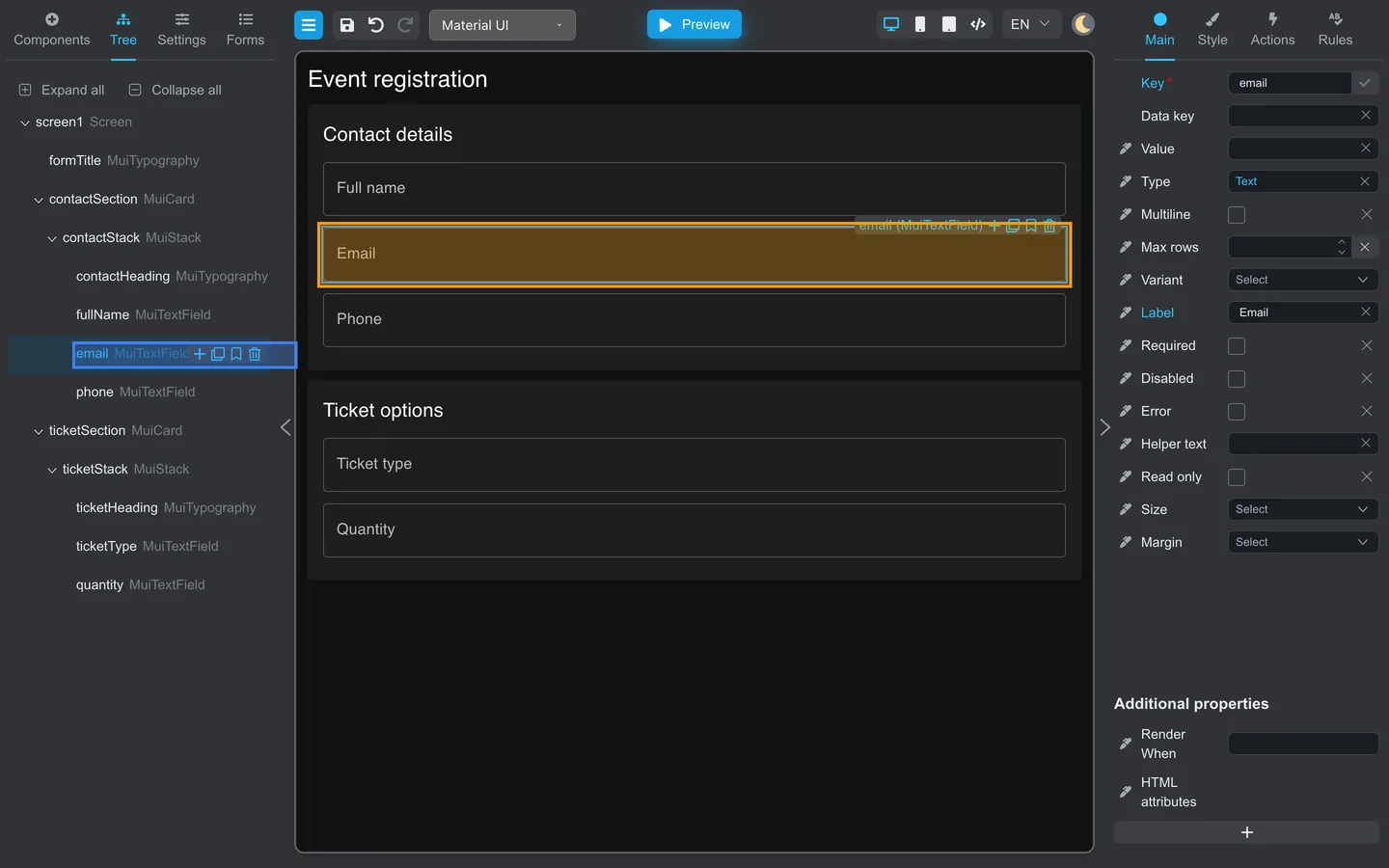
- Expand
contactSection→contactStackin Tree. - Click
email. - The Email field highlights on the canvas at the same time.
Move a misplaced field
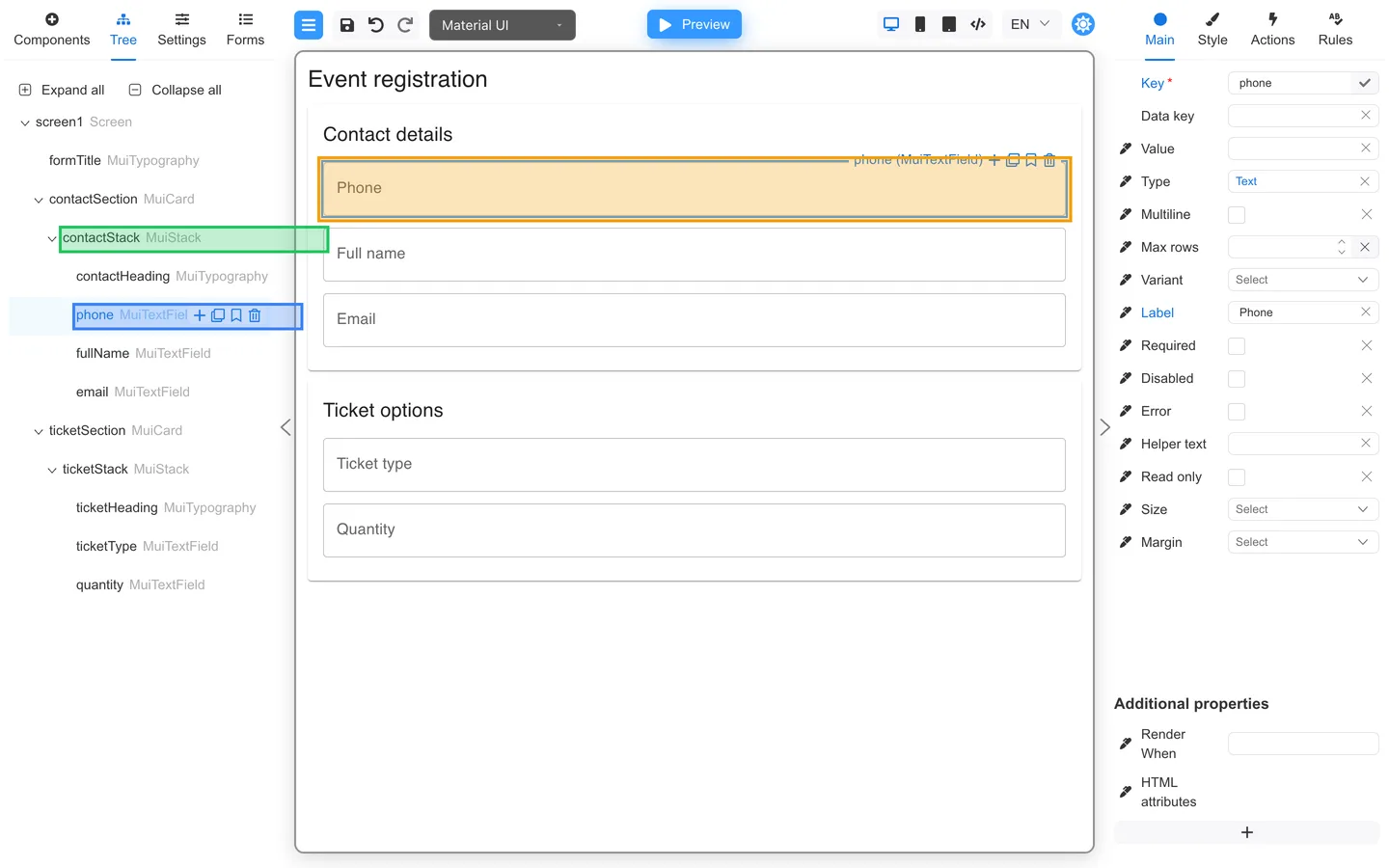
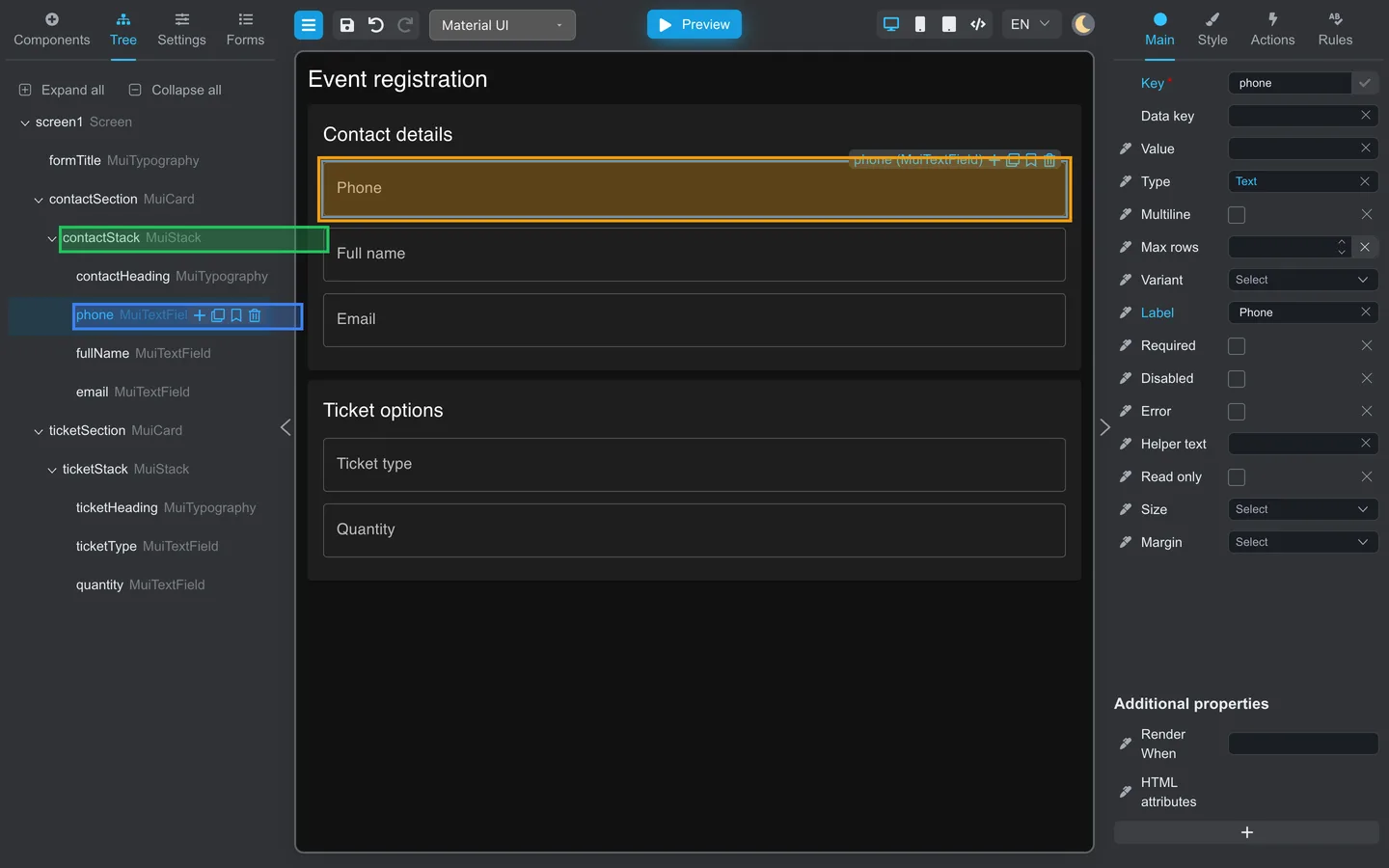
- In this example,
phonestarted underticketStackby mistake. - Drag the
phonerow in Tree onto a field insidecontactStack(for examplefullName). - After the move,
phoneappears undercontactStackin Tree and the Phone field appears inside Contact details on the canvas.
Edit a child quickly
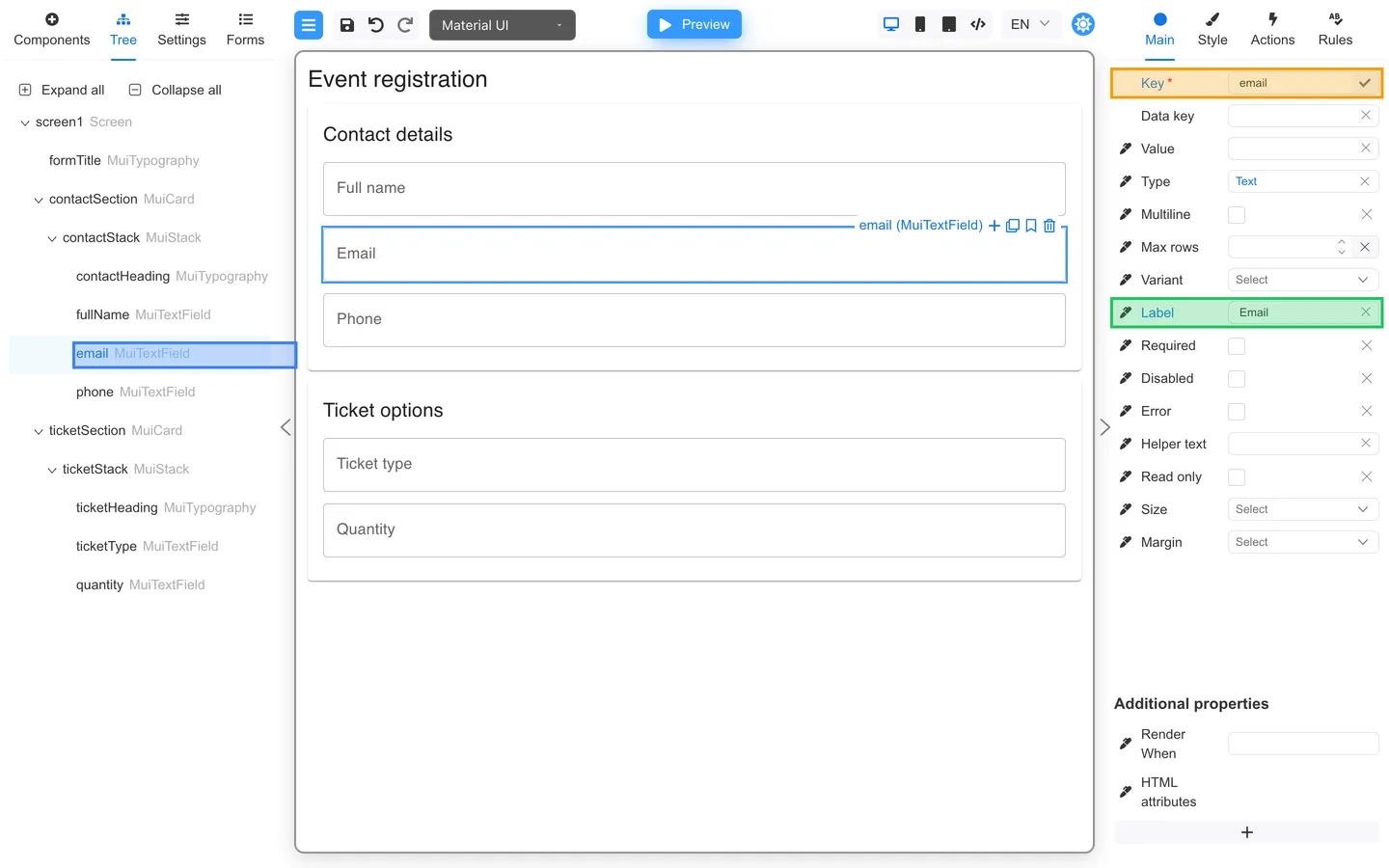
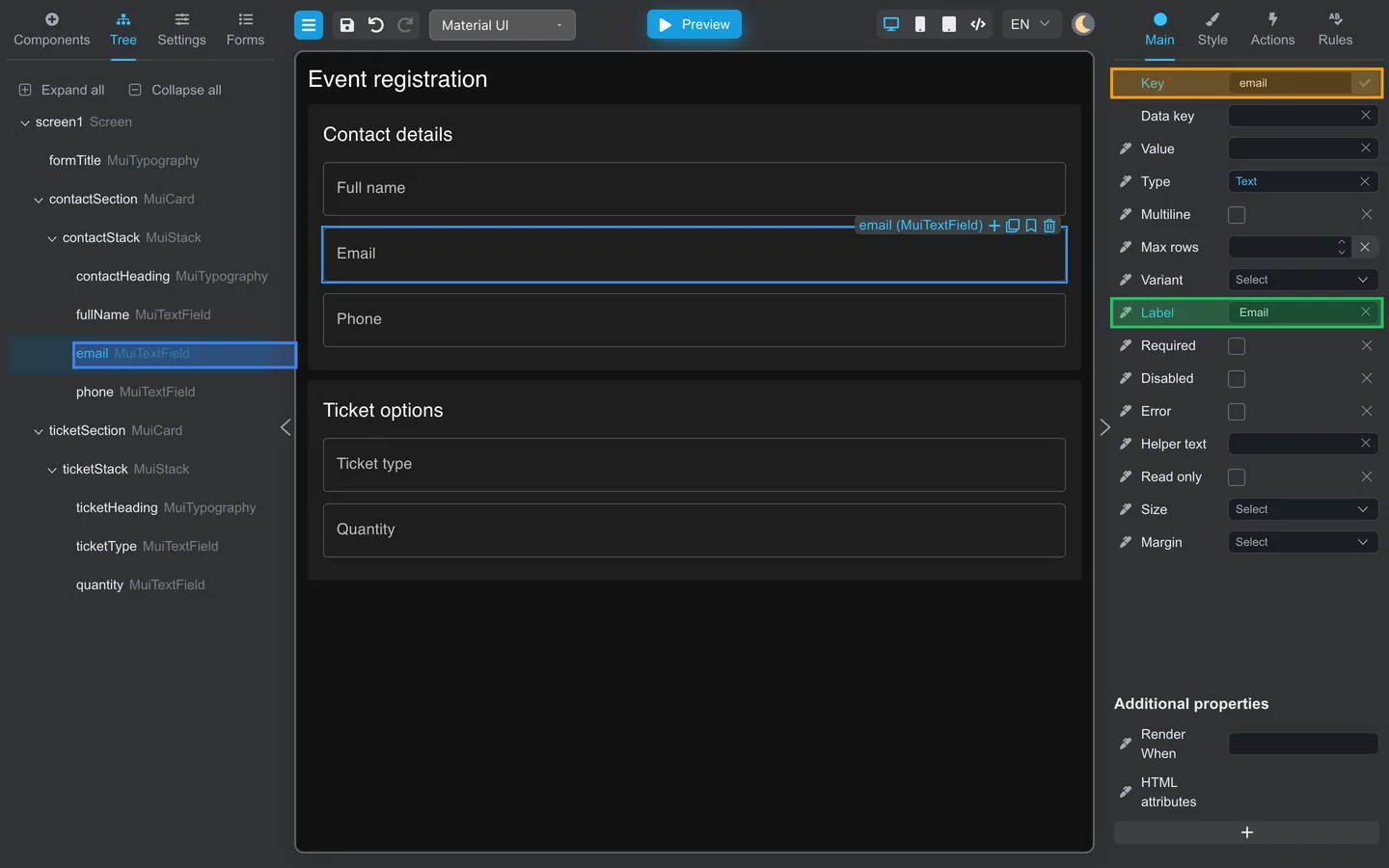
- Expand
contactSection→contactStackin Tree. - Click
email. - Edit Key and Label on Main.
Summary
A parent is a container such as contactSection or contactStack. Its children are fields and nested layout components. Click in
Tree to select nested fields, drag rows to move them, and see the matching structure on the canvas.