


Form structure and containers
A form is more than a flat list of fields. Containers group related inputs to help users scan sections such as contact details, ticket options, and payment information.
Layout building blocks
| Component (typical name) | Use for |
|---|---|
| Stack | Vertical list of fields |
| Container / Box | Section with padding |
| Grid | Rows and columns |
| Card | Bordered section with title |
Names depend on your Component library.
Example: event registration form
This walkthrough builds a small Event registration form with two Card sections: Contact details and Ticket options.
Step 1: Add a Card container
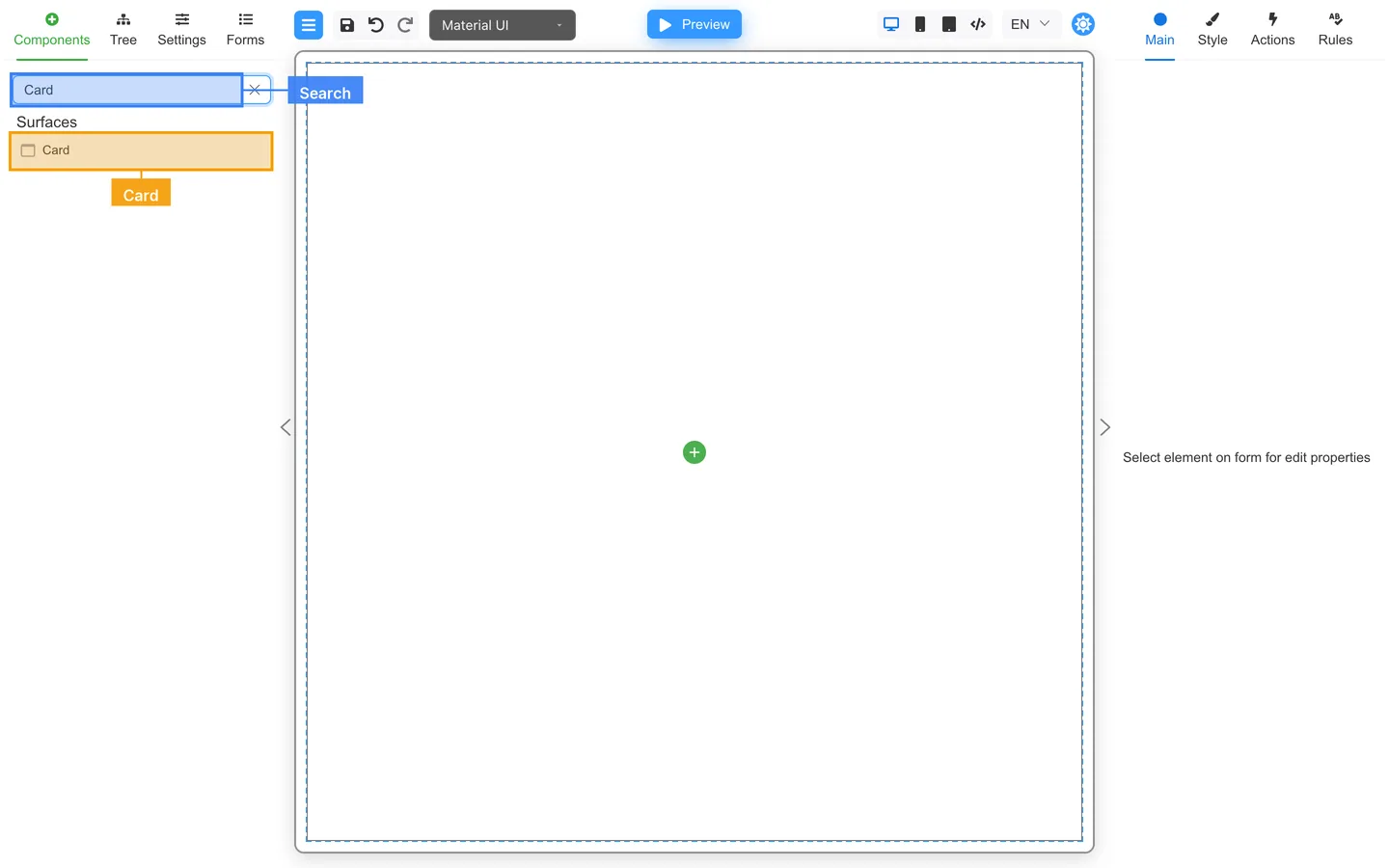
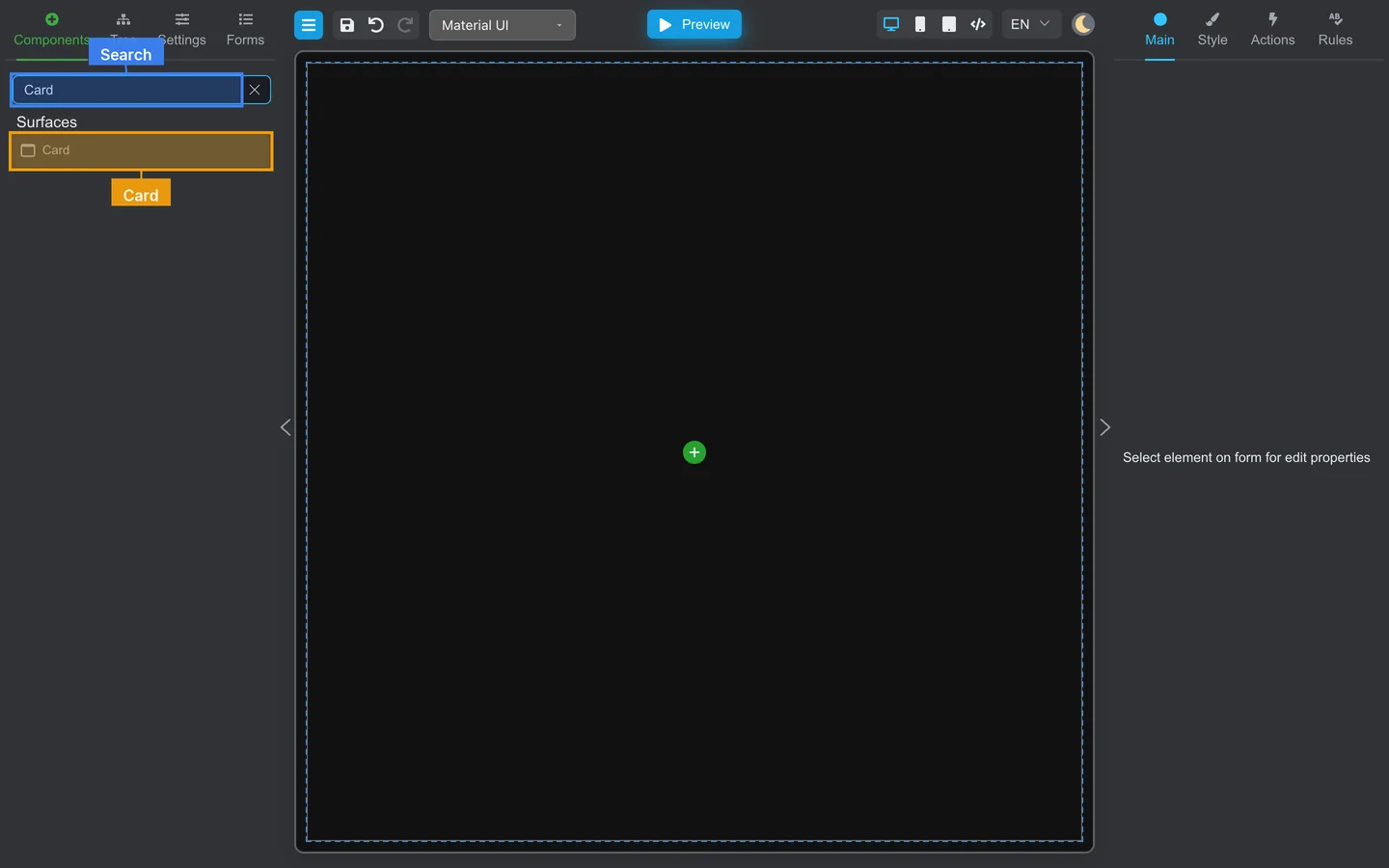
- Open Components.
- Search for Card.
- Drag Card onto the canvas under the form title.
Step 2: Nest a Stack inside the Card
- Search for Stack in Components.
- Drag Stack into the Card drop zone.
- Add a Typography row for the section title (for example Contact details).
Step 3: Add fields inside the Stack
- Drag Text field components into the Stack.
- Add Full name, Email, and Phone.
- Repeat steps 1–3 for a second Card named Ticket options with Ticket type and Quantity.
Step 4: Check the canvas
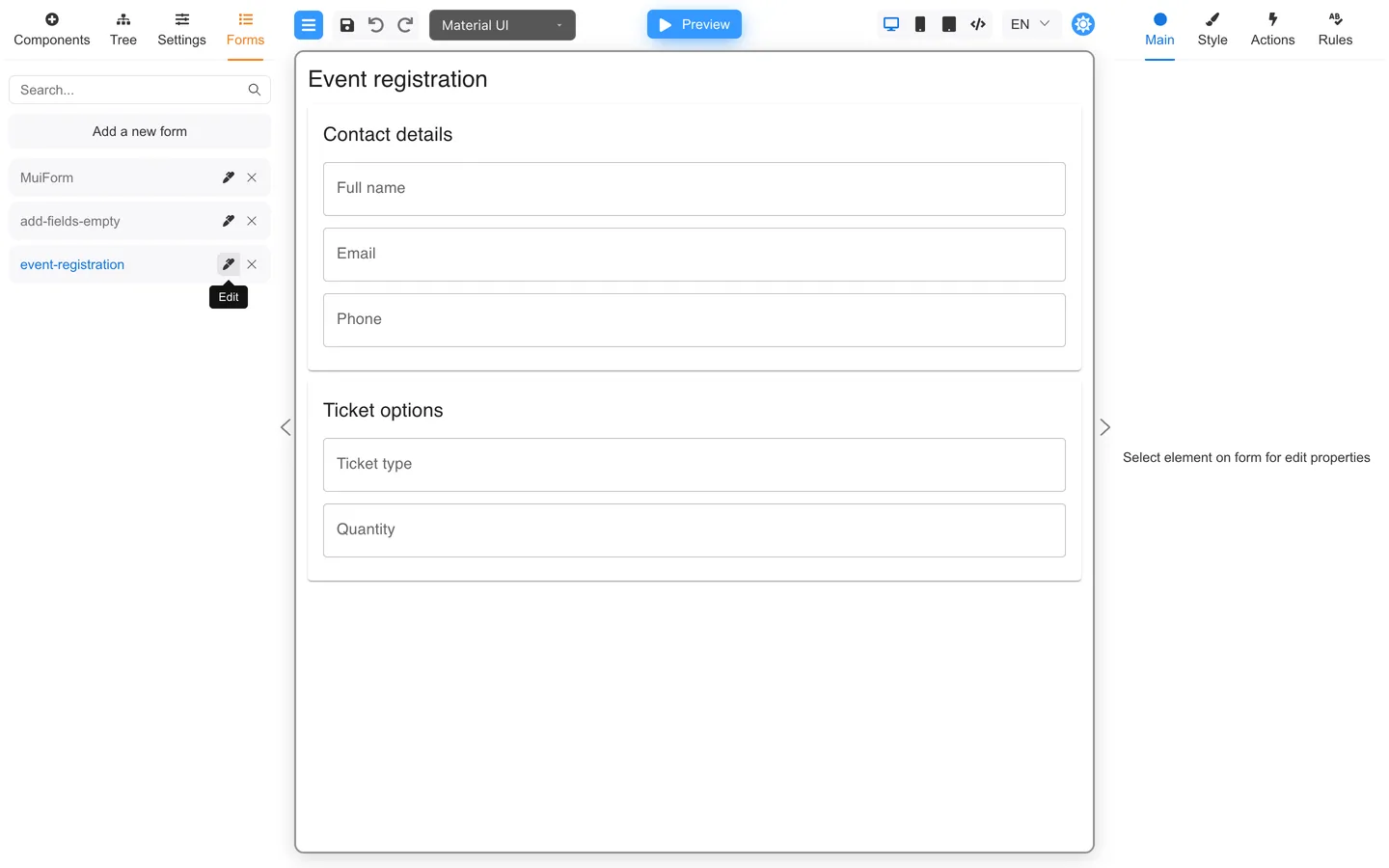
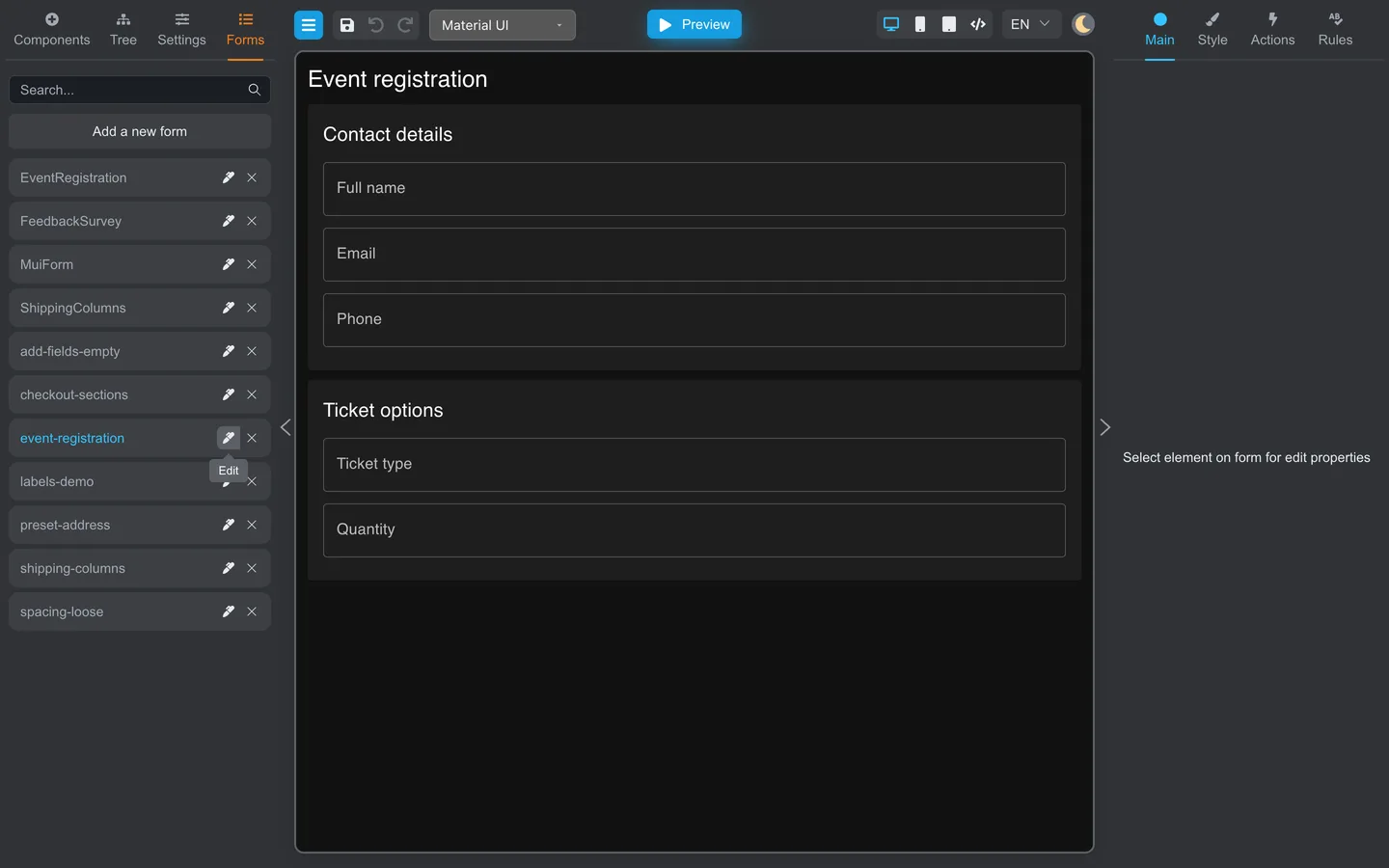
Confirm each section is visually grouped and fields sit inside their container.
Step 5: Verify in Tree
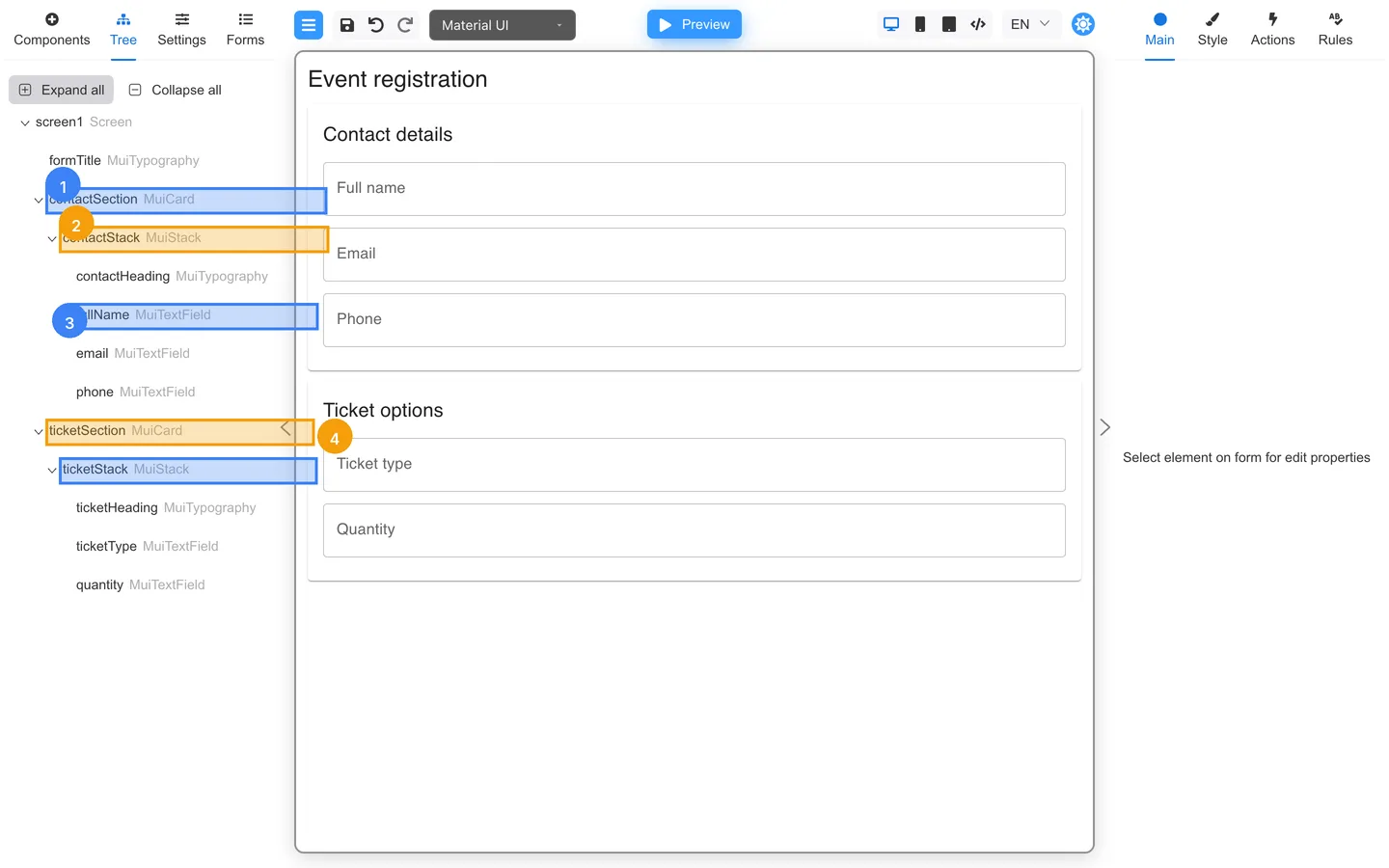
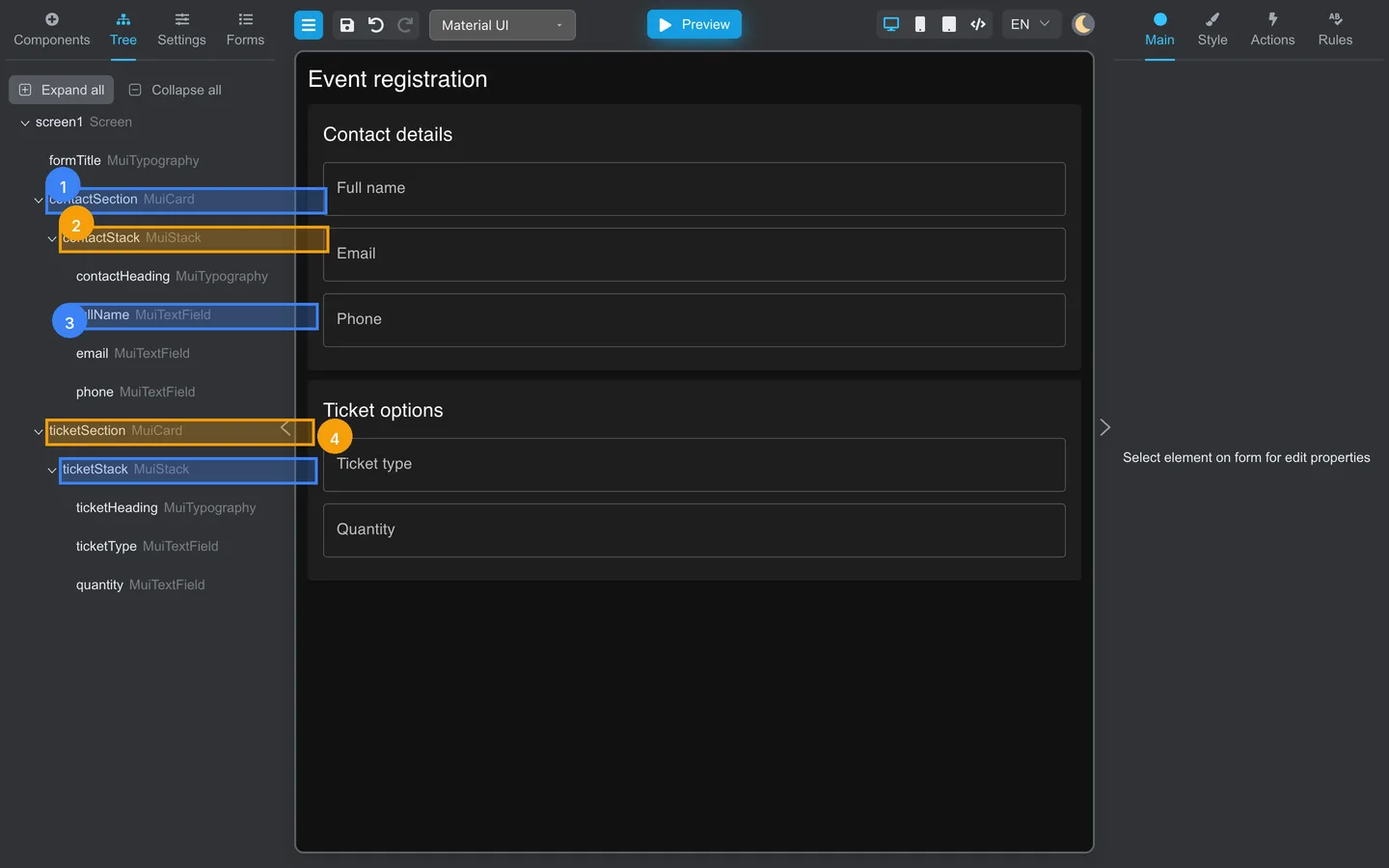
- Open Tree → Expand all.
- Each Card row should wrap a Stack and its Text field children.
Summary
Group fields with layout containers before fine-tuning style. Tree shows parent/child relationships clearly.