


Save, export, and import forms
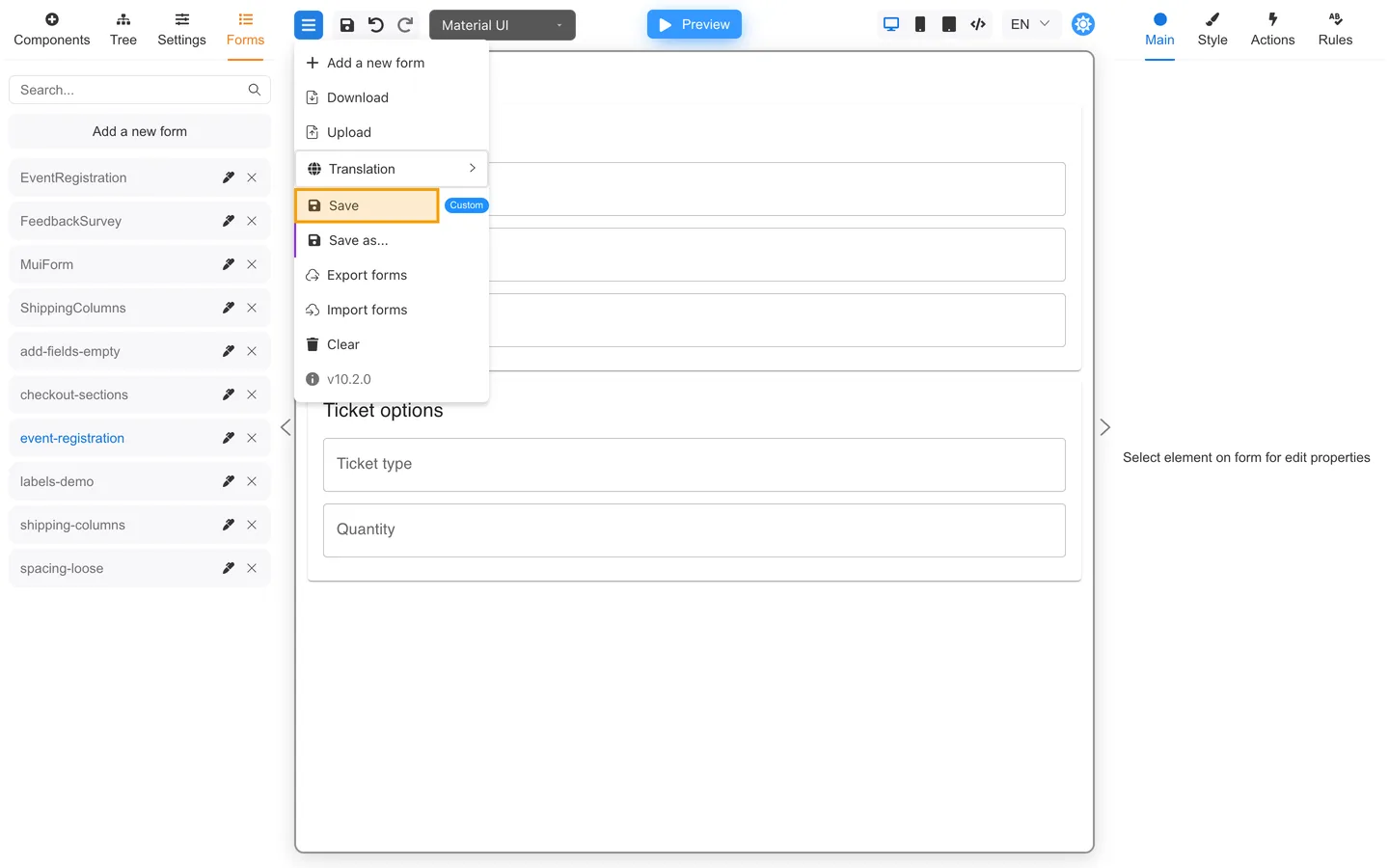
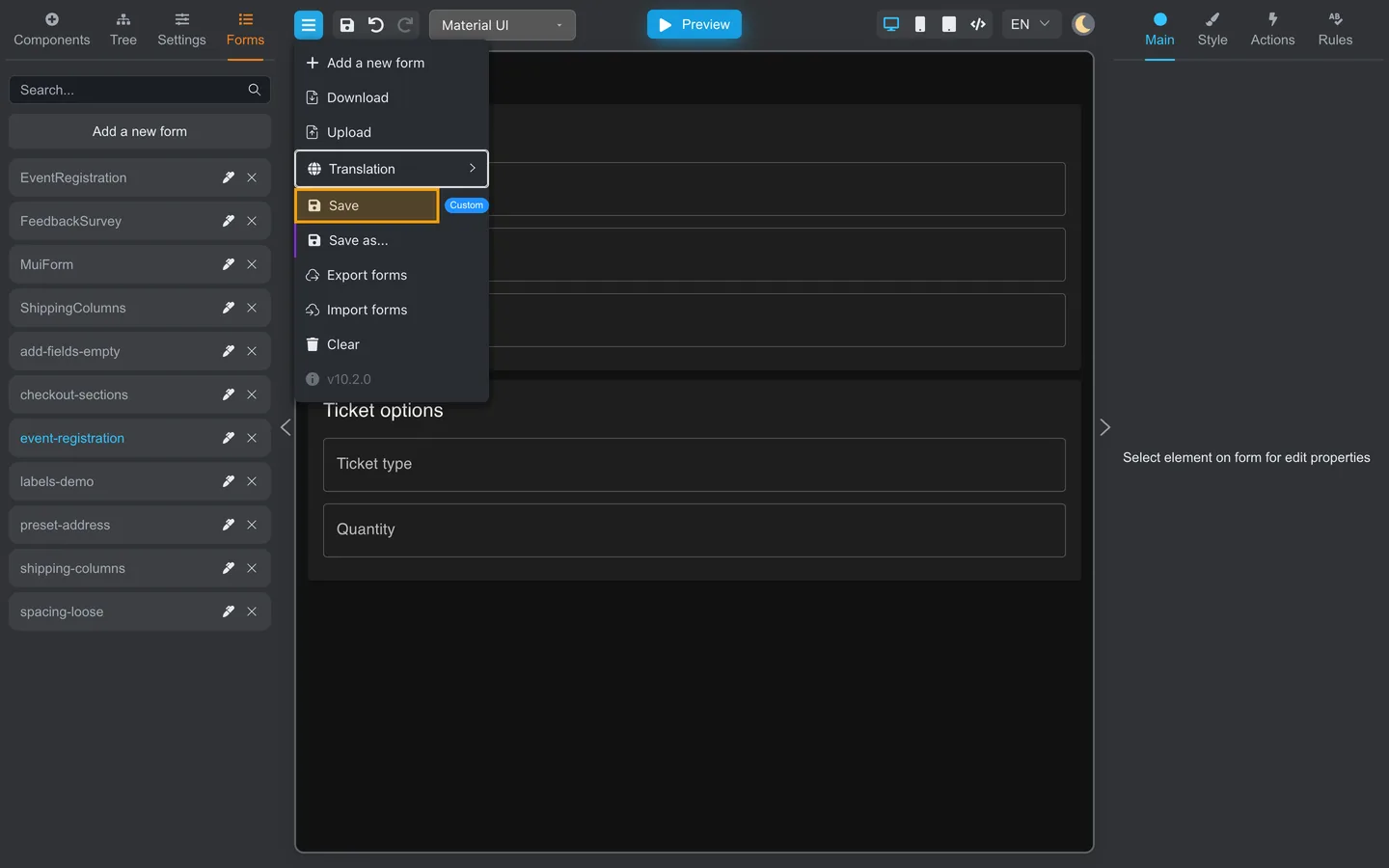
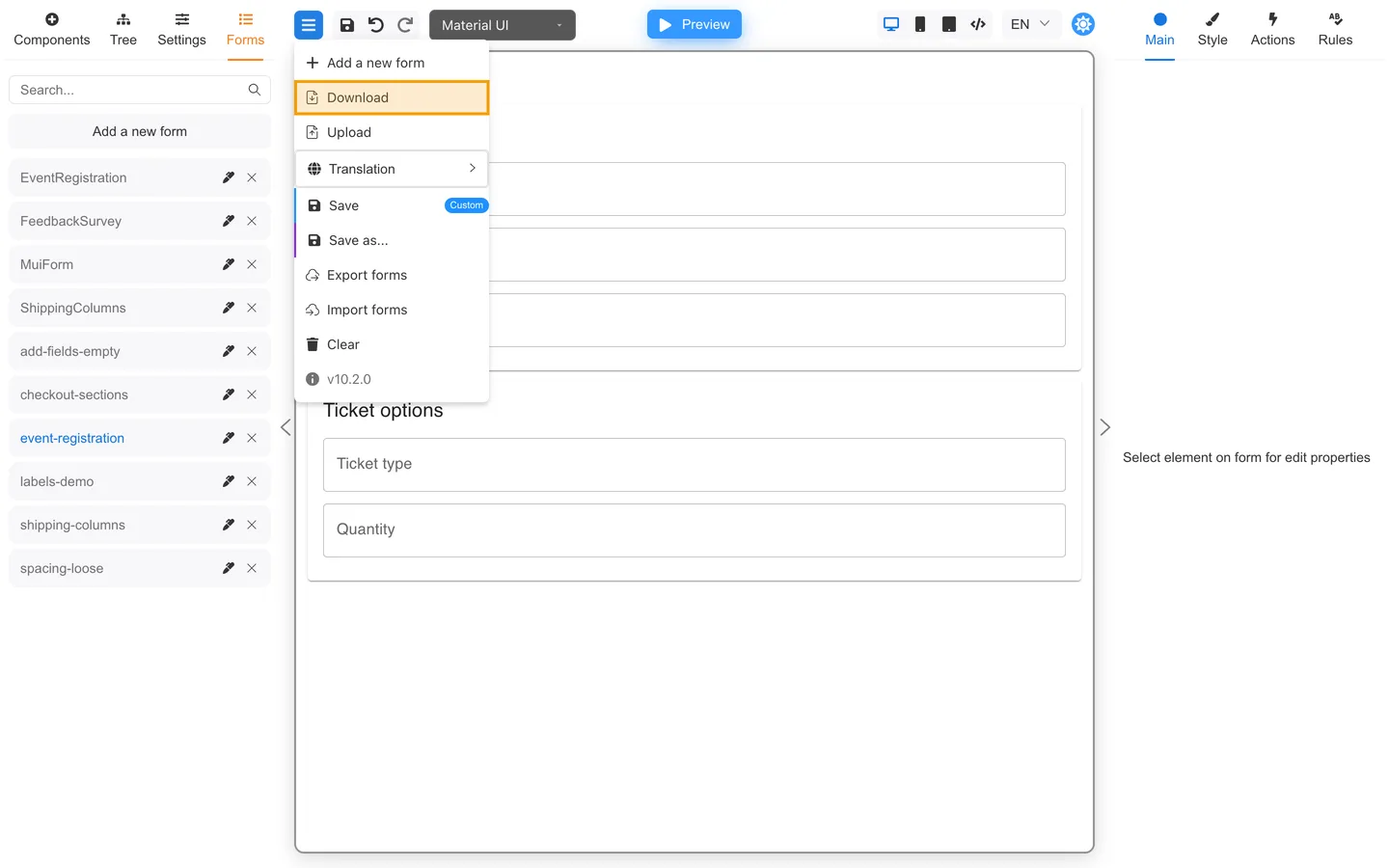
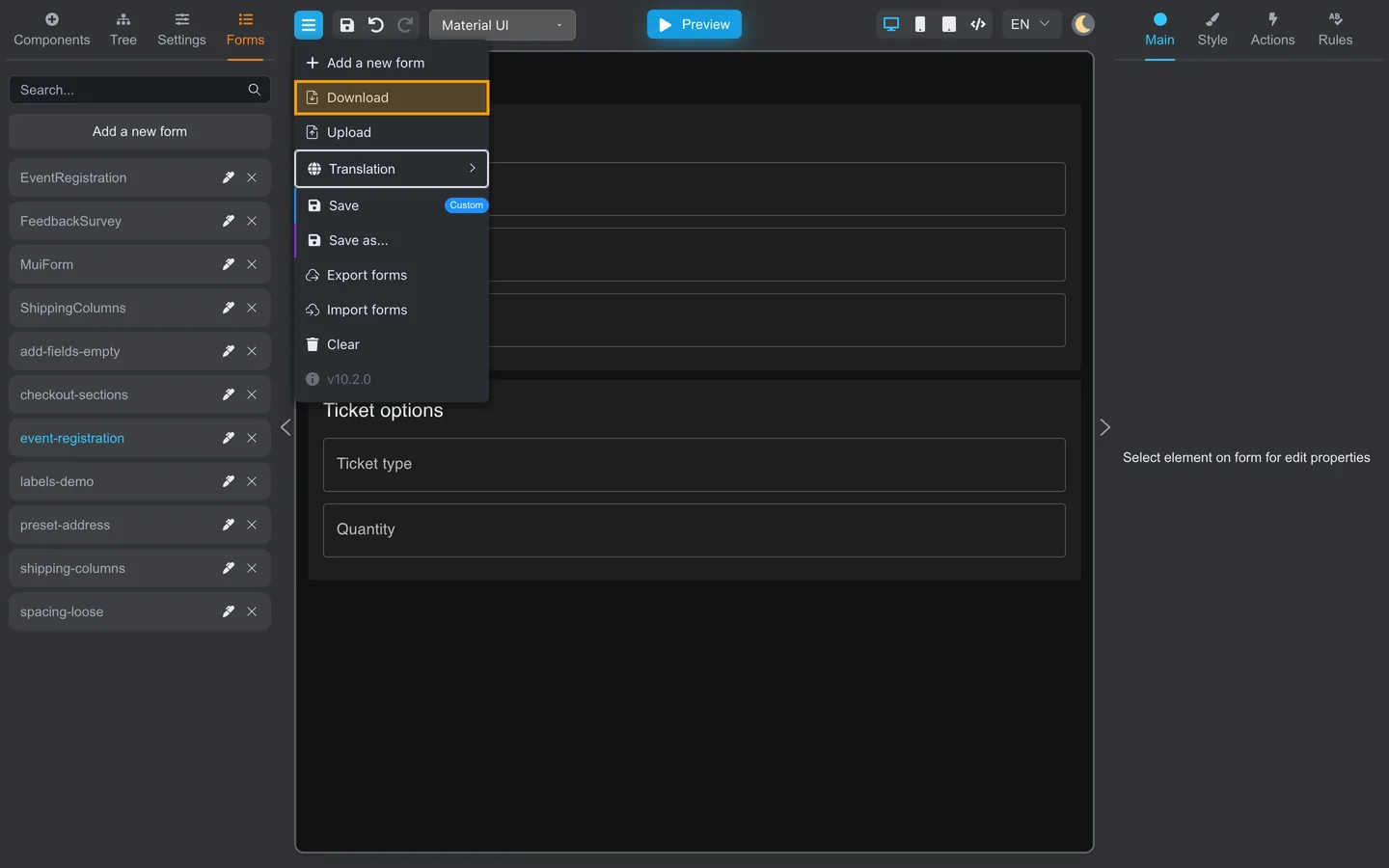
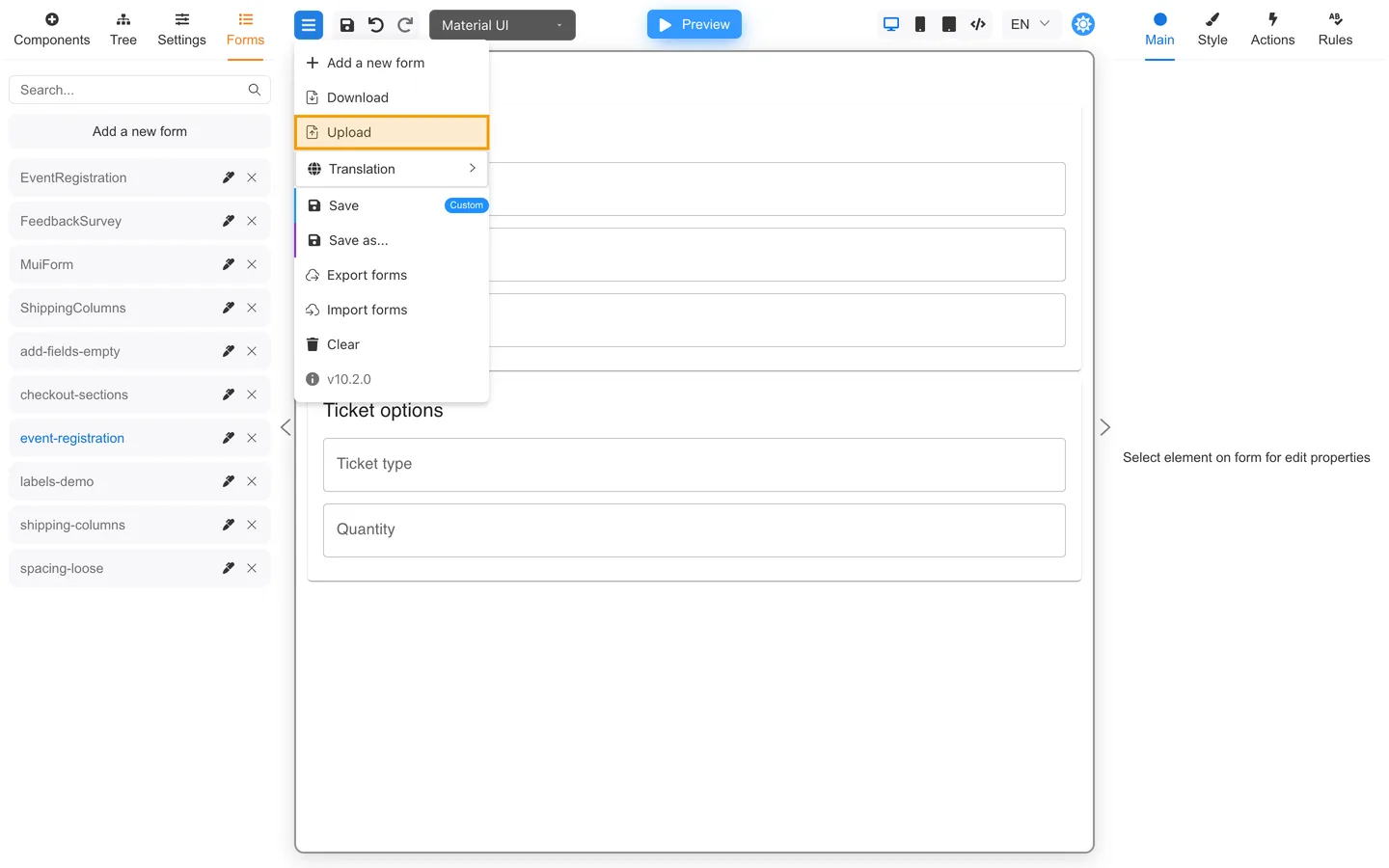
The header Menu (hamburger) holds save, download, ZIP export/import, Print, and Clear.
For a short overview, see also Export and share your form.
Open the menu
- Click the Menu button (hamburger) in the header.
- Review items. The exact list depends on your deployment (storage, schema export, etc.).
Save and Save as
| Item | Use when |
|---|---|
| Save | You want to keep the current form in storage |
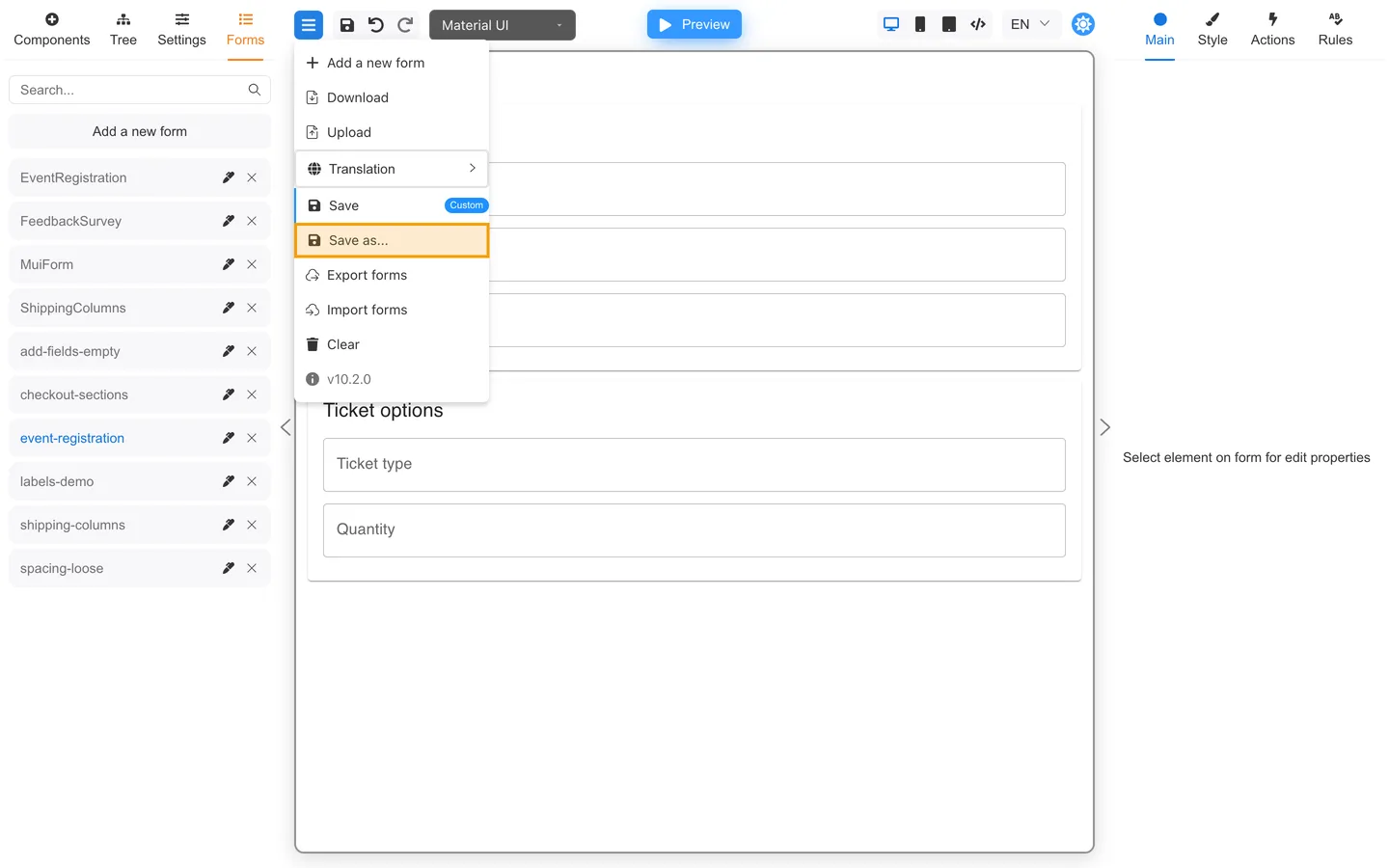
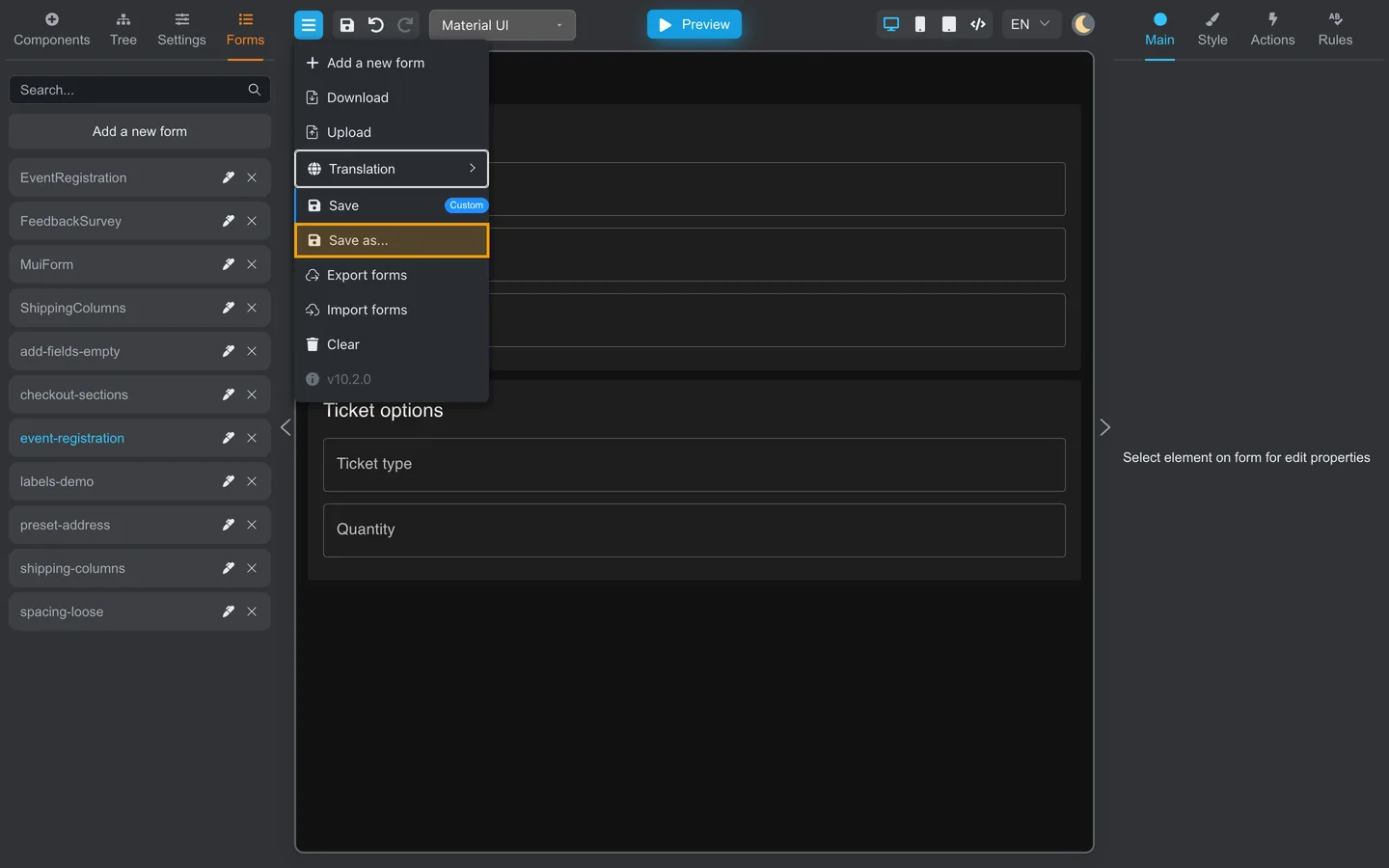
| Save as… | You need a copy under a new name |
The save shortcut is Ctrl+S on Windows/Linux or ⌘+S on macOS when focus is on the page background.
If save fails, check the browser console. Your administrator may need to fix storage configuration.
Download and Upload (single form)
| Item | Use when |
|---|---|
| Download | You need one .json file for the active form |
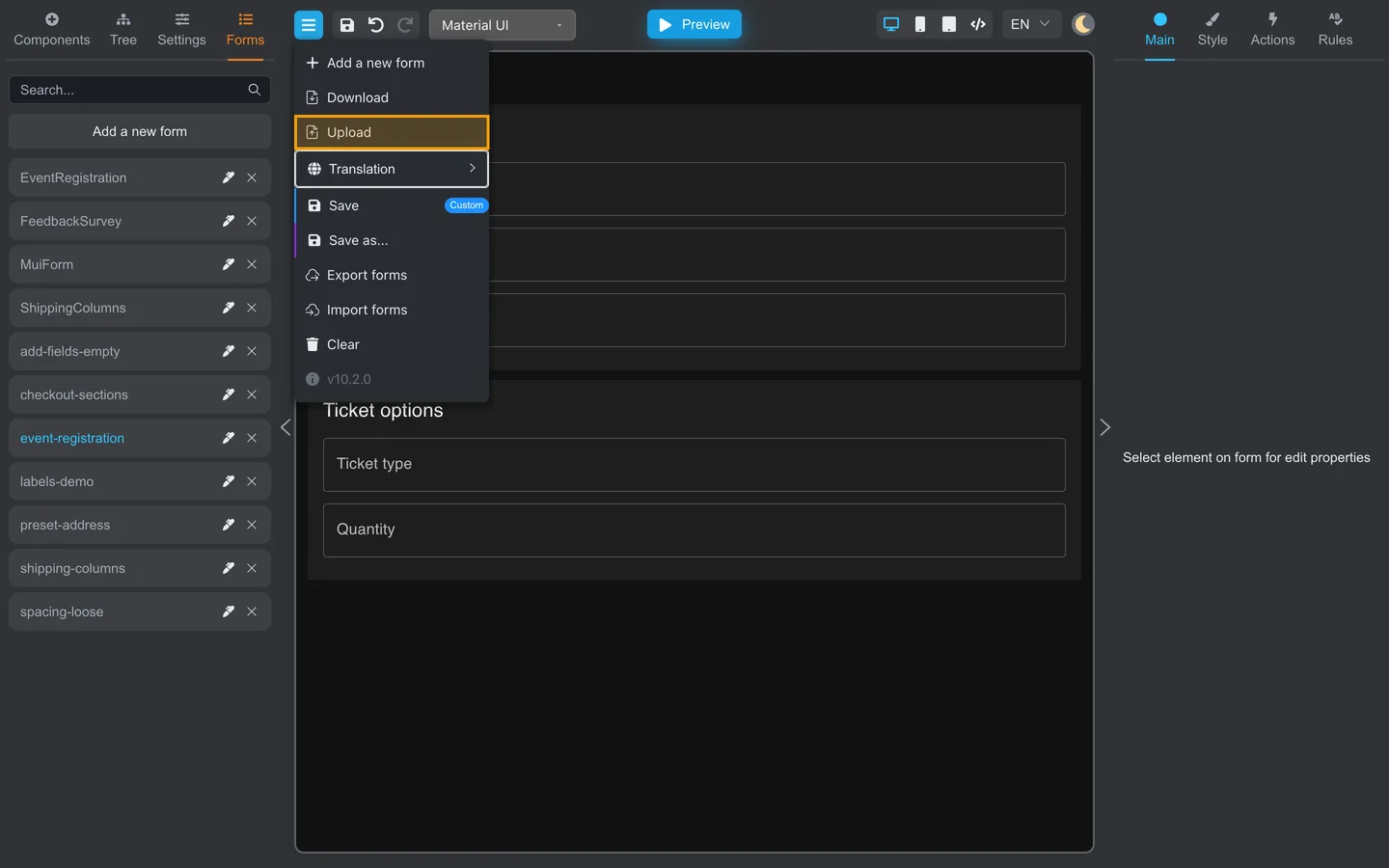
| Upload | You are replacing or loading one form from a file |
Export forms and Import forms (bulk)
These commands are available only when form storage is enabled.
| Item | Use when |
|---|---|
| Export forms | You need a ZIP of all stored forms |
| Import forms | You are restoring or transferring a ZIP from another environment |
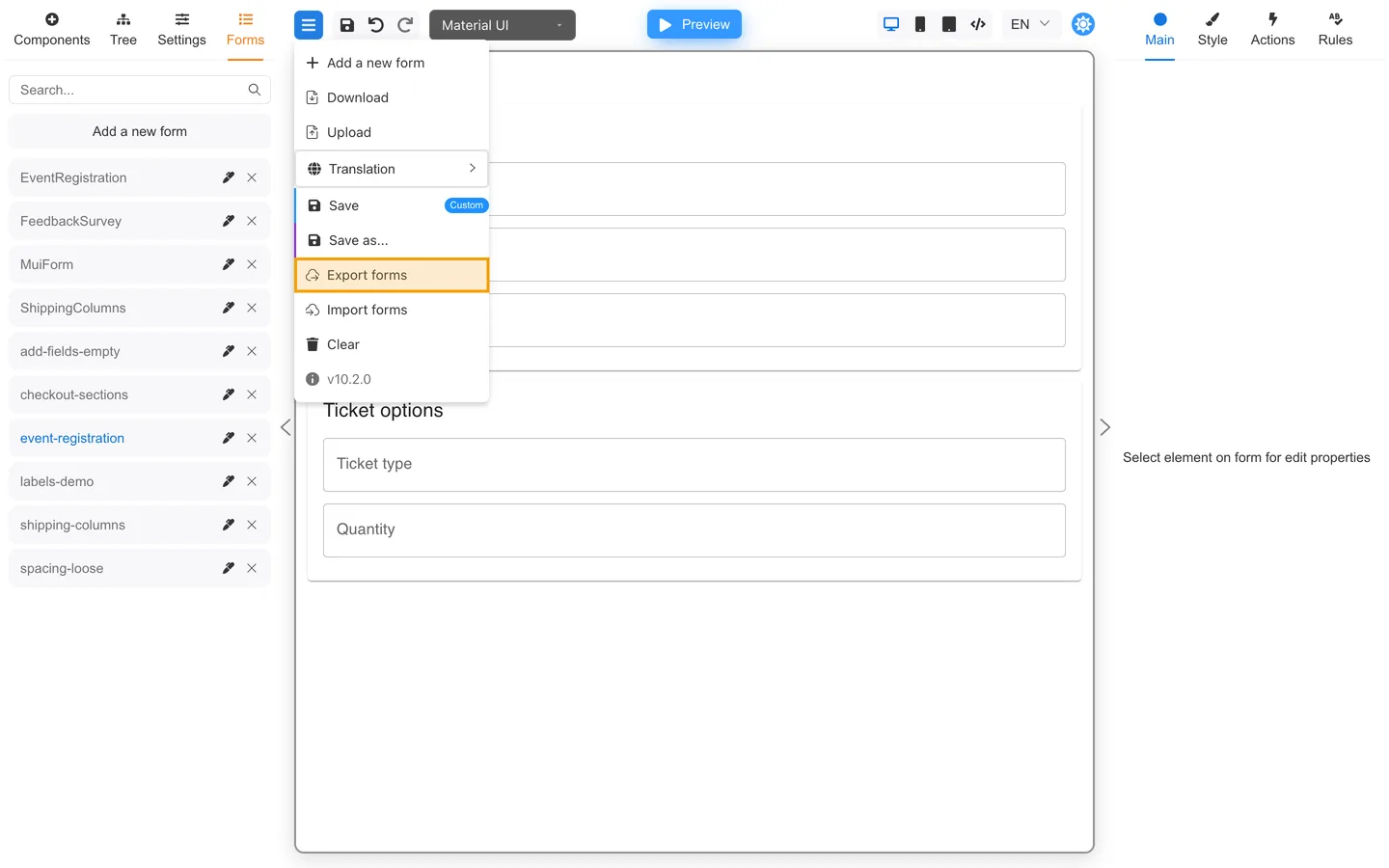
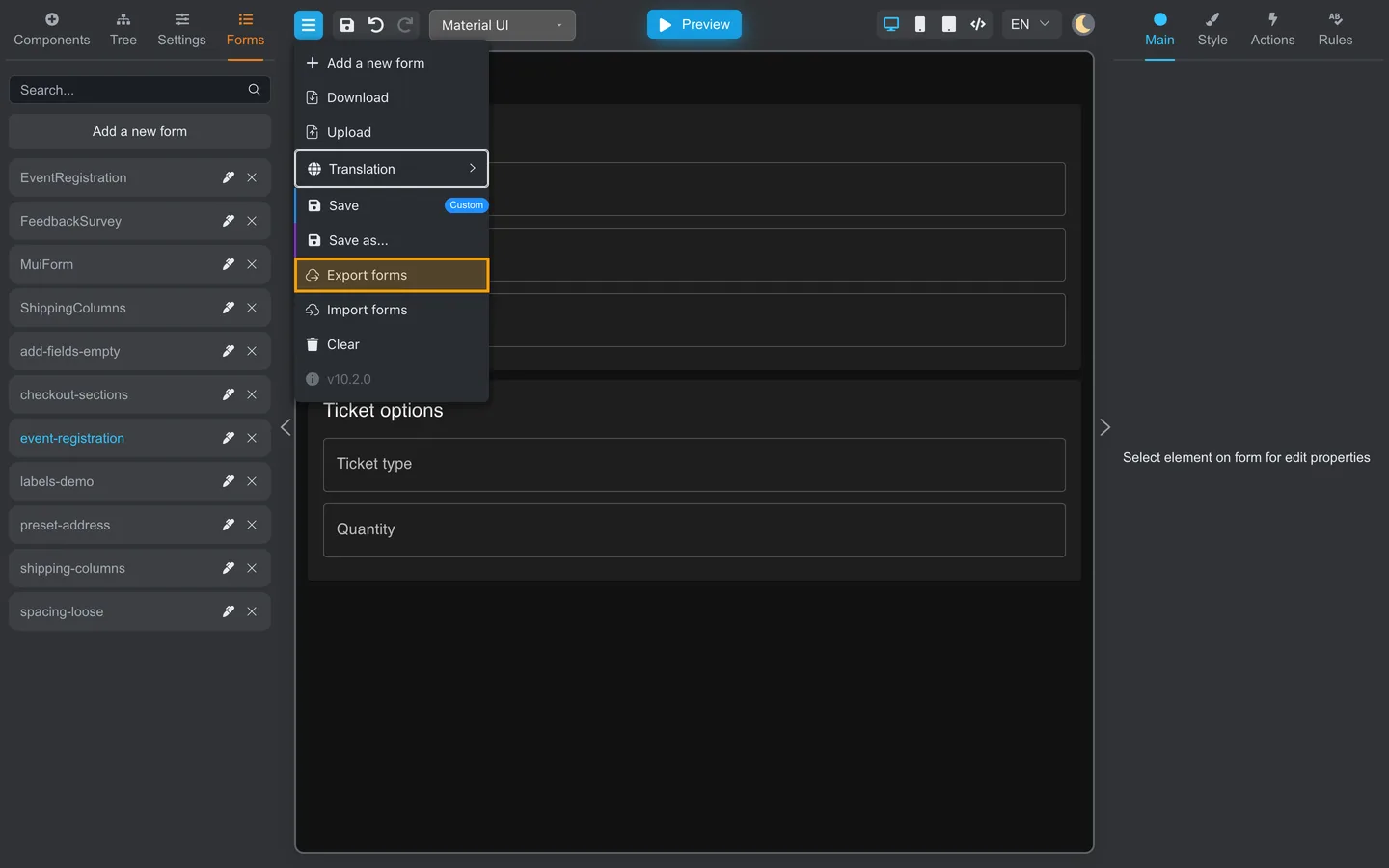
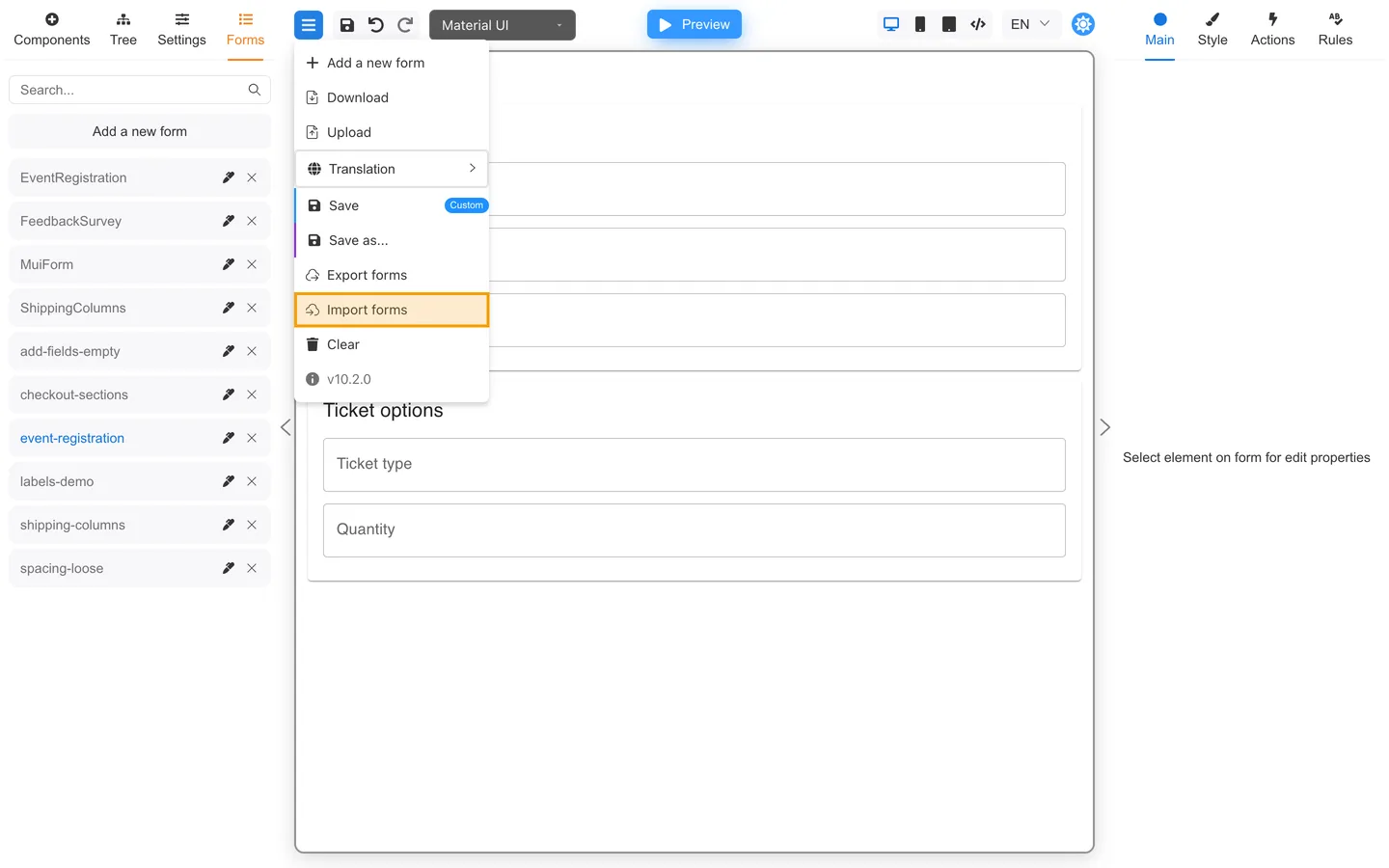
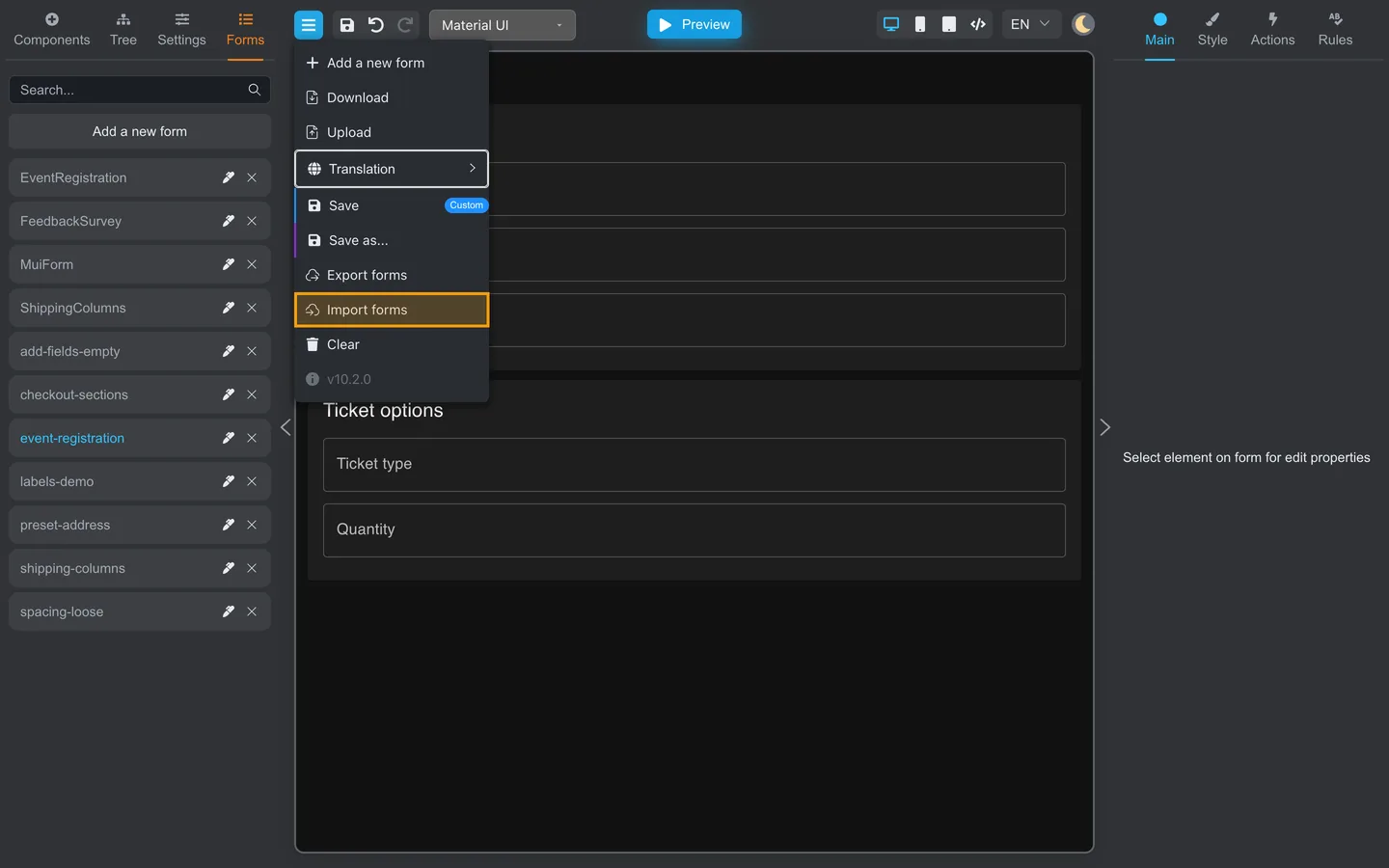
After import, open Forms or reload and run the testing checklist.
Clear
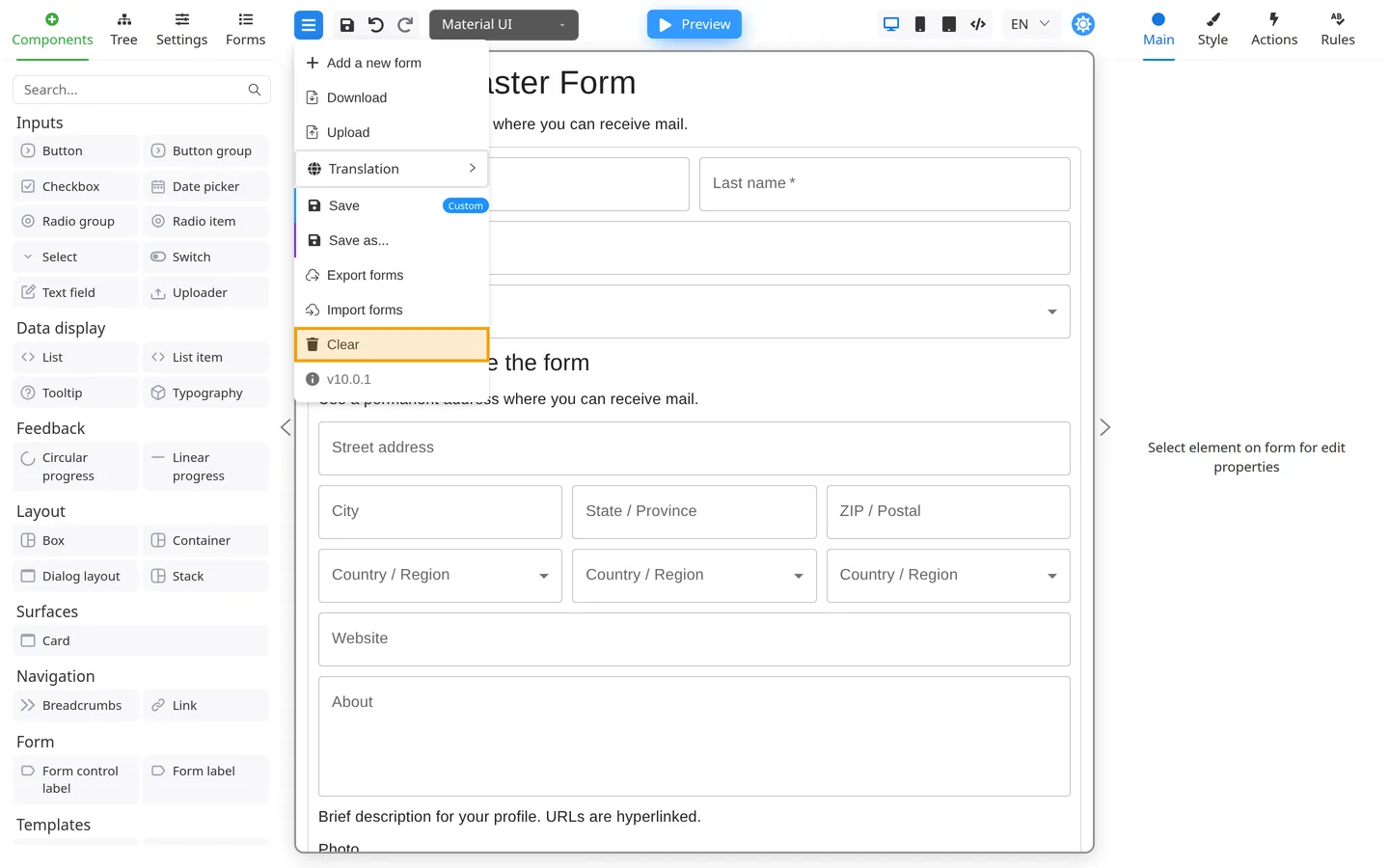
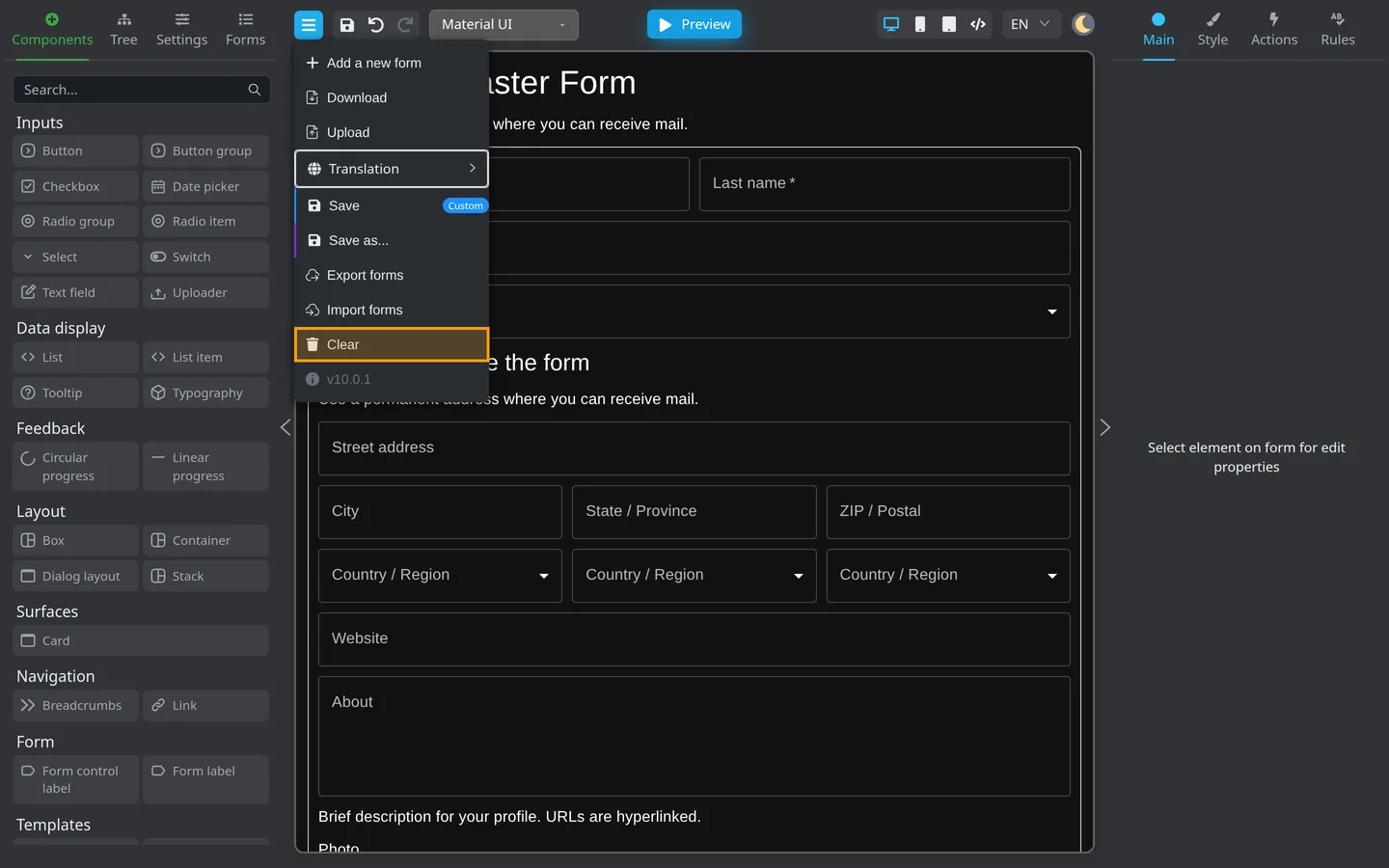
Clear removes every component from the active form. Use only when you intend to start over. Export first if the form has work you might need later.
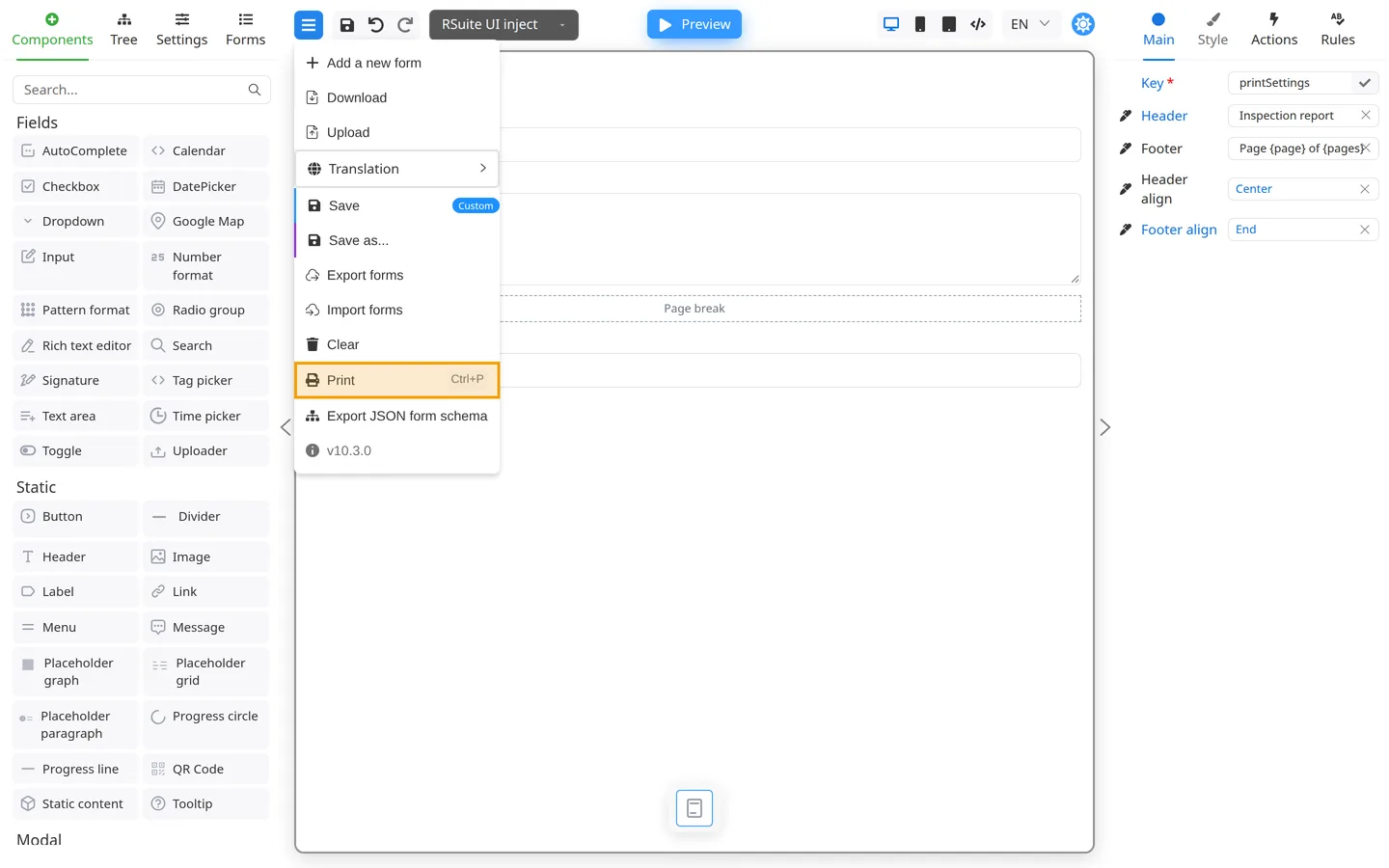
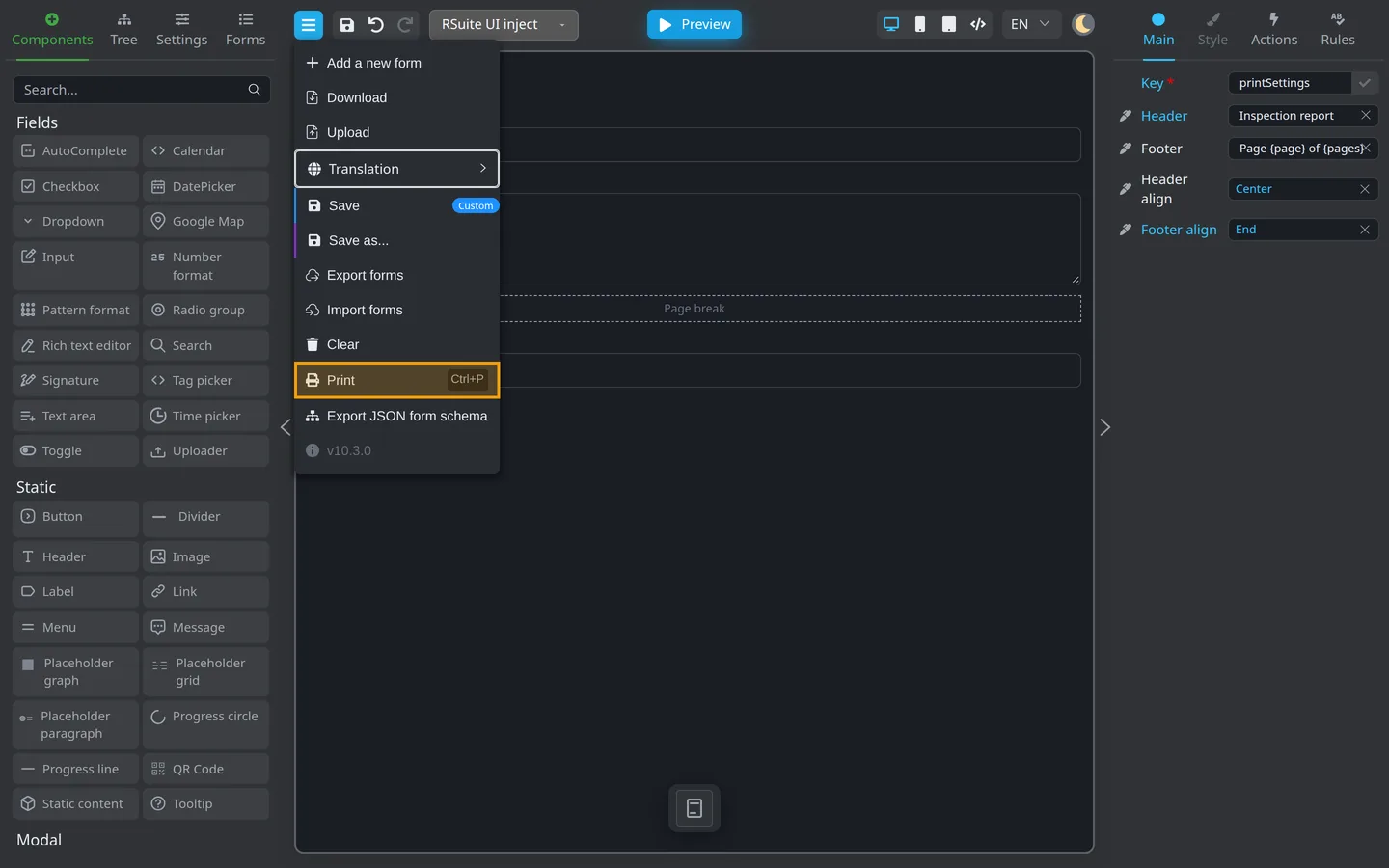
Print opens the browser print dialog (paper or PDF). Shortcut: Ctrl+P (Windows/Linux) or ⌘+P (macOS). Steps: Print your form.
Add a new form (menu)
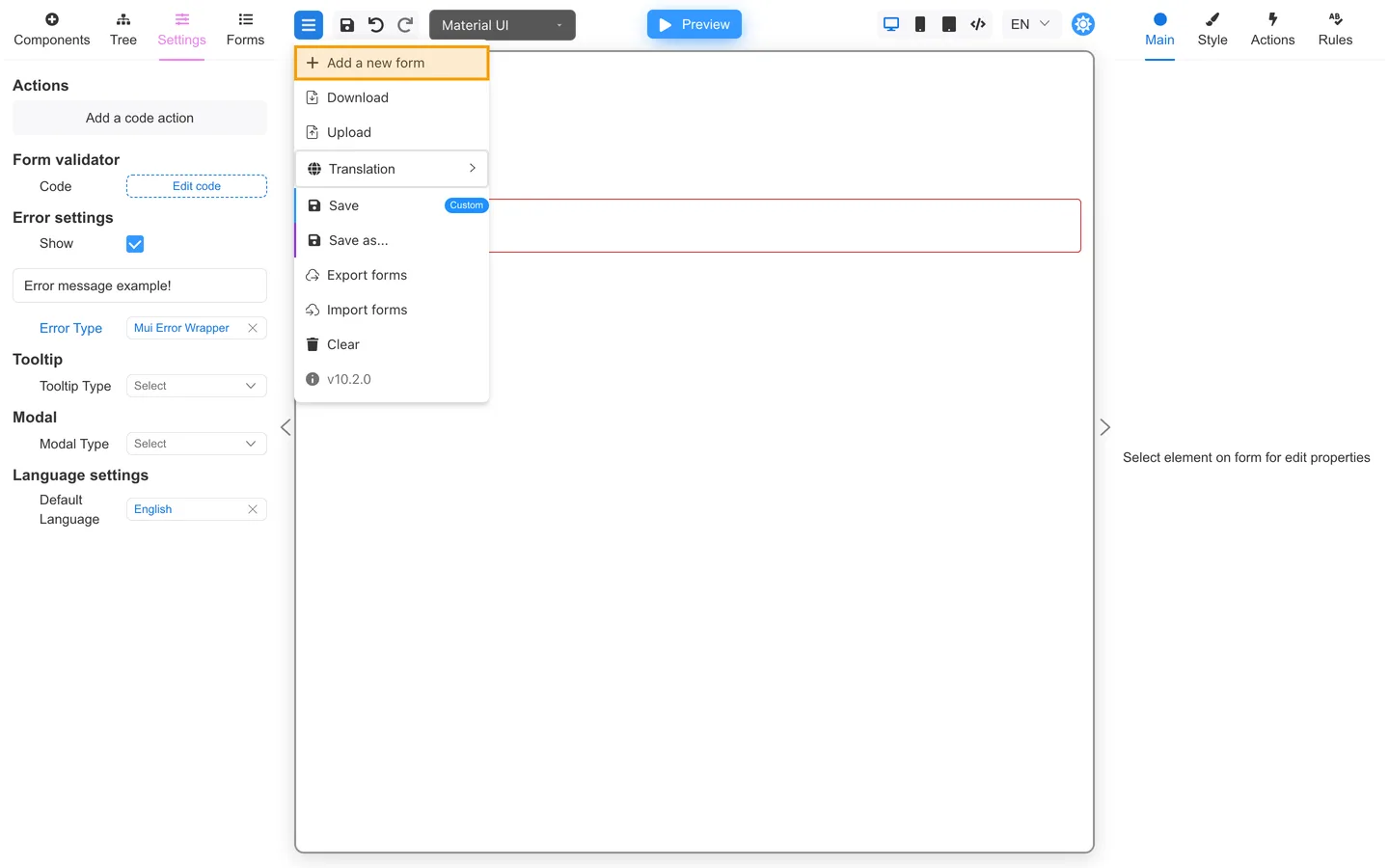
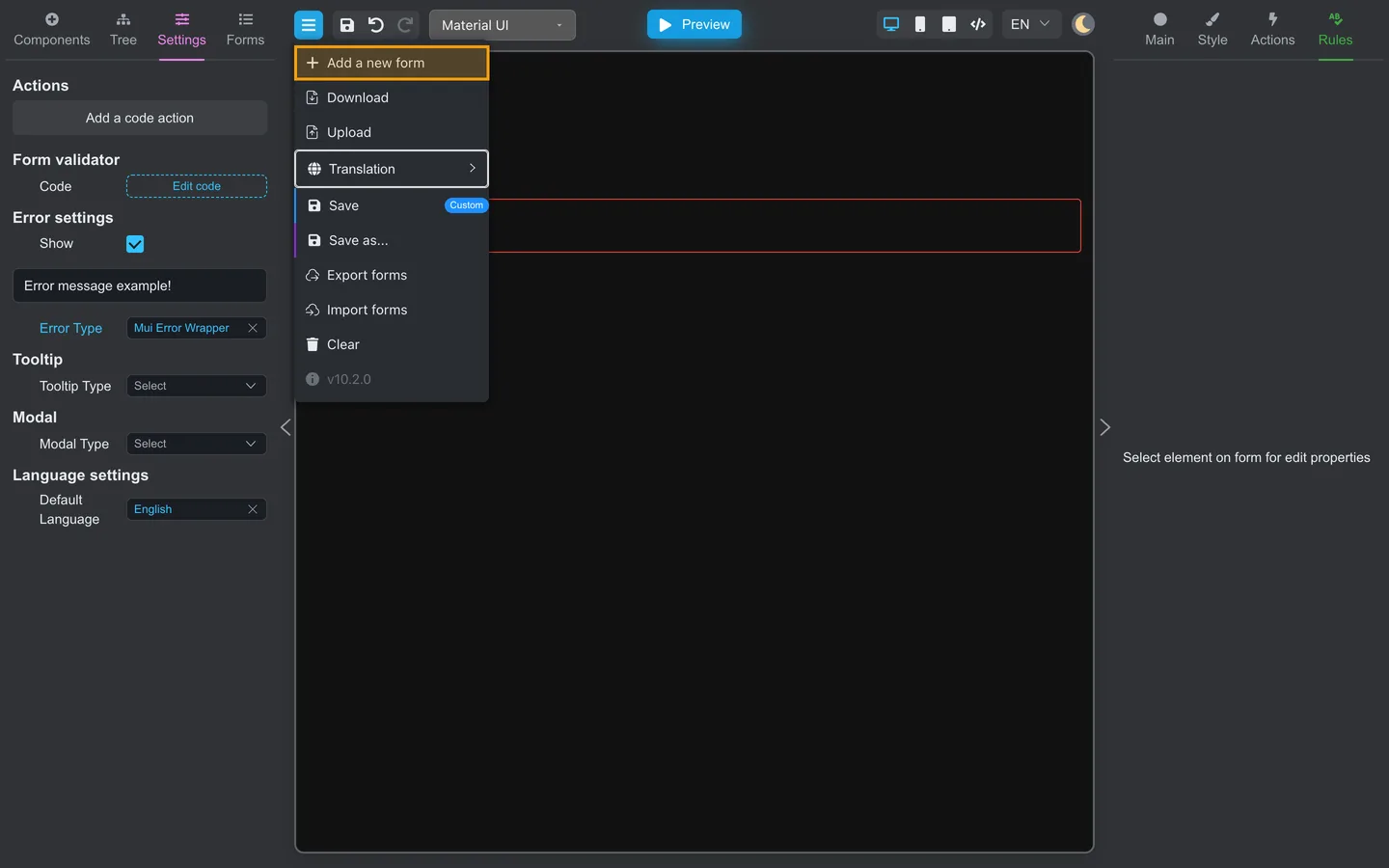
Add a new form creates another empty form when storage is enabled. It is equivalent to Add a new form on the Forms tab.
Summary
Save and Save as… write to storage. Download / Upload move one JSON file. Export forms / Import forms handle a ZIP. Print is for paper or PDF. Export before Clear if you might need the canvas again.