


Canvas drag and drop
You add components by dragging them from Components and organize them by dragging them on the canvas or in Tree.
Drag from the palette
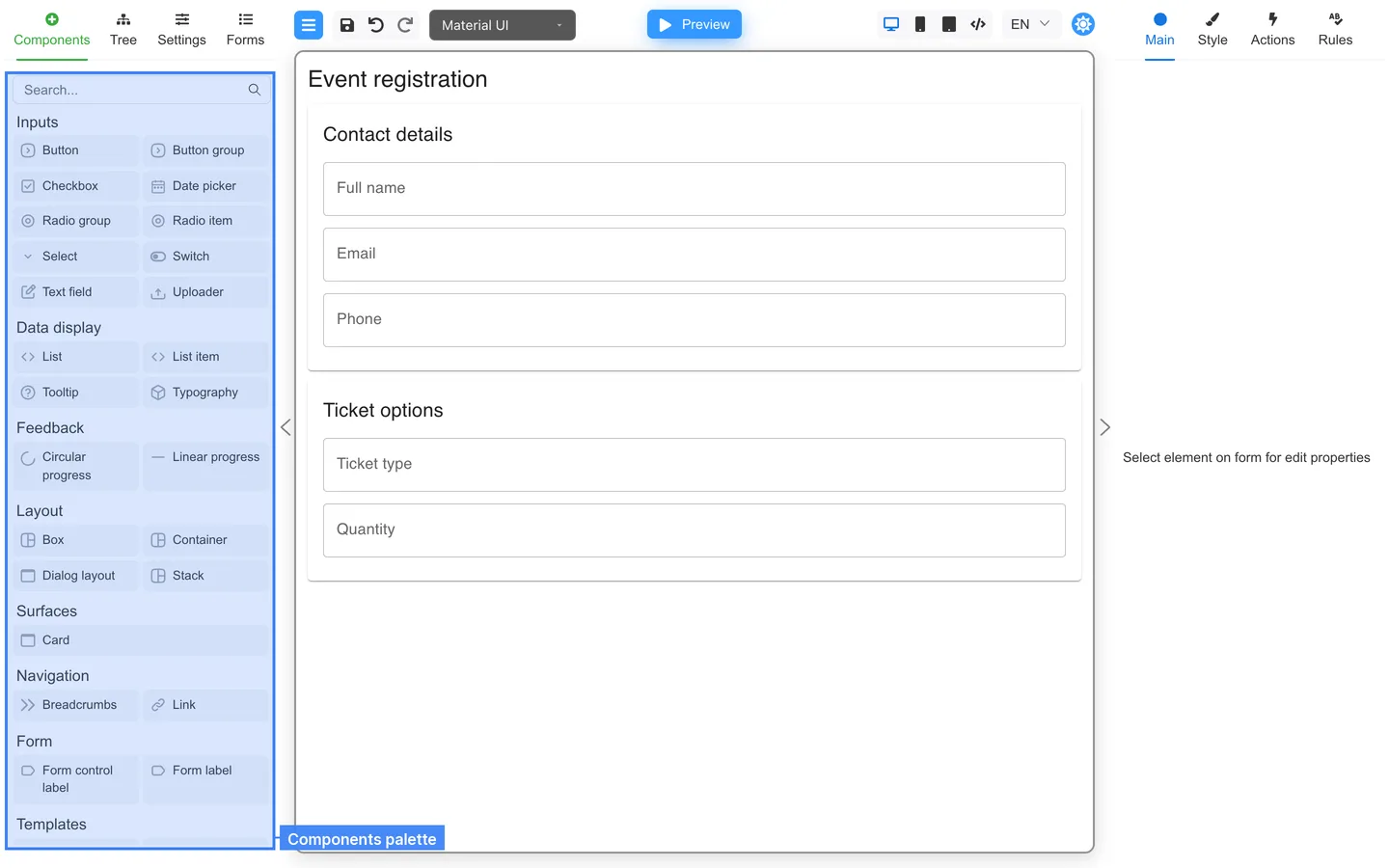
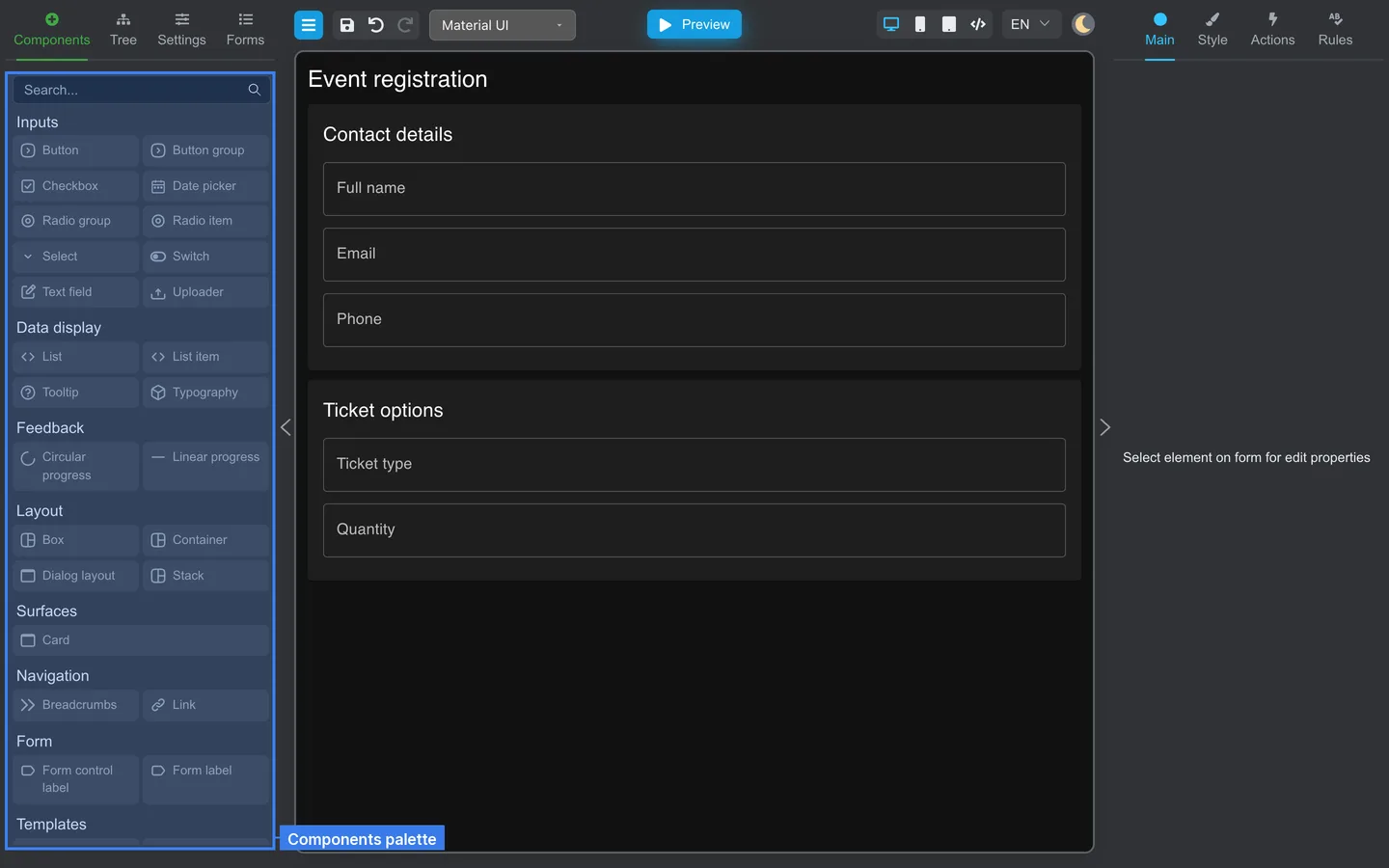
- Open Components.
- Drag a control to the canvas.
- Watch for highlight lines: before, after, or inside a container.
Reorder on the canvas
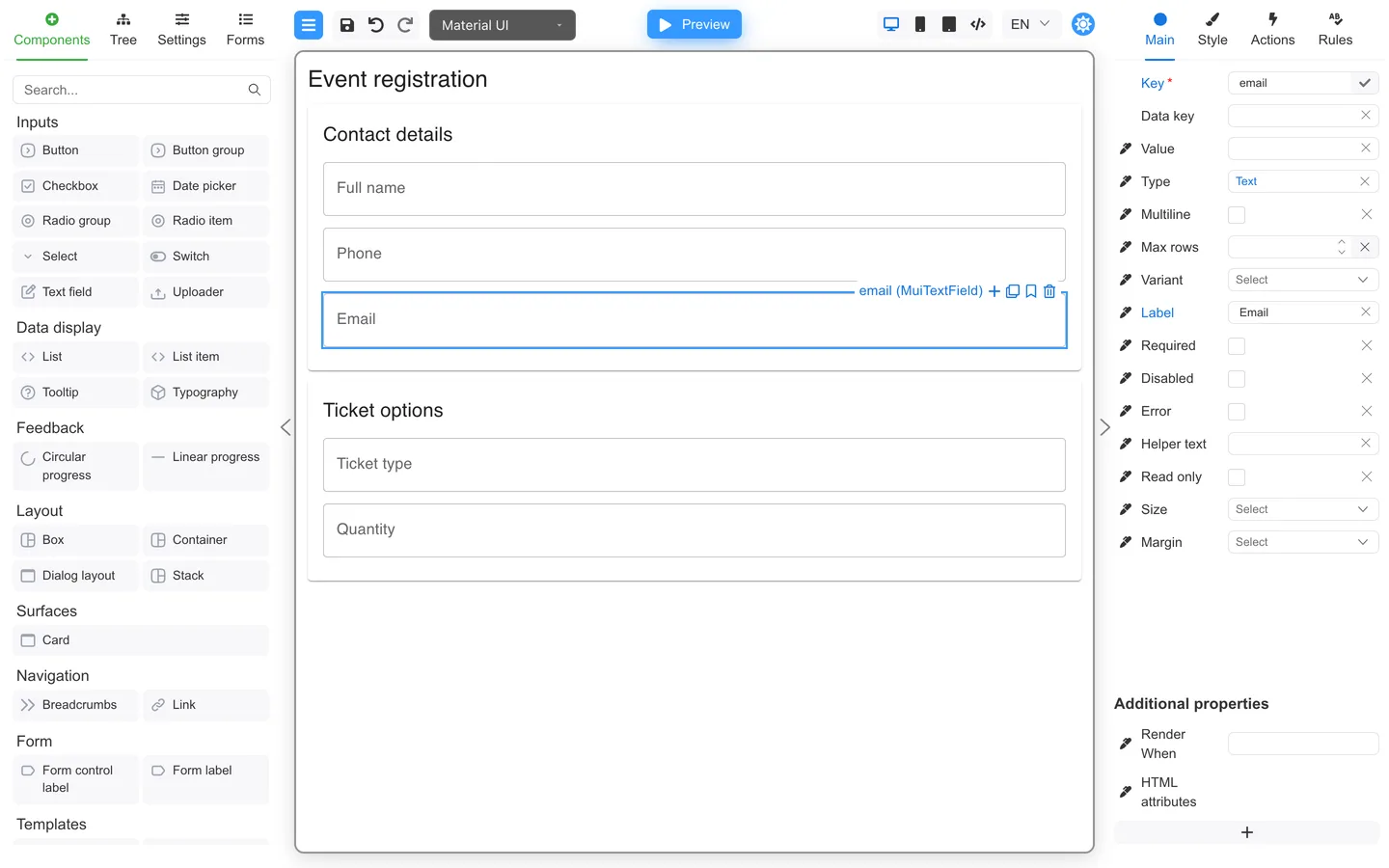
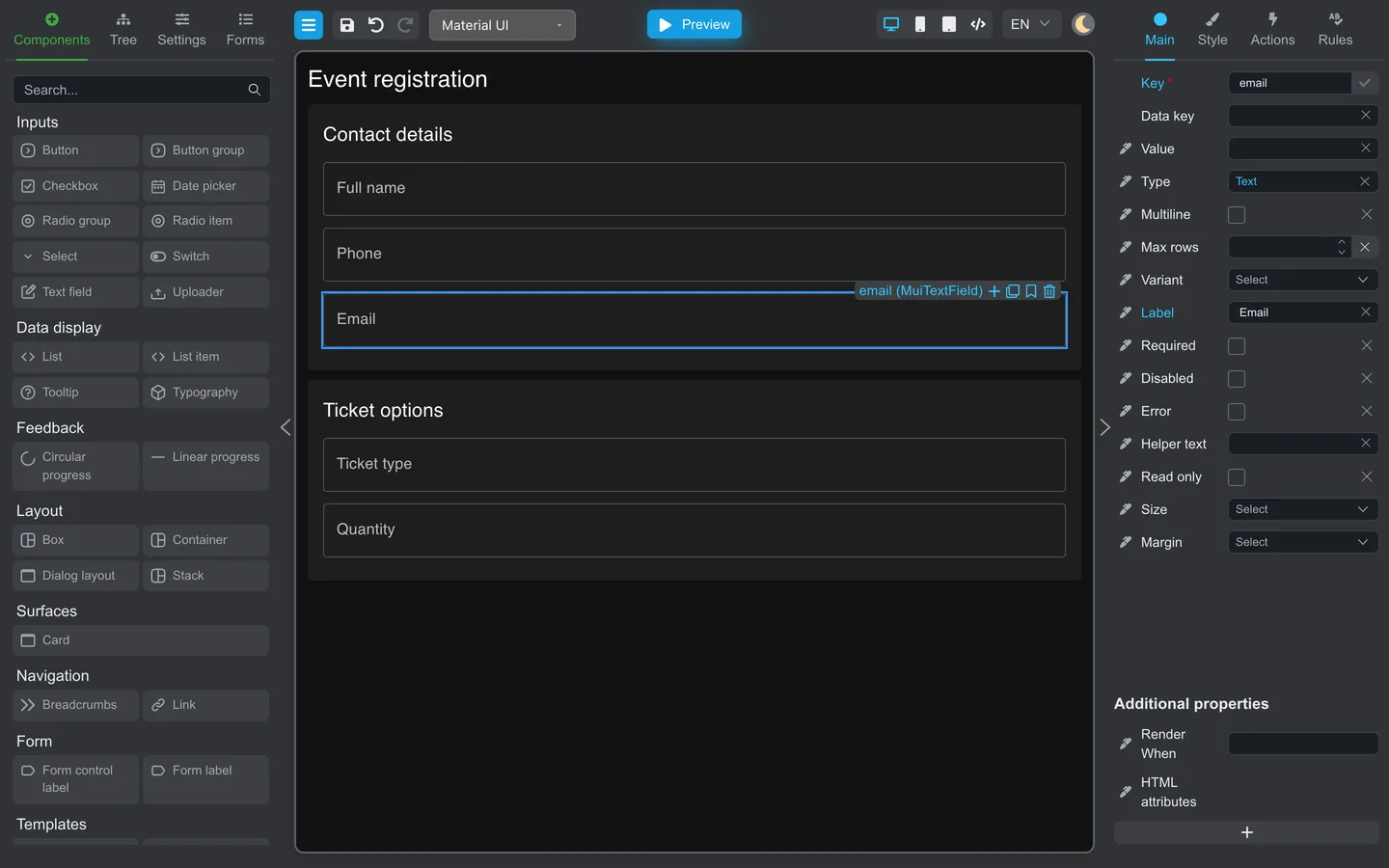
- Select Phone.
- Drag it by its frame above Email.
- Confirm the canvas: Phone is above Email.
If drag is blocked, the target may not accept that component. Try a different container or use Tree.
Multi-select
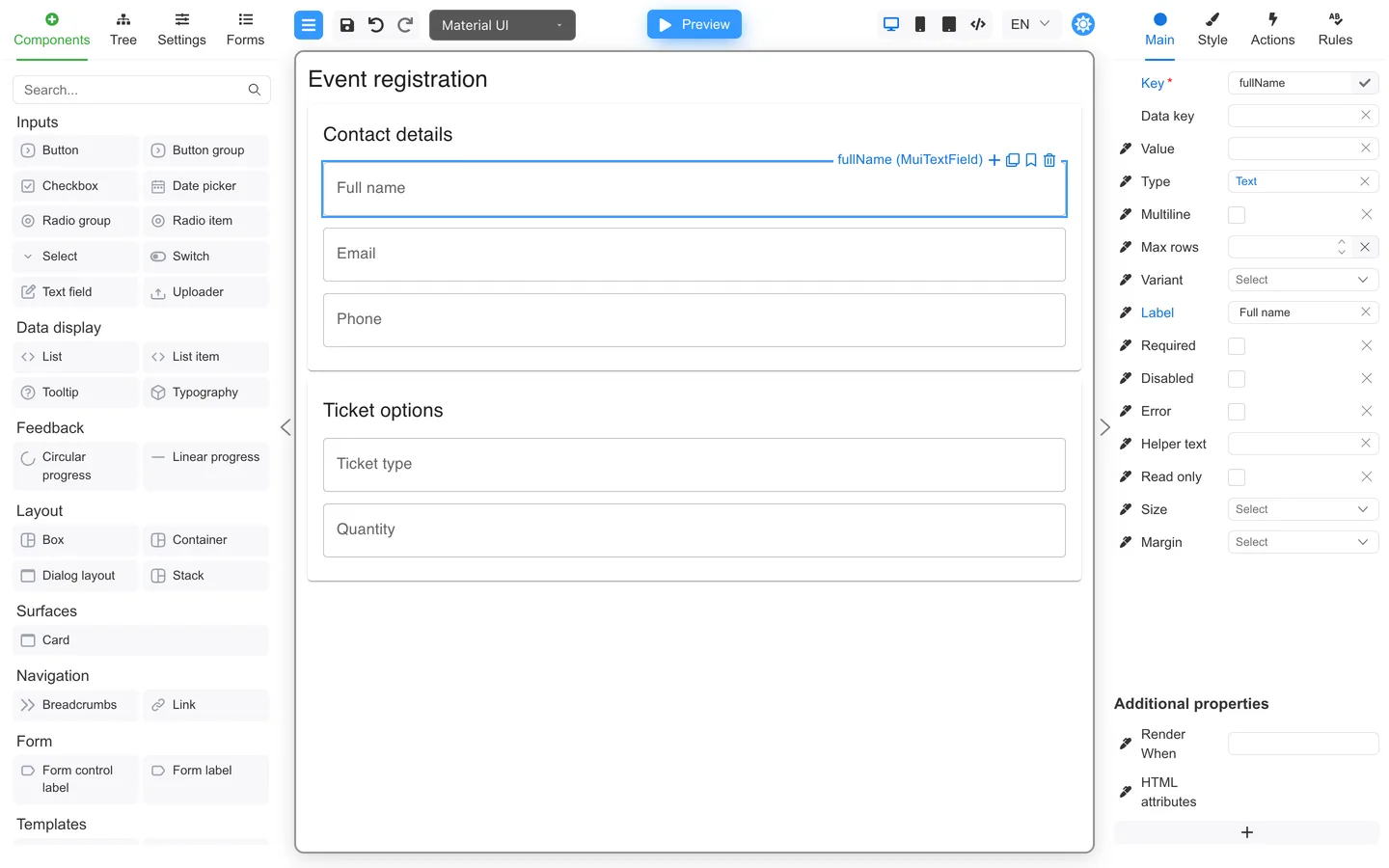
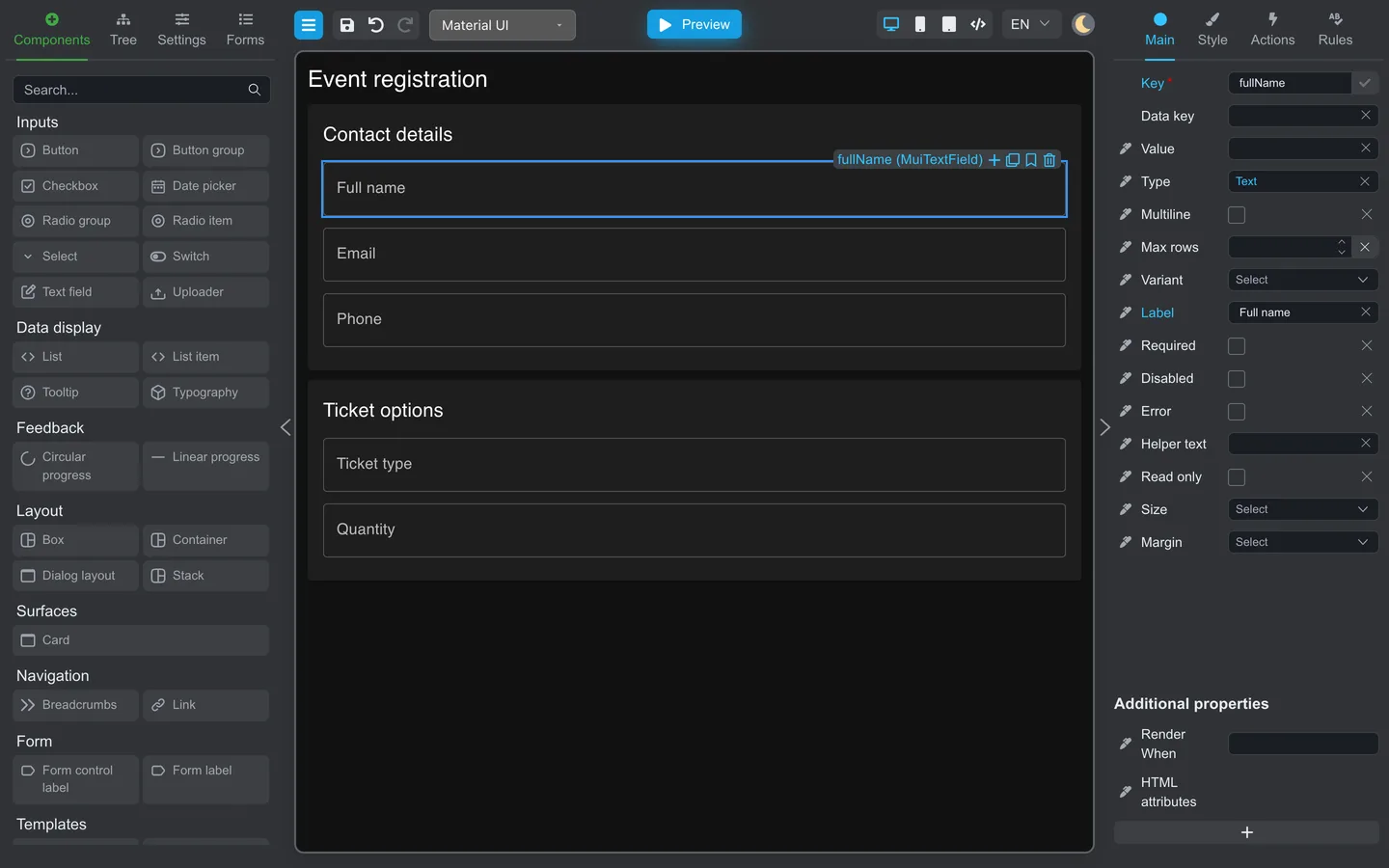
- Hold Ctrl (Windows/Linux) or ⌘ (macOS), then click to add to the selection.
- Hold Shift, then click to select a range in Tree.
- Move or delete the group together.
Floating toolbar
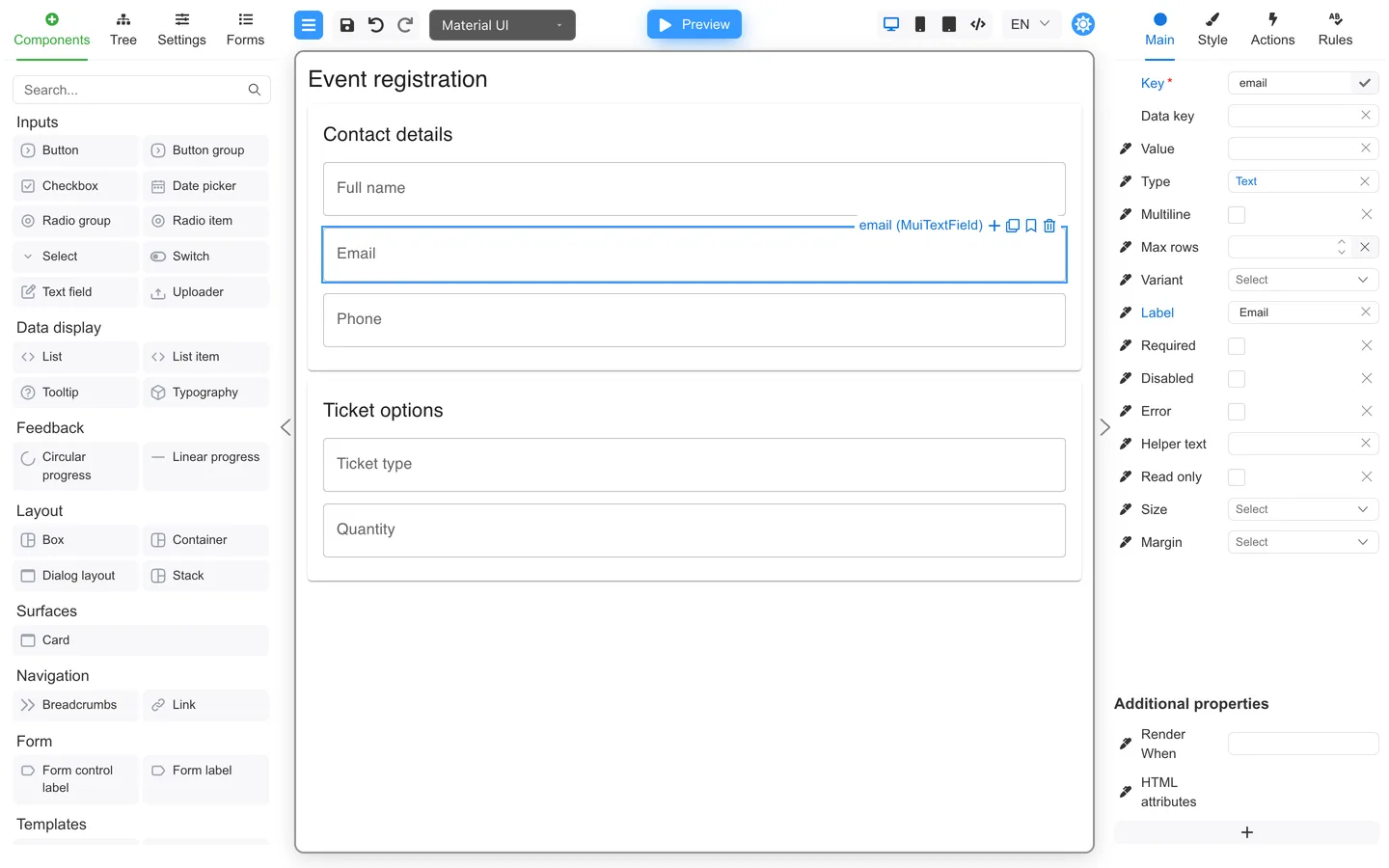
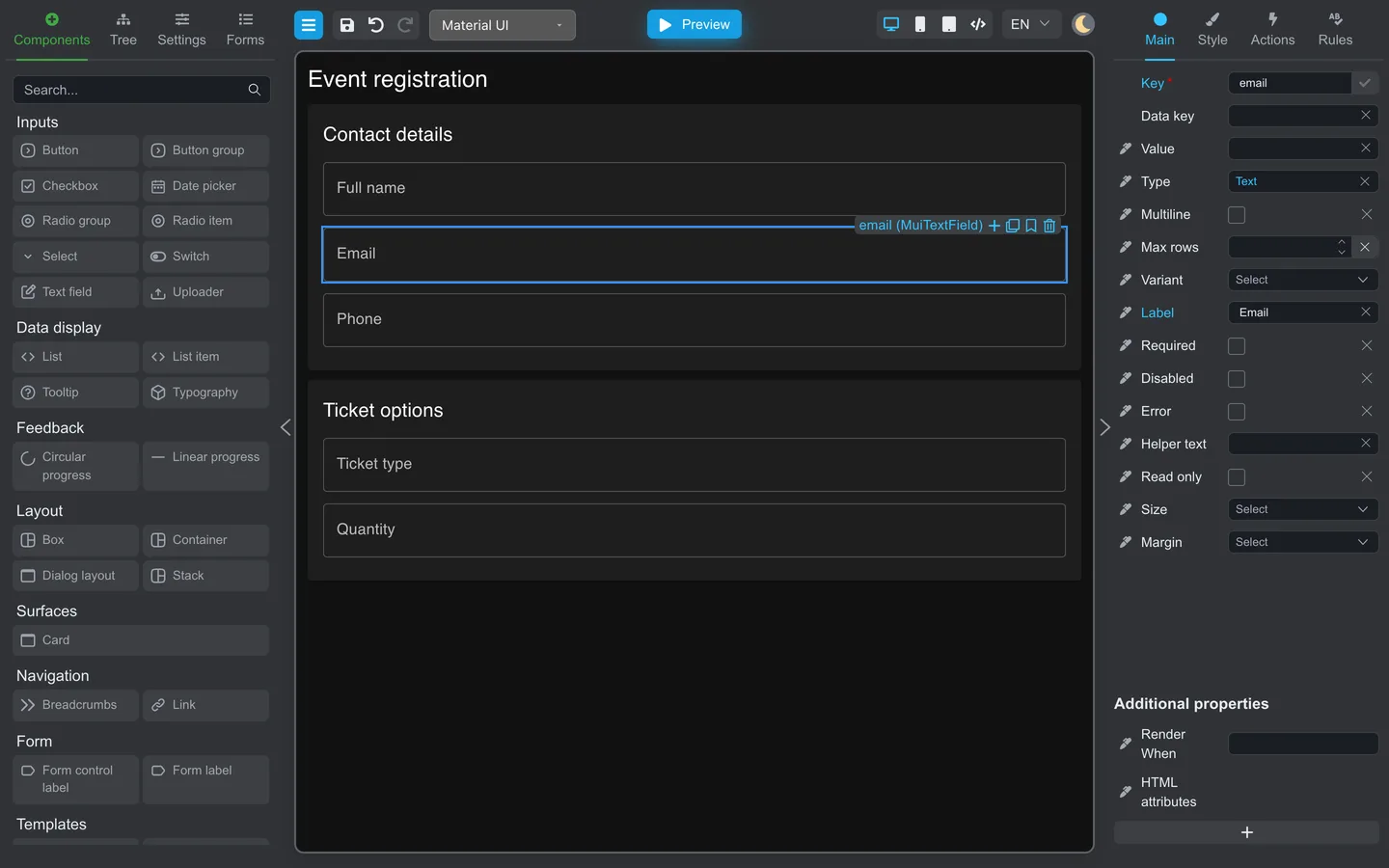
Select one component to show the floating toolbar. Wide selections keep the action icons visible. Narrow ones collapse them behind Open actions; hover that control (or move into the strip) to expand it.
- Reveal in tree - opens Tree and scrolls to the component
- Show nearby components - pick a parent or direct child
- Insert before or after (click, then choose Before / After)
- Clone (or Ctrl+D / ⌘+D)
- Preset bookmark (when licensed)
- Remove (or Delete)
Summary
Drag from the palette to add. Drag on the canvas or in Tree to reorder. Multi-select and the floating toolbar help when you repeat the same edit.