


Undo and redo
Mistakes while designing are normal. Undo and Redo restore prior design states in the current editing session. The stored copy changes only when you save the current design.
Toolbar
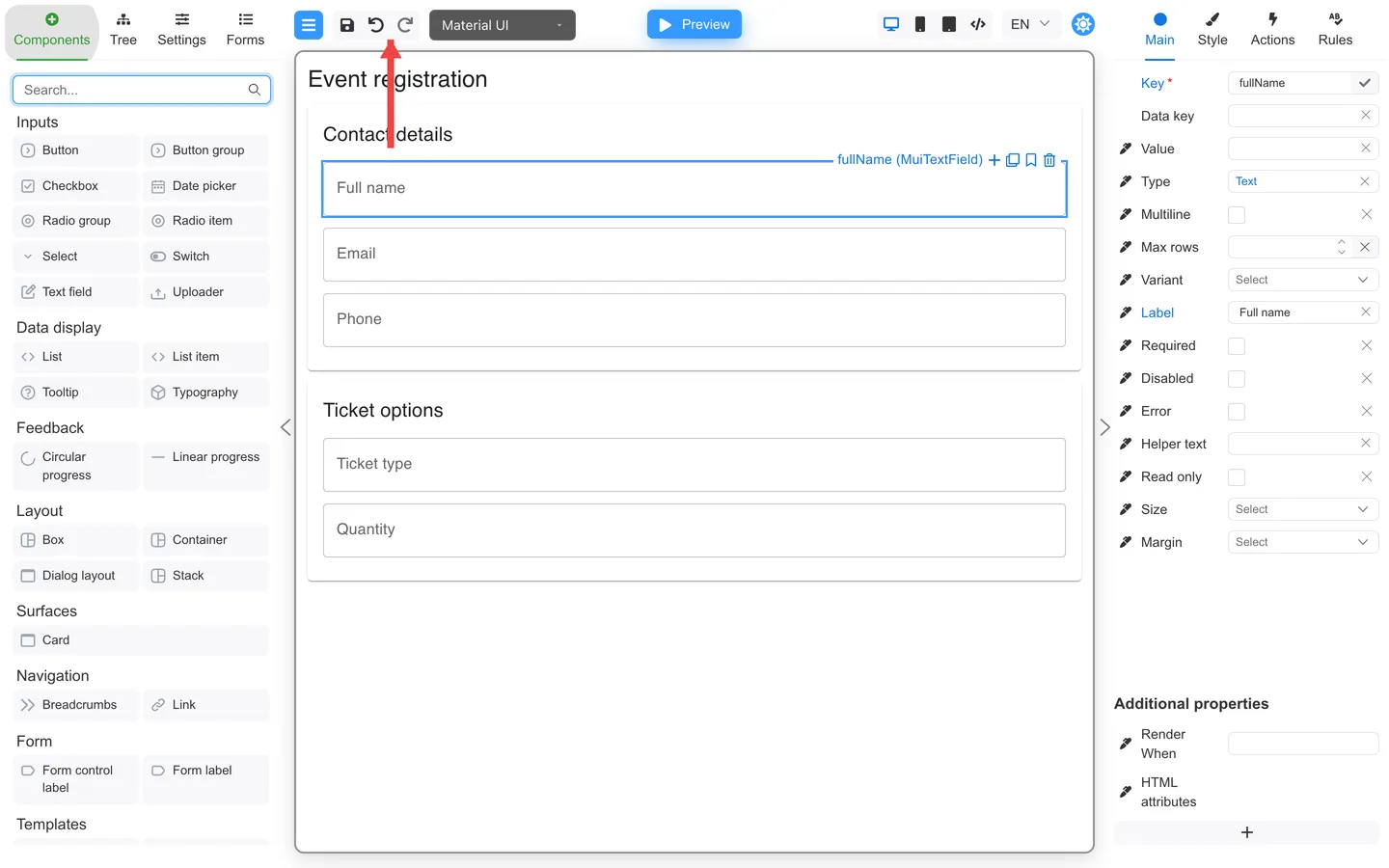
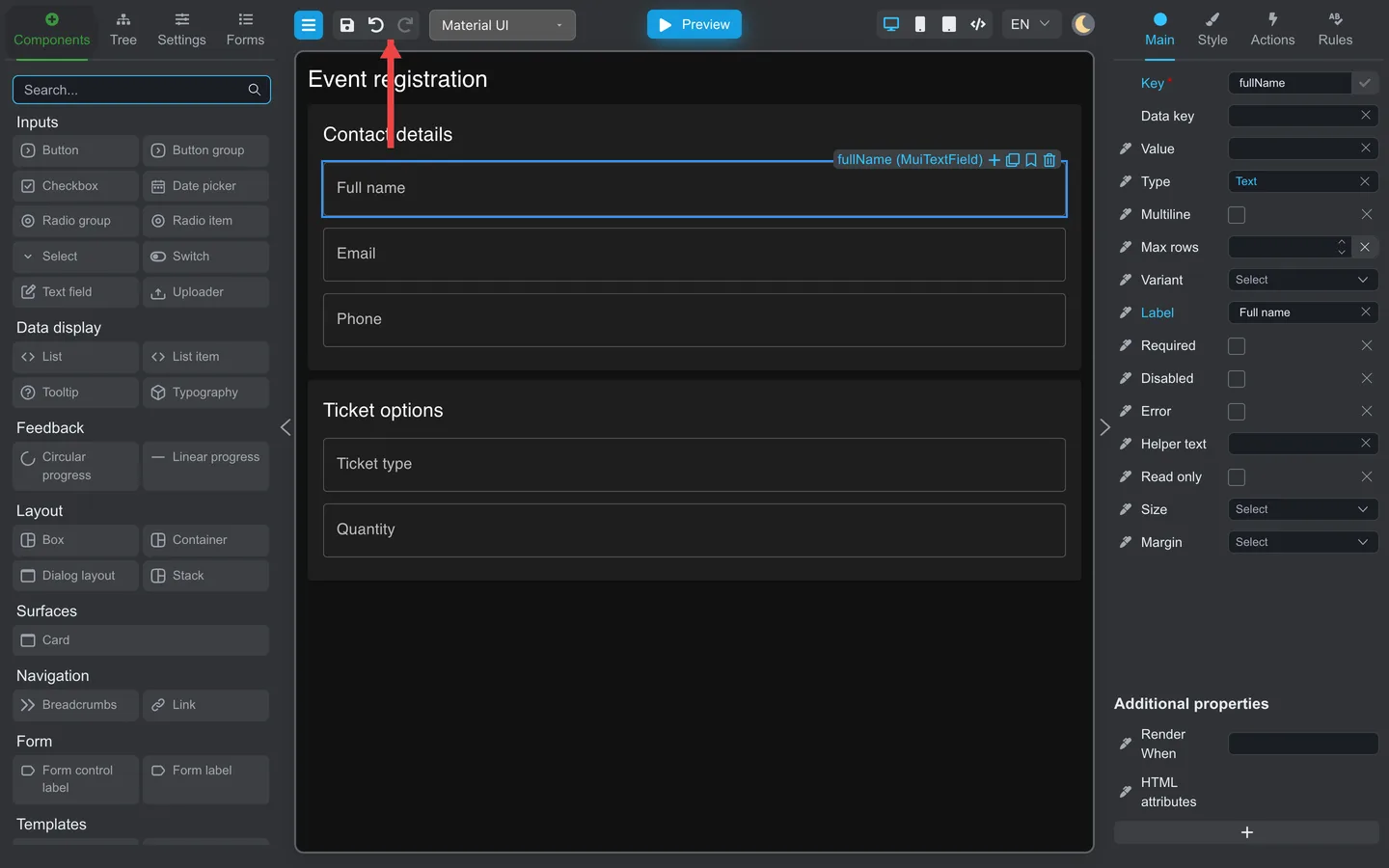
- In the center header, find Undo and Redo (arrow icons).
- Click Undo after a bad delete or drag.
- Click Redo to reapply if you undid too far.
Buttons may be disabled when there is nothing to undo or redo.
Keyboard shortcuts
Windows and Linux
| Action | Shortcut |
|---|---|
| Undo | Ctrl+Z |
| Redo | Ctrl+Y |
| Redo (alternative) | Ctrl+Shift+Z |
macOS
| Action | Shortcut |
|---|---|
| Undo | ⌘+Z |
| Redo | ⌘+Shift+Z |
Click the canvas background first so focus is not inside a property field.
Undo, saving, and Clear
- Undo and Redo change the current design. They do not update the stored copy until you use Save again.
- Saving does not clear the undo history. If you undo after saving, the restored design remains unsaved until you save it.
- Menu → Clear is itself a design change. Undo can restore the cleared design while that change remains in the undo history.
- If the change is no longer in the undo history, recover from an earlier Download or Export forms backup.
- Preview test data is not part of design history. Use Reset to default or Clear in Preview mode tools.
Summary
Toolbar and Ctrl+Z or ⌘+Z shortcuts cover most design edits. Use Save for stored milestones and keep backups with Download or Export forms.