


Print your form
Print opens the browser print dialog. Designer hides the editing tools first and shows the form the way users see it, so the printout tracks Preview more closely than Edit.
Print from the menu
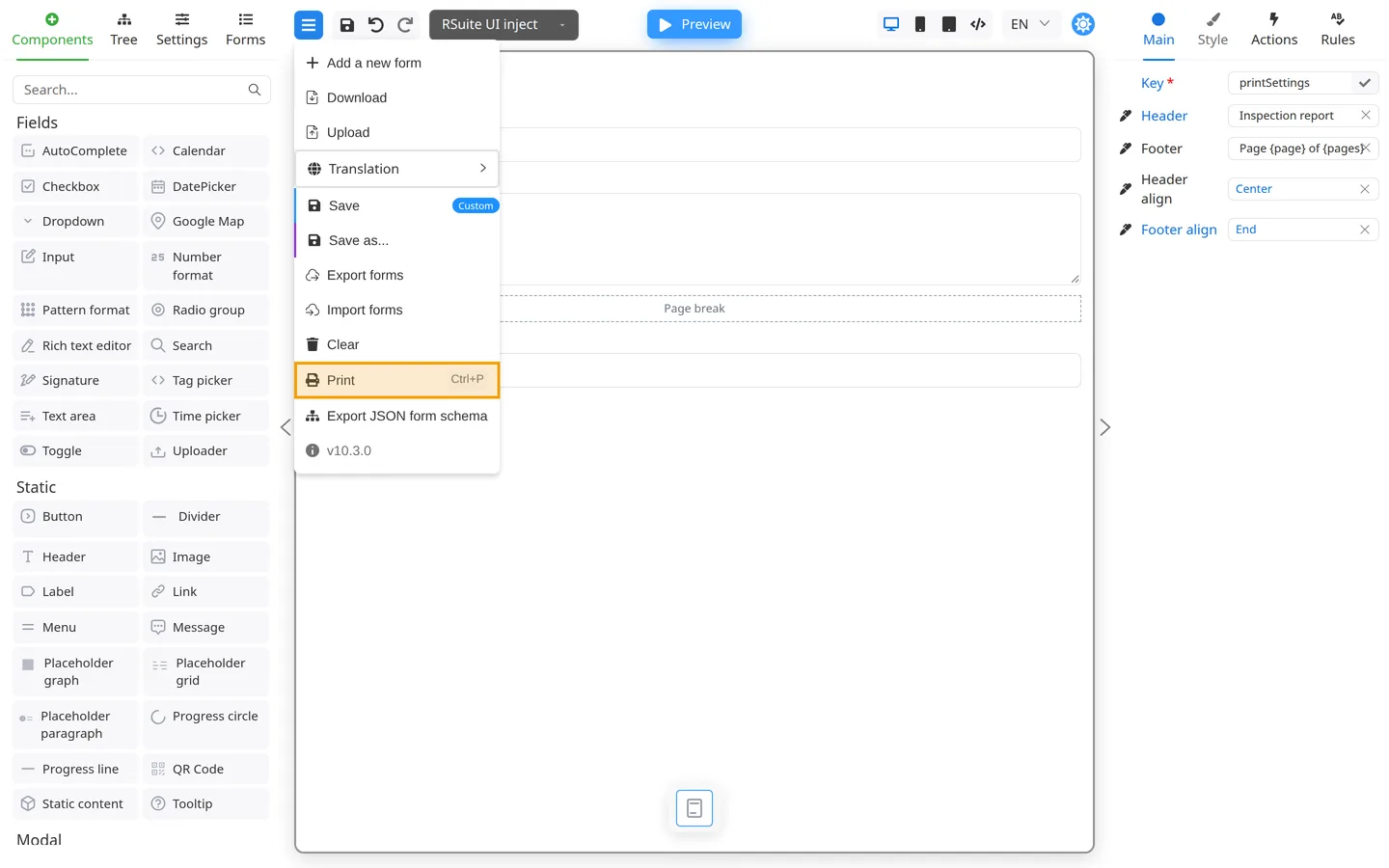
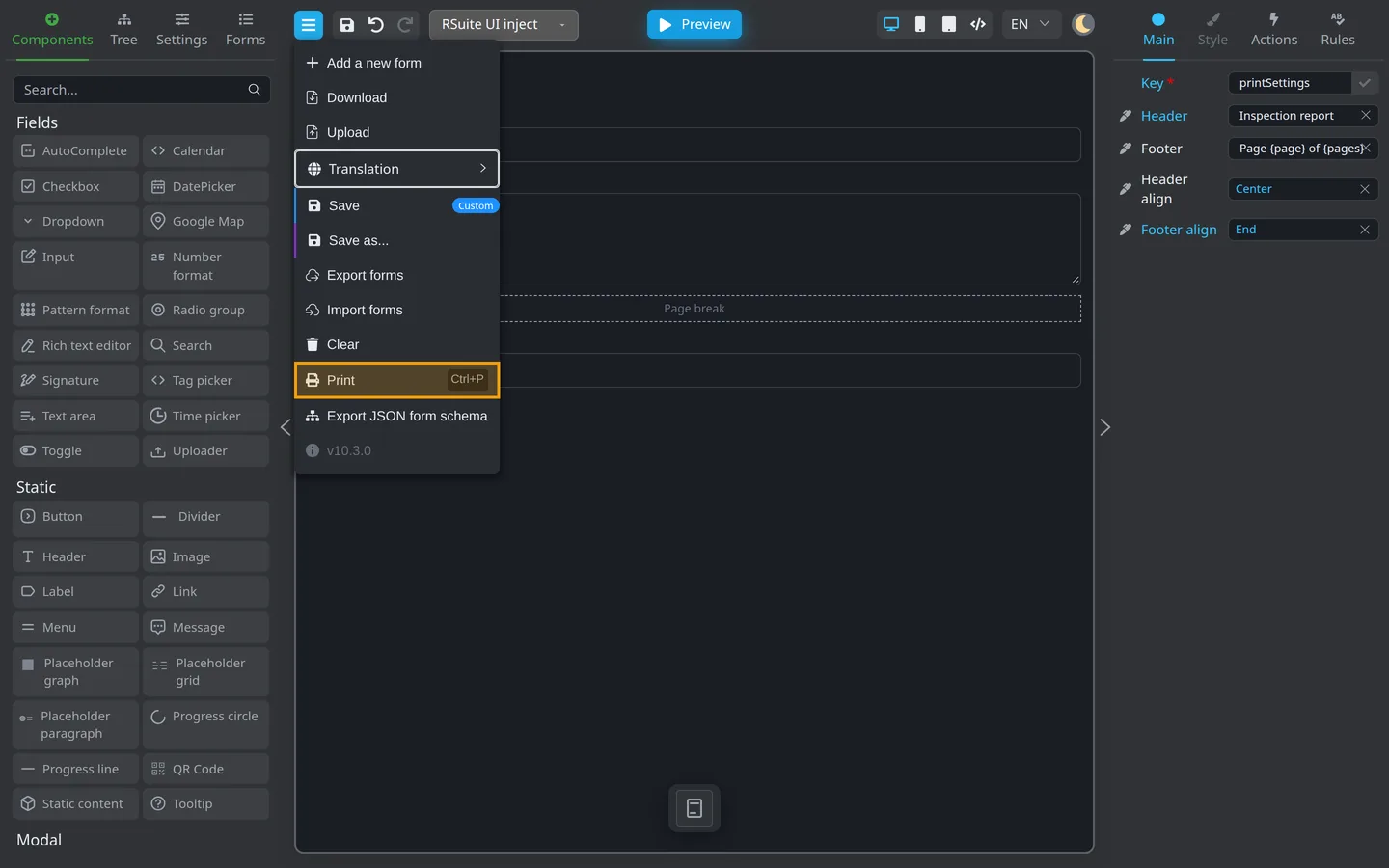
- Open the header Menu (hamburger).
- Click Print. The row shows Ctrl+P or ⌘+P.
- In the browser dialog, pick a printer or Save as PDF.
- Close the dialog when you finish. Designer returns to Edit or Preview, whichever you were in.
Print with the keyboard
Press Ctrl+P (Windows/Linux) or ⌘+P (macOS). This shortcut still works with the cursor in a field; Save does not.
Page break and Print settings
In Components, under Structure:
| Component | What it does |
|---|---|
| Page break | Starts a new printed page at that place on the canvas |
| Print settings | Sets the printed header and footer (one per form; lives off the canvas) |
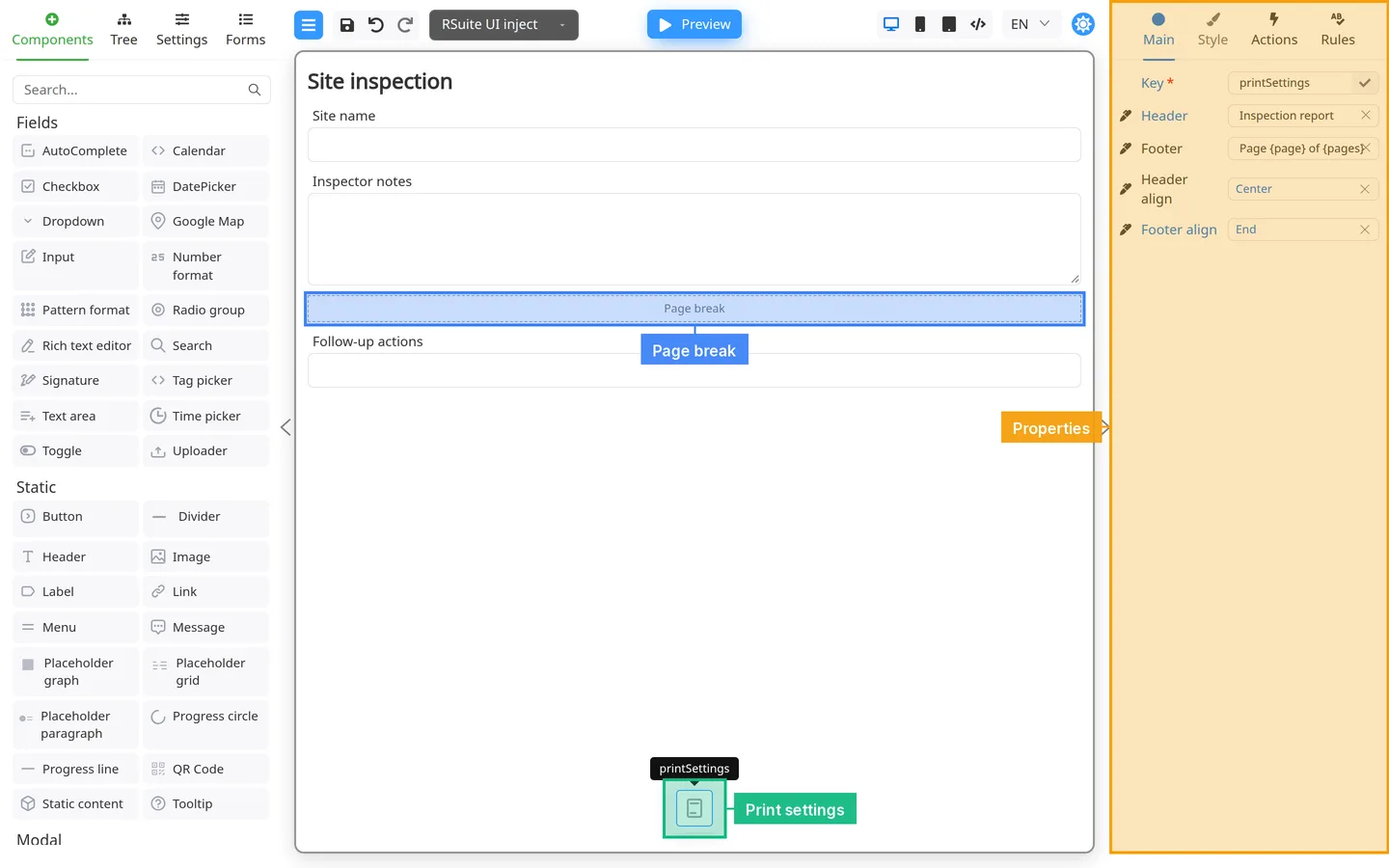
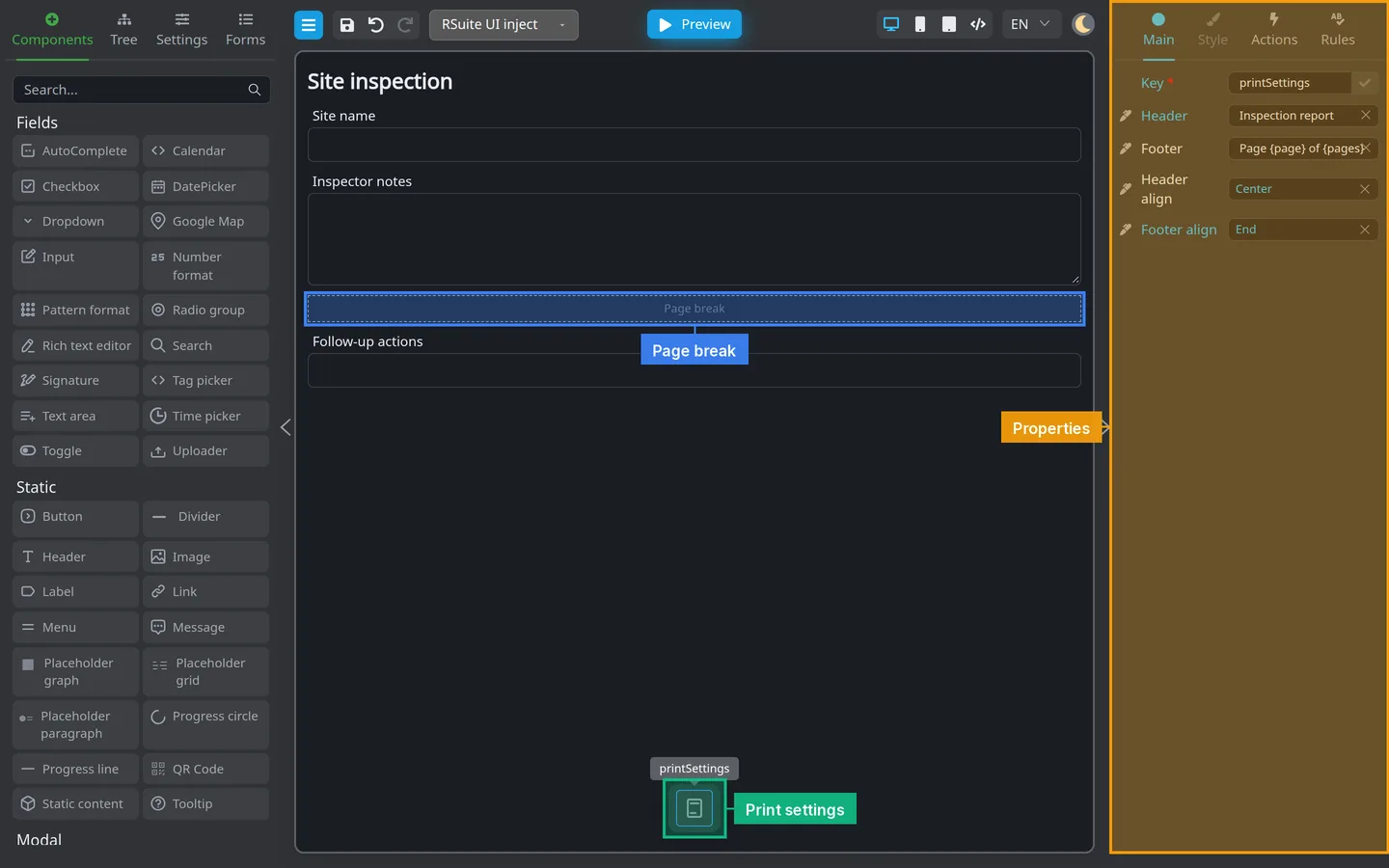
-
Add Page break where a new paper page should start. In Edit it shows as a placeholder on the canvas.
-
Add Print settings once. It shows in the non-visual bar under the canvas and in the Non-visual Tree group, not as a canvas block.
-
Select Print settings (bar chip or Tree). On Main, set Header, Footer, and alignment.
-
In Header or Footer, type the text you want on every printed page. Use these placeholders for page numbers:
Placeholder Meaning {page}Current page number {pages}Total number of pages Example:
Page {page} of {pages}prints as “Page 1 of 3” on the first sheet.
Then use Menu → Print and check the browser preview.
Property details: Page break and Print settings.
Print vs Download
| Action | Result |
|---|---|
| Paper or PDF through the browser print dialog | |
| Download | A .json form file for developers or backup |
Summary
Menu → Print (or Ctrl+P / ⌘+P) sends the form to the browser print dialog. Use Page break on the canvas and Print settings in the non-visual bar when you need control over printed pages.