


Collapse panels and resize the code panel
Side panels and the bottom code area can be collapsed or resized so you have more room for the canvas or for long scripts.
Collapse left or right panels
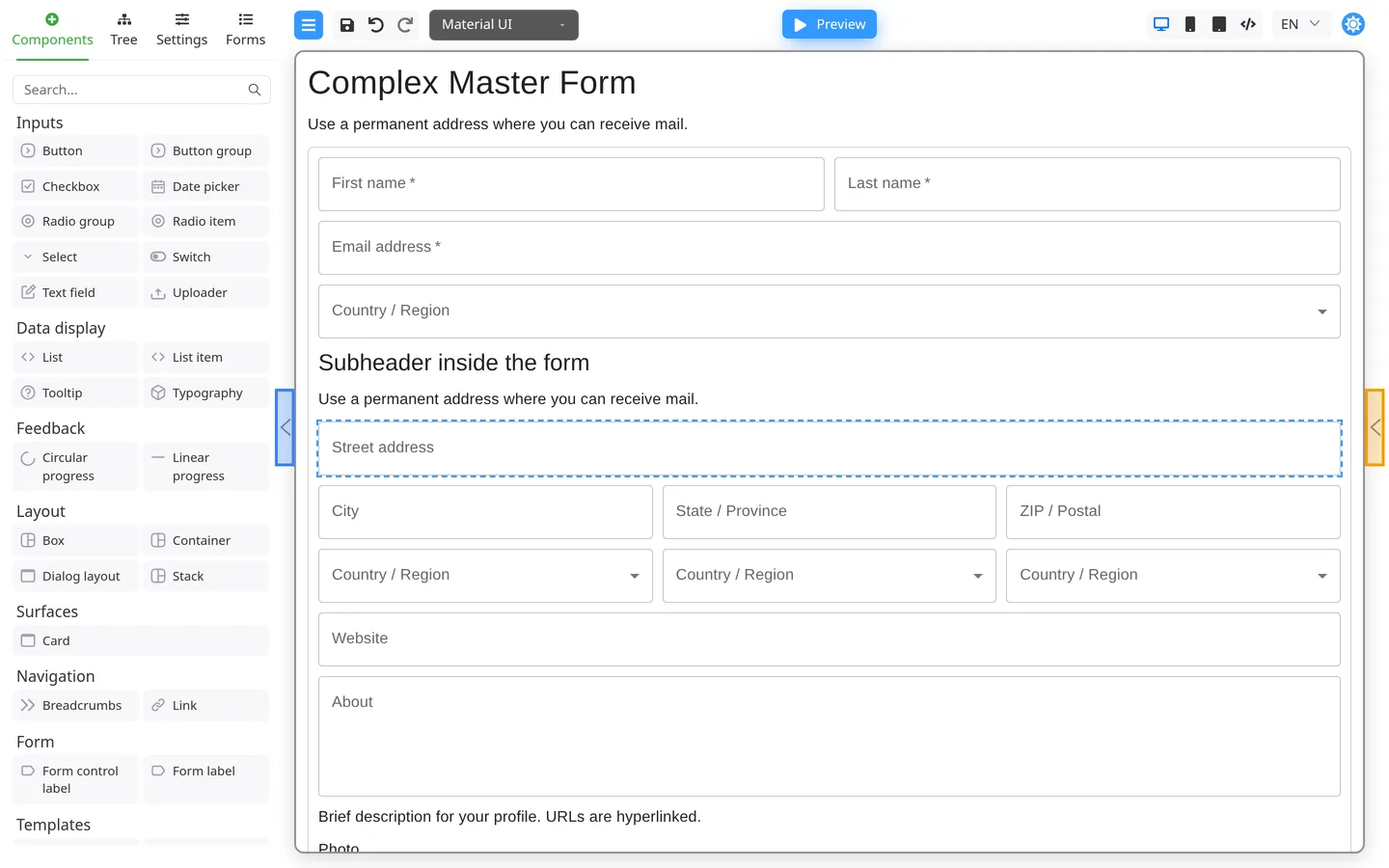
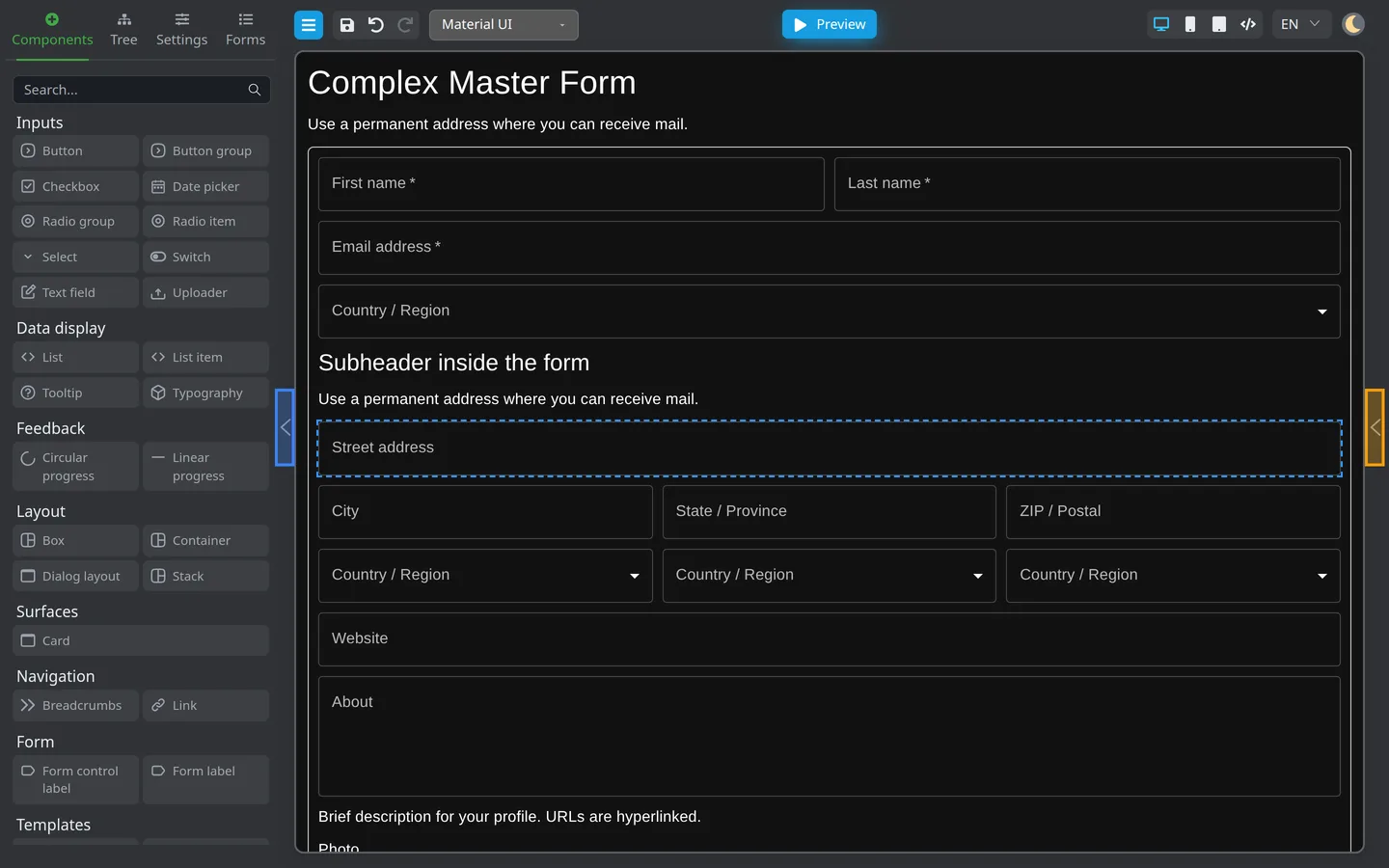
- Look for the narrow collapse control on the inner edge of the left or right panel (chevron on the divider).
- Click it to hide that panel.
- Click again on the edge tab to expand.
Collapsing the right panel maximizes canvas width. Collapsing the left panel is useful when reviewing layout in Preview.
Bottom panel (code editors)
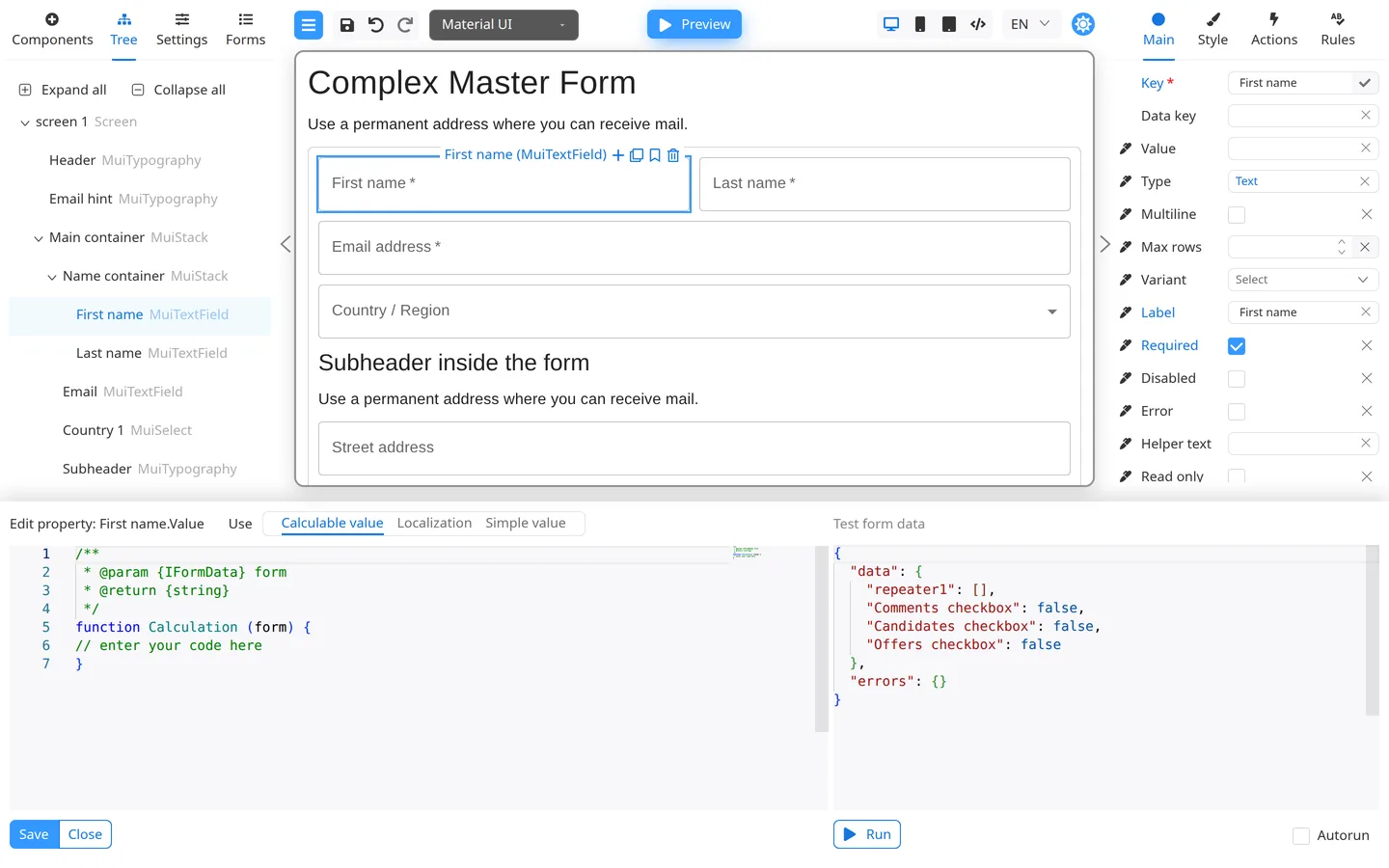
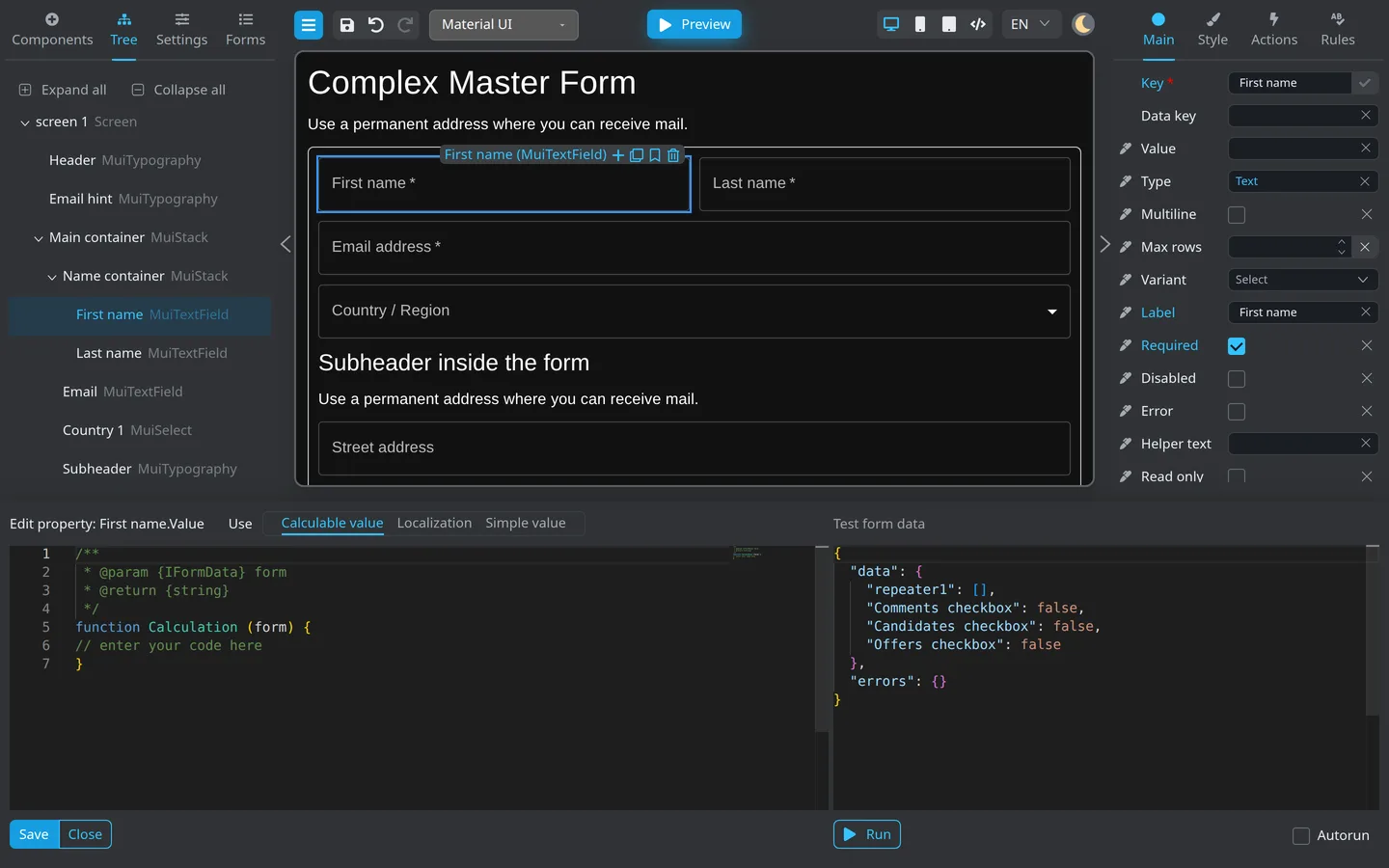
The bottom panel opens when you edit items that use code or JSON, for example:
- Calculable value on a component property (click the edit icon next to the property, then choose Calculable value)
- Custom validation Code
- Form-level validator
- Some Actions code blocks
- Select a component and open a property that supports code (for example Value on the Main tab).
- Click the small edit icon beside the property name.
- In the bottom panel, choose Calculable value (or open a code block from Rules, Settings, or Actions).
- The bottom panel rises with an editor.
- Drag the top edge of the bottom panel up or down to change height.
- Close or finish editing to hide it when your workflow allows (use the panel Close control or finish the property dialog).
Height may be remembered during your session.
Summary
Side panel chevrons collapse the left and right panels. The bottom panel appears for code or JSON; drag its top edge to resize it. Expand the side panels again before changing properties.