


Localization for form authors
If your organization ships forms in more than one language, you can enter translated labels directly in Designer. This example creates a text field with an English label, adds a German translation, and checks both languages on the canvas and in Preview.
Create a form in English and German
Step 1: Add a field
- Add a Text field to the form.
- Set its Key to
companyName. - Keep the field selected and open Main.
Step 2: Enter the English label
-
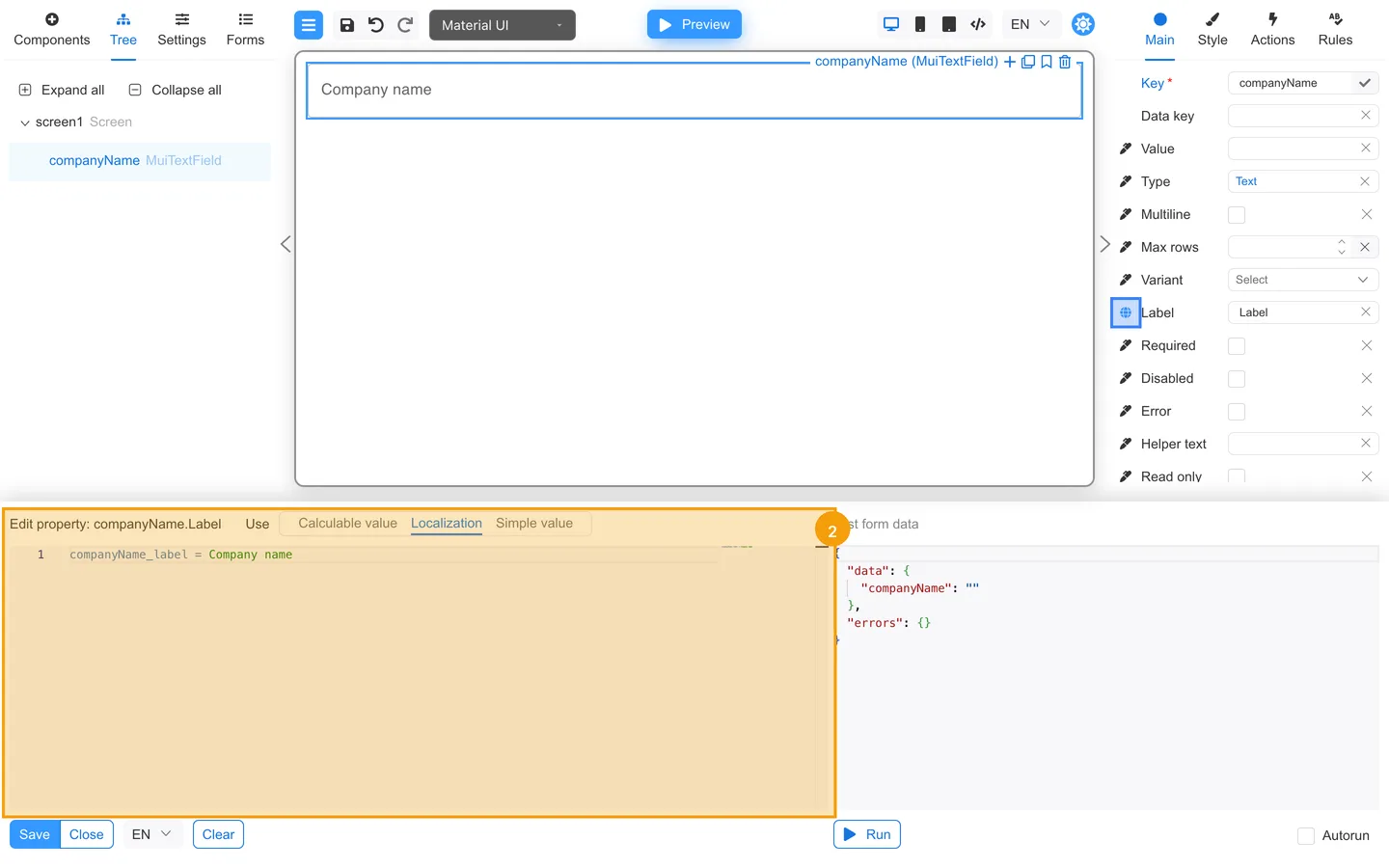
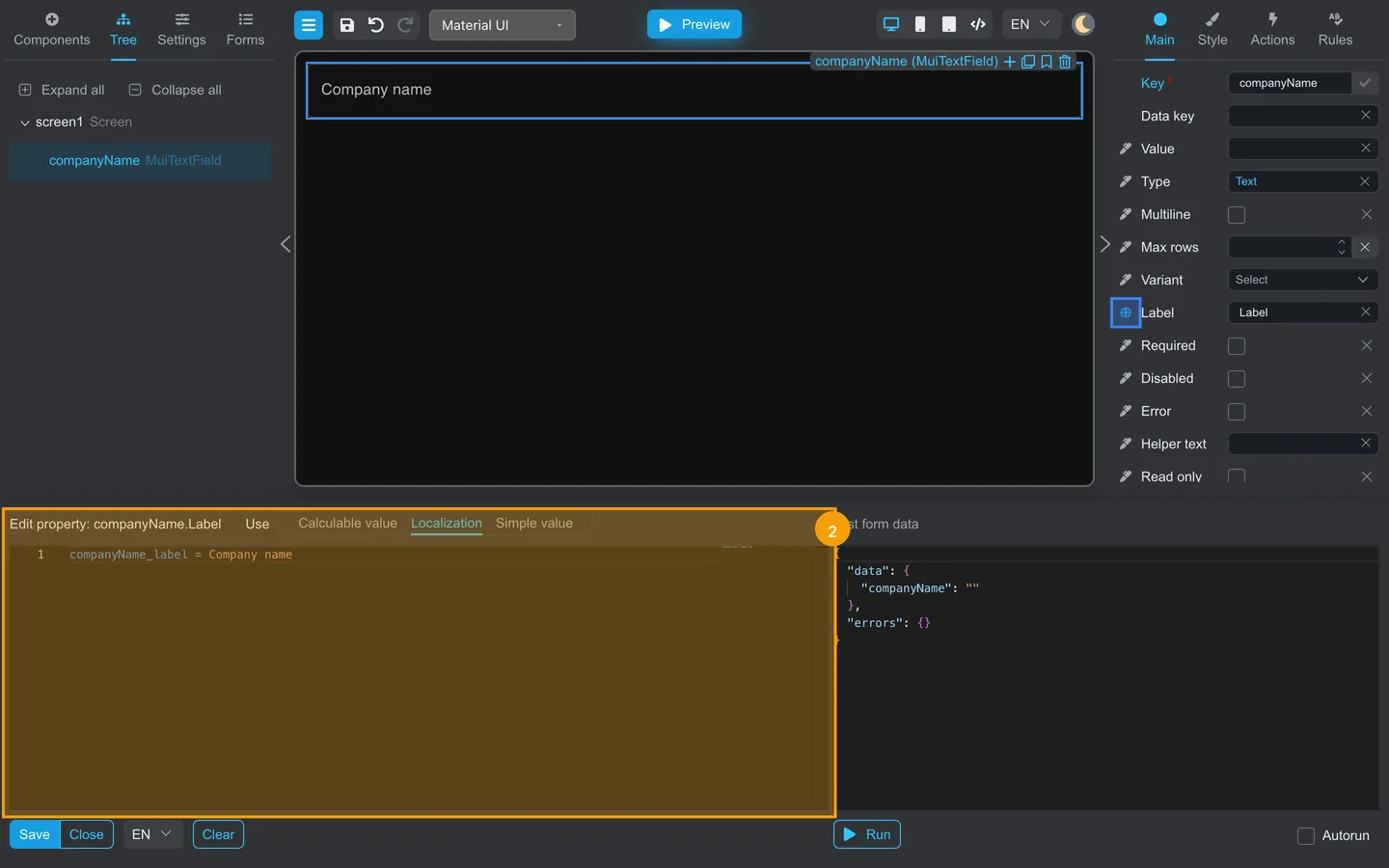
Click the edit icon beside Label.
-
Select Localization in the bottom panel.
-
Select EN in the language dropdown below the editor.
-
Leave the generated
companyName_labelidentifier unchanged and enter the English text after=:companyName_label = Company name -
Click Save. Localization values are saved separately for each language.
Step 3: Add the German label
-
In the same bottom panel, select DE in the language dropdown.
-
Replace the label text after
=:companyName_label = Firmenname -
Click Save before switching languages or closing the editor.
German is now part of the form because it has at least one saved localized value. Repeat these steps for every user-facing property that needs translation, such as Placeholder, Helper text, and validation Message.
Step 4: Choose the fallback language
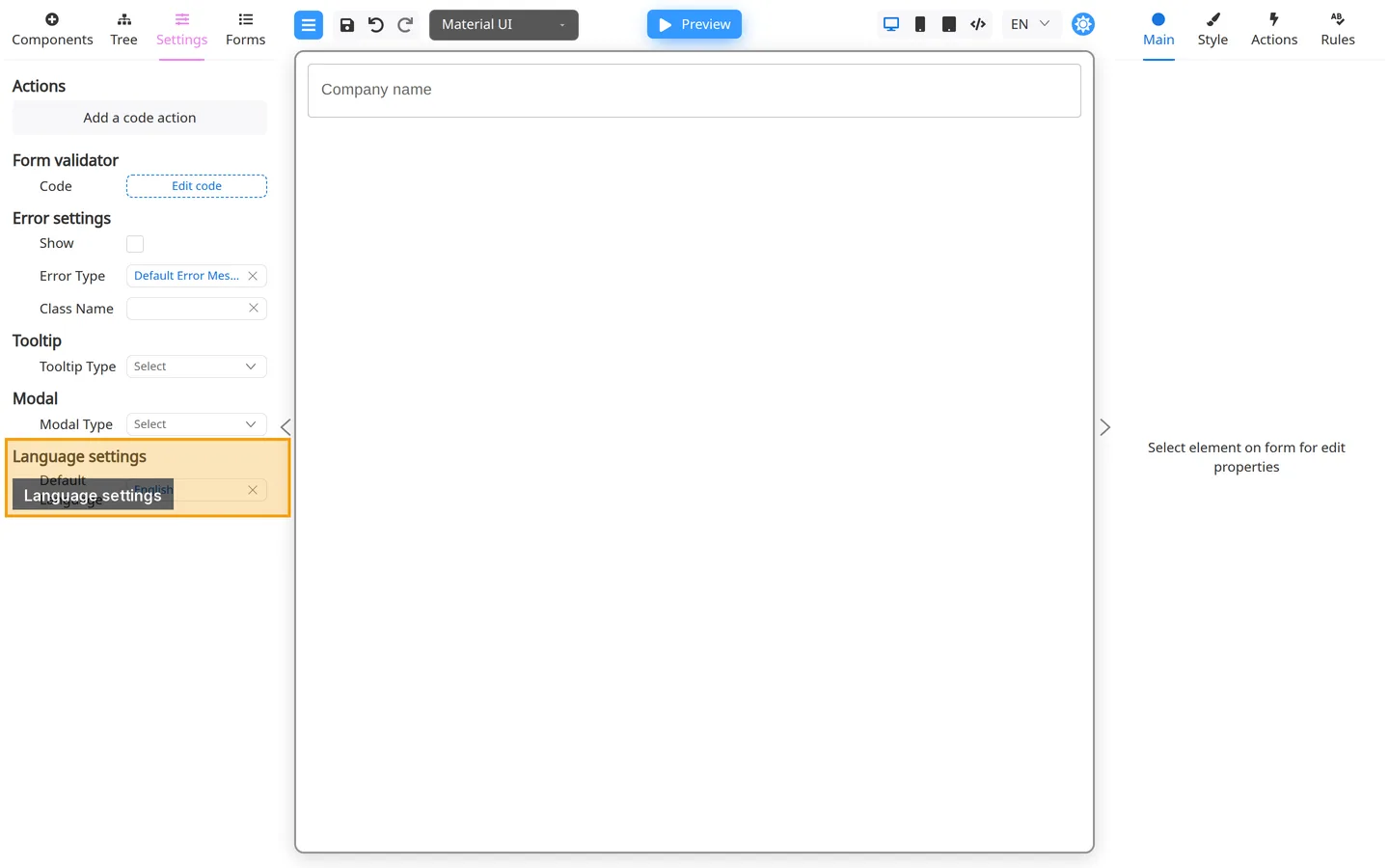
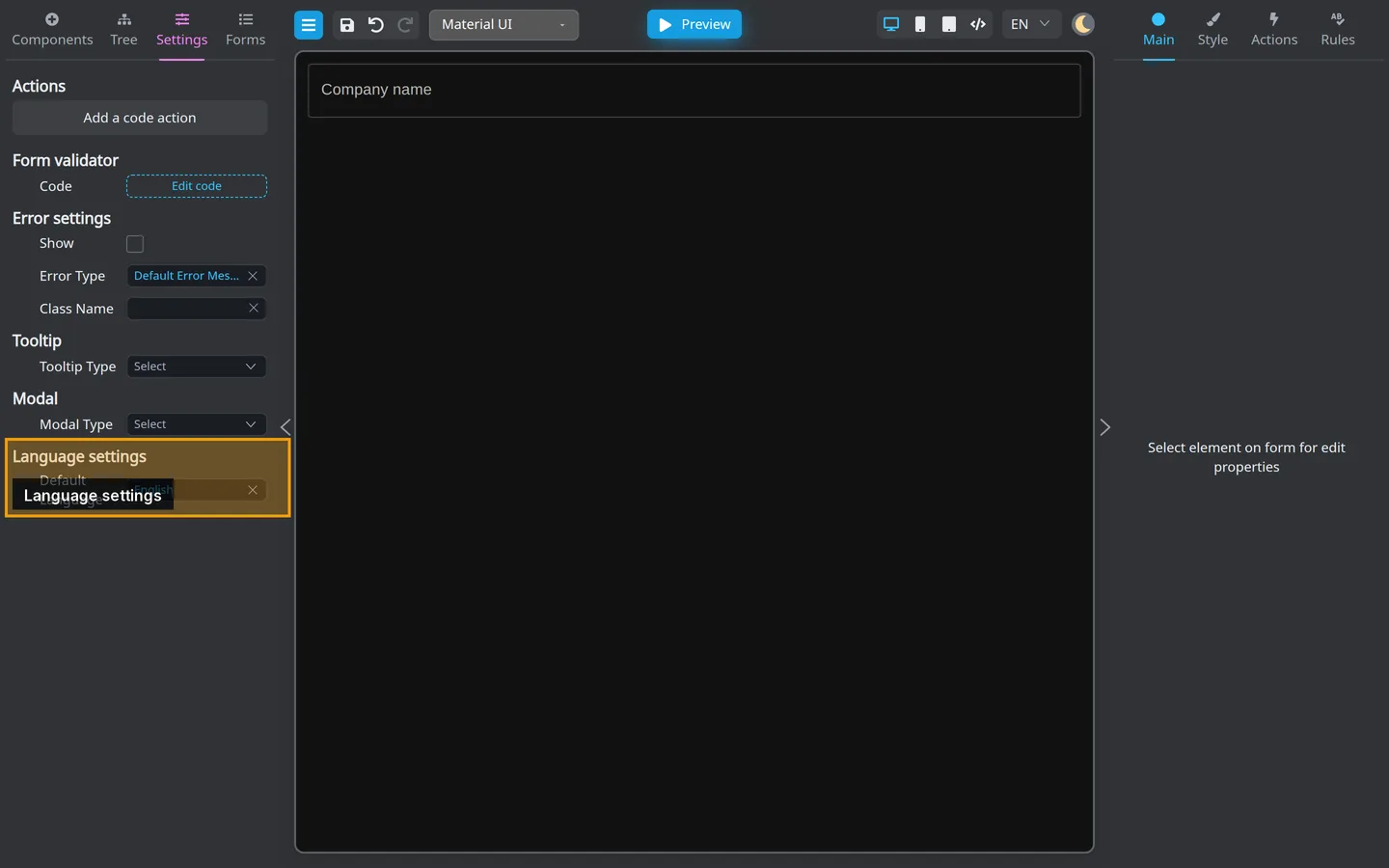
- Open Settings → Language settings.
- Set Default Language to English.
The default language is the fallback when a translation is missing. If German is not listed here, return to the localized property and save its DE value first.
Step 5: Check both languages
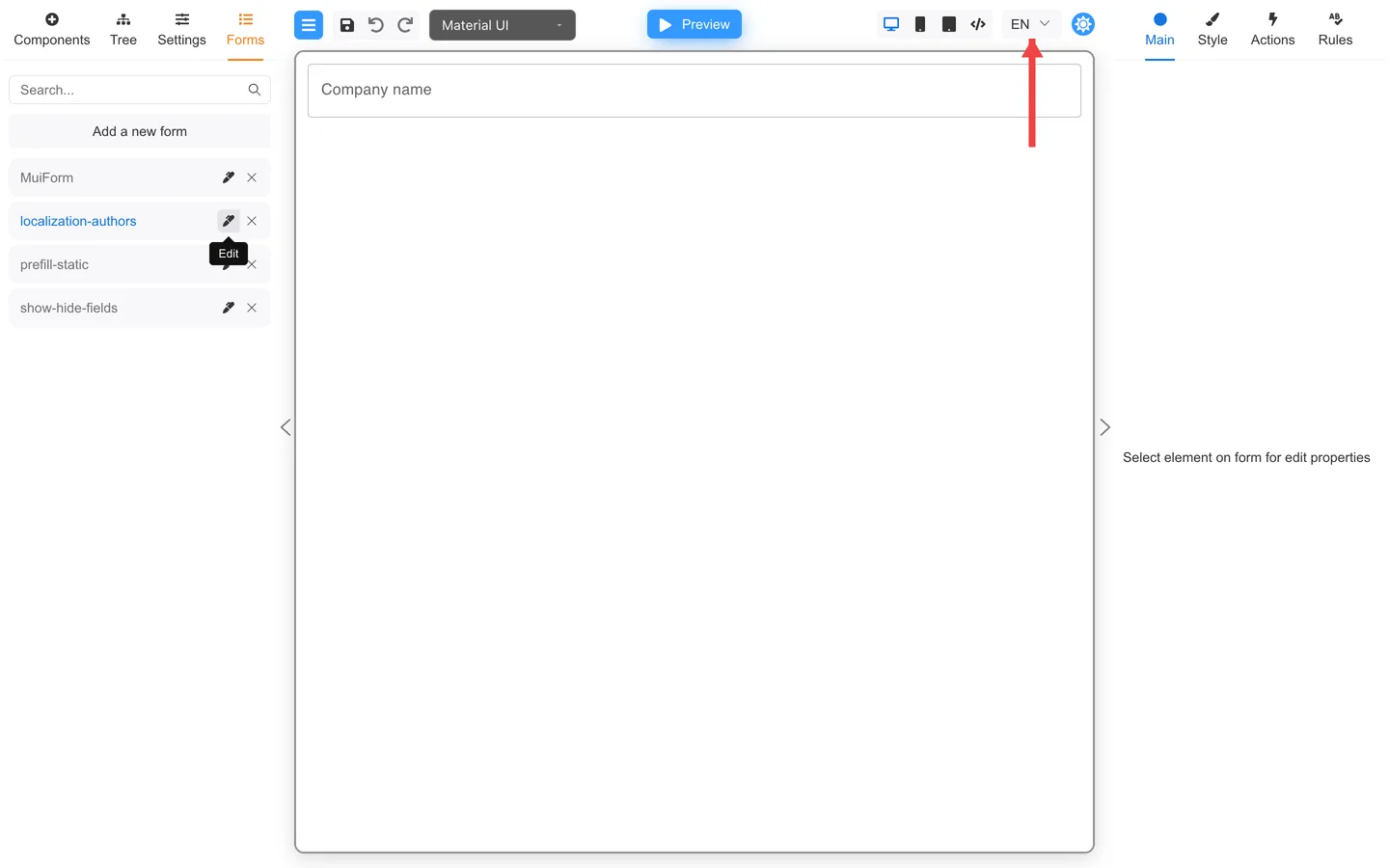
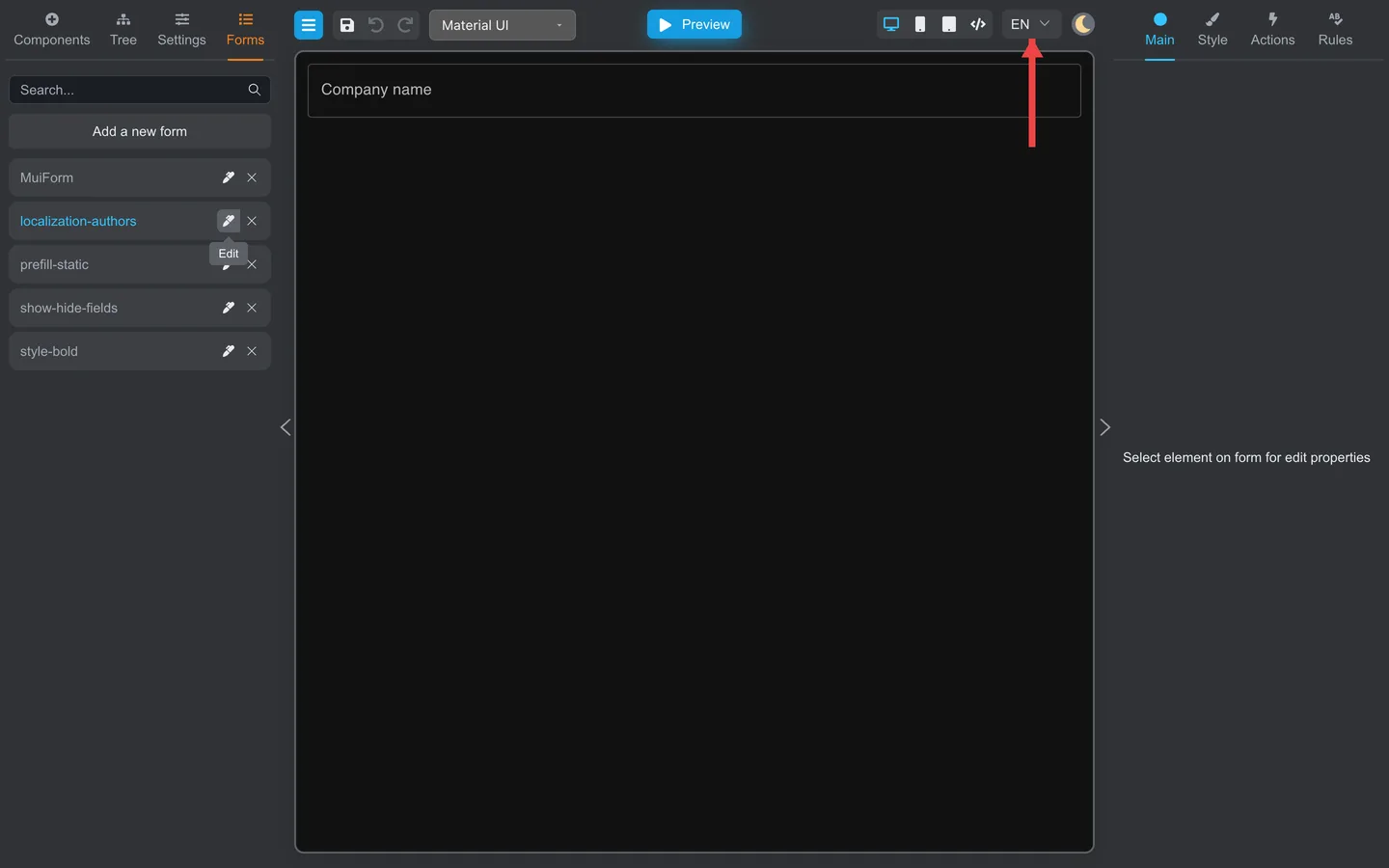
- Close the bottom editor.
- Select EN in the language dropdown in the header. The field label must be Company name.
- Select DE in the same dropdown. The field label must change to Firmenname.
- Click Preview and repeat the EN and DE checks.
| Header language | Expected field label |
|---|---|
| EN | Company name |
| DE | Firmenname |
The header dropdown changes the language of the form content. It does not change the language of Designer controls.
Author workflow
- Add and save a value for every required language on each localizable property.
- Set the fallback language under Settings → Language settings.
- Switch every language on the canvas and in Preview; verify labels, hints, options, and validation messages.
- Export or save the form when your process requires a handoff to translators or developers.
Developers: Full localization setup is in Localization. Designer interface language is in Designer localization.
Summary
Use the property editor to save an English and German value separately, set English as the fallback, and verify both languages with the header language picker on the canvas and in Preview.