


Add fields to your form
Add inputs from the Components tab, then name them on the Main tab of the right panel.
Before you begin
- Create your first form with an open canvas.
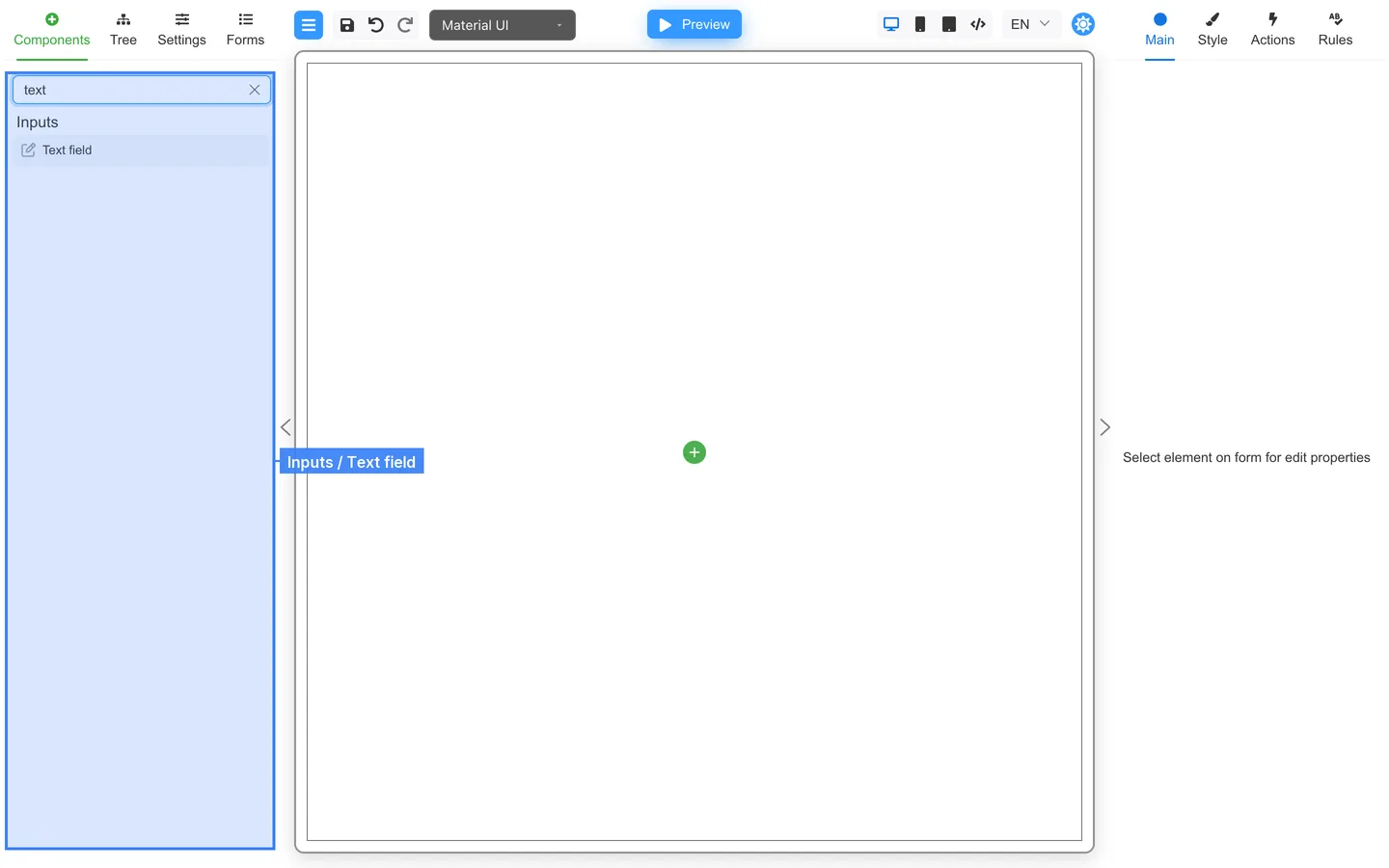
Drag a Text field
- Open the Components tab.
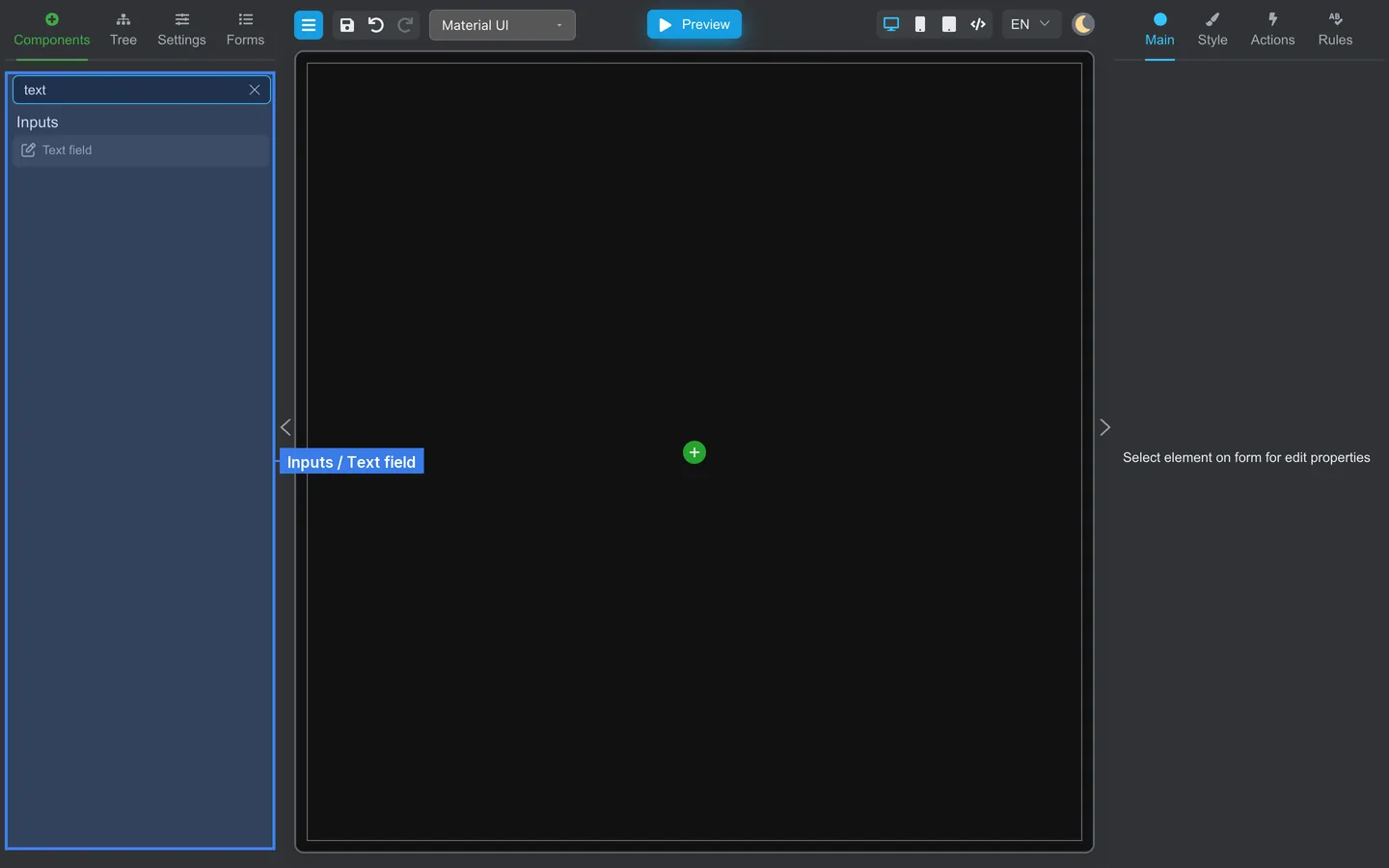
- Find Text field under Inputs (use the search box if the list is long).
- Drag it onto the empty canvas (or click the + control in the center).
Set label and key
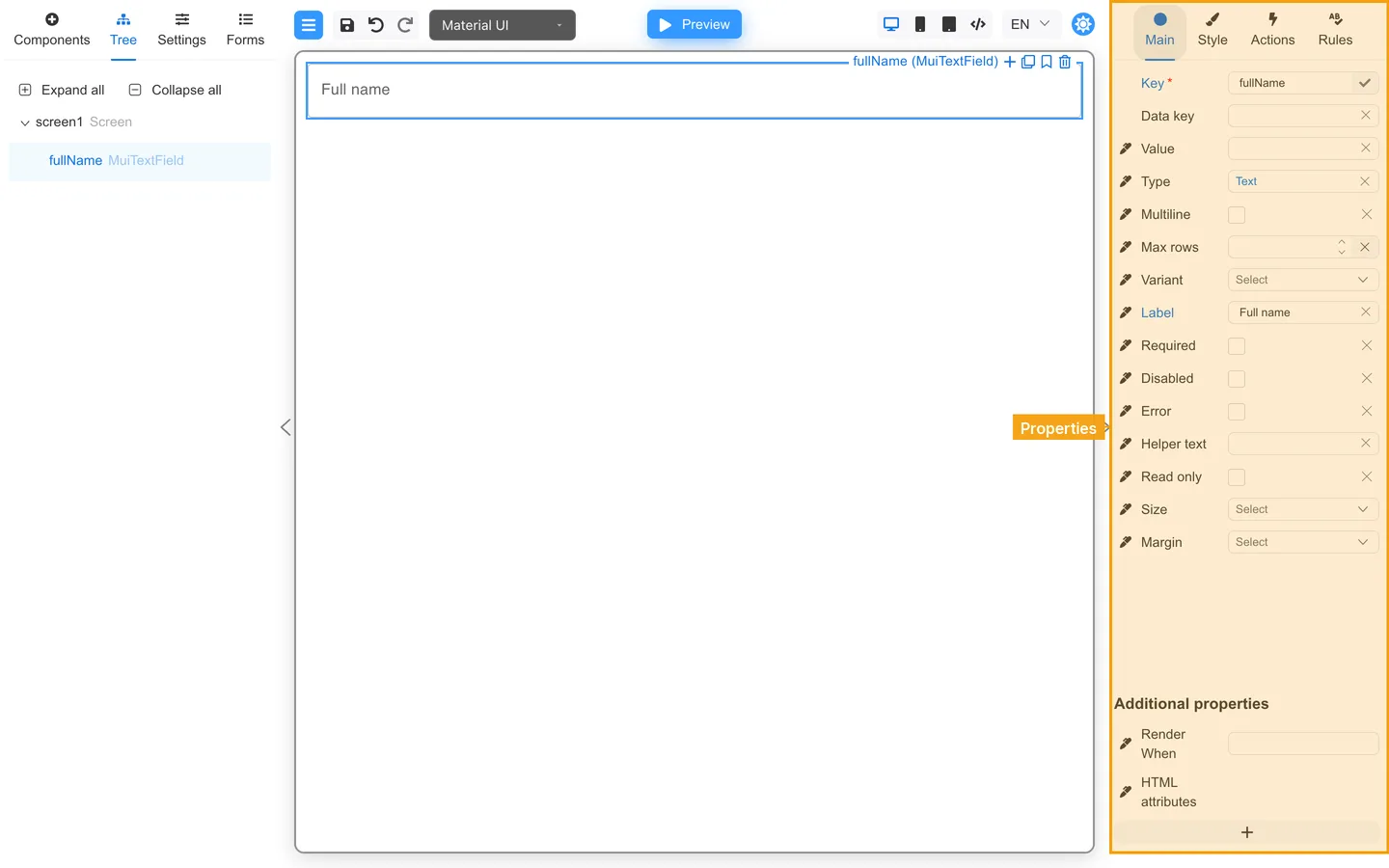
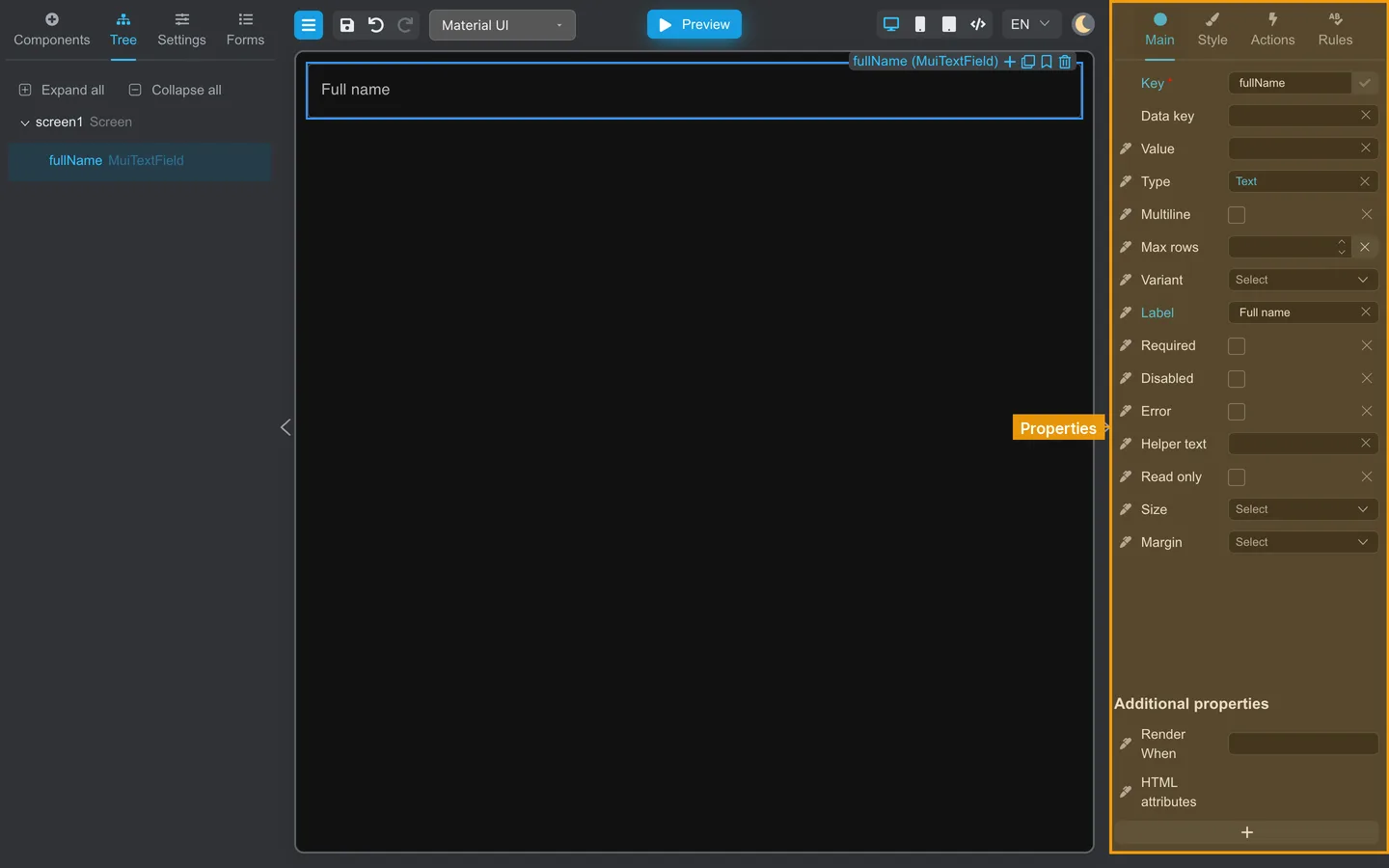
- Click the new field on the canvas to select it.
- On the right, open Main.
- Set Label to Full name (or your preferred label).
- Set Key to
fullName(one word with no spaces; use camelCase if you add more fields).
Add a second field (optional)
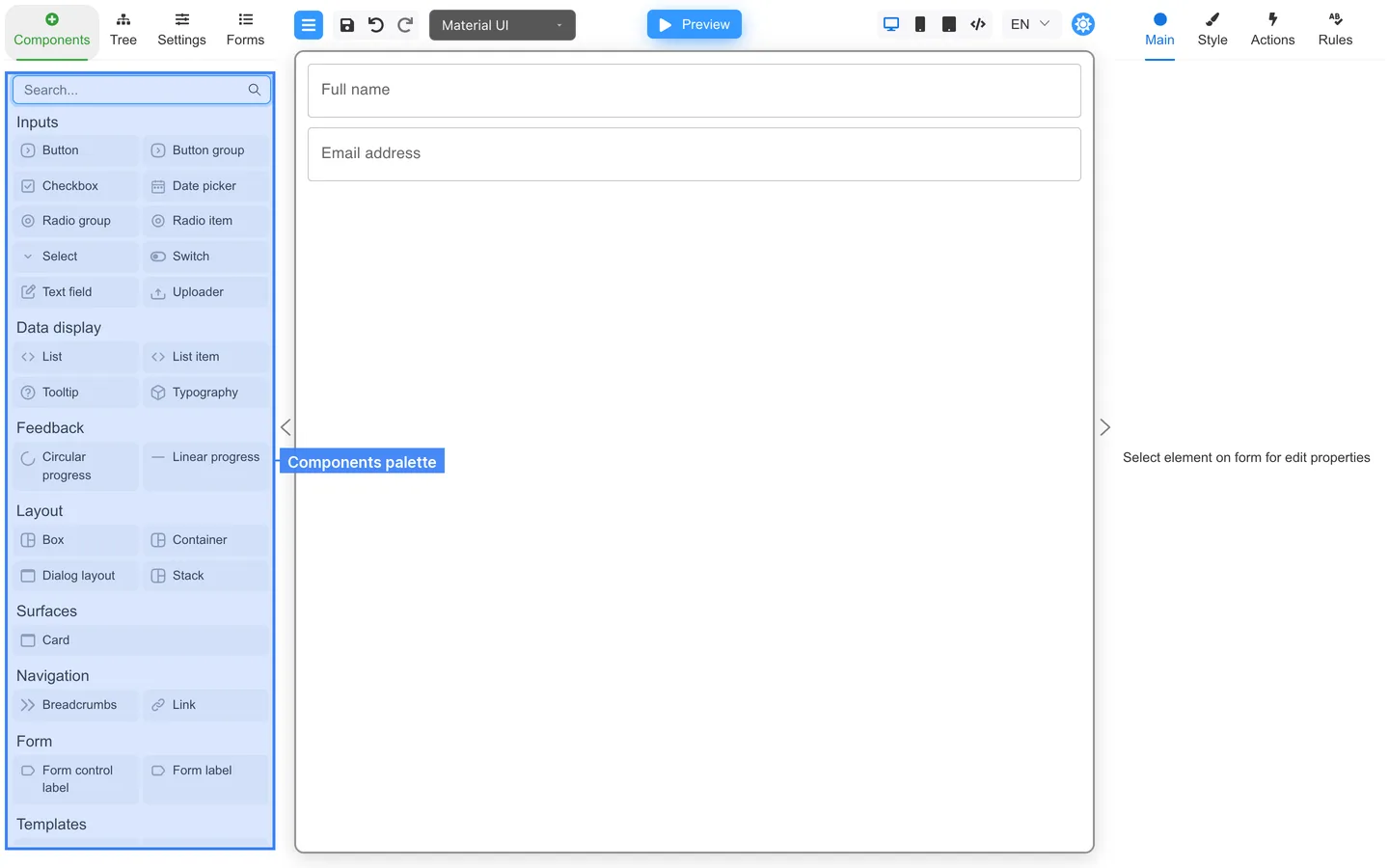
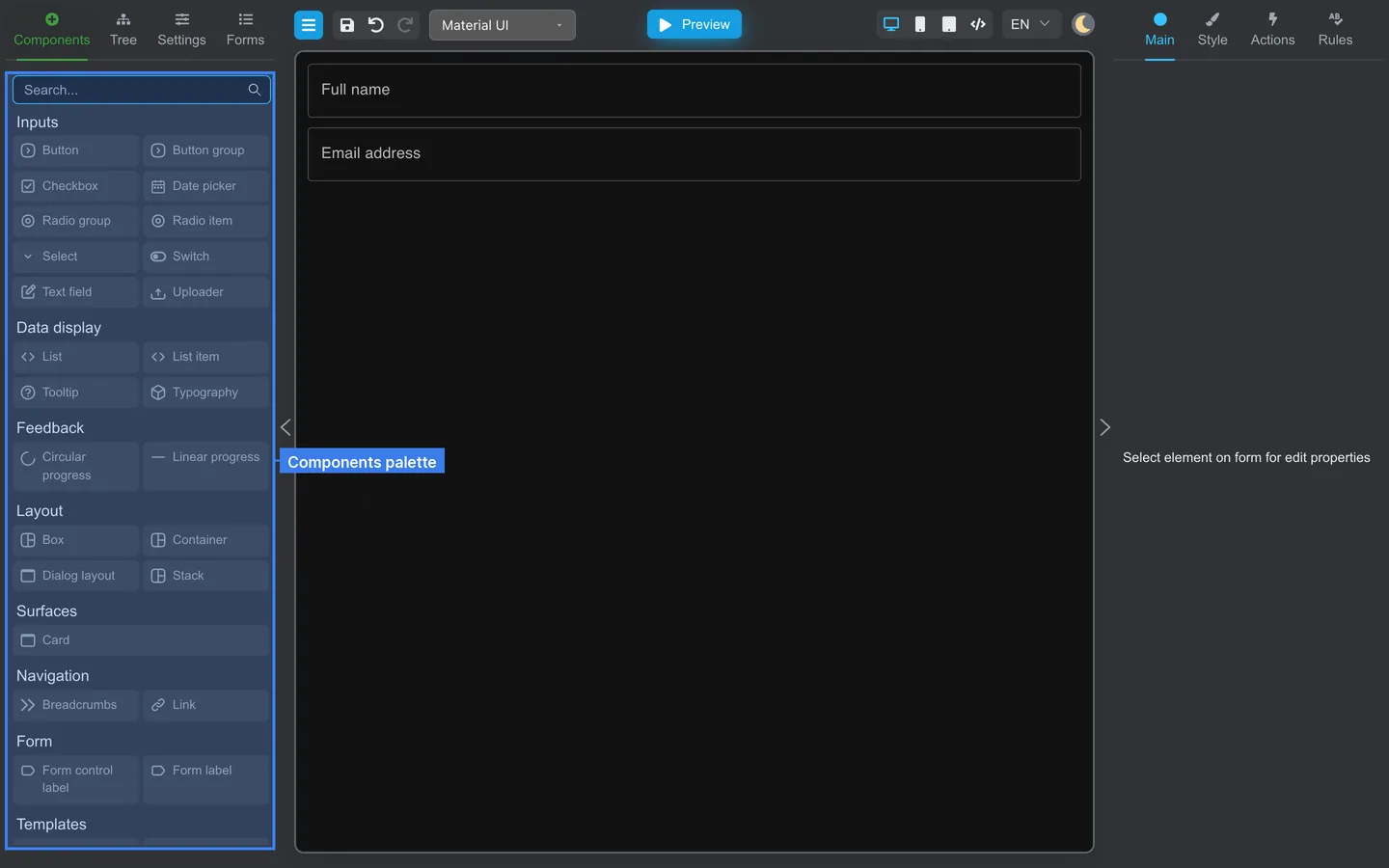
- Drag another Text field.
- Set Label to Email address and Key to
email.
Check in Preview
- Click Preview in the header.
- Type into the fields.
- Click Edit to continue layout work.
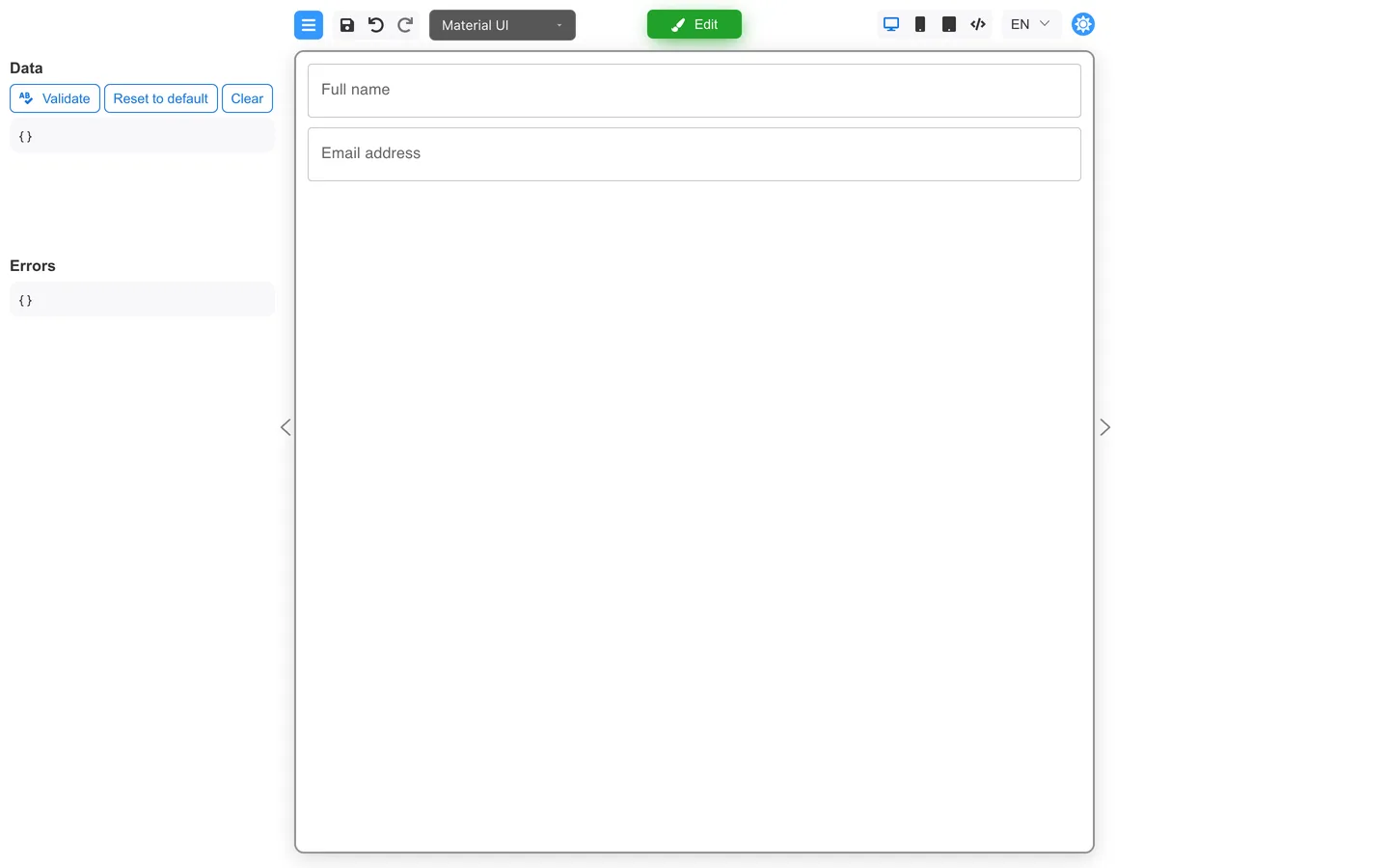
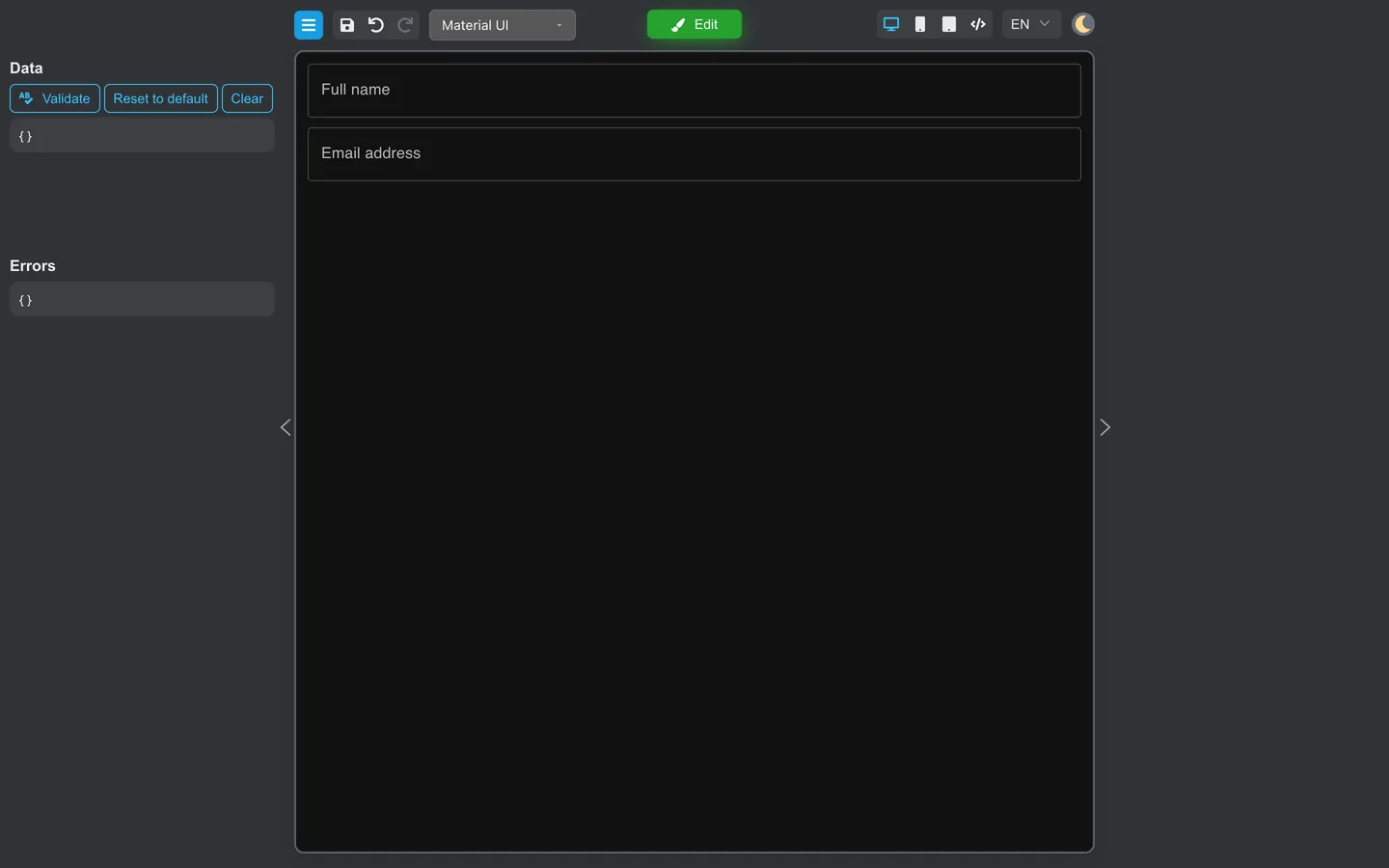
Check the result
- New fields appear in the Tree under the screen root.
- Preview shows labels you set on Main.
Summary
Drag fields from Components and configure them on Main. Keys identify stored values. Preview confirms labels and input behavior.