


Common validation patterns
The Rules tab offers built-in validators for everyday cases. Pick a rule, set a clear Message, and test in Preview.
Pattern reference
| Goal | Rule (typical name) |
|---|---|
| Cannot be blank | Non empty / Required |
| Valid email | |
| Minimum length | Min or Length |
| Maximum length | Max or Length |
| Number range | Min / Max (numeric) |
| Patterned text format | Regex (often developer-assisted) |
| String logic beyond these rules | Code (usually developer-reviewed) |
Add a rule
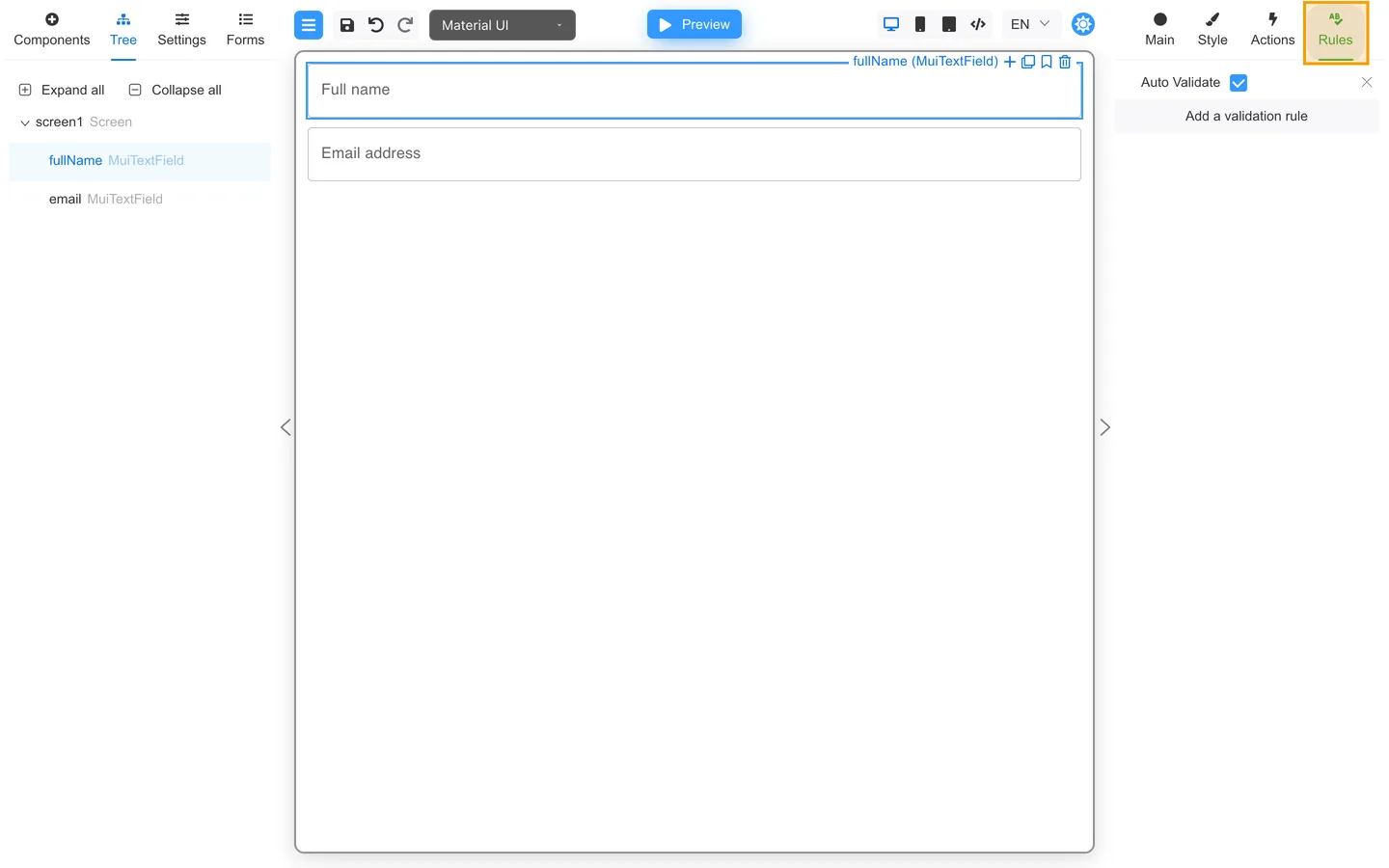
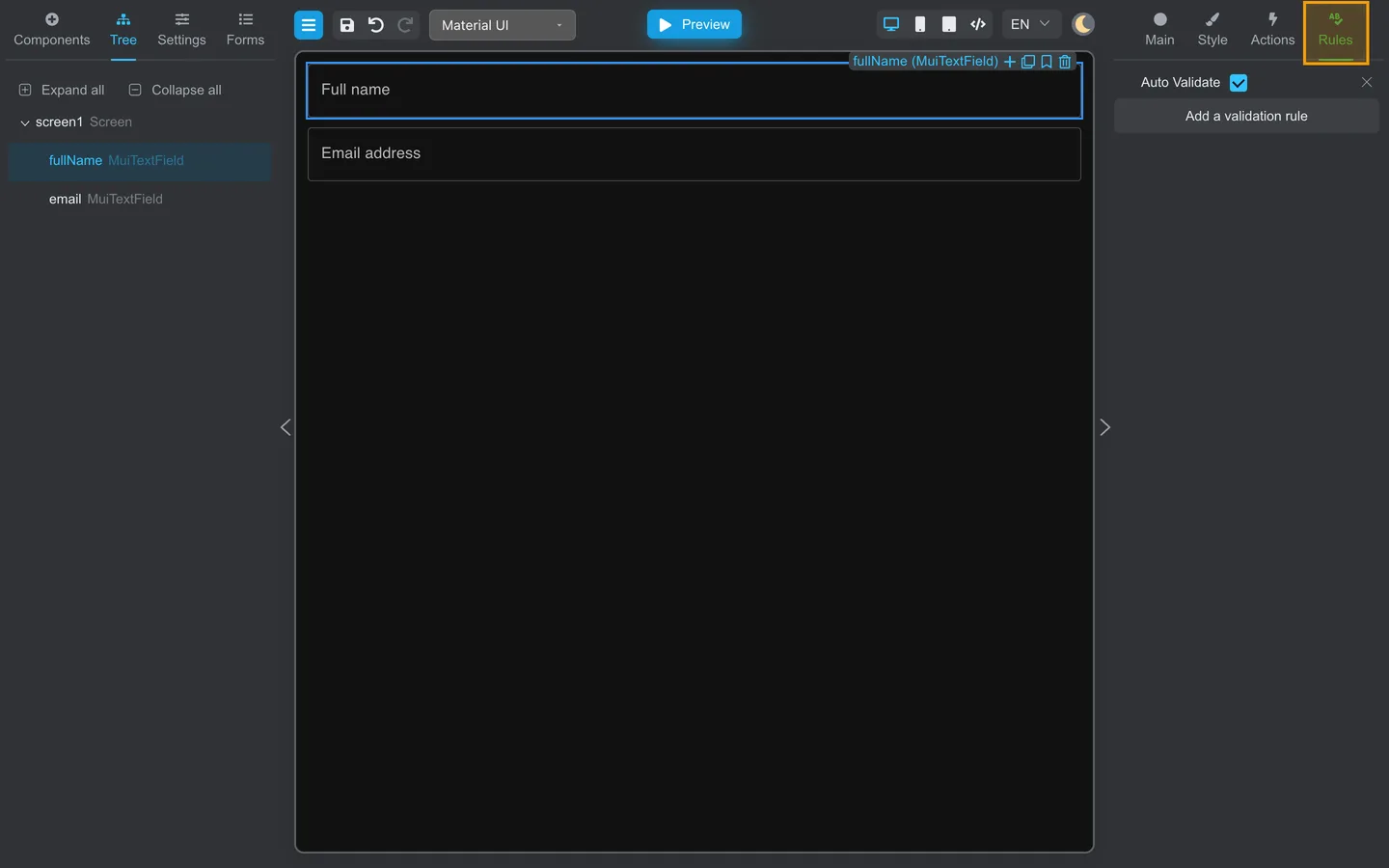
- Select the field → Rules.
- Click Add a validation rule.
- Choose the type and edit Message so users know how to fix the error.
A Code rule is a field validator written in Designer for a supported string field; it is not a Code action. The application’s Custom actions are configured on the Actions tab and do not replace field validation rules.
Test
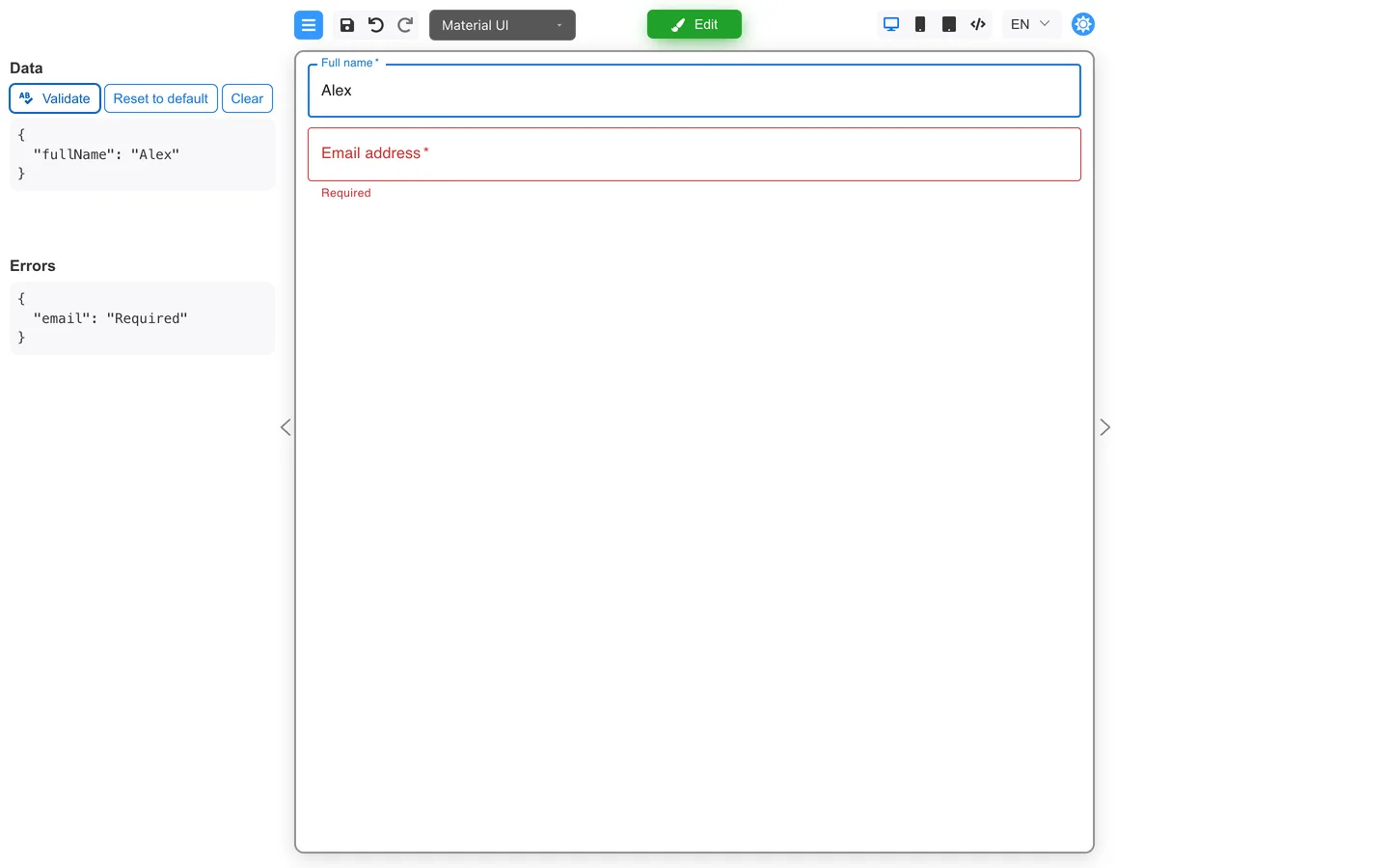
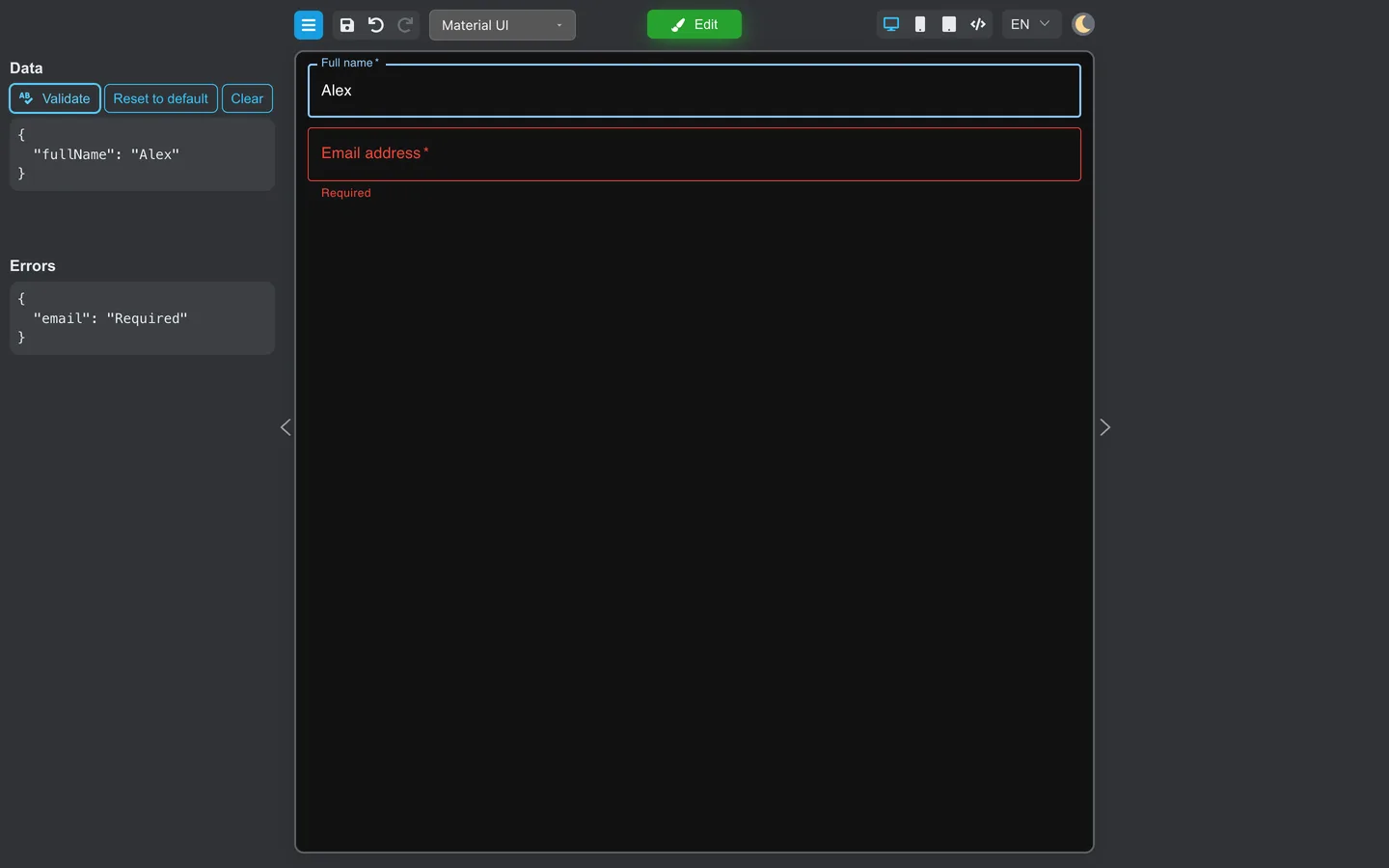
- Preview → leave field invalid → Validate or tab out if Auto Validate is on.
- Read the message in Errors on the left (Preview mode tools).
Summary
Built-in rules cover common validation needs on Rules. User-facing Message text matters as much as the rule type.