


Show or hide fields
You can hide fields until they are relevant (for example, show “Company name” only when “Business account” is checked). In Designer, this is conditional visibility, often a Render When property on Main.
Plain-language example
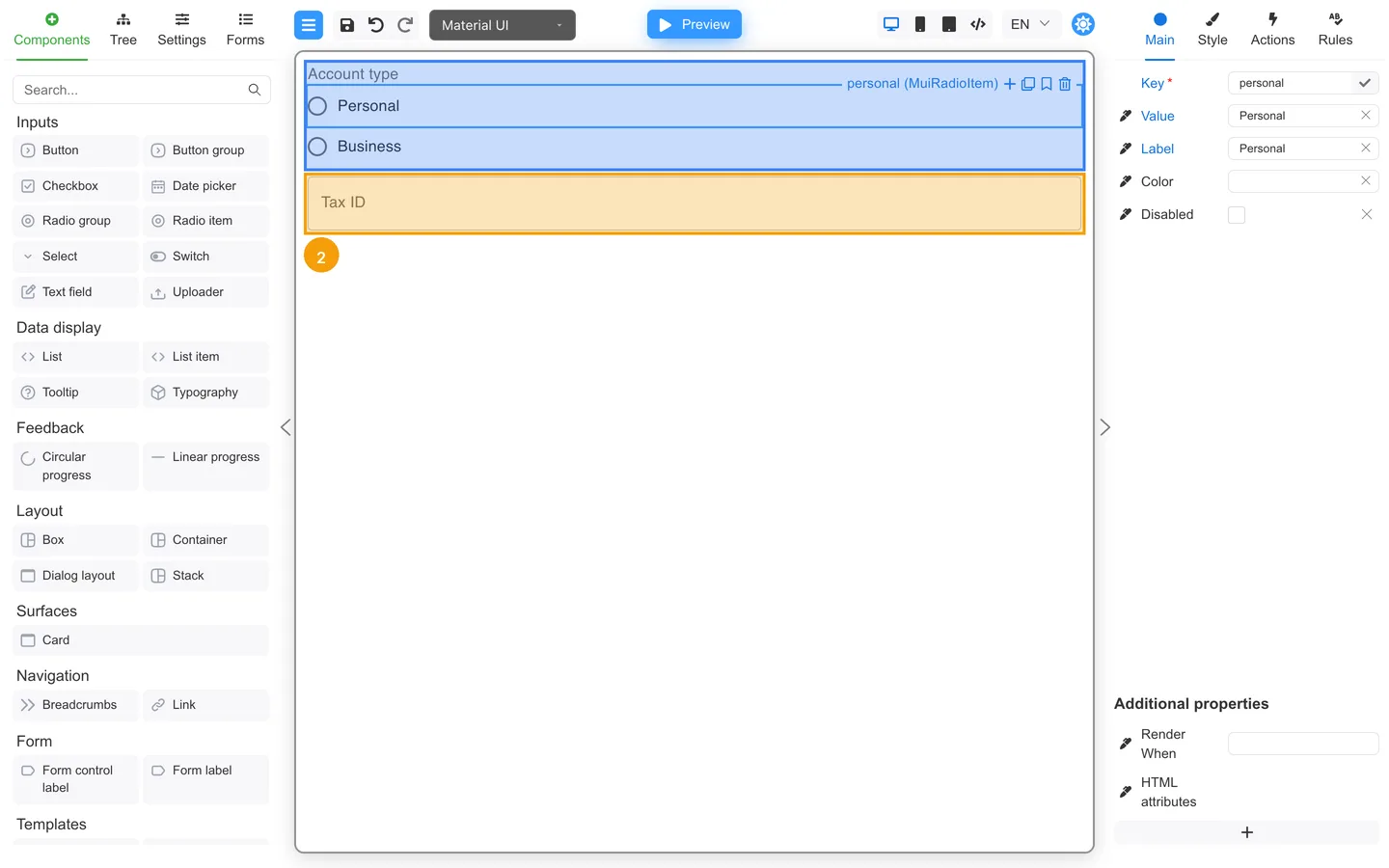
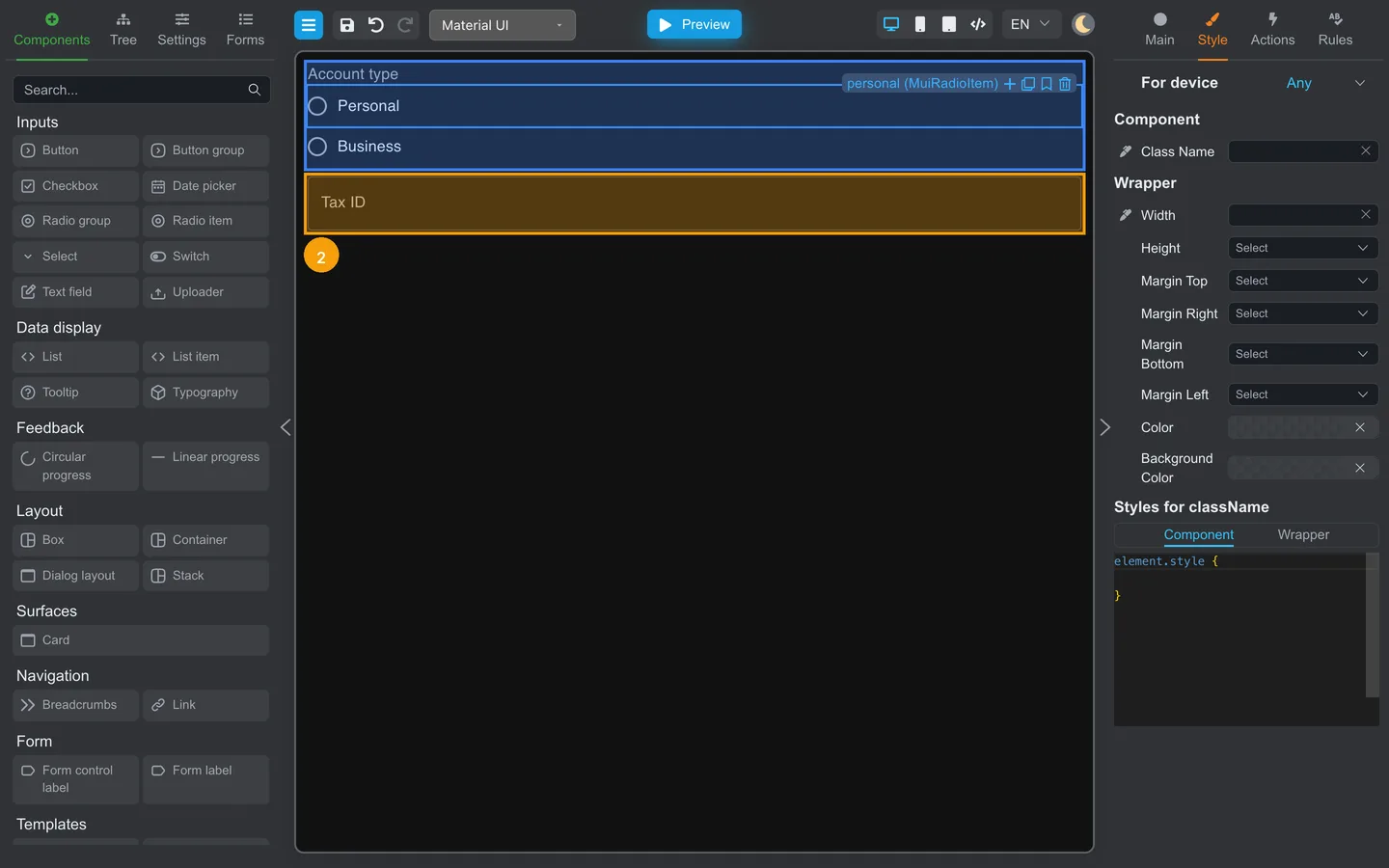
- If Account type = Personal → hide Tax ID
- If Account type = Business → show Tax ID
In Designer
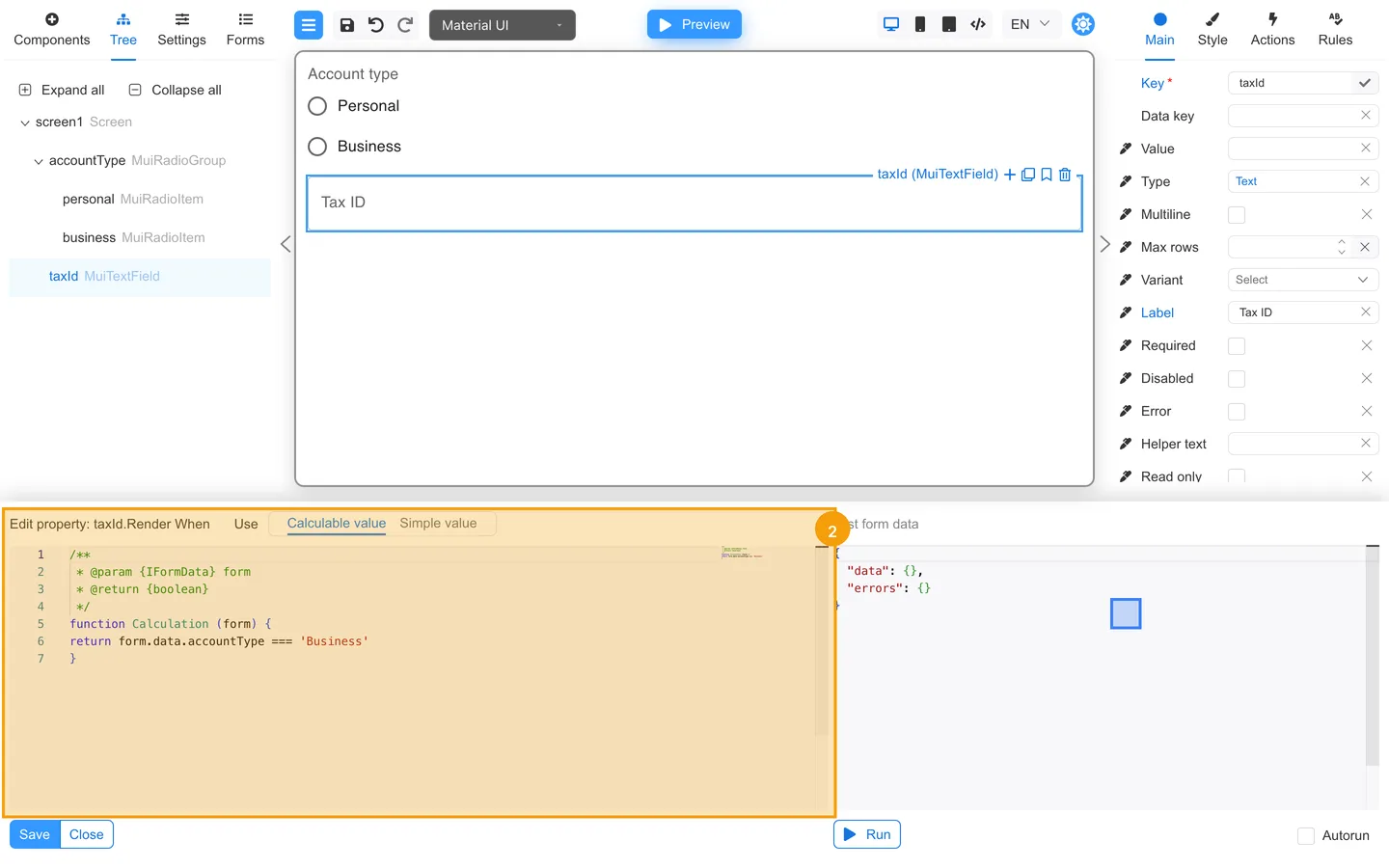
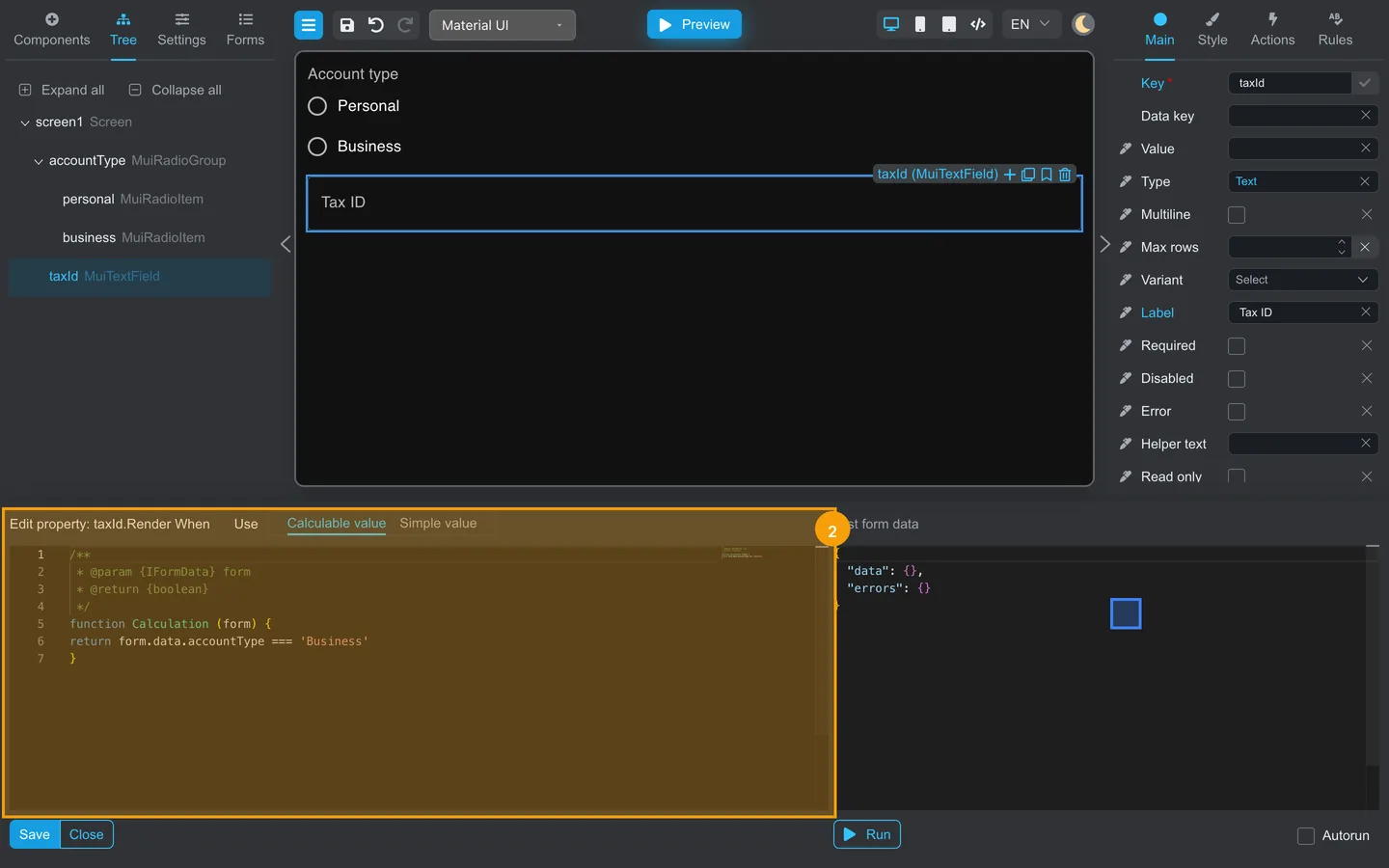
- Select the field to show or hide (for example Tax ID).
- On Main, find Render When and click the edit icon.
- Choose Calculable value in the bottom panel and enter the condition your team documents.
Developers: Full conditional rendering is documented in Conditional rendering.
Test in Preview
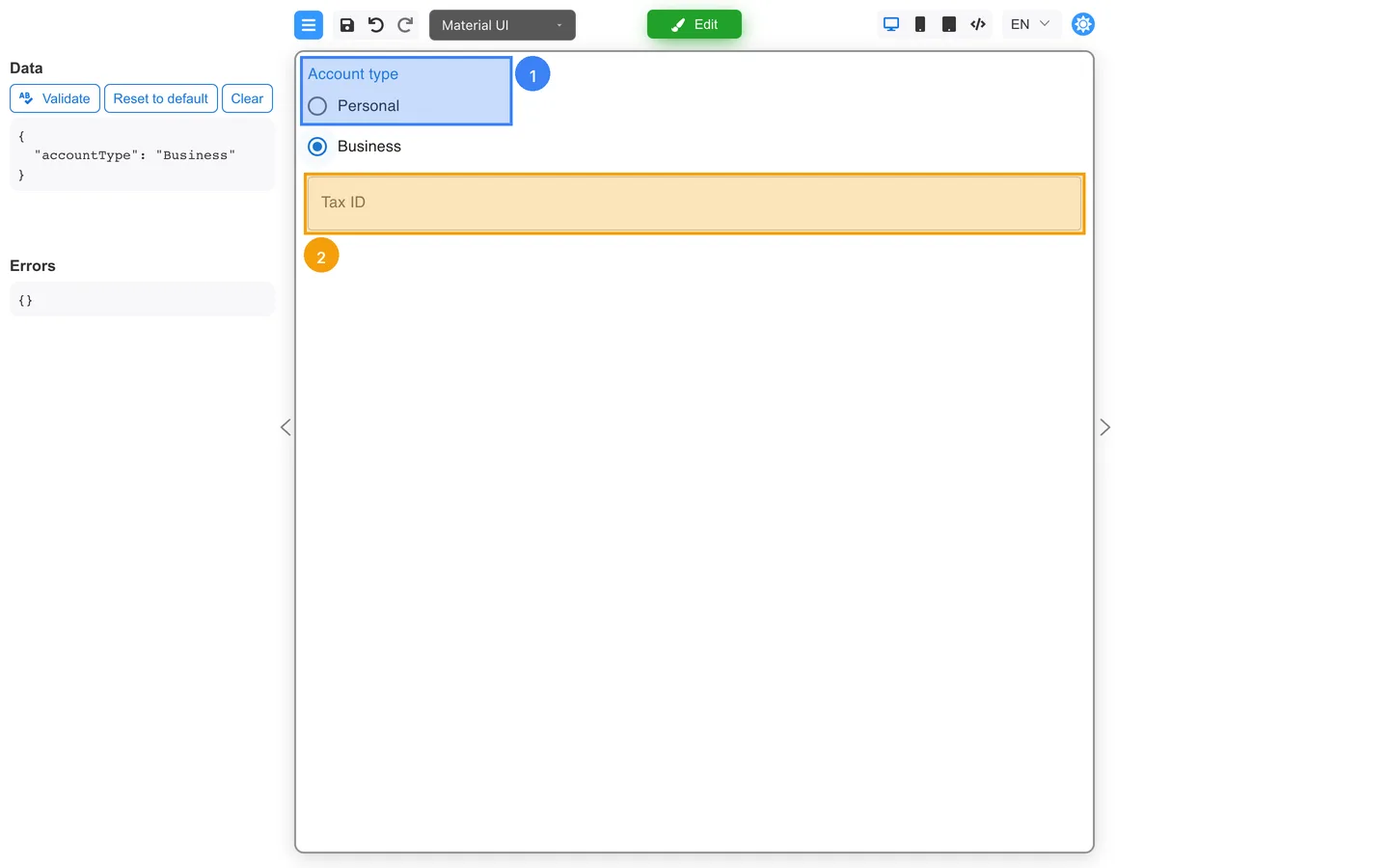
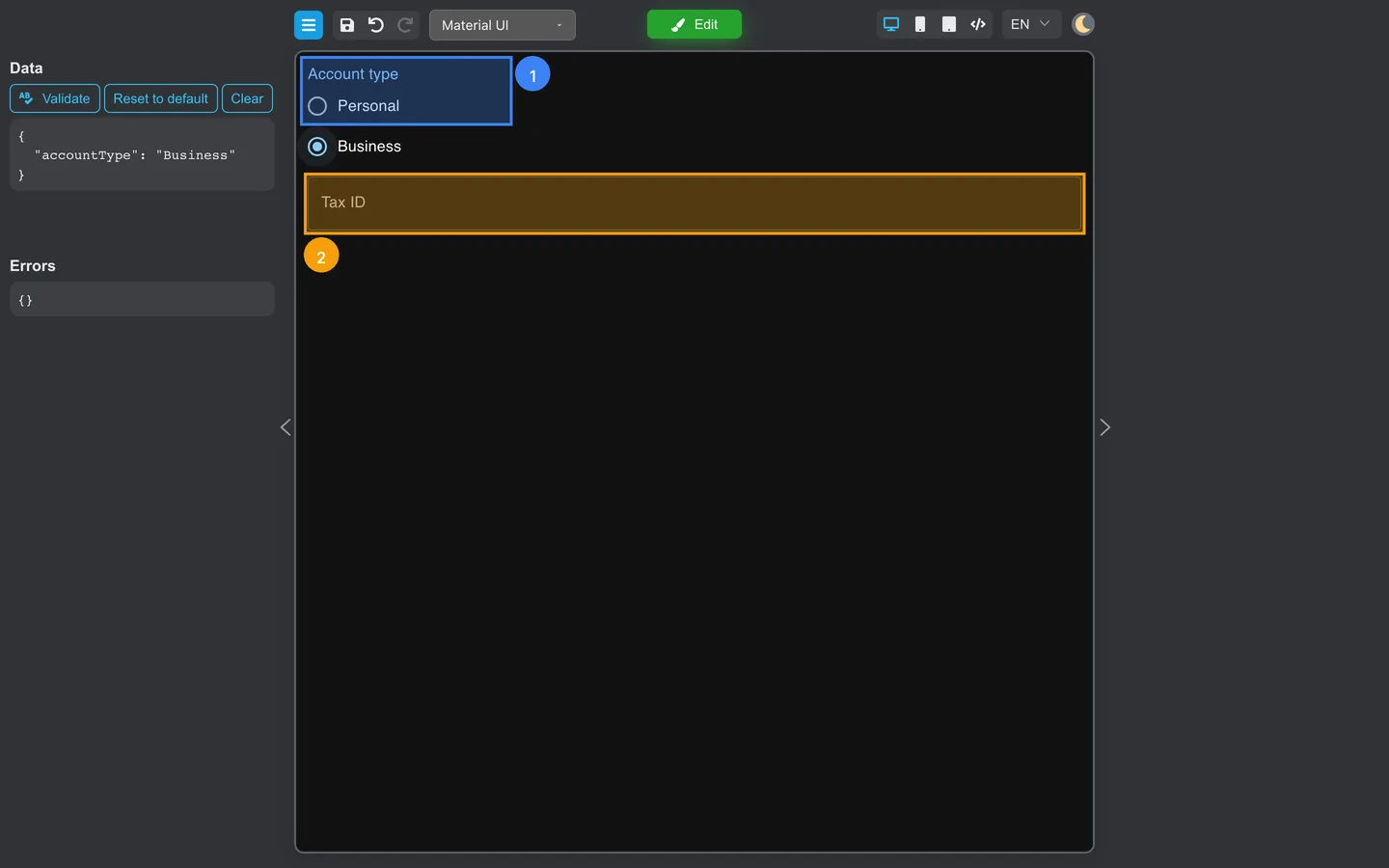
- Change the controlling field value (for example select Business under Account type).
- Confirm the dependent field appears or disappears.
- Run Validate and confirm that hidden required fields do not block submission.
Summary
Conditional visibility can keep forms shorter. Start with Render When on Main. Escalate complex rules to developers.