


View and edit form JSON
Designer represents each form as JSON. Click </> in the header (tooltip Edit JSON) to open the editor. For everyday work, stay
on the canvas and the Main / Rules tabs.
Open JSON view
- In the center header, click the
</>JSON button (tooltip: Edit JSON) near the device preview controls.
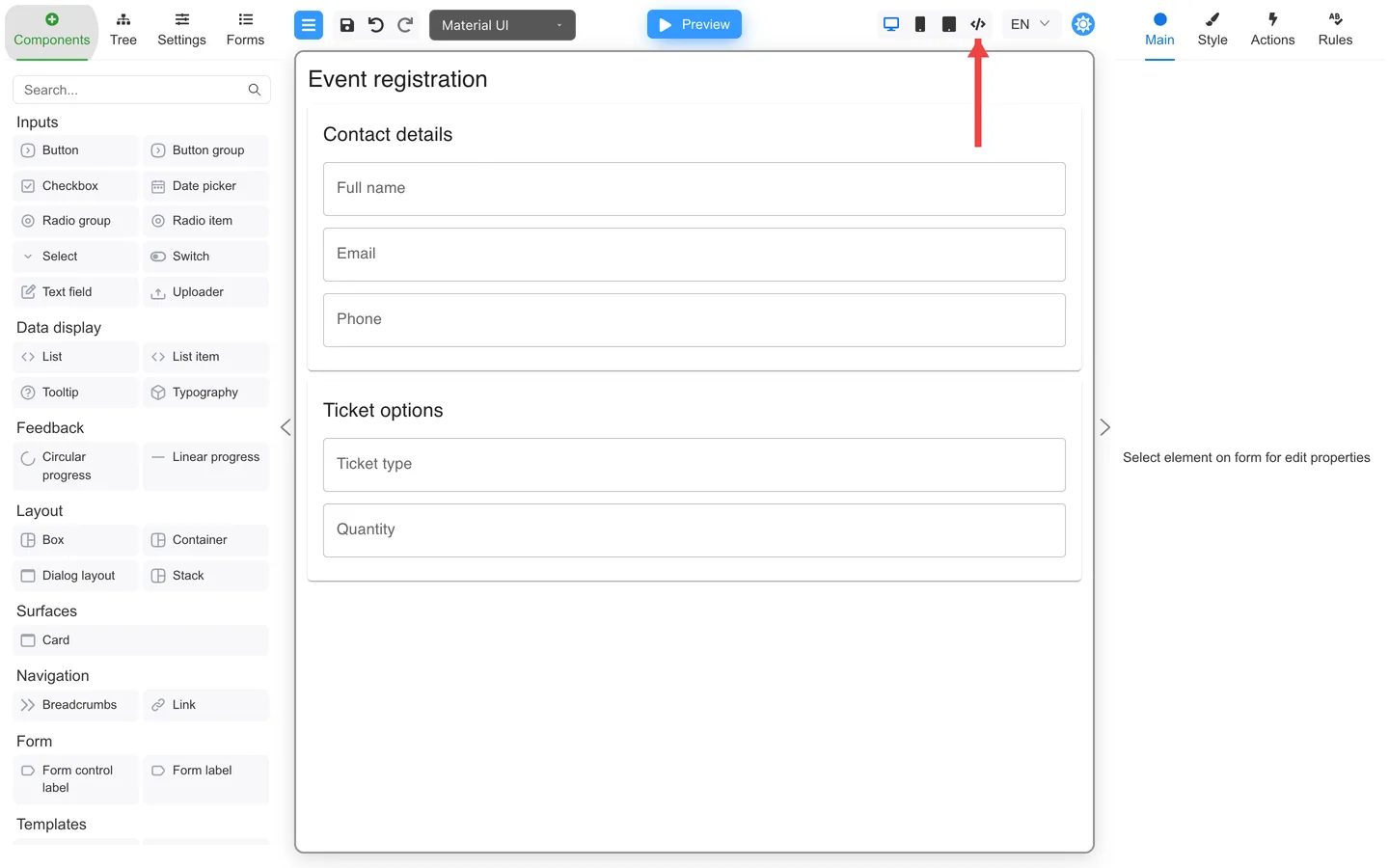
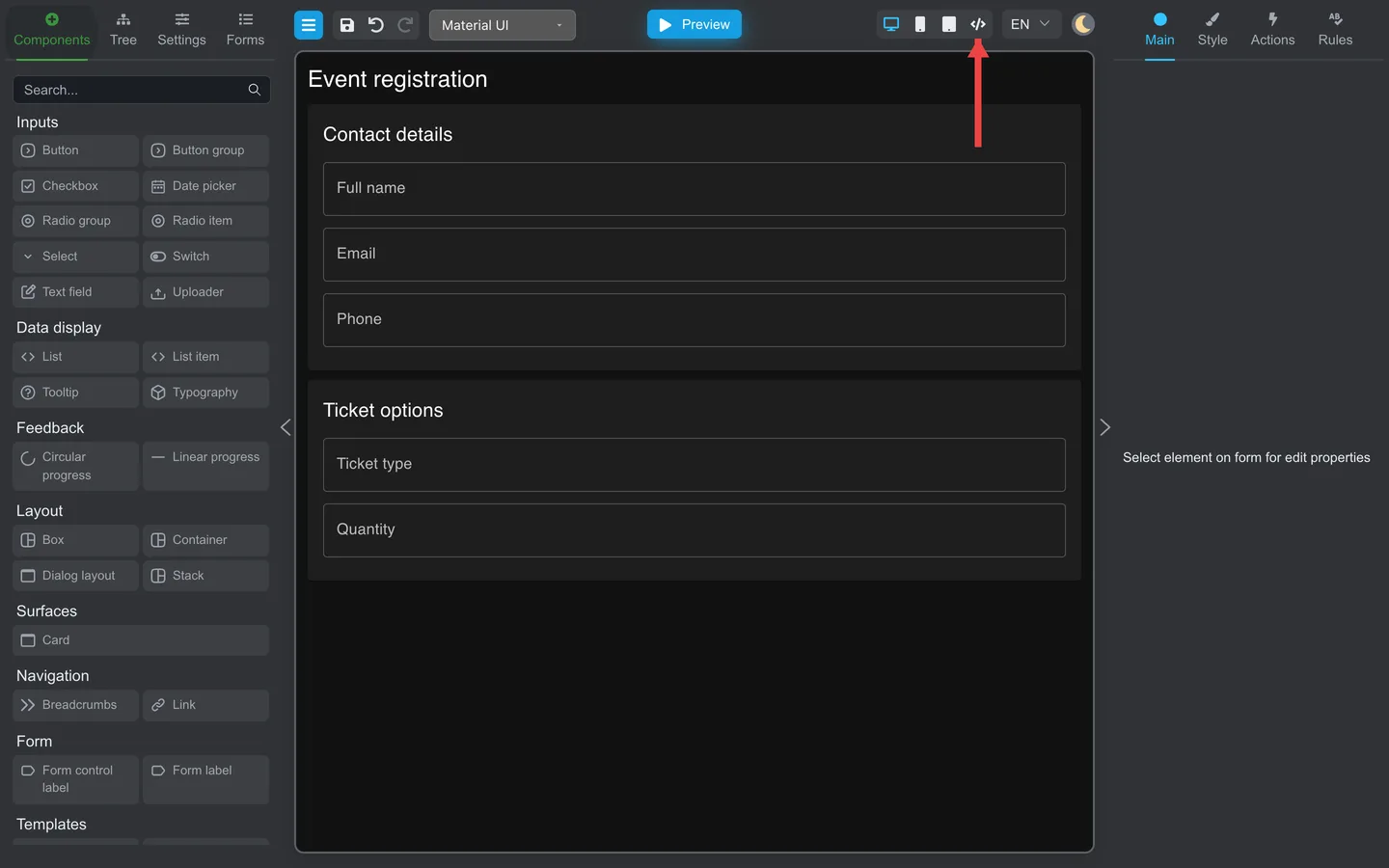
- The full Edit JSON editor opens with the form definition.
- Click the close control (×) when finished.
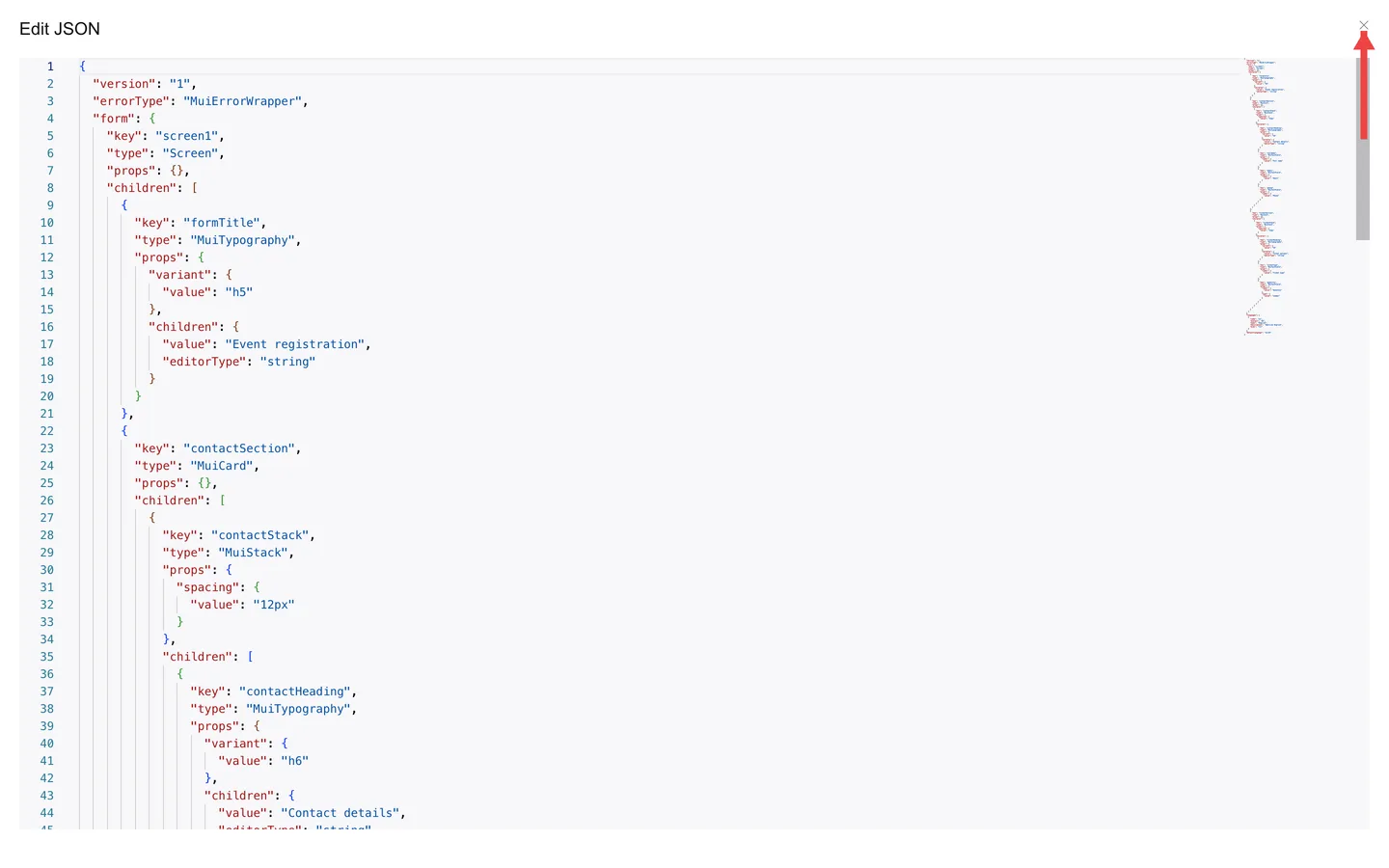
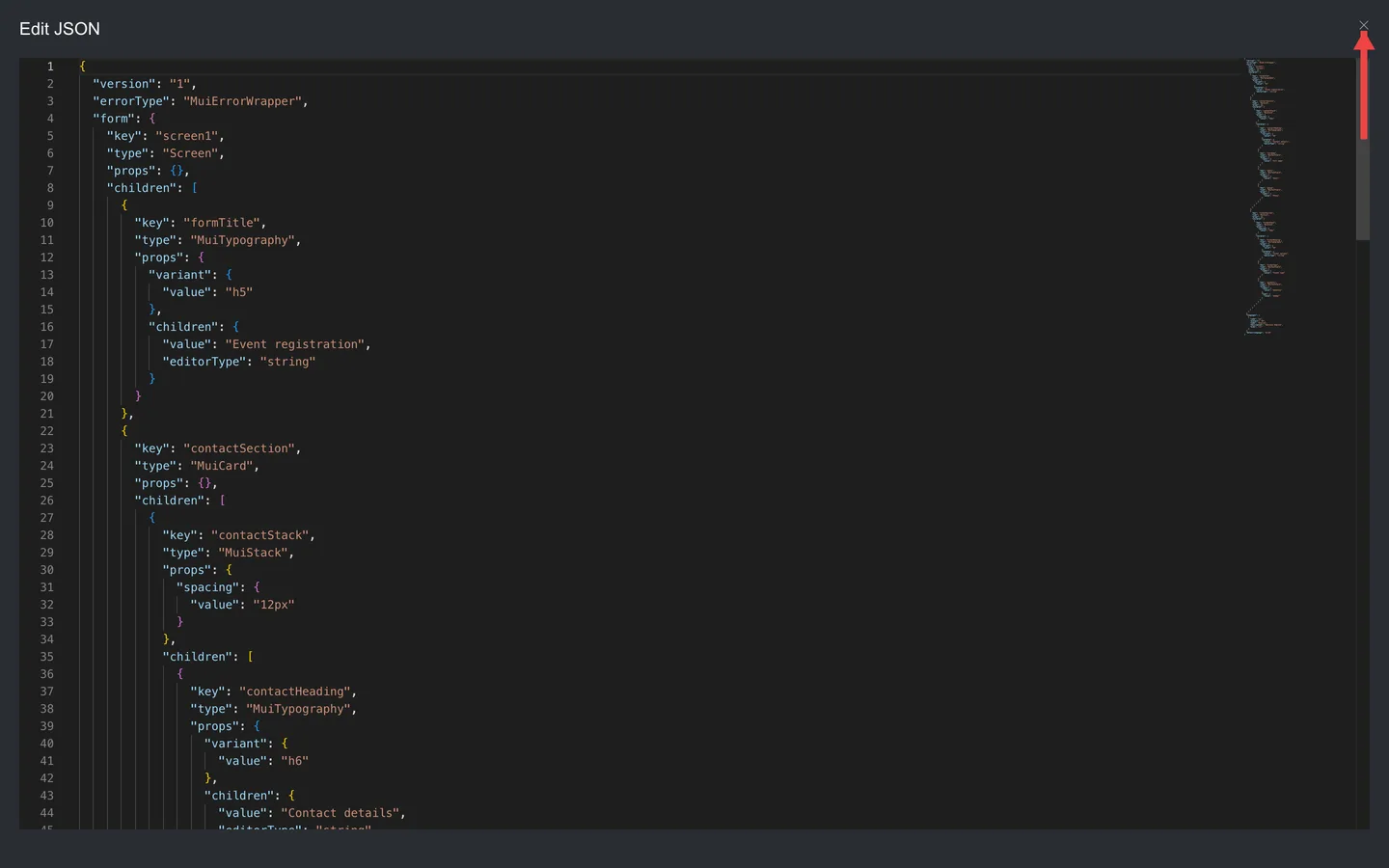
The exact editor setup depends on configuration, including the Monaco editor and schema validation.
When authors use it
- Compare two versions side by side with a diff tool after Download
- Search for a key or label across a large form
- Apply a bulk change your developer prepared
Safer alternatives
| Task | Prefer |
|---|---|
| Transfer one JSON file | Menu → Download / Upload |
| Transfer stored forms in a ZIP | Menu → Export forms / Import forms |
| Fix one field | Main / Rules on canvas |
See Save, export, and import forms for the complete transfer instructions.
Developers: For schema validation and API details, see Form’s JSON.
Summary
Export a backup before you edit JSON. Prefer the visual tabs. Ask a developer before large JSON changes.