


Add button actions on your first form
Buttons can run form actions when users click them. You configure actions on the Actions tab when a button is selected.
Before you begin
- Start from an empty form (or clear the canvas).
Add or select a button
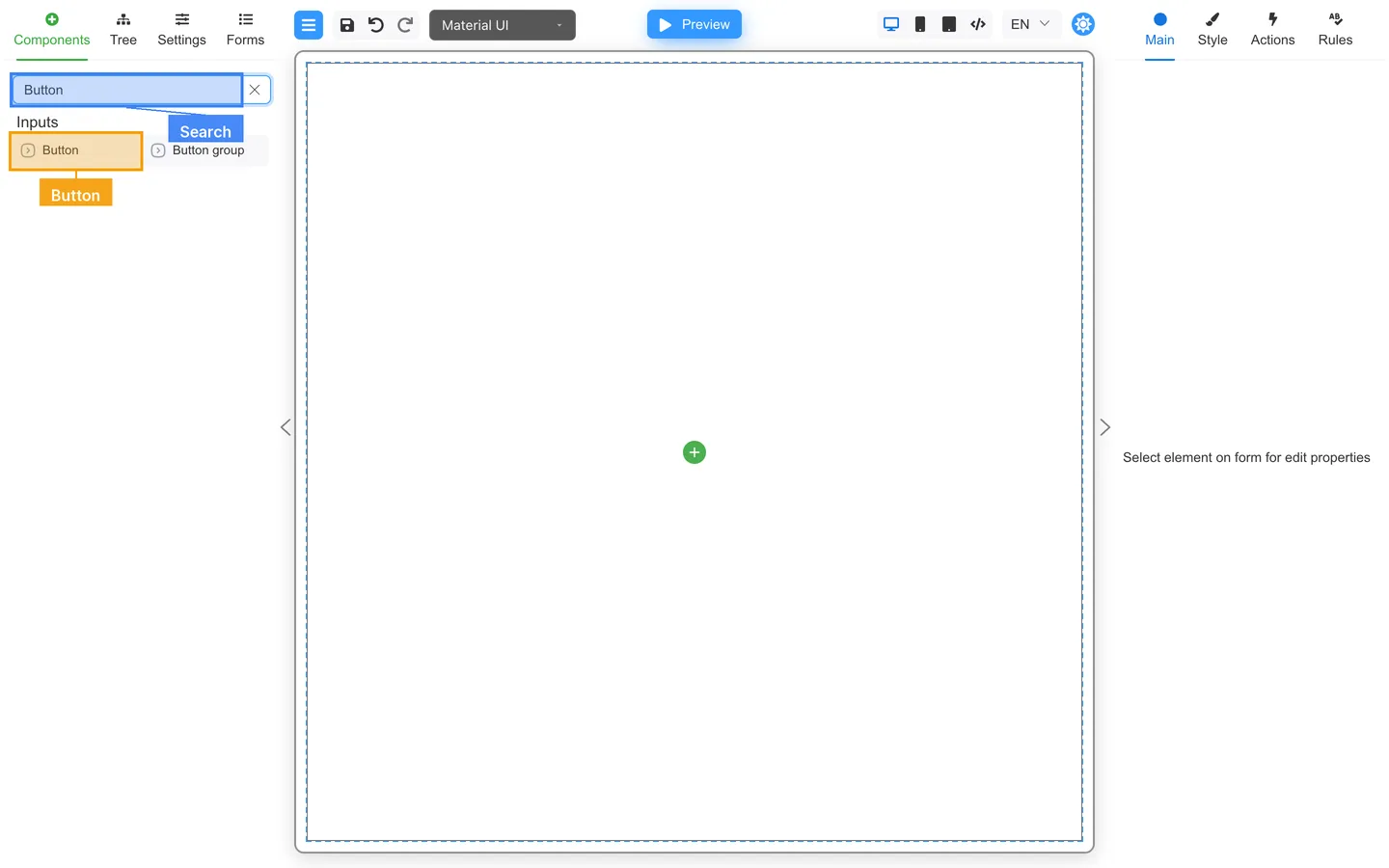
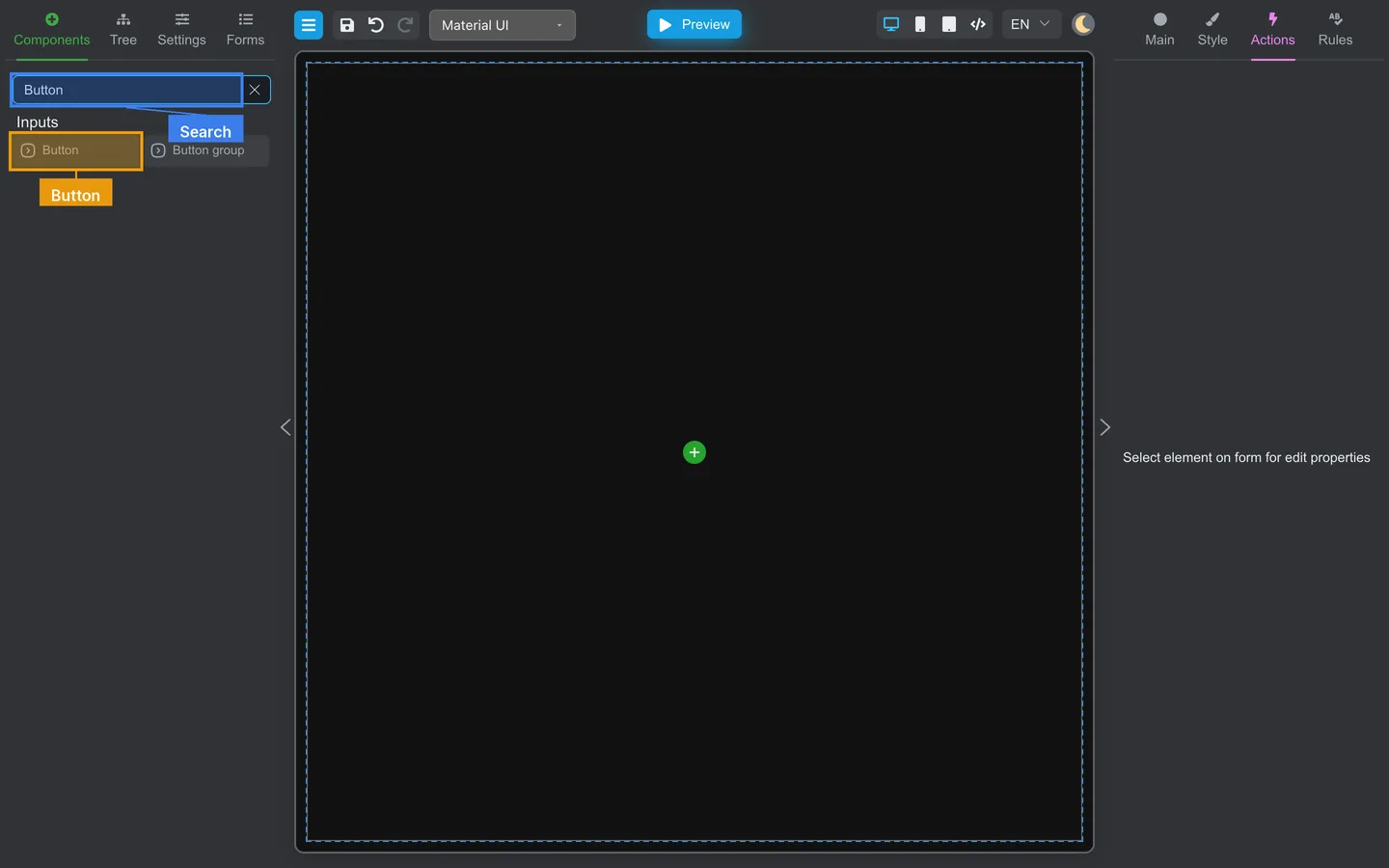
- Open Components.
- Search for Button.
- Drag Button onto the canvas.
- Click the button to select it (set the label to Save if you want).
Configure Actions
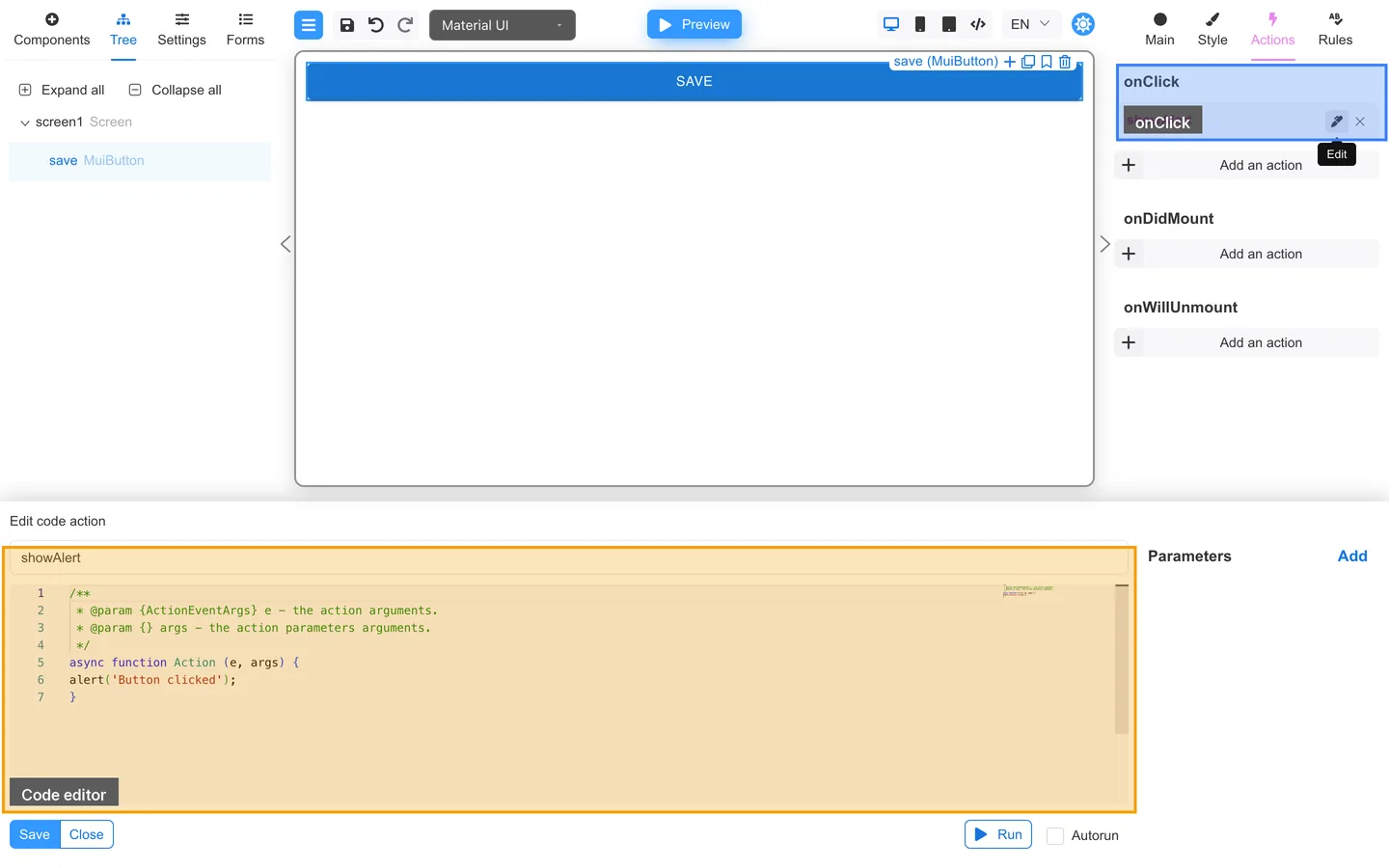
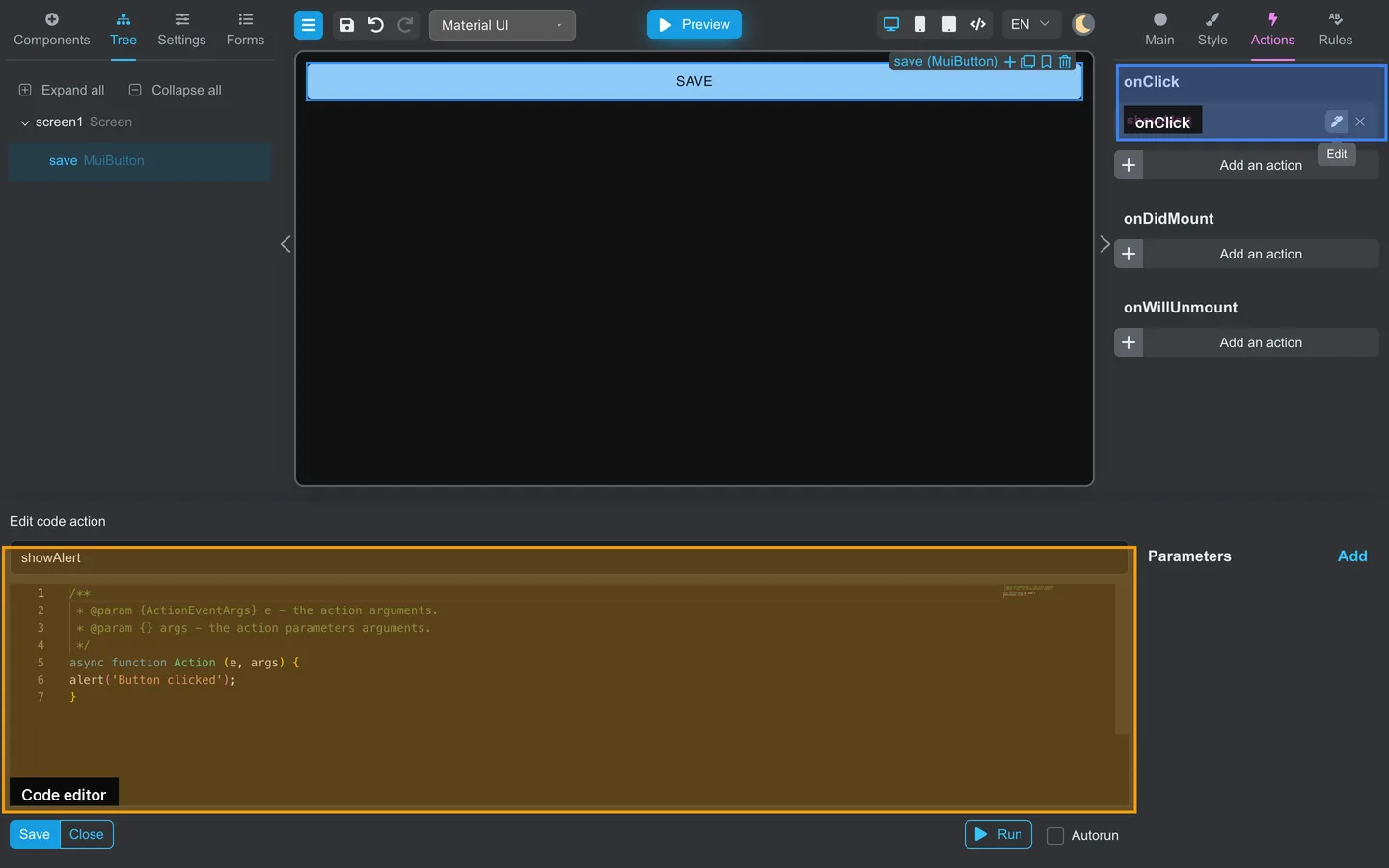
- With the button selected, open Actions.
- Under onClick, add a Code action (for example showAlert).
- Open the code editor and put an alert in the action body, for example:
alert('Button clicked');- Save the Code action.
You name a Code action when you create it in Designer. Its name and JavaScript body are stored with the form; it does not depend on
application registration. A simple alert is enough to prove the click path works.
An action supplied by the host application is a separate Custom action. Developers register Custom actions, and authors can attach only the names that the application makes available under Custom.
Test in Preview
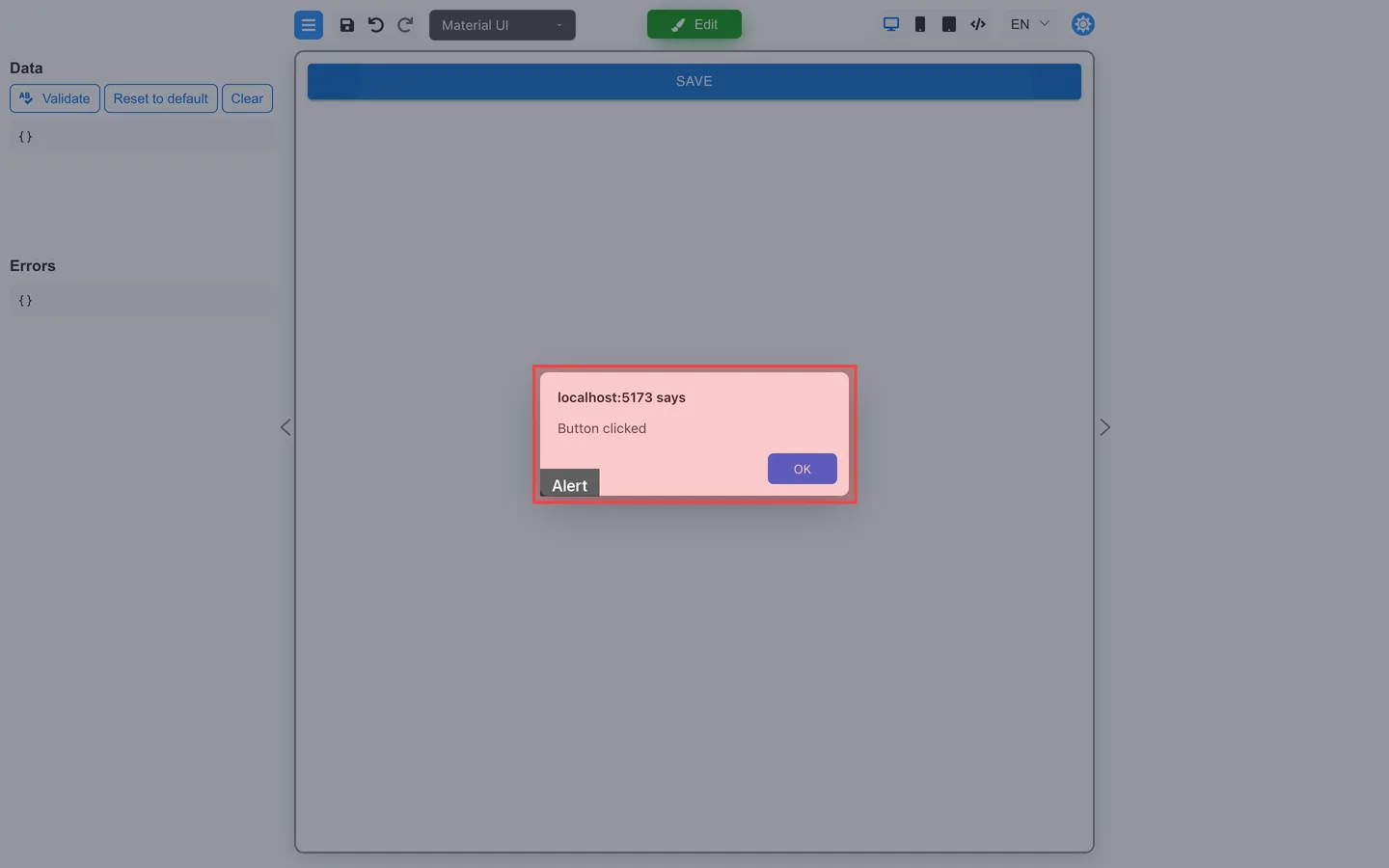
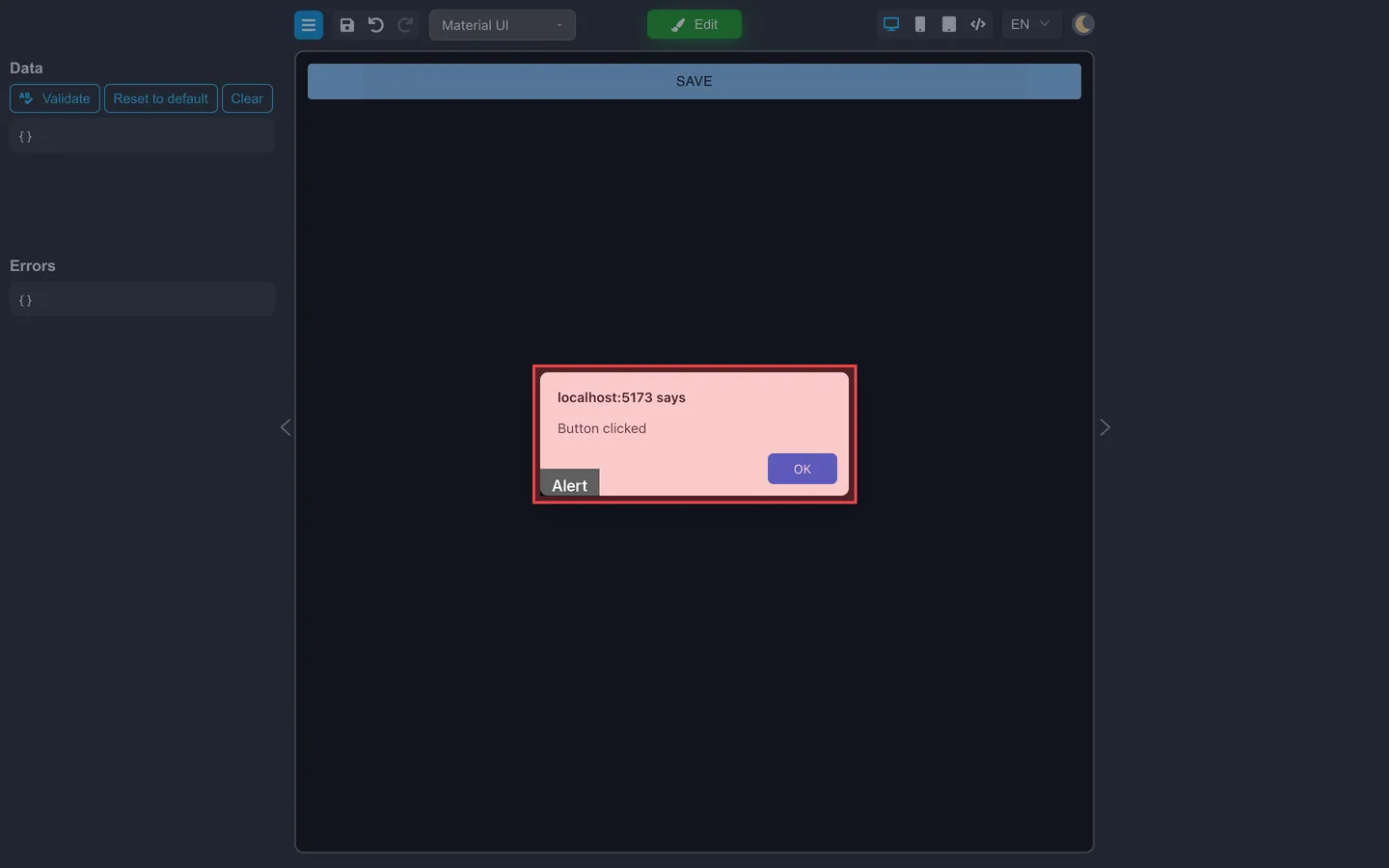
- Click Preview.
- Click the Save button.
- Confirm the alert appears with your message.
Check the result
- In Edit, Actions lists the onClick Code action.
- In Preview, clicking the button runs that code (here, an alert).
Summary
Button behaviors live on Actions for the selected button. Start with a Code action and alert to verify the click path. Then add a
Common action such as validate, or use a Custom action registered by your application for submit or integration behavior.