


Use the left panel tabs
The left panel switches between four tabs. Each tab answers a different question: what can I add, how is the form structured, what are the form-wide settings, and which saved forms exist.
Before you begin
- Complete The Designer workspace so you know how the left panel fits the screen.
Components tab
- Click Components.
- Use Search… to filter the list.
- Drag a component (for example Text field) onto the canvas.
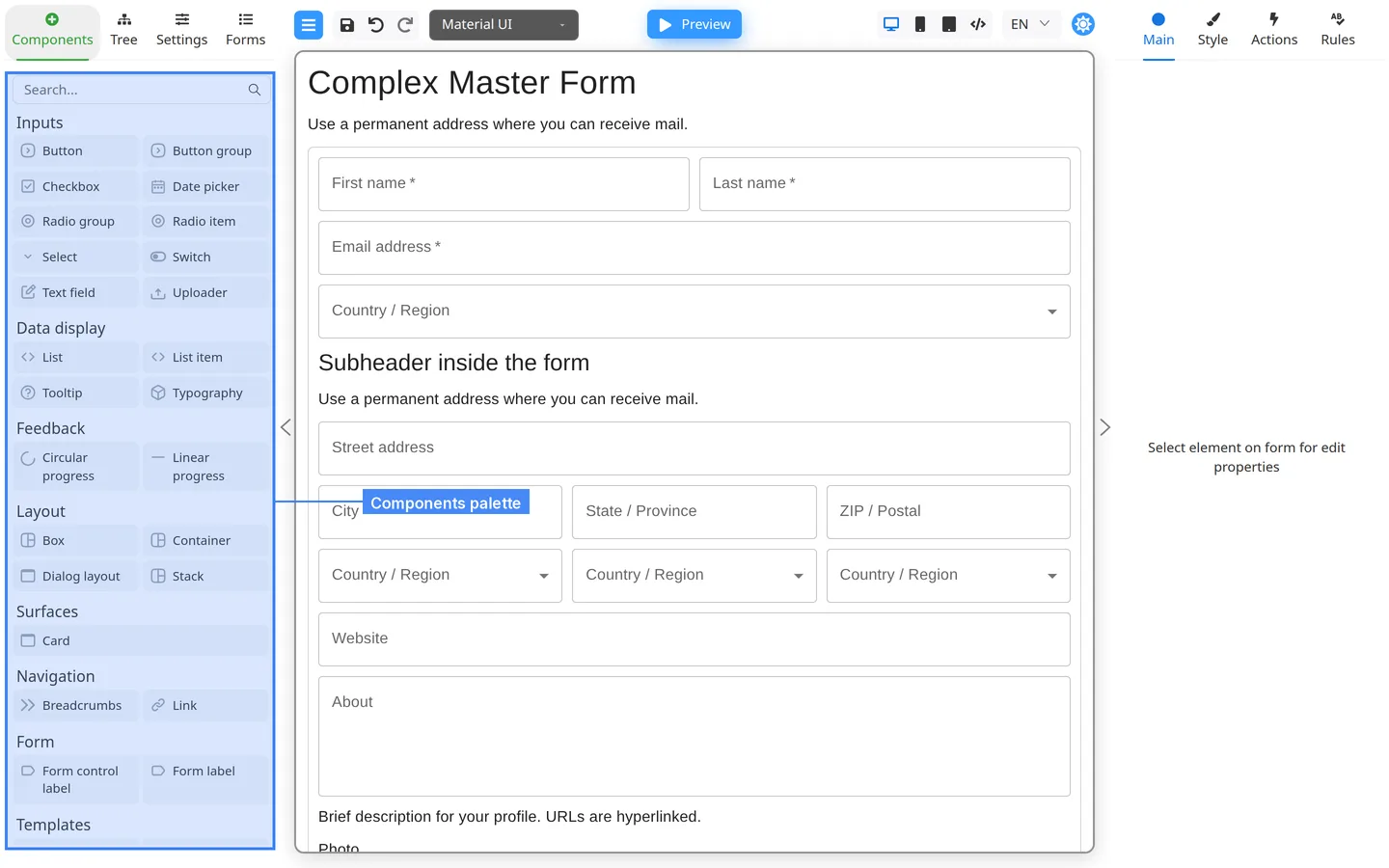
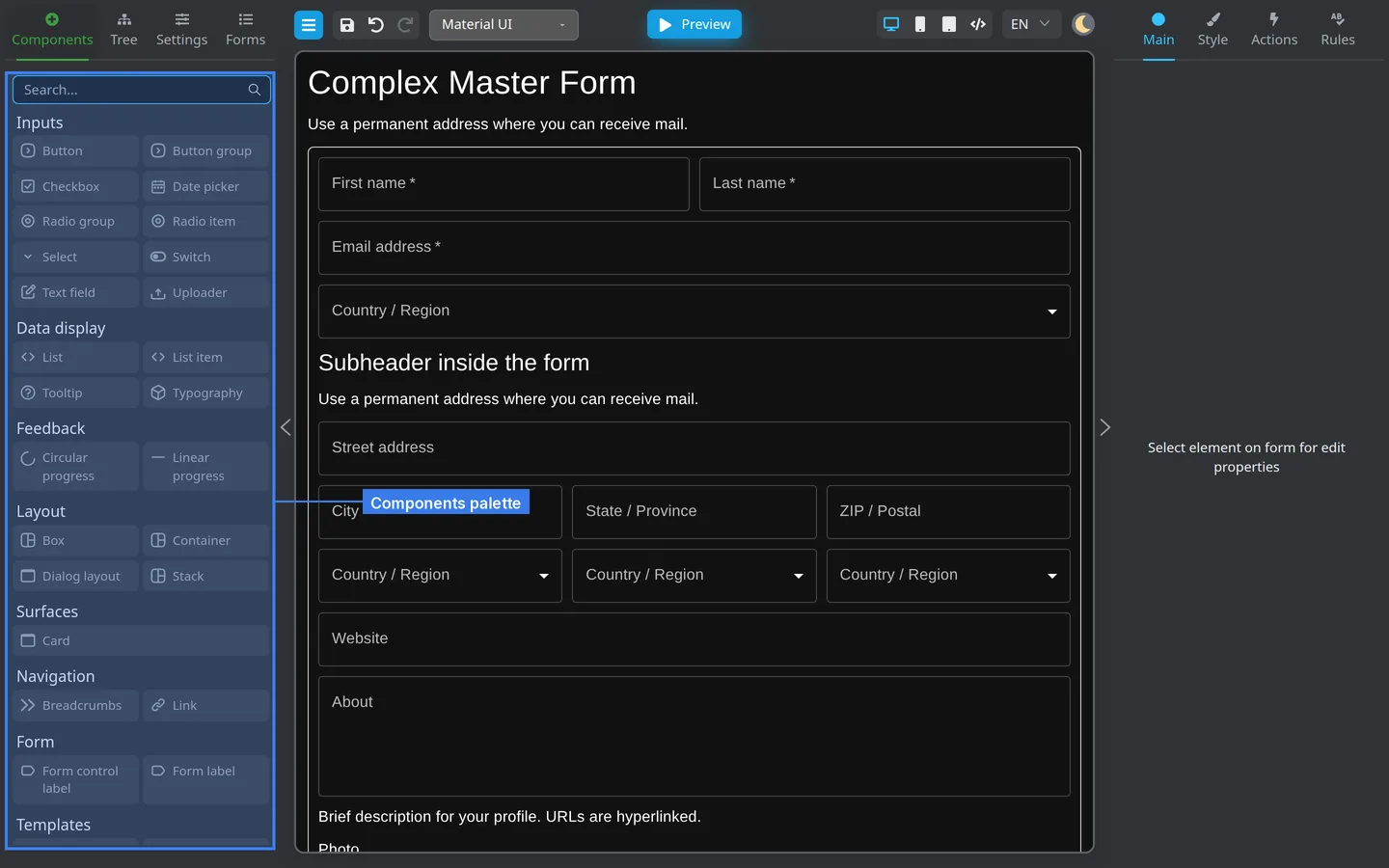
Categories include Inputs, Layout, Form, and Templates. Names match the library you chose in Component library (for example Material UI).
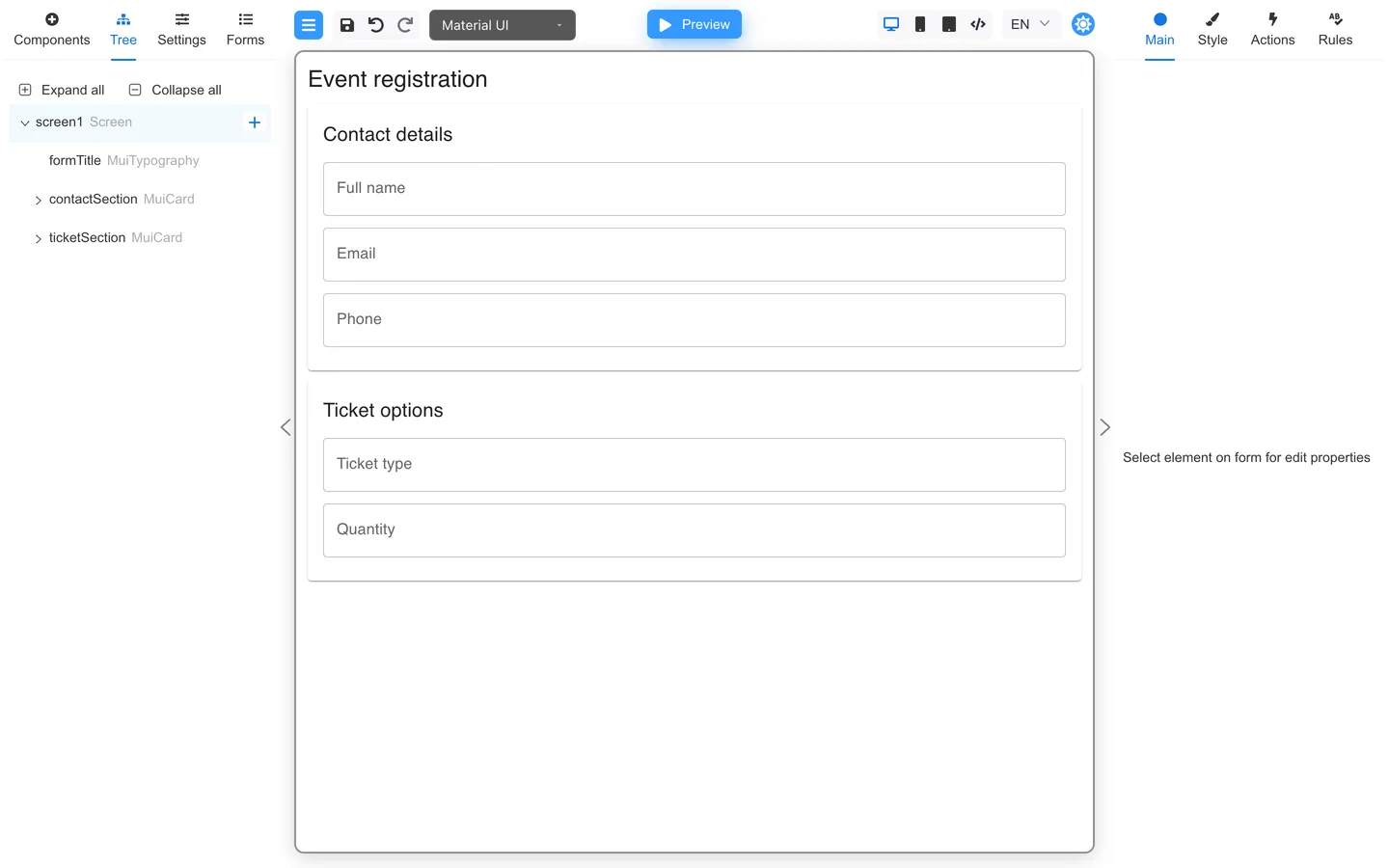
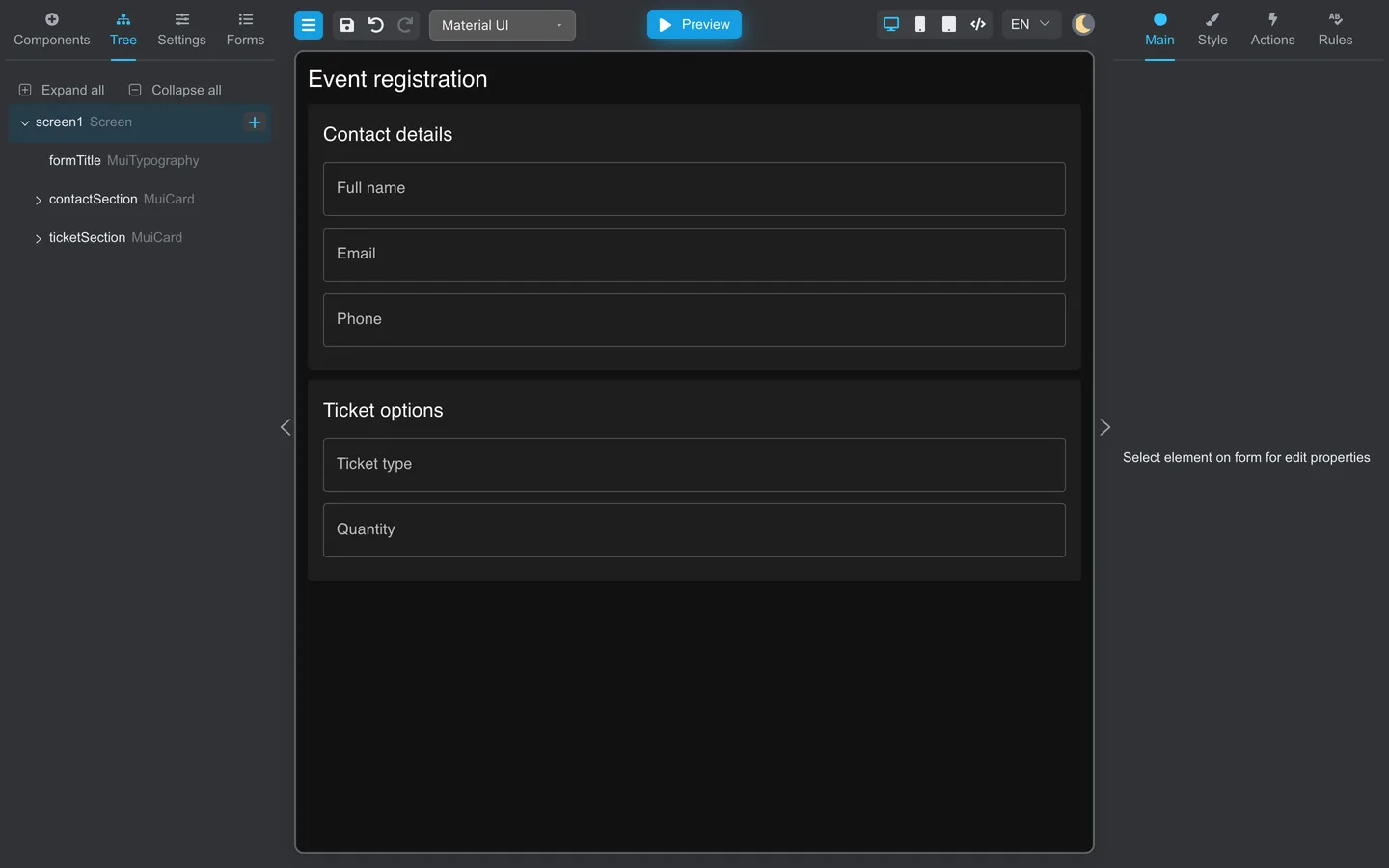
Tree tab
- Click Tree.
- Use Expand all or Collapse all for large forms.
- Click a row (for example under
screen1) to select that component on the canvas.
The tree shows nested containers and fields. Use it when the canvas is crowded.
Settings tab
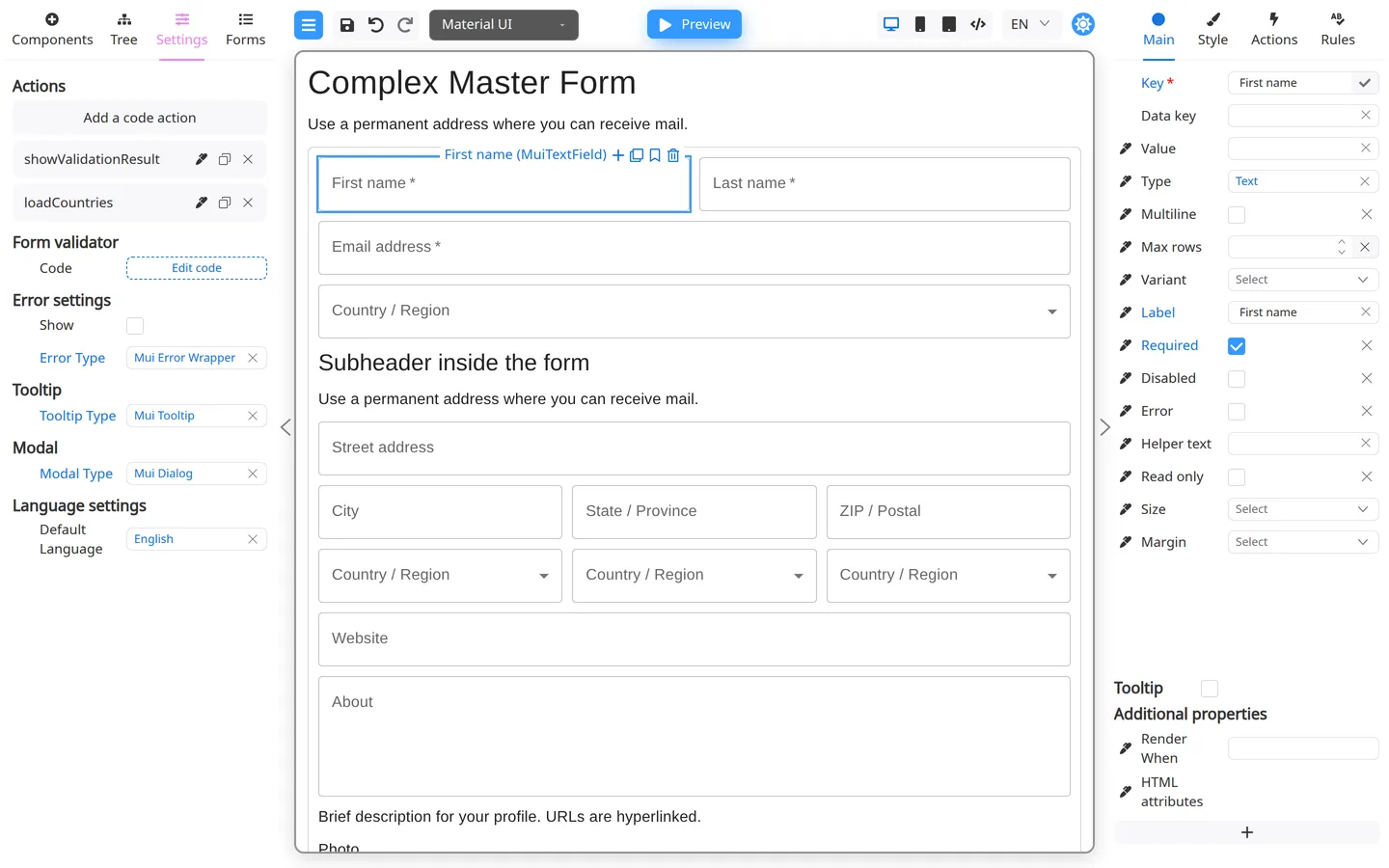
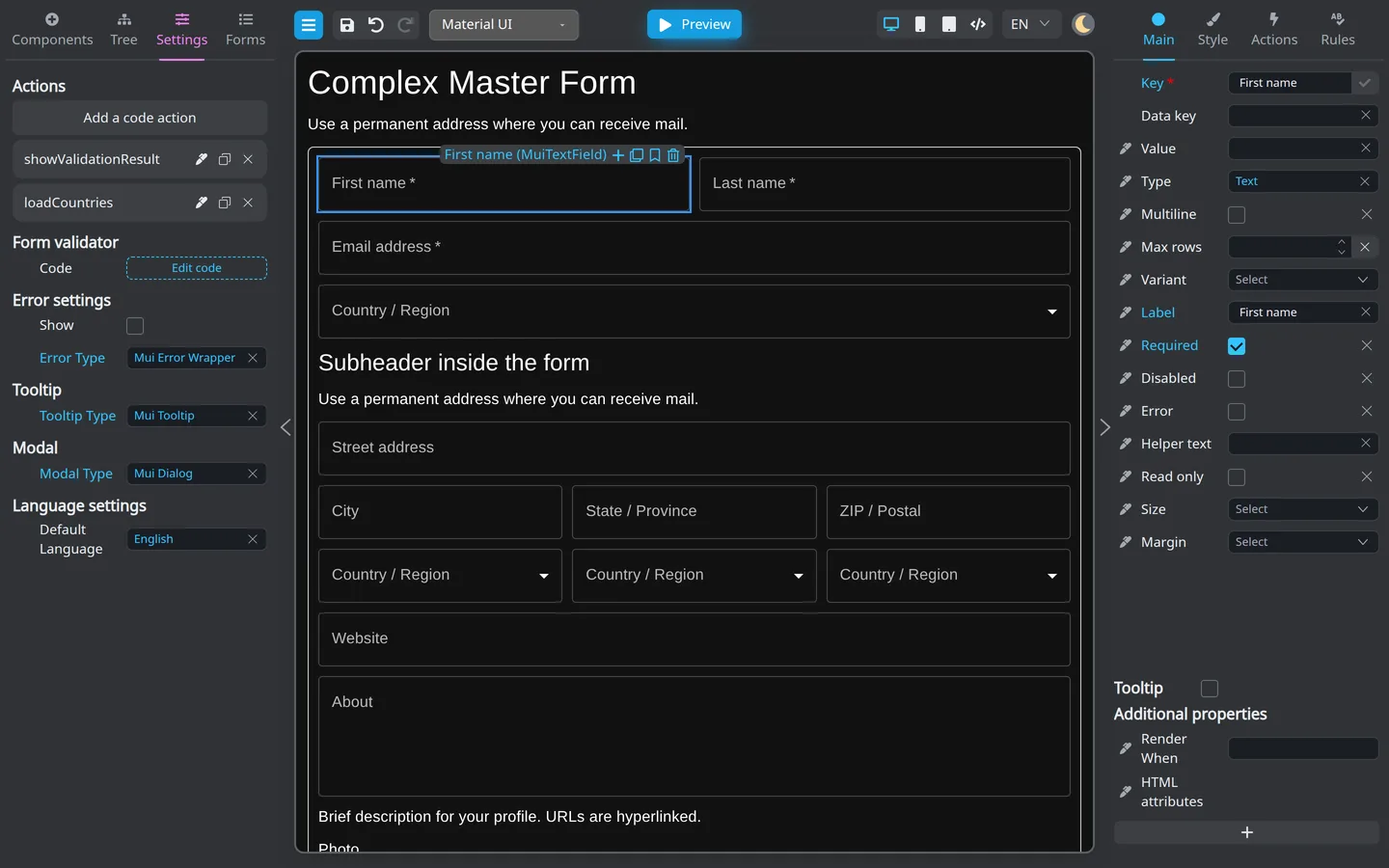
- Click Settings.
- Review blocks such as form Actions, Form validator, error display, Tooltip, Modal, and Language.
These settings apply to the entire form, not the single field selected on the canvas.
Forms tab
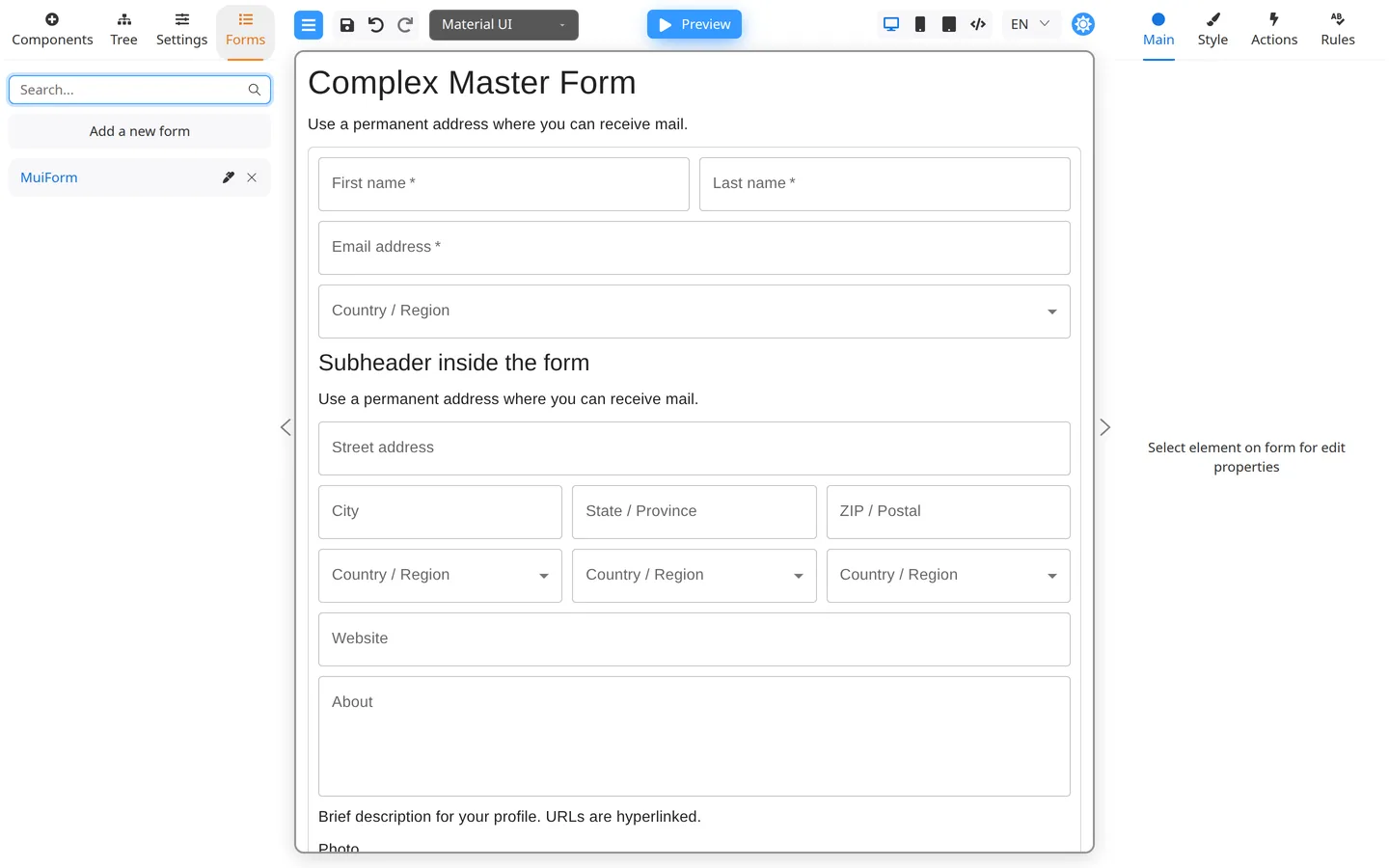
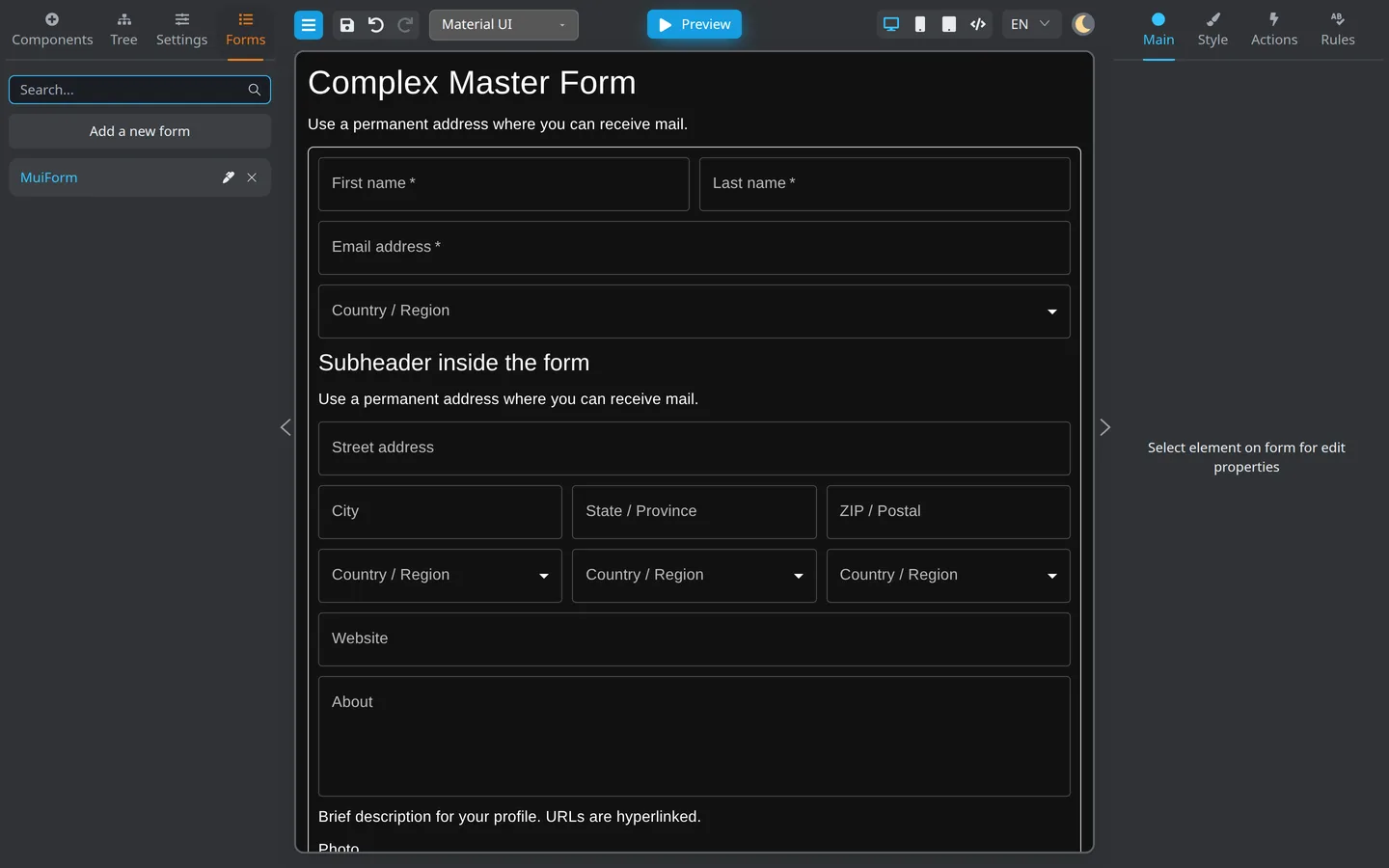
- Click Forms.
- Add, open, search, or delete saved forms from the list.
Each name in the list is a separate form. The Tree root of the open form is the screen. Your app shows that form on a page; you do not build that page in Designer.
Check the result
- Switching tabs changes the left content but keeps the canvas visible (except in Preview).
- Selecting in the Tree highlights the same component as on the canvas.
Summary
Use Components to add fields, Tree for structure, Settings for the whole form, and Forms for the saved-forms list. Search speeds up large libraries. Whether Forms appears depends on storage configuration.